
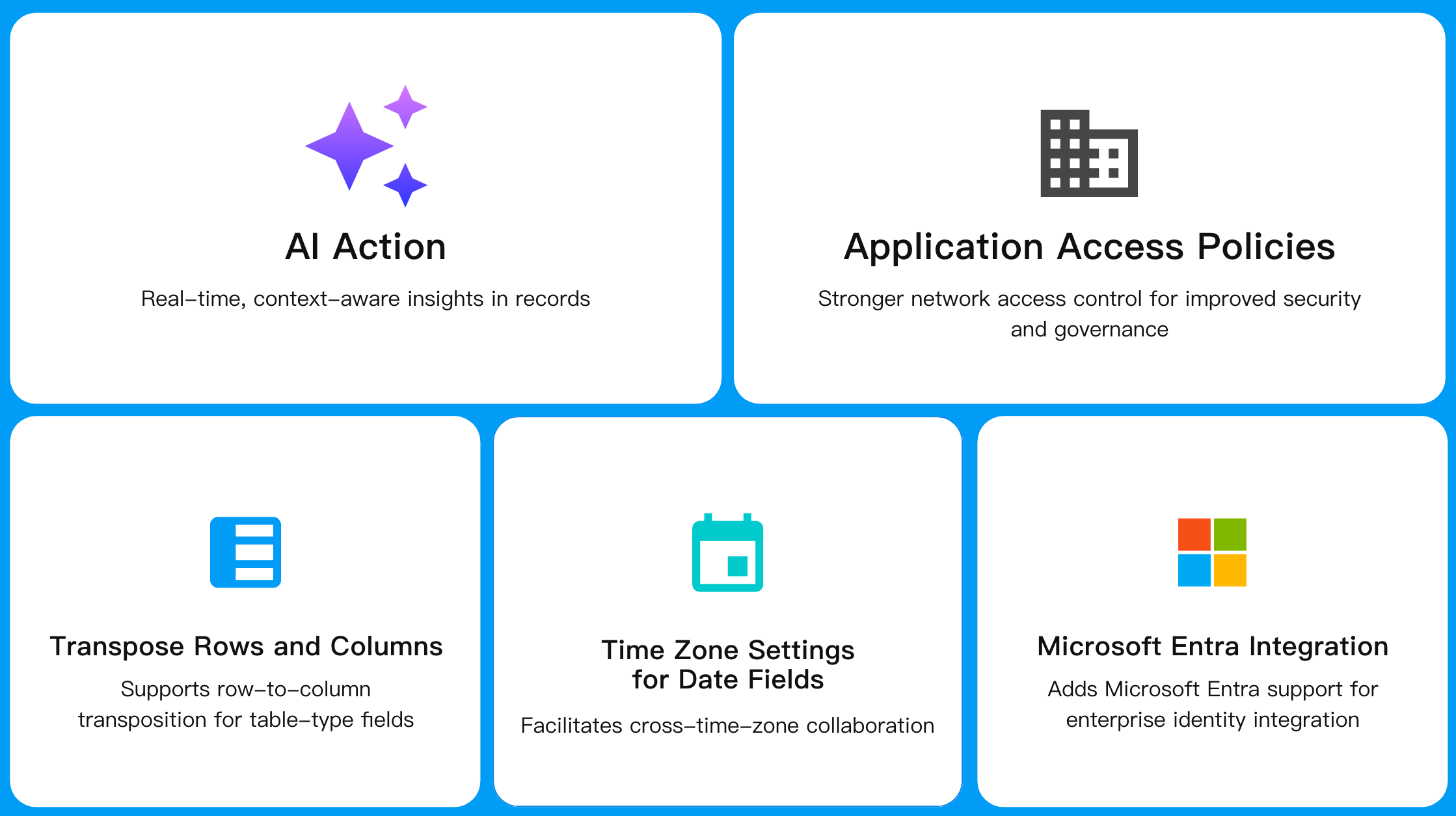
What’s New
- AI Action
- Application access policies
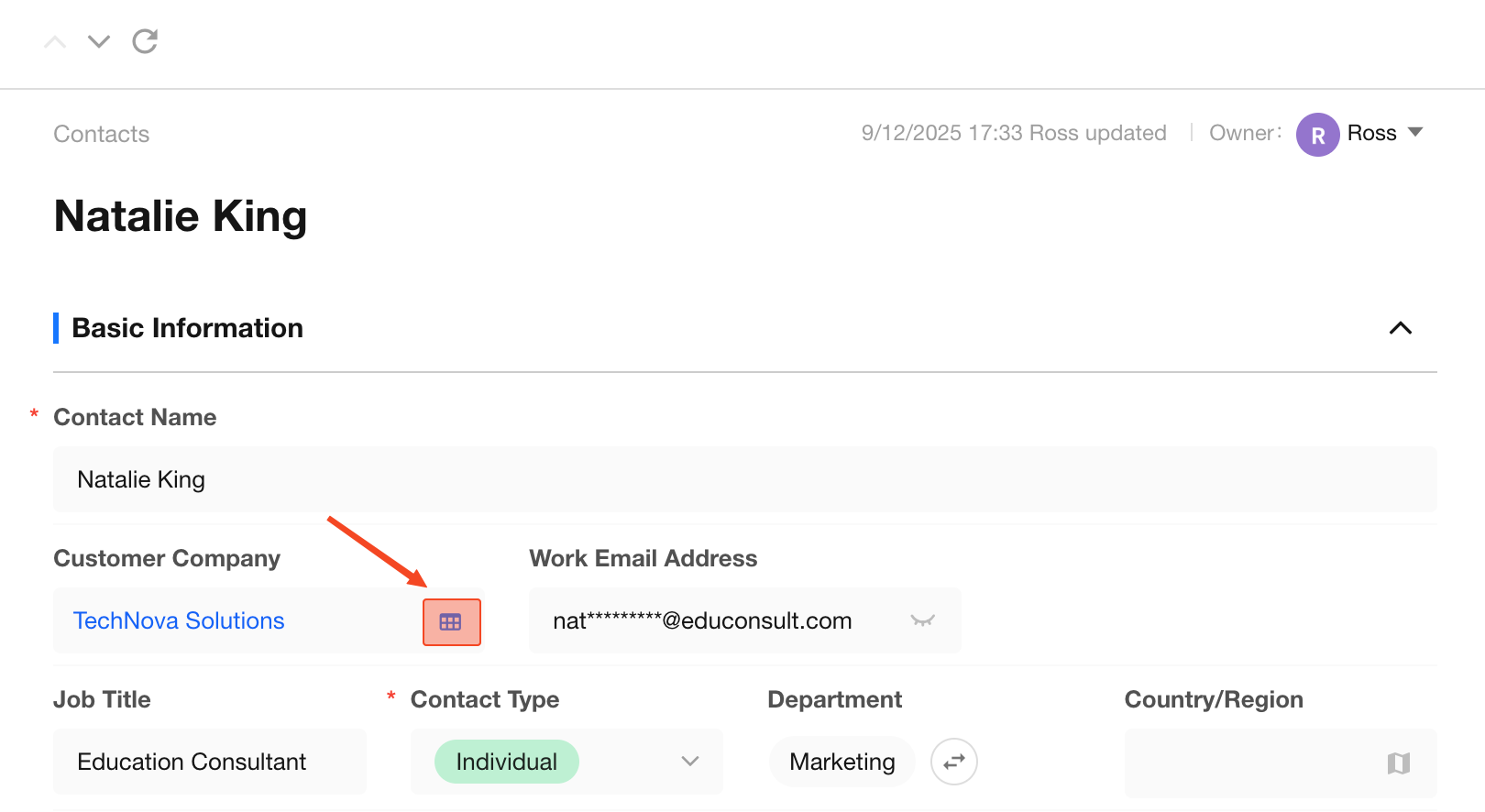
- Row-to-column transposition for table-type fields
- Time zone settings for date fields
- Microsoft Entra support for enterprise identity integration
AI Capabilities
AI Action
AI Action is a quick entry point on the record detail page for interacting with AI-powered scenarios.
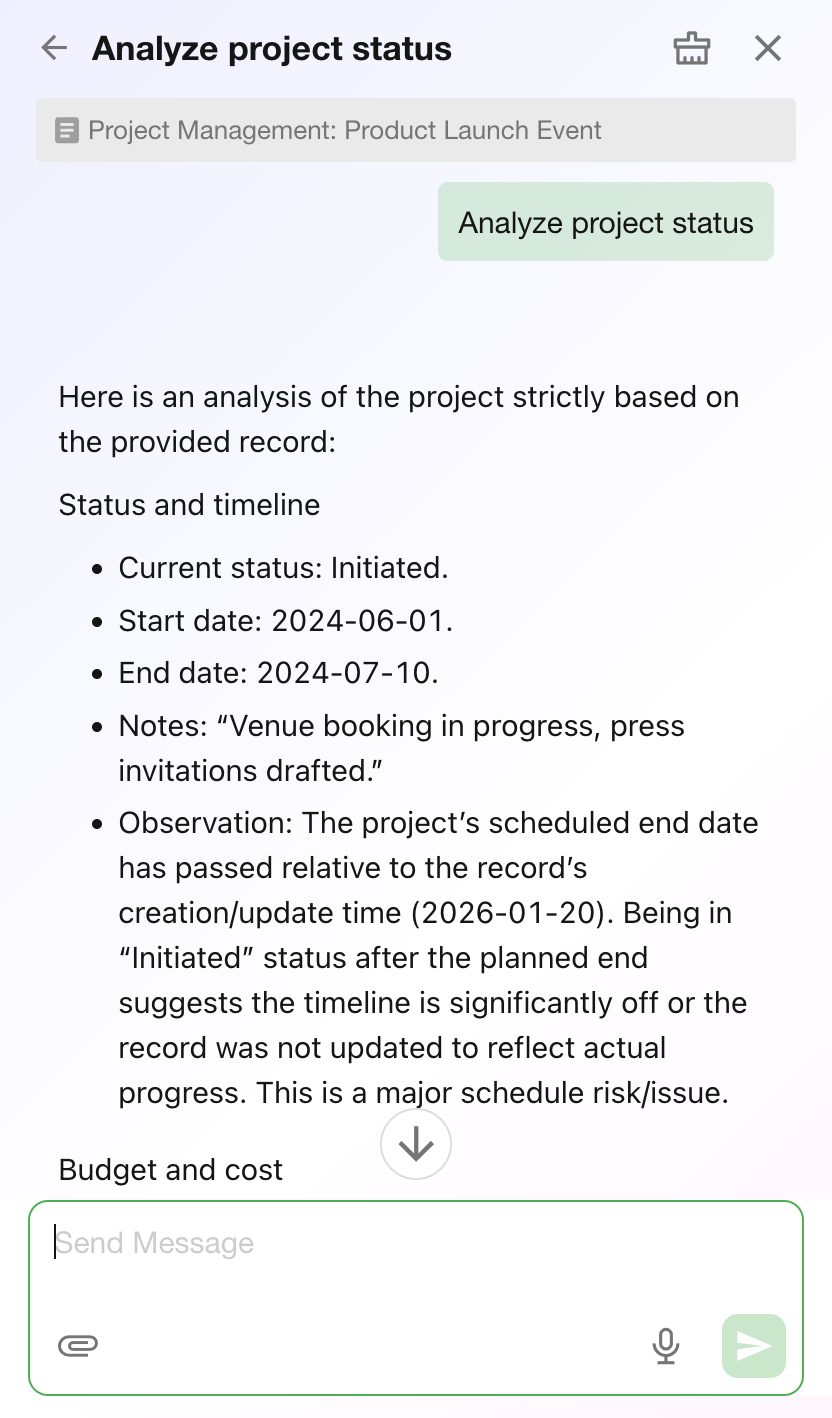
When a user selects an AI Action, a multi-turn conversation session centered on the current record is initiated. The system automatically injects context such as record fields, discussions, and activity logs, and continuously generates responses based on the configured prompts, models, and tools.
AI Actions are commonly used for:
- Summarizing record content
- Analyzing context and identifying key insights
- Recommending next steps
- Generating communication content and reports
- Enabling follow-up questions and discussions around the record
Each AI Action can be independently configured with its own purpose, prompts, model, tools, and scope, enabling tailored AI capabilities for different teams, industries, and business scenarios.
Usage Instructions
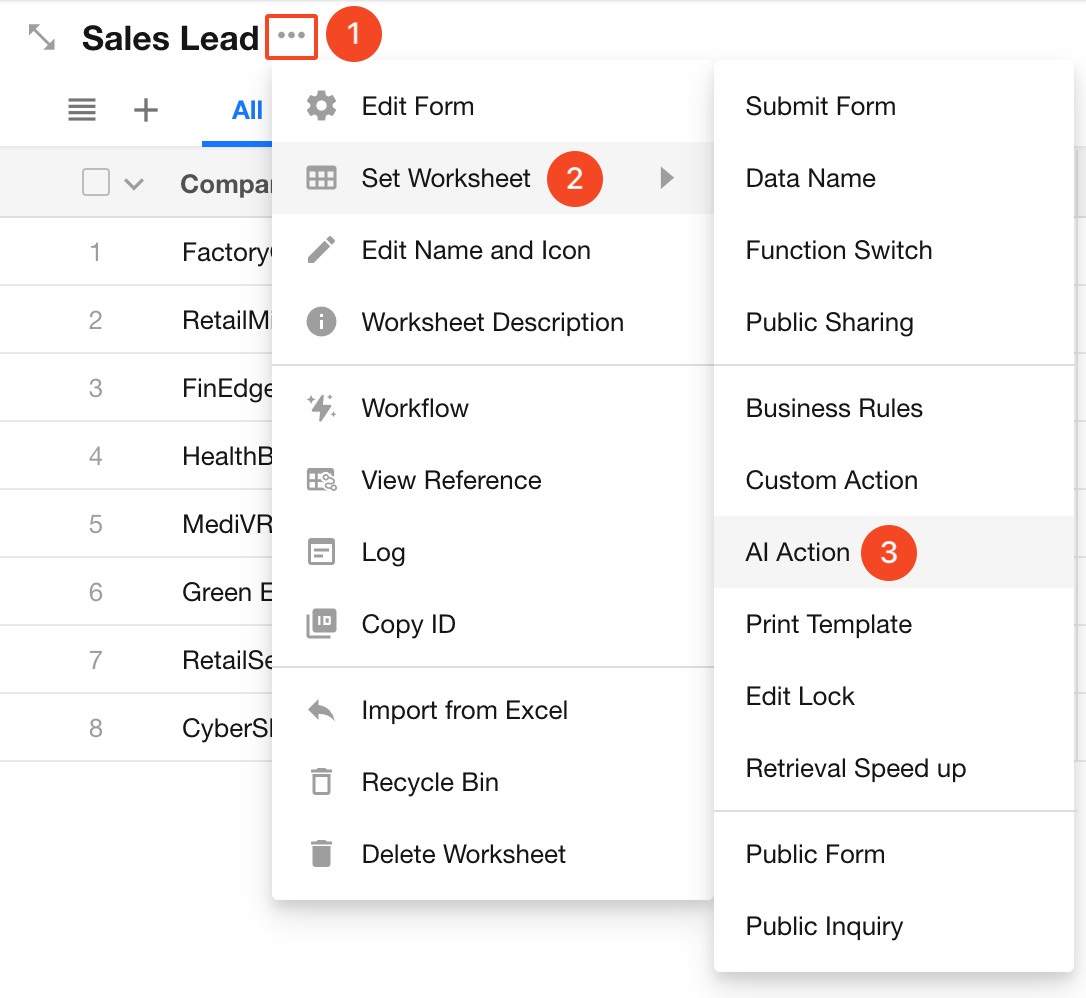
Accessing AI Actions: Record detail page > Top action bar
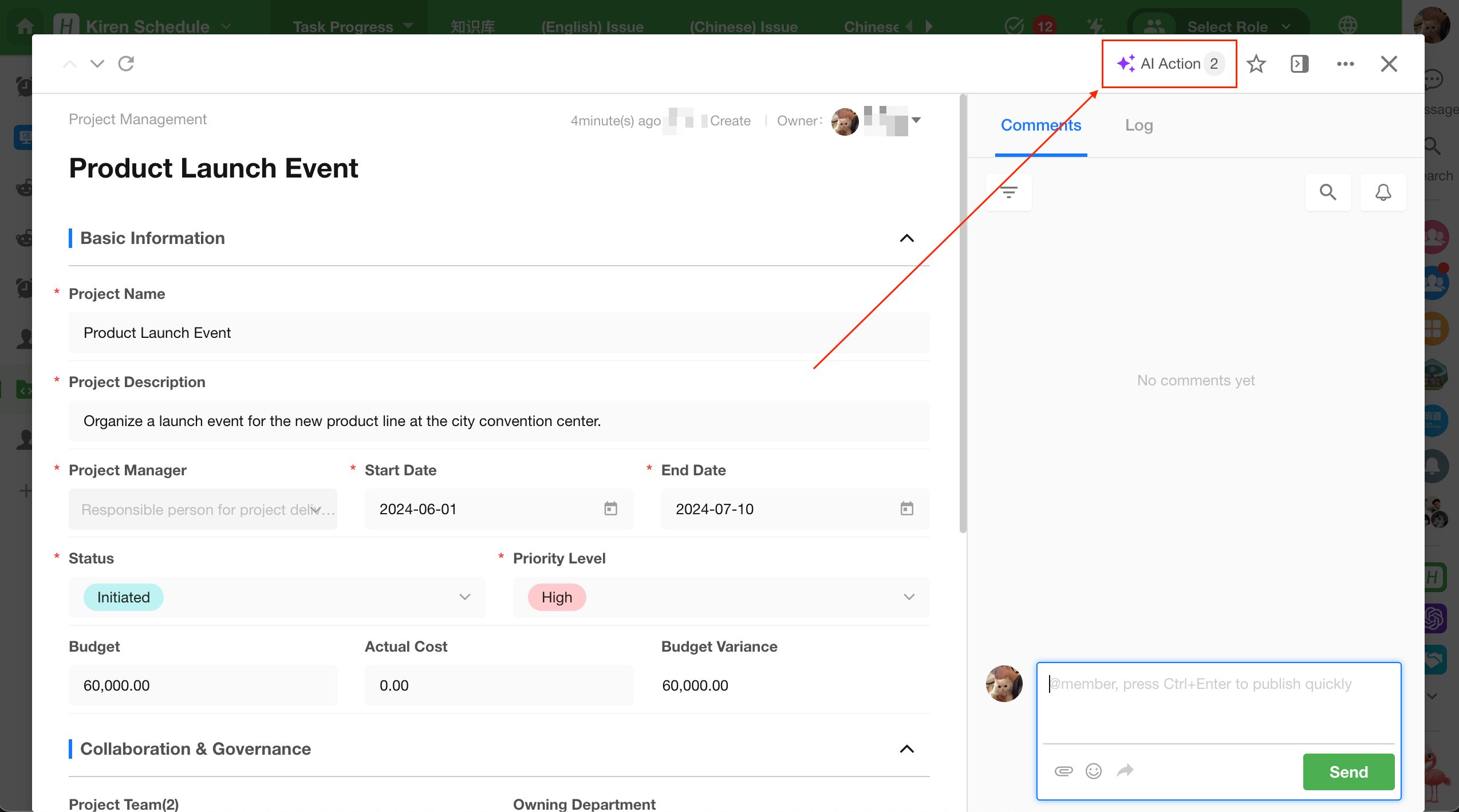
Select an AI Action.
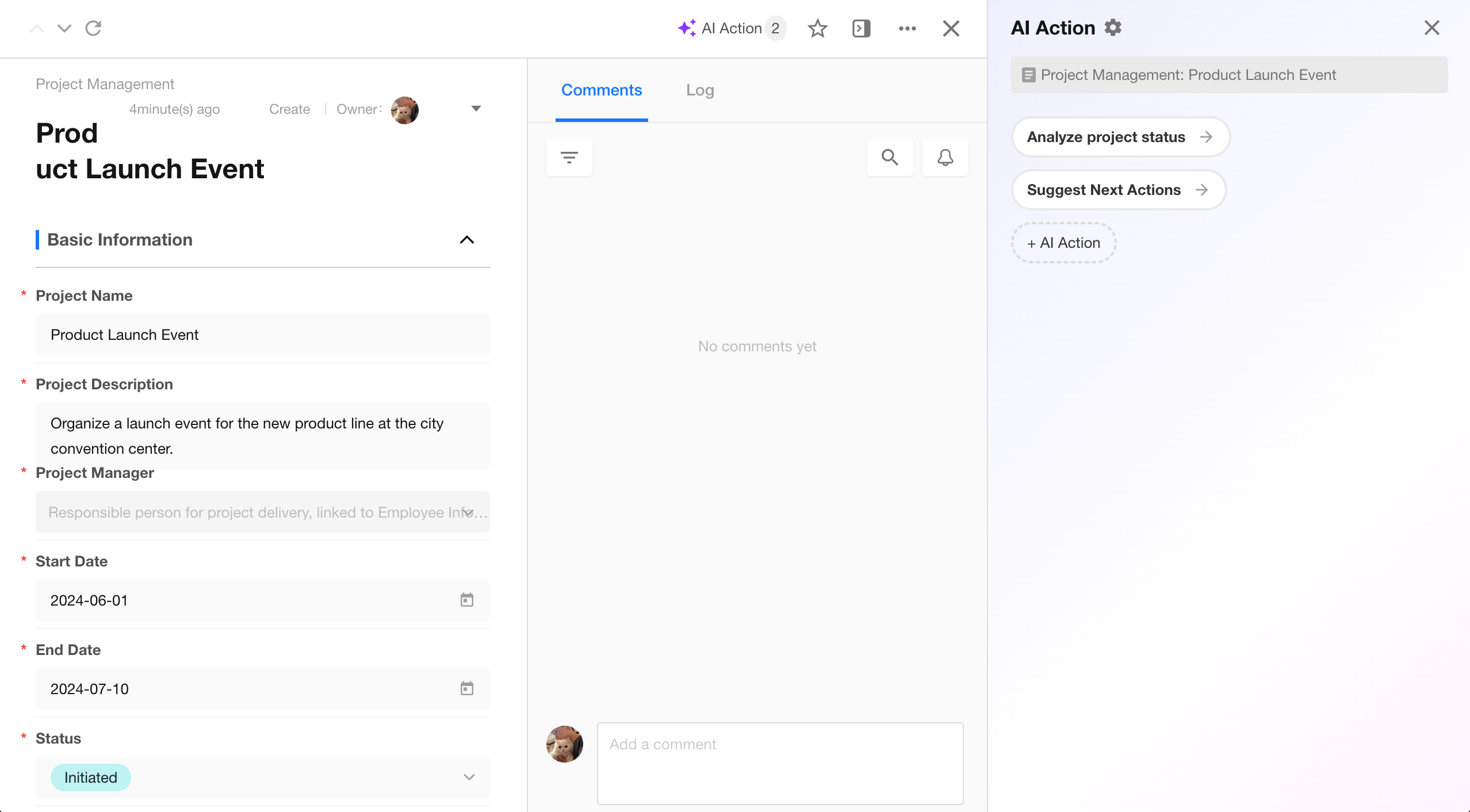 |
Continue the conversation with AI on the page.
Configuration
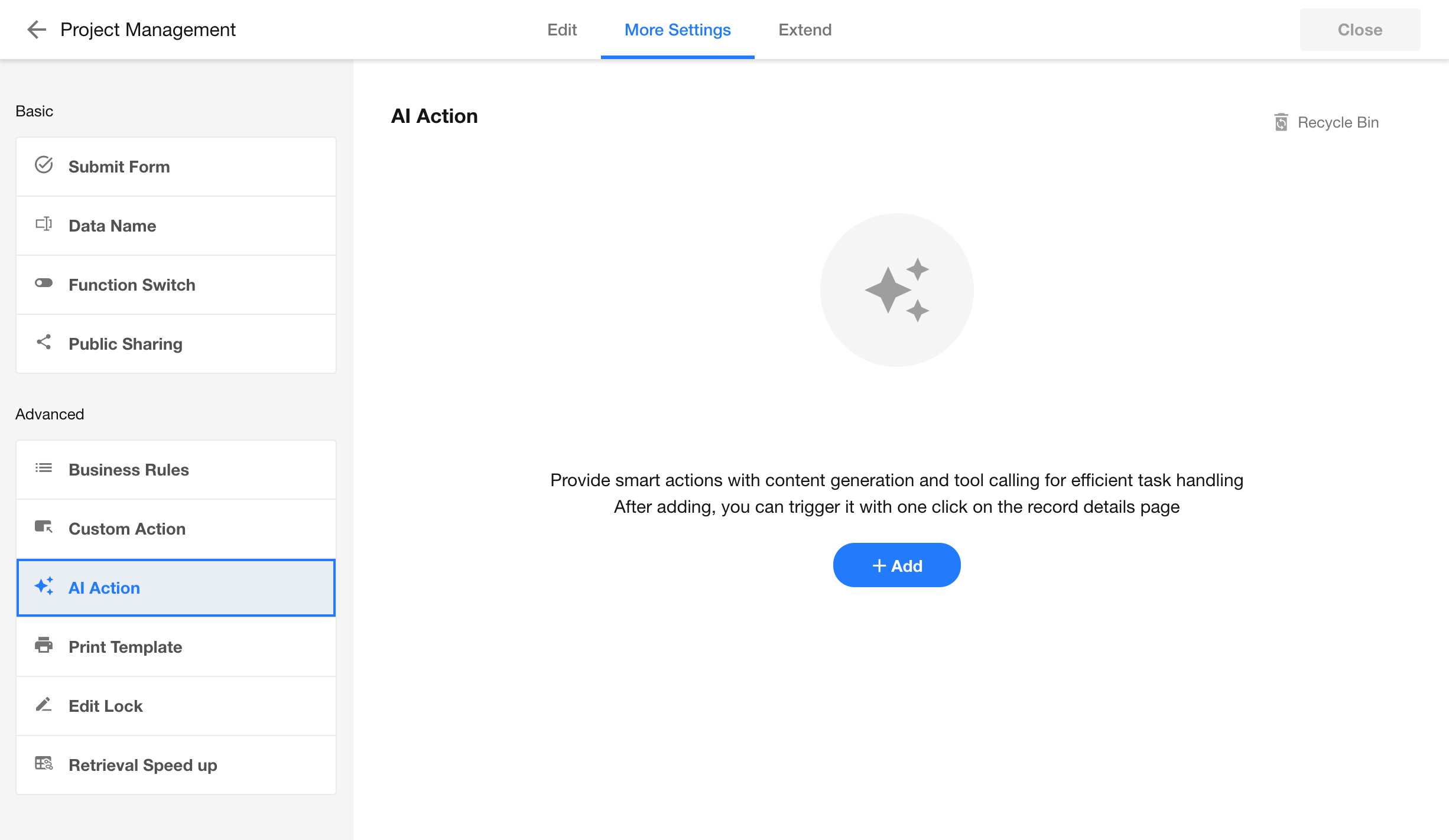
AI Action configuration page:
Click Add to create an AI Action.
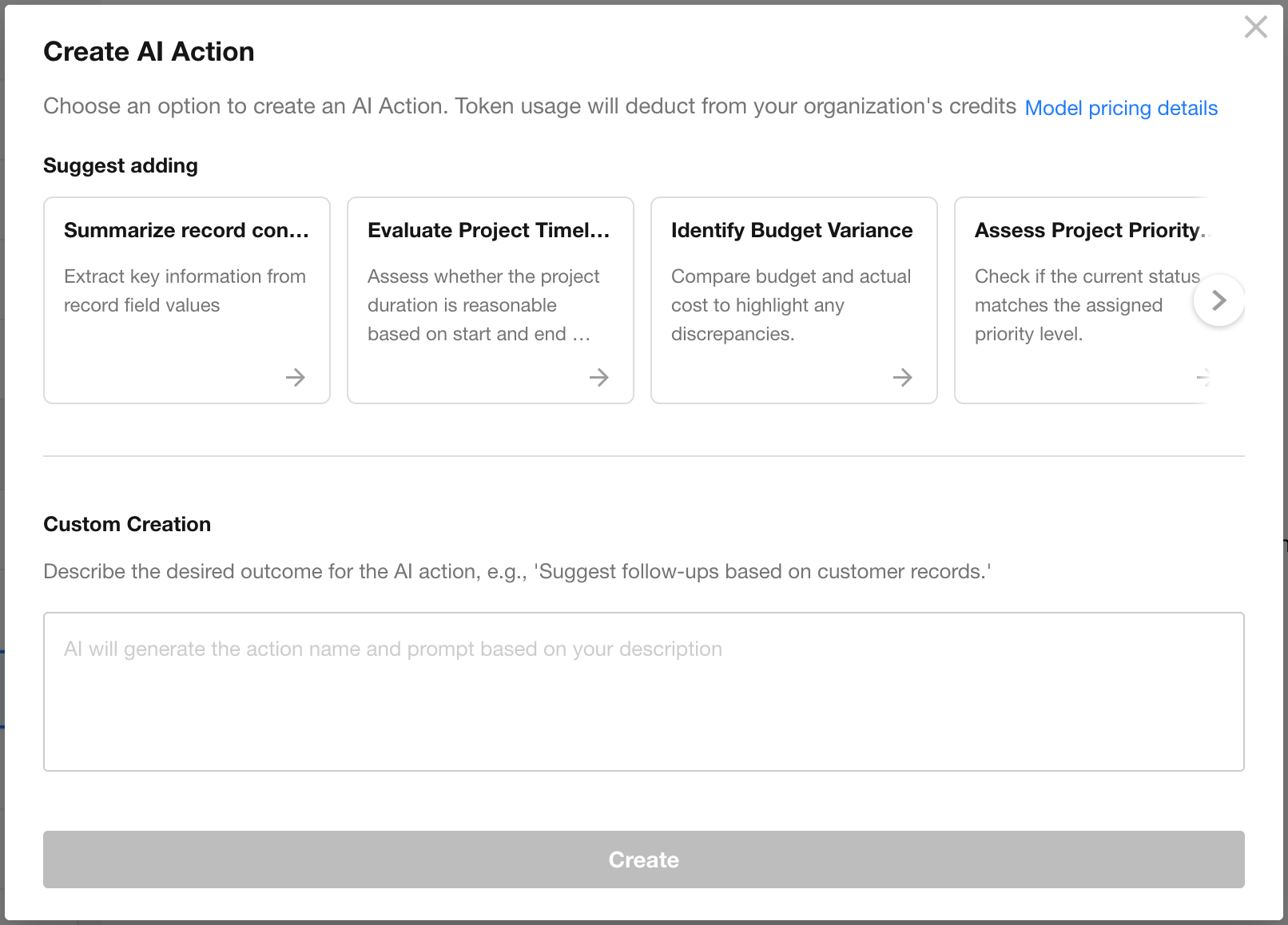
Once created, the configuration is displayed and can be adjusted as needed.
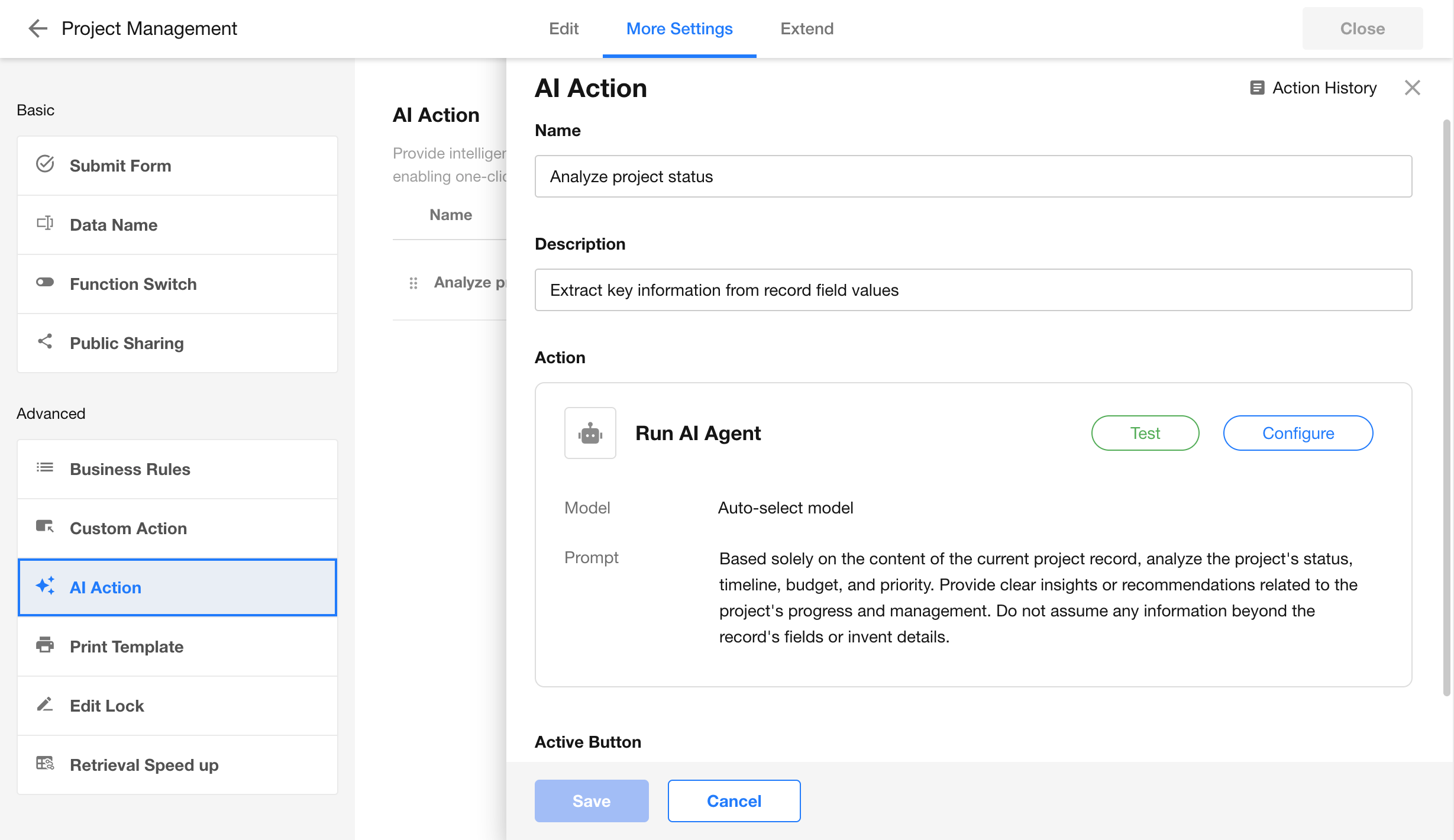
Within the configuration:
- Switch models
- Edit prompts
- Adjust memory turns
- Add tools
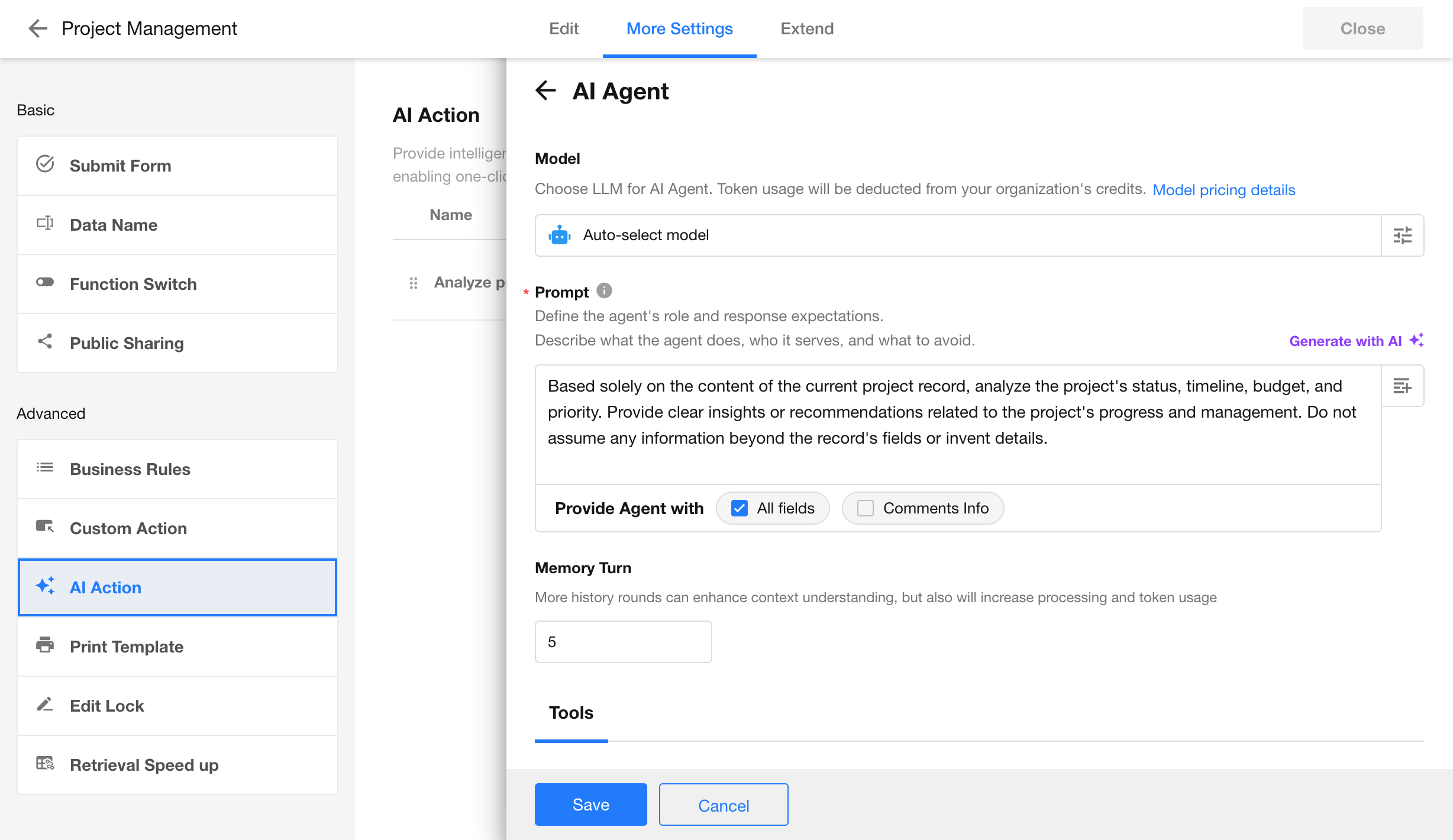
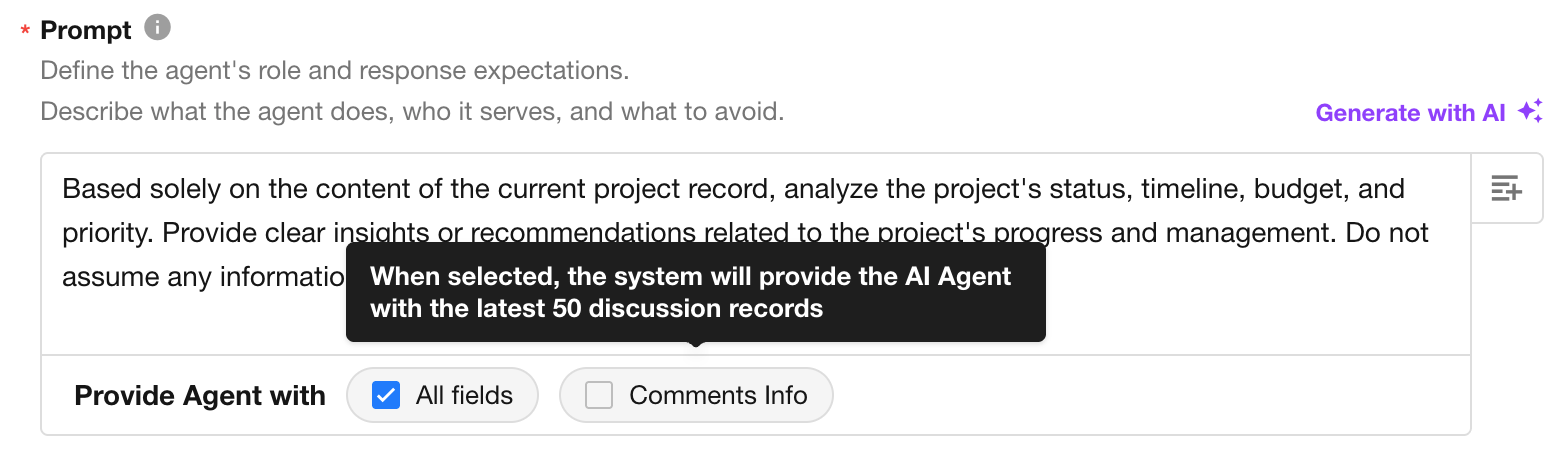
Agent context:
- Provide all fields of the current record
- Provide discussion content of the current record
Other configurations are consistent with the AI Agent node in workflow. For details, please refer to the AI Agent node documentation.
Testing
After configuration, use Test to validate the setup.
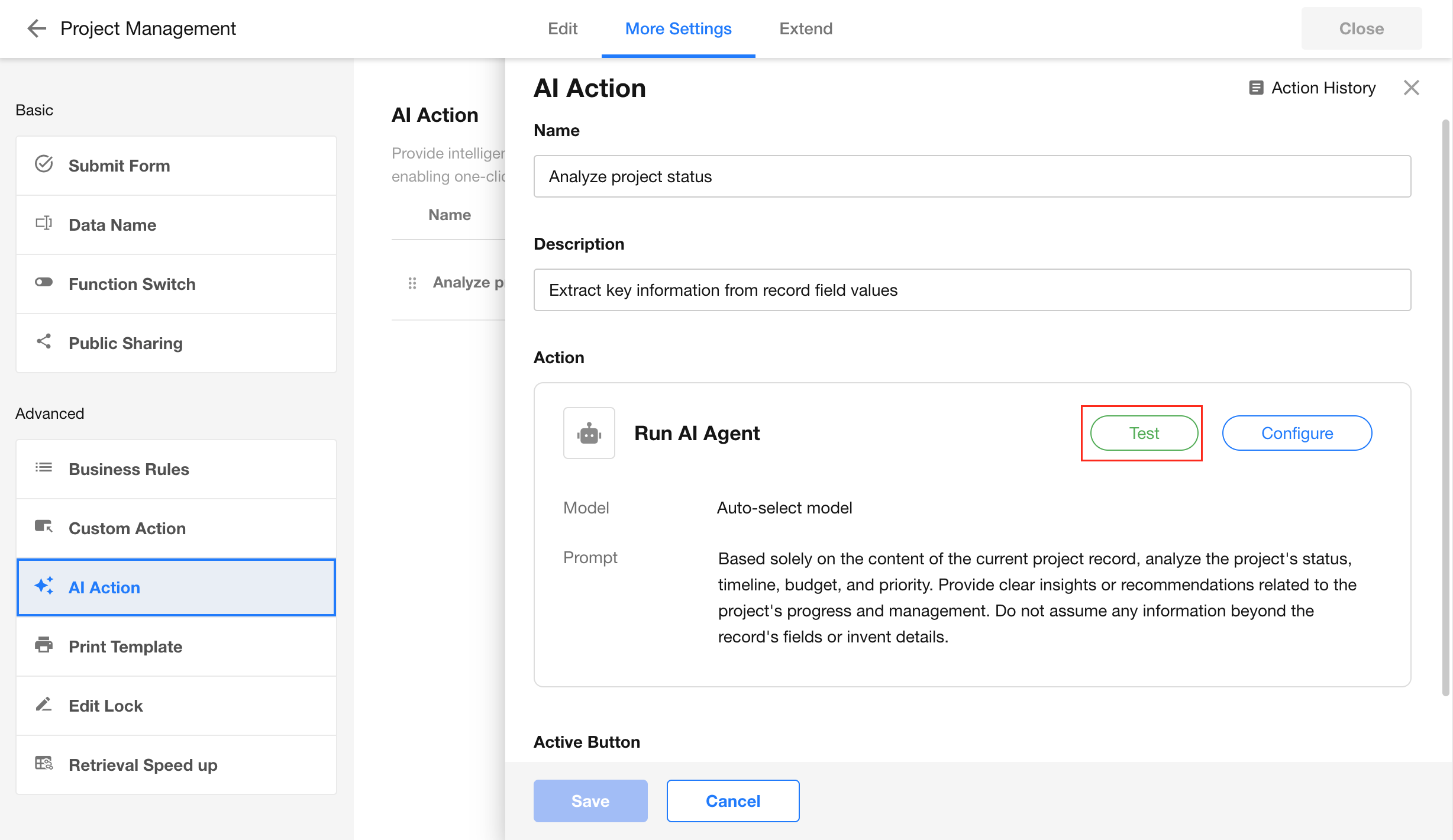
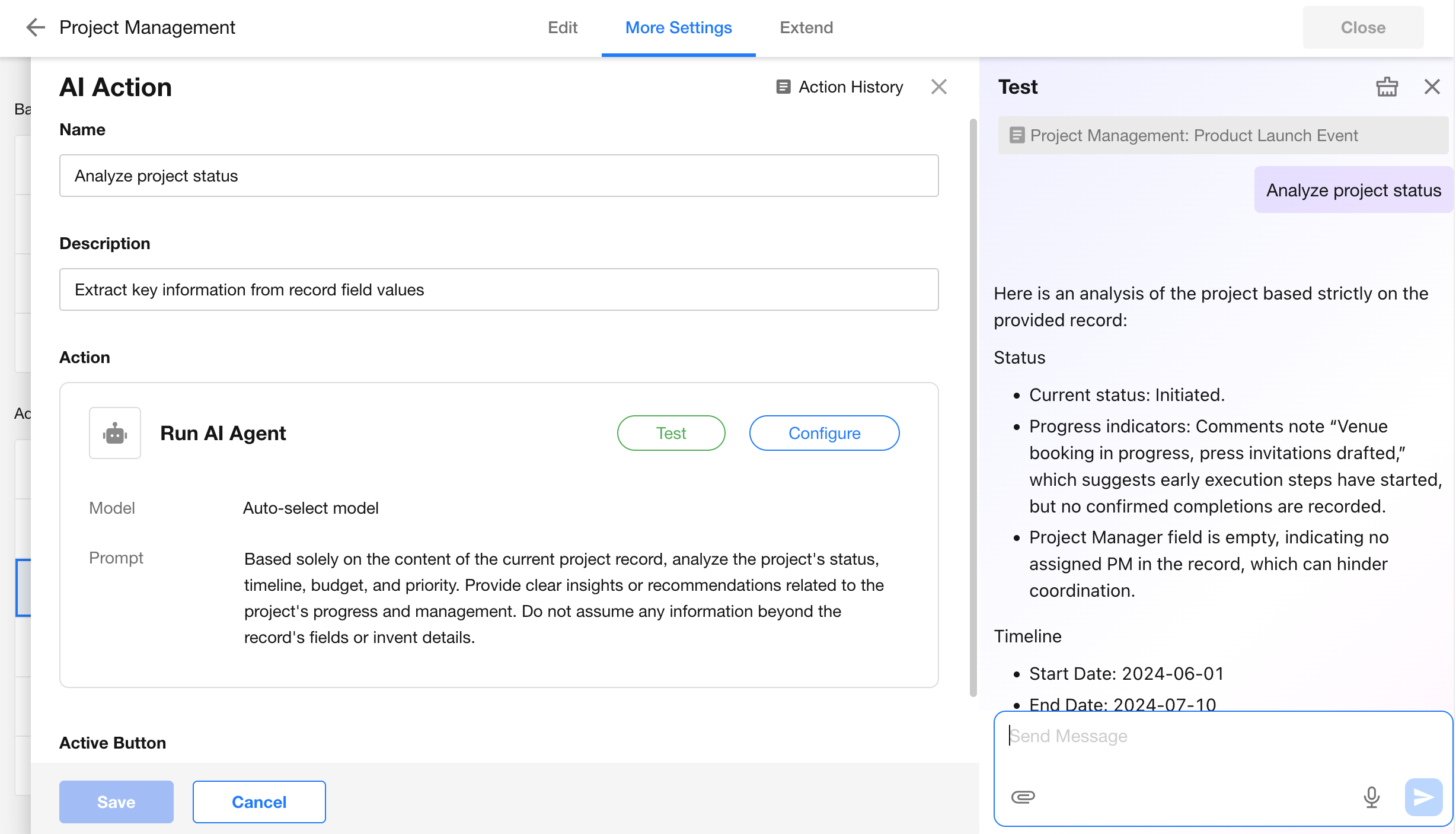
Action History
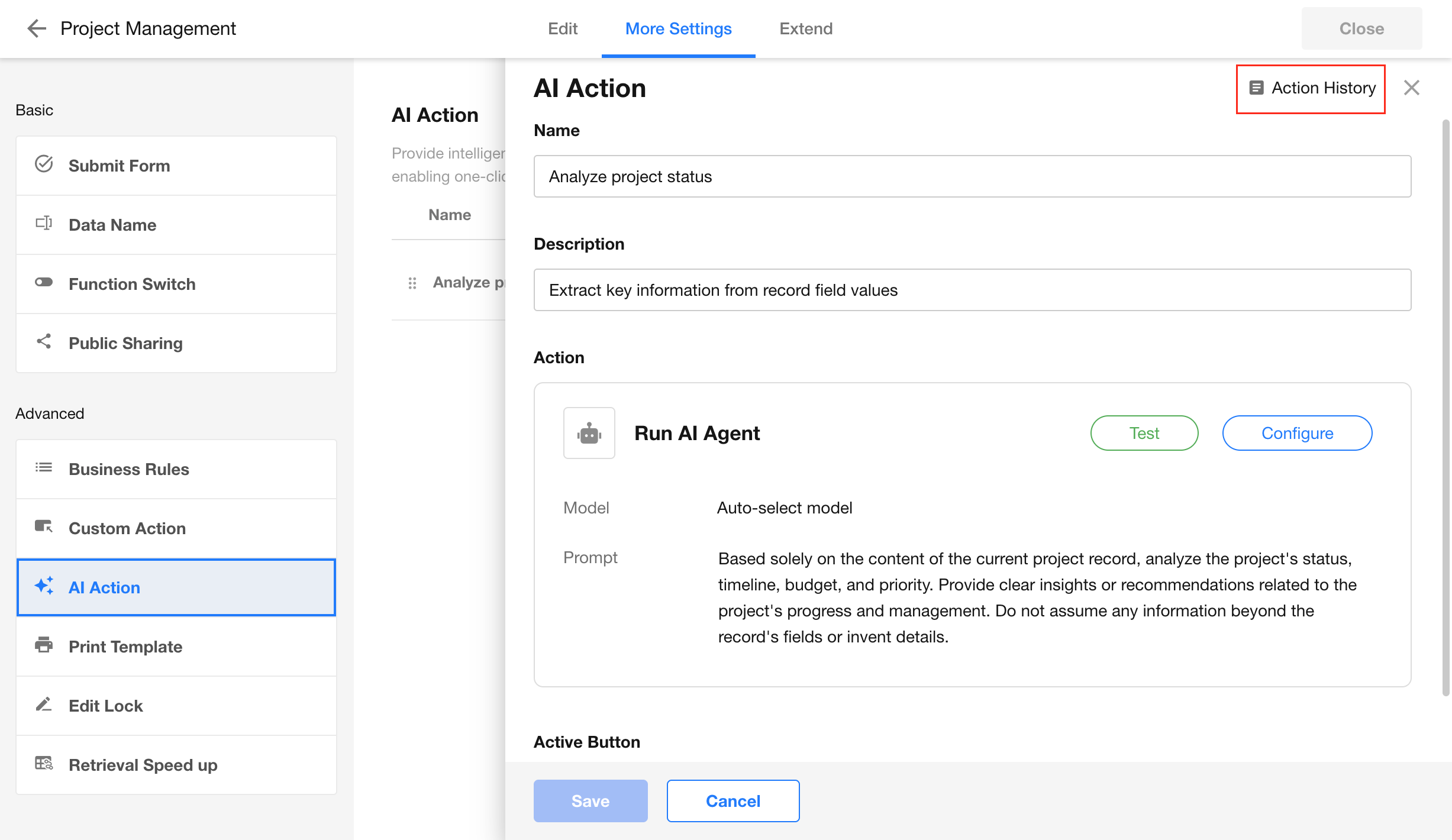
Navigate to workflow history to view execution logs.
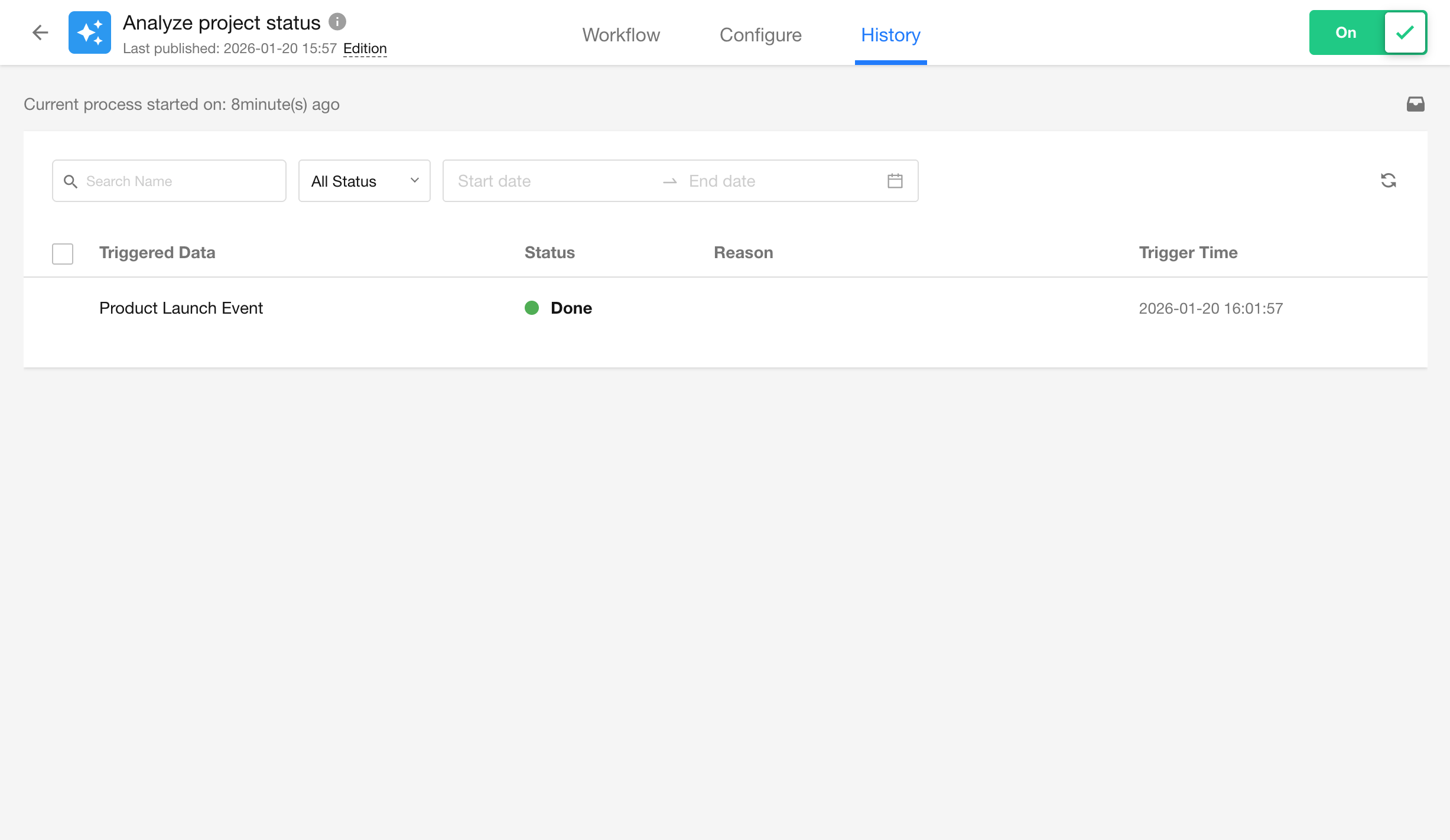
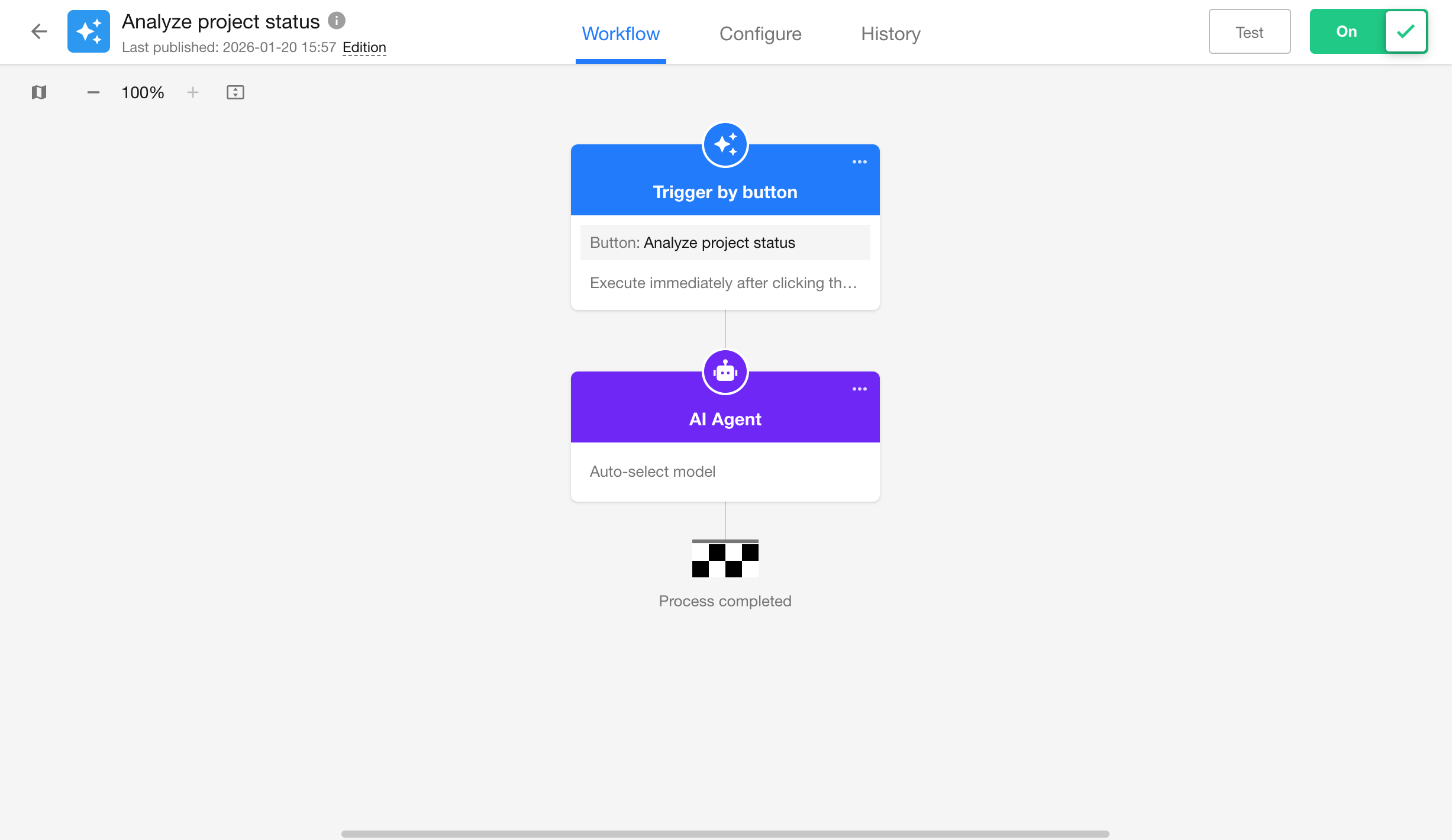
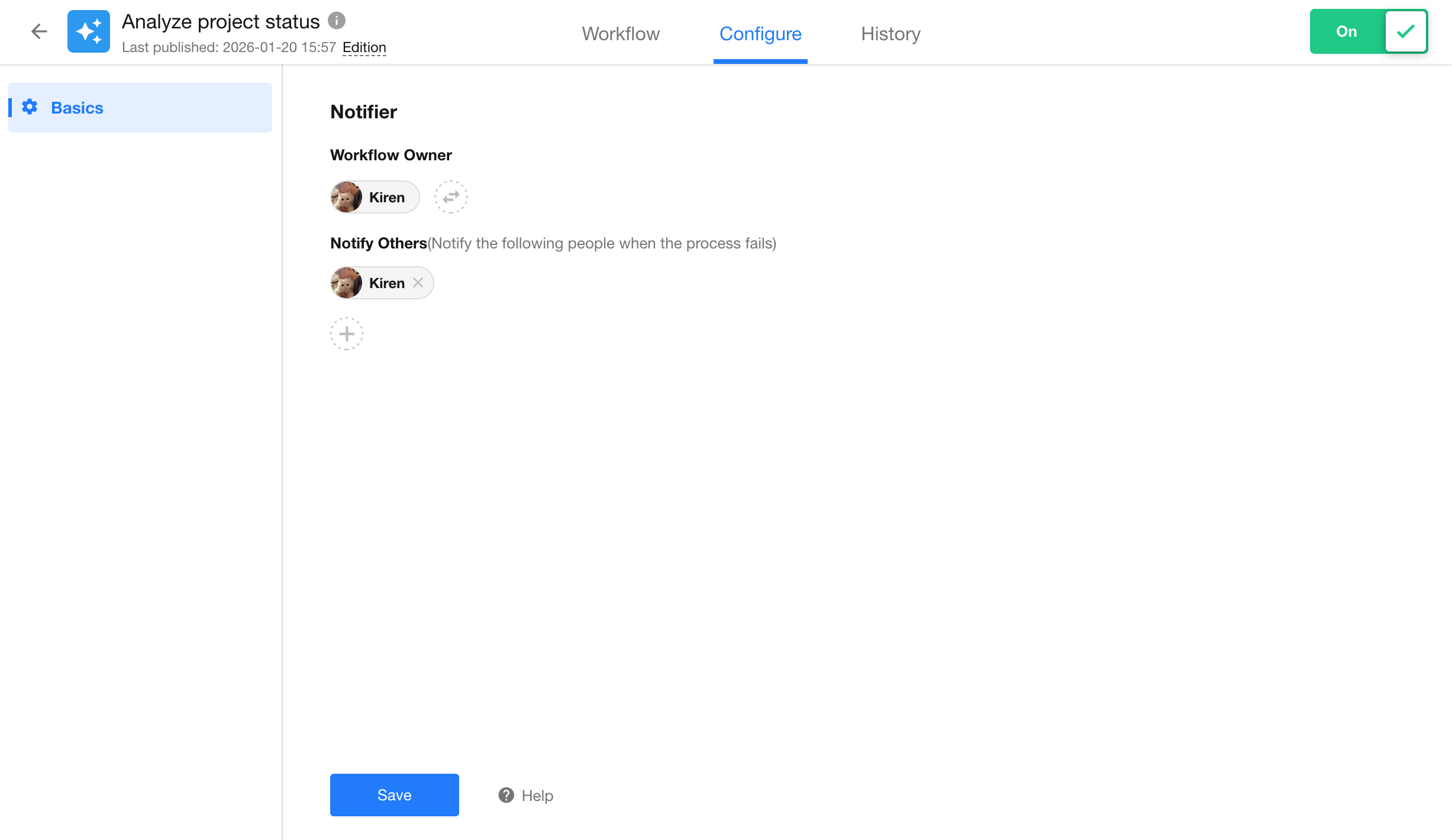
Workflows Related to AI Actions
AI Actions are executed via workflow. This type of workflow:
- Does not support additional nodes
- Only includes notification settings
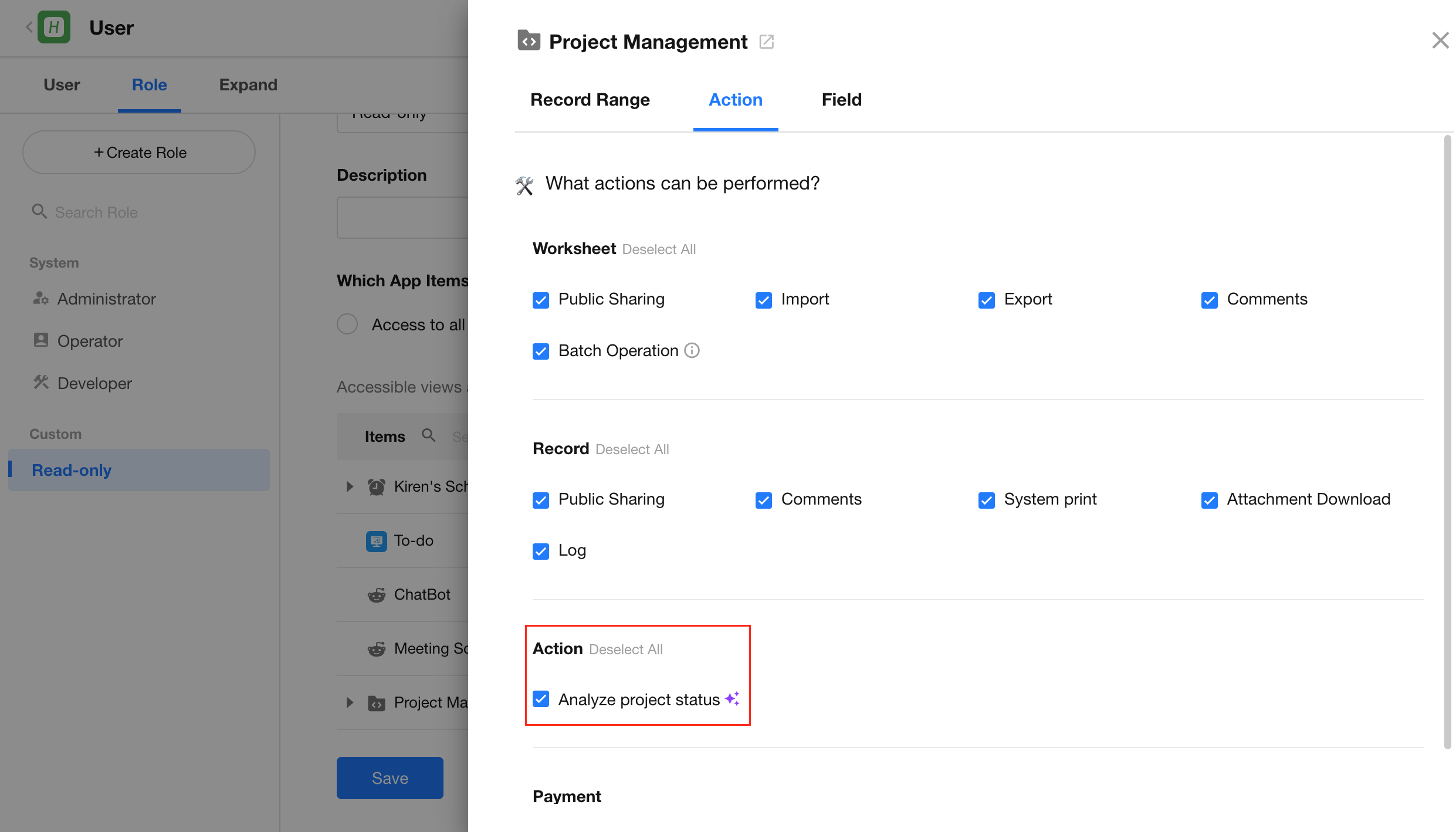
Permissions
In Role Permissions > Access to Selected App Items, configure which AI Actions are available to each role.
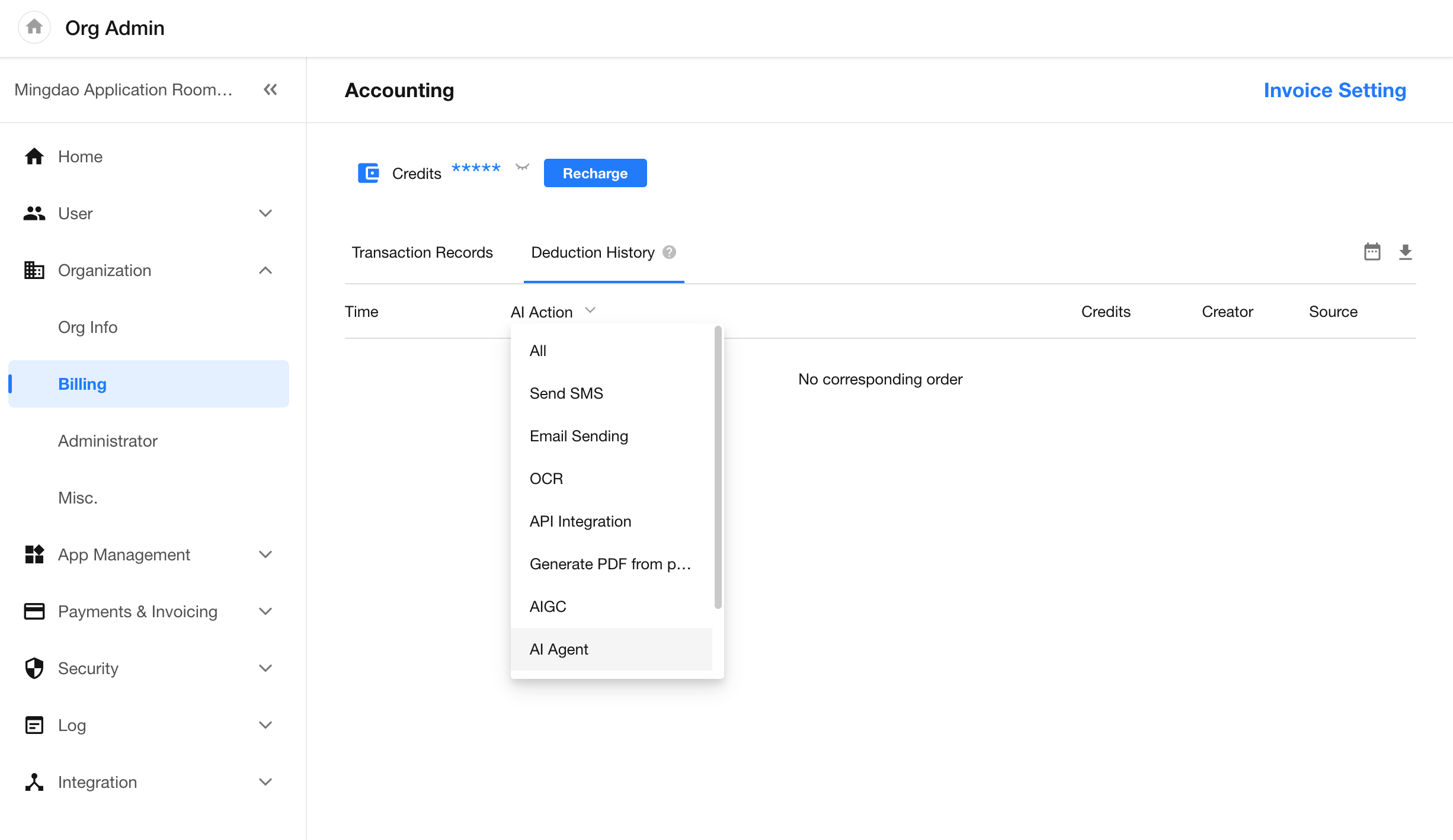
Billing
Billing records are available in the “Billing” tab of the Organization Admin Console.
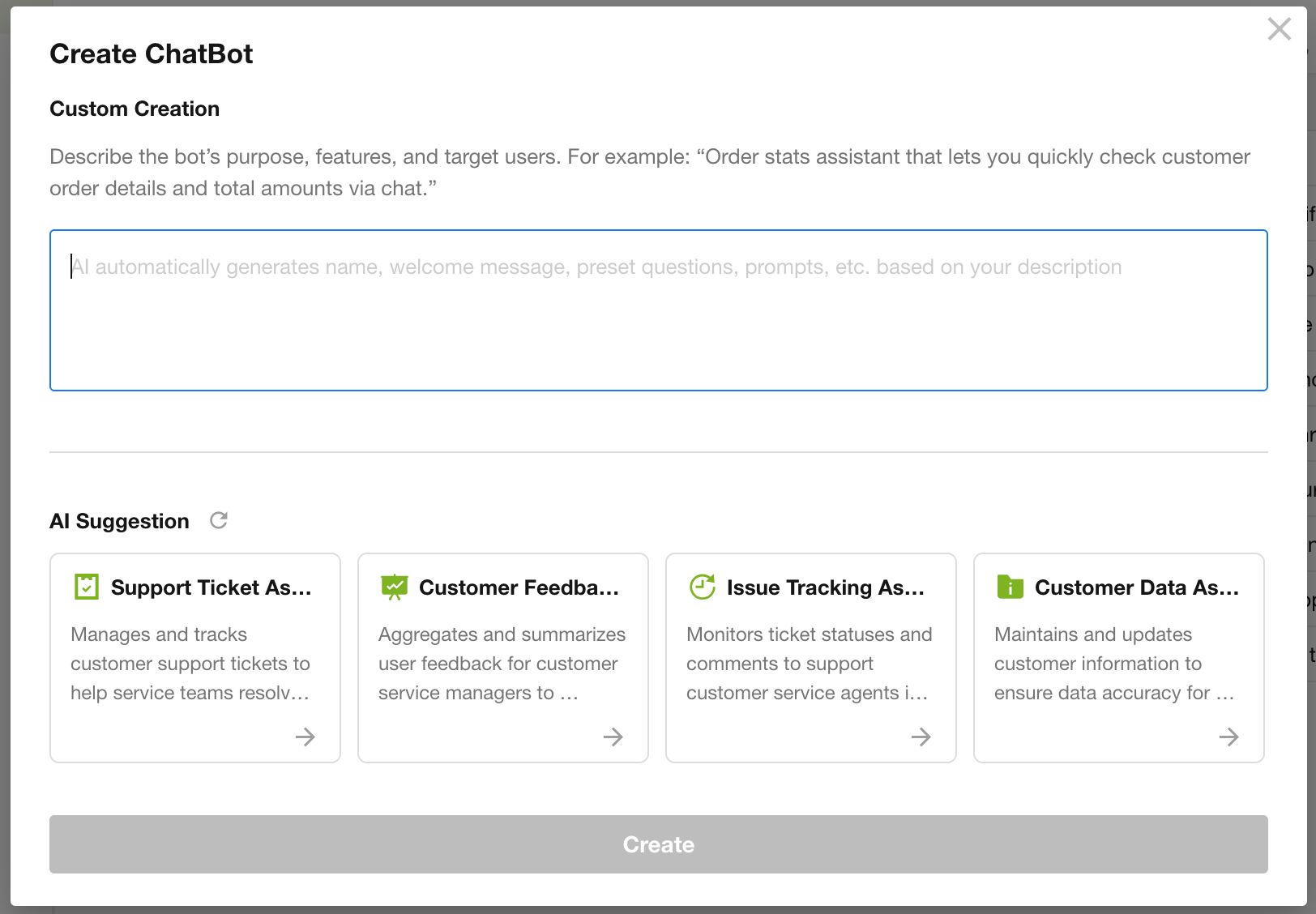
ChatBot Optimization
Improved ChatBot creation interface.
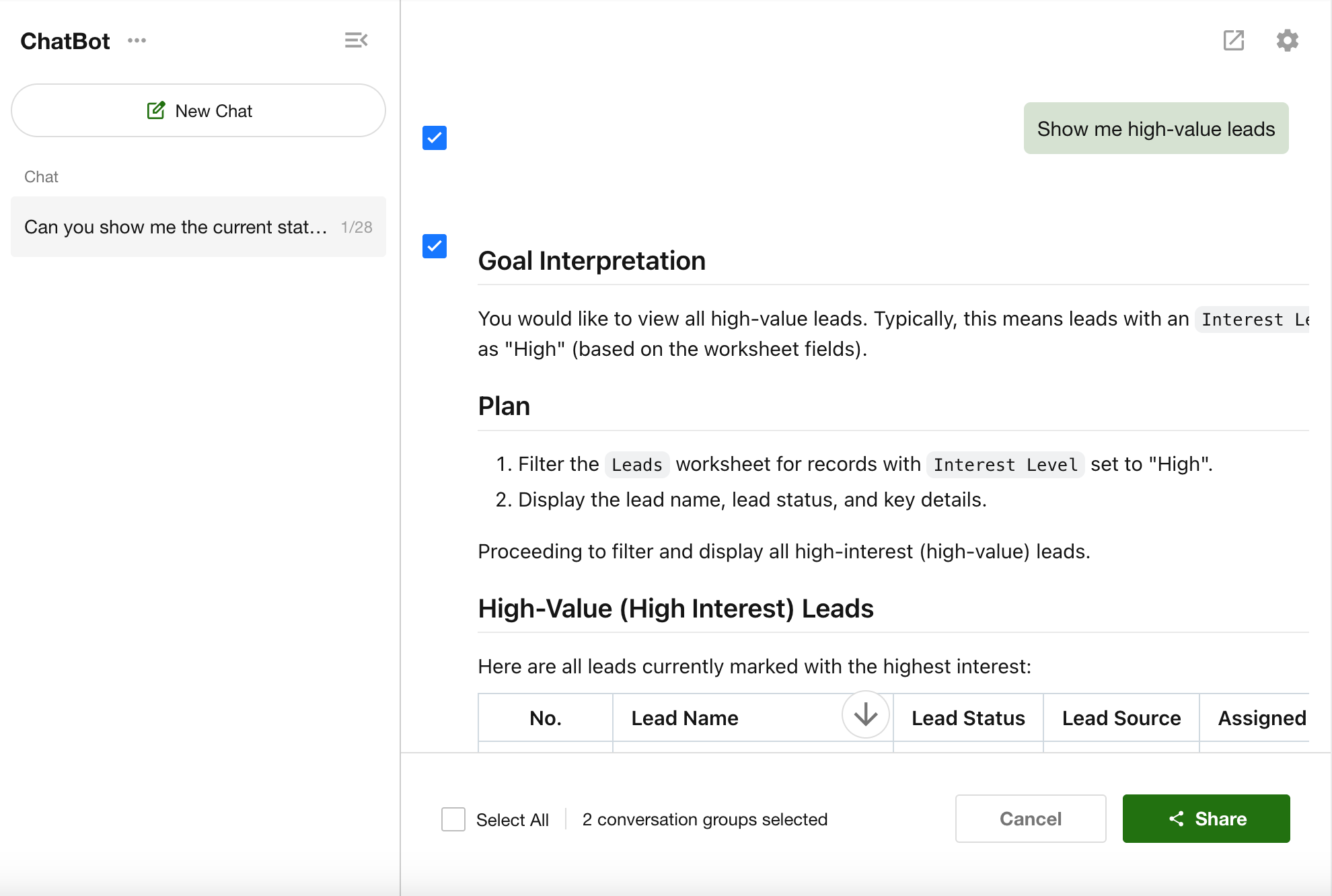
Conversation sharing supports selecting by conversation group. Users can share a single group or generate a single share link for multiple groups.
Application
Application Migration
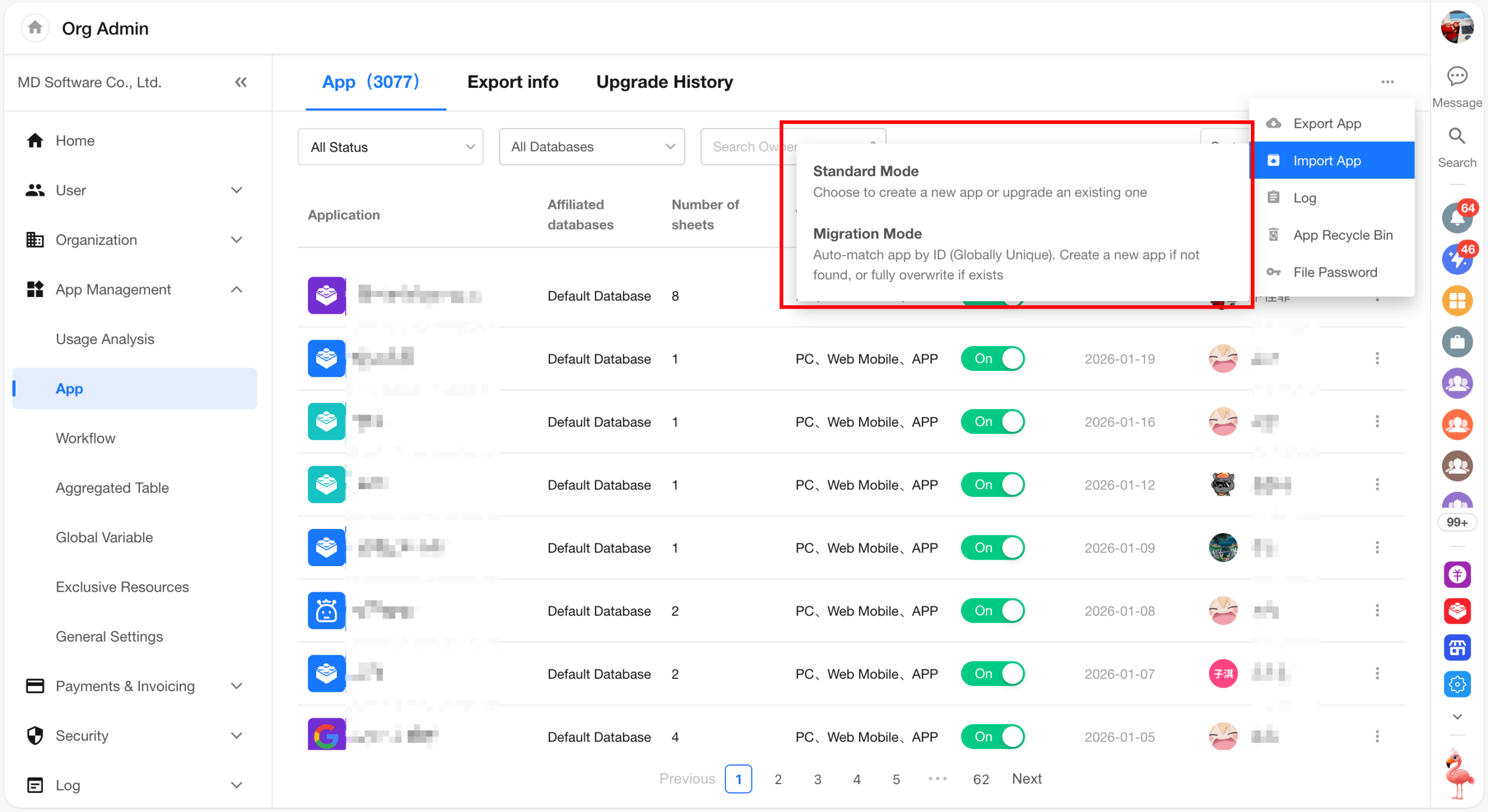
For HAP Server, a more reliable import and migration method is now available. Imported applications retain their original ID, which remains globally unique. During upgrades, applications are matched and updated based on their ID.
- Availability: HAP Server only
- Permissions: Organization roles → Application management
| Mode | Use Case | How It Works | Summary |
| Standard Mode
(Recommended for daily use) |
Create a copy of an application within the same environment for testing |
|
Creates a new application copy after import, with a new ID |
| Migration Mode
(Cross-environment migration or upgrades) |
Migrate applications across environments (e.g., test → production) while preserving identity and avoiding duplication |
|
Migrates the application as-is with the same ID |
Accessing Application Migration: Organization Admin Console > App Management > App > Import App
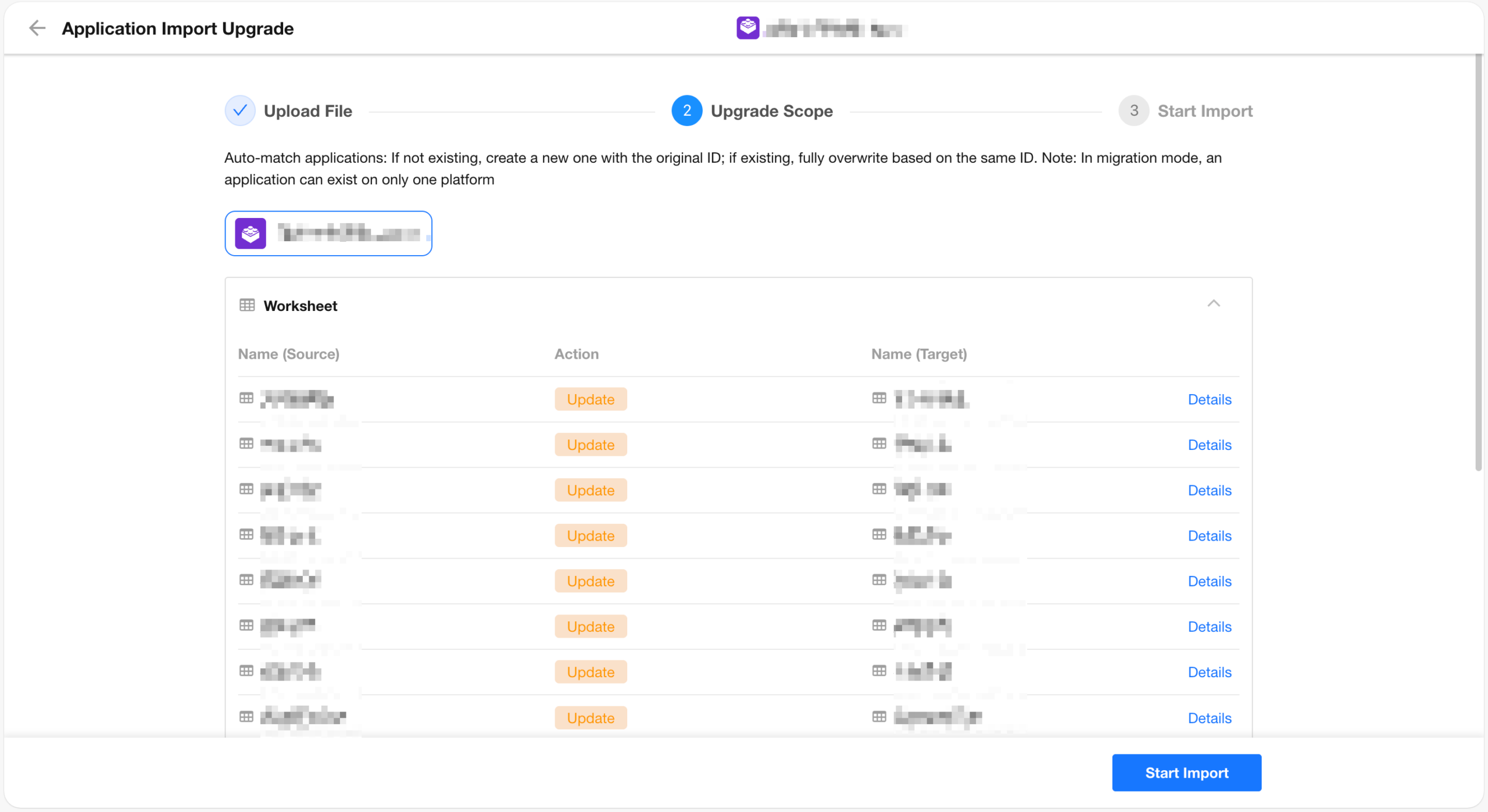
Application upgrade details: After uploading the file, applications are matched by ID. If no match is found, a new application is created; if a match exists, the existing application is overwritten and updated.
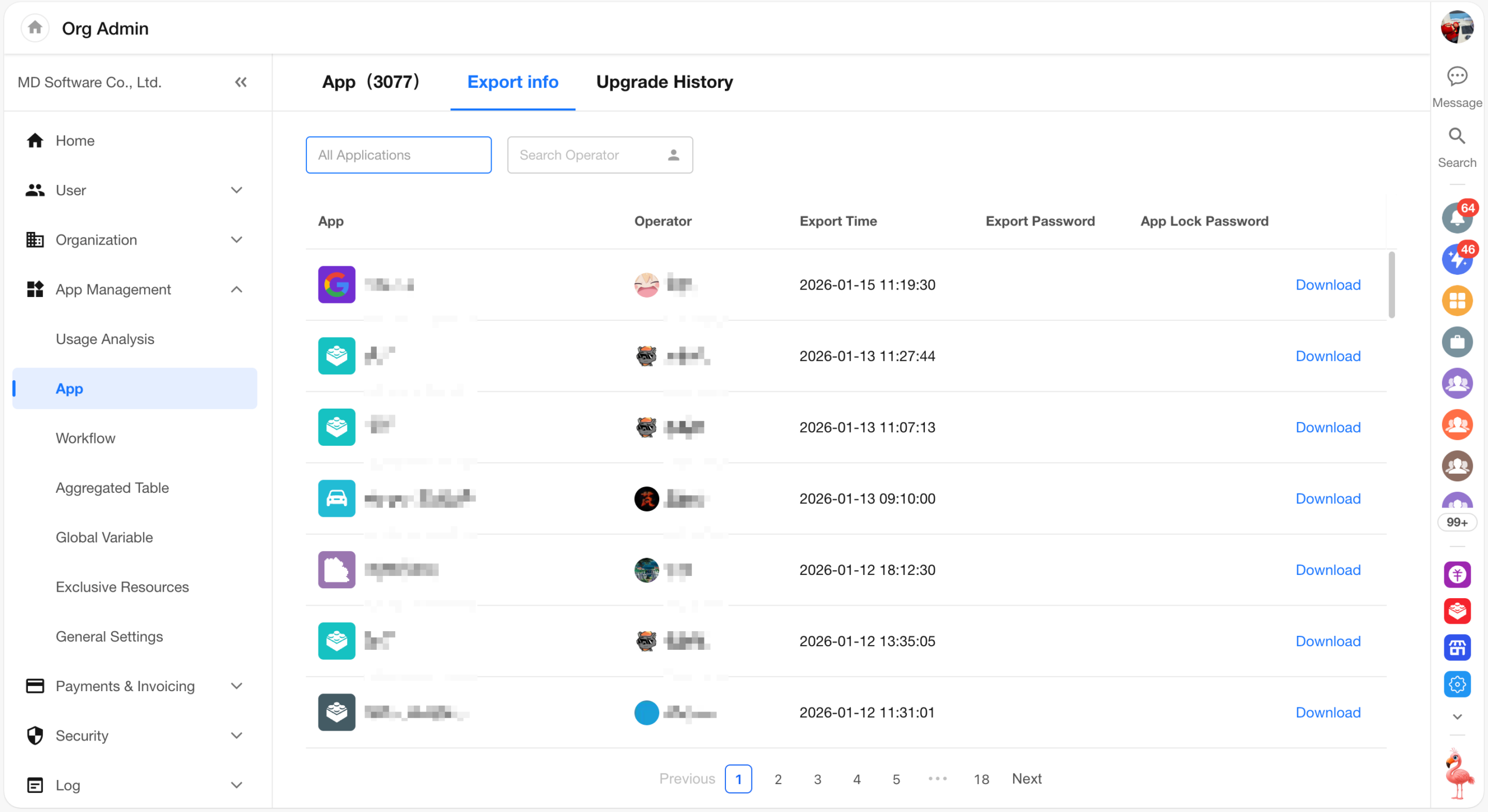
Application Export/Import Records
After this update, users can view export history for all applications within the organization, including both single application exports and bulk exports.
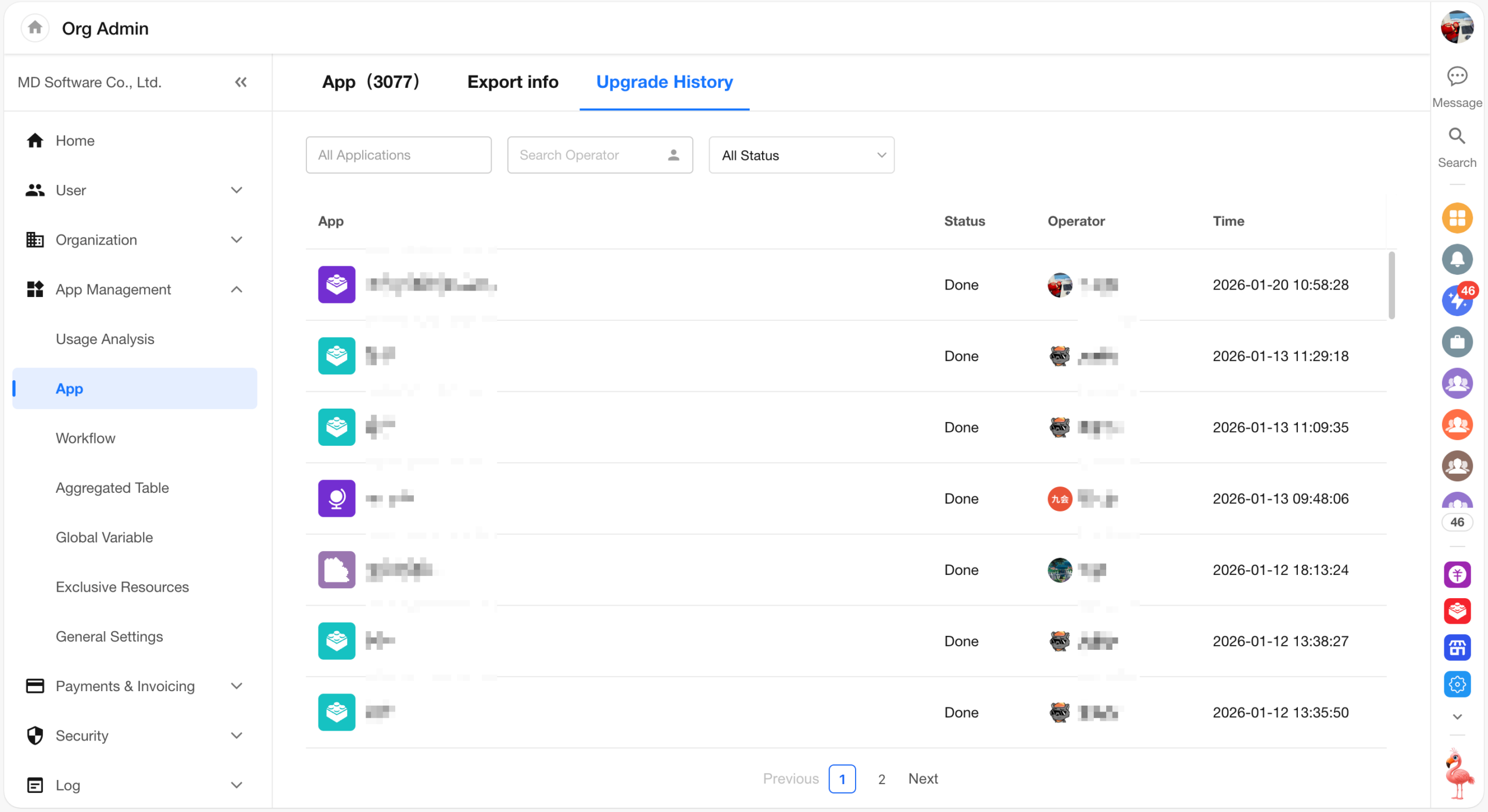
Users can also view application upgrade history across the organization, including both single application upgrades and bulk upgrades.
Export/Import Excel: Added Support for Cascading Field
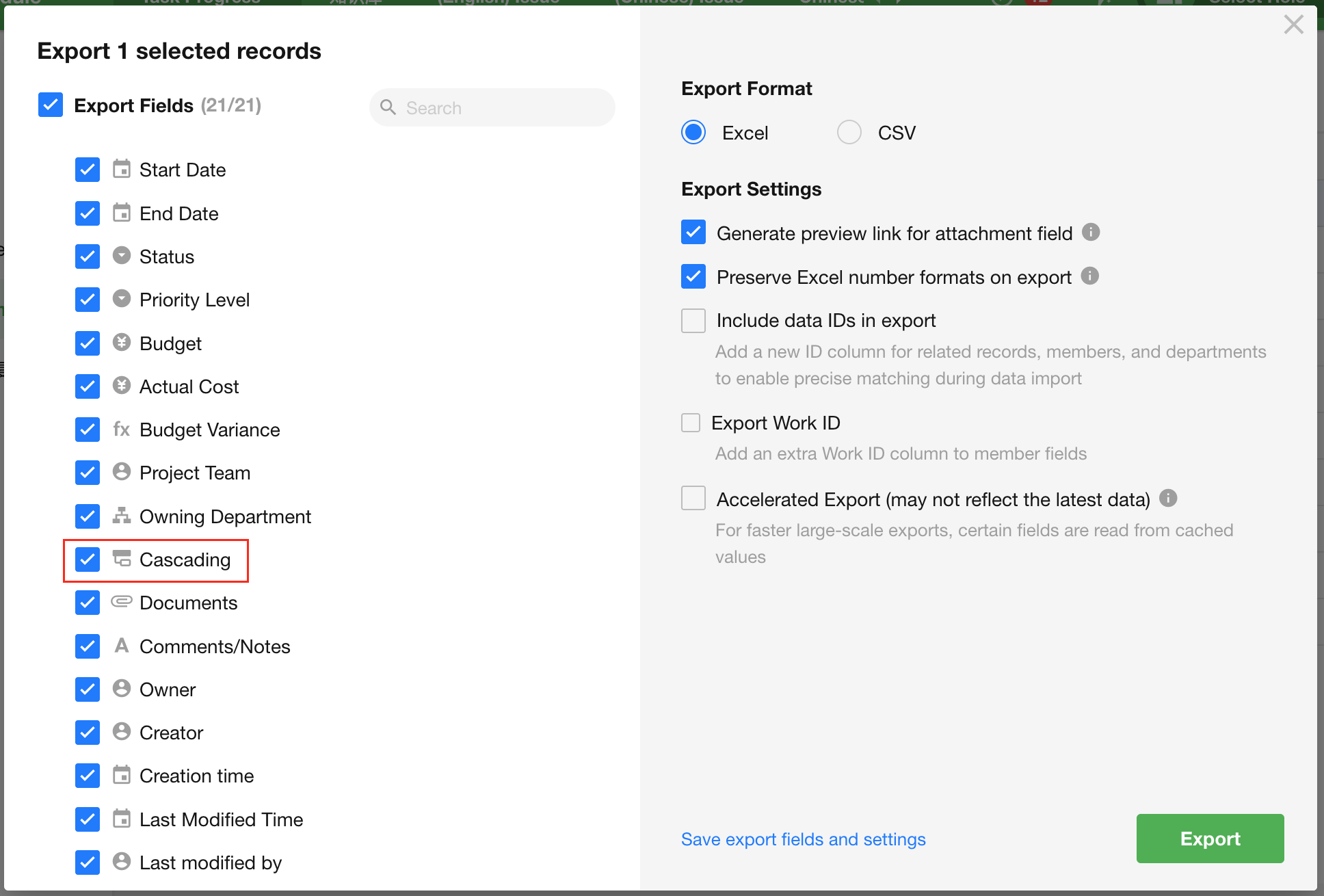
Export
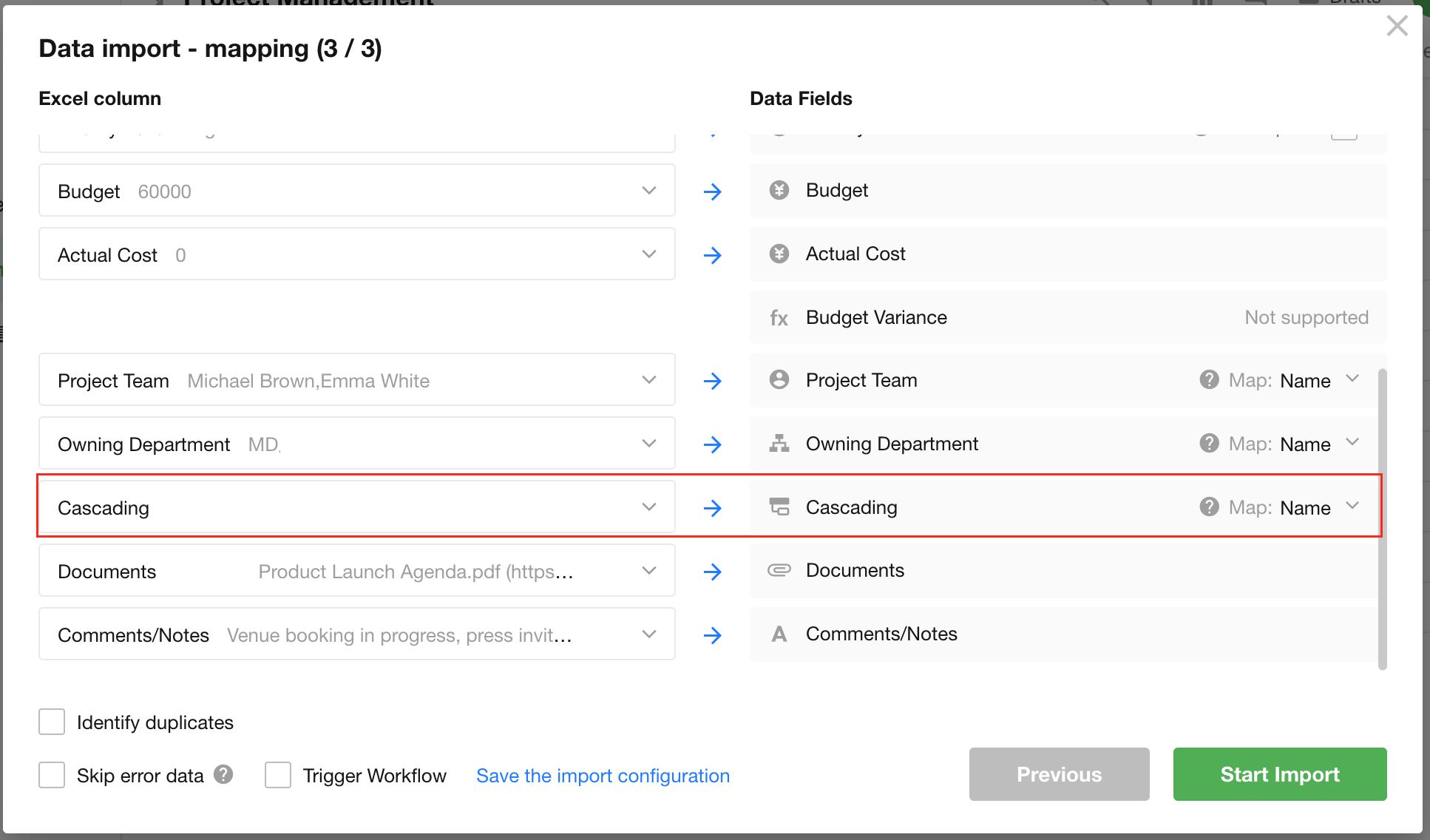
Import
Import rules for cascading field:
- If the import file contains record IDs, records are matched by record ID
- When importing text:
- If the text includes a path, the last segment is used as the matching value
- If no path is included, the full text is used as the matching value
- For cascading field with multiple selections, values are matched individually, similar to a multi-select relationship field
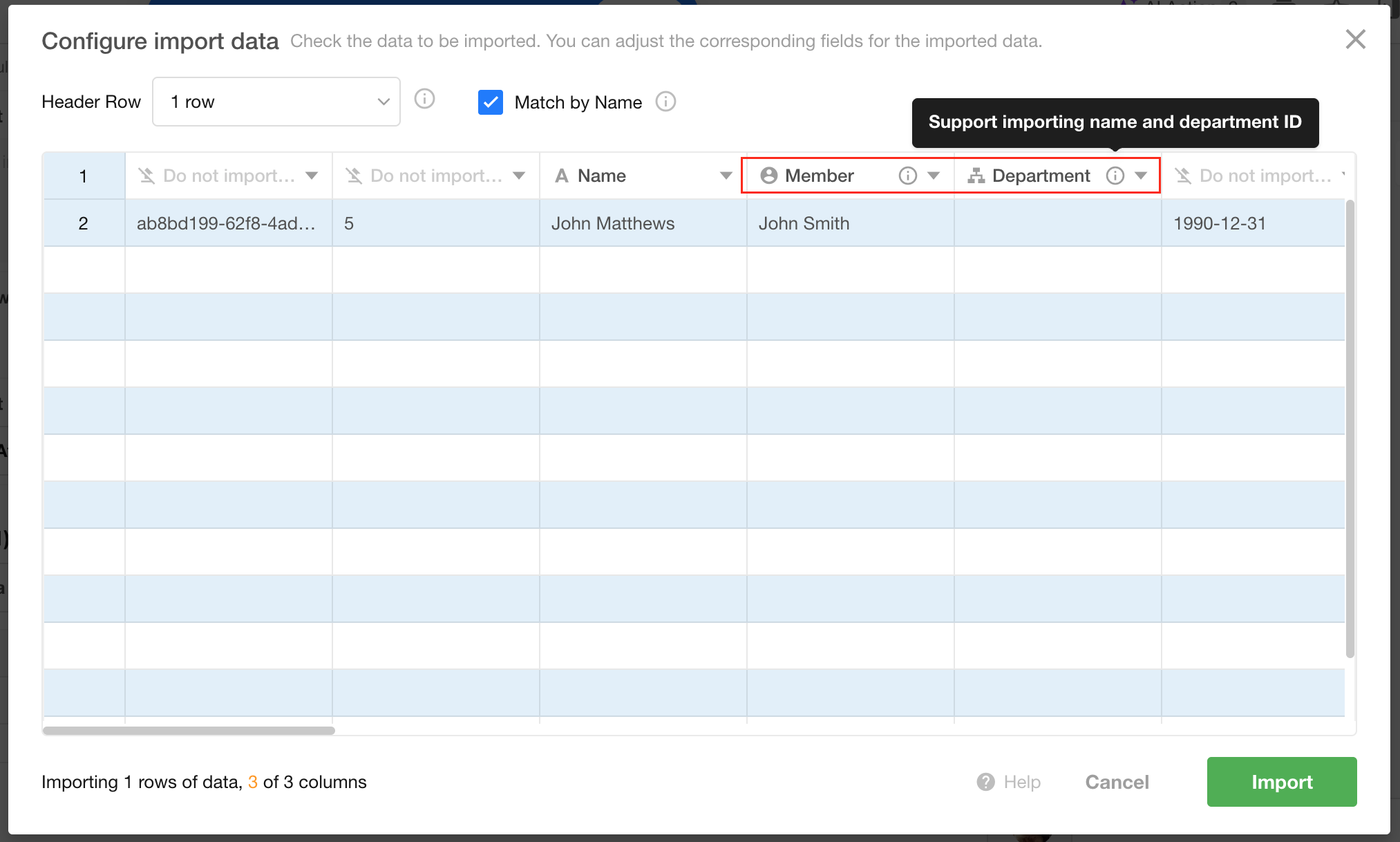
Import Data into Subform
When importing data into a subform, member fields and department fields support matching by member ID and department ID.
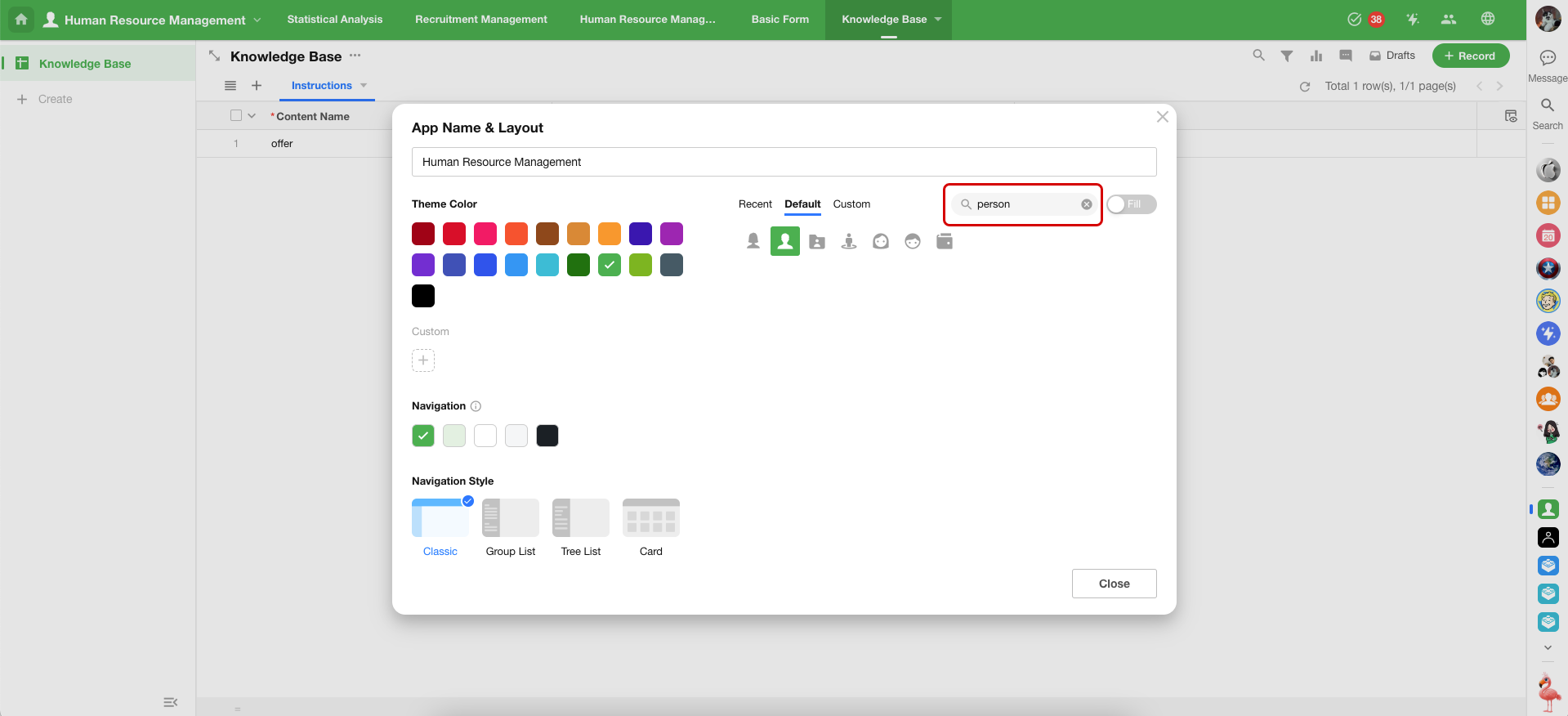
Icon Search Support
Default icons now support keyword search in both Chinese and English.
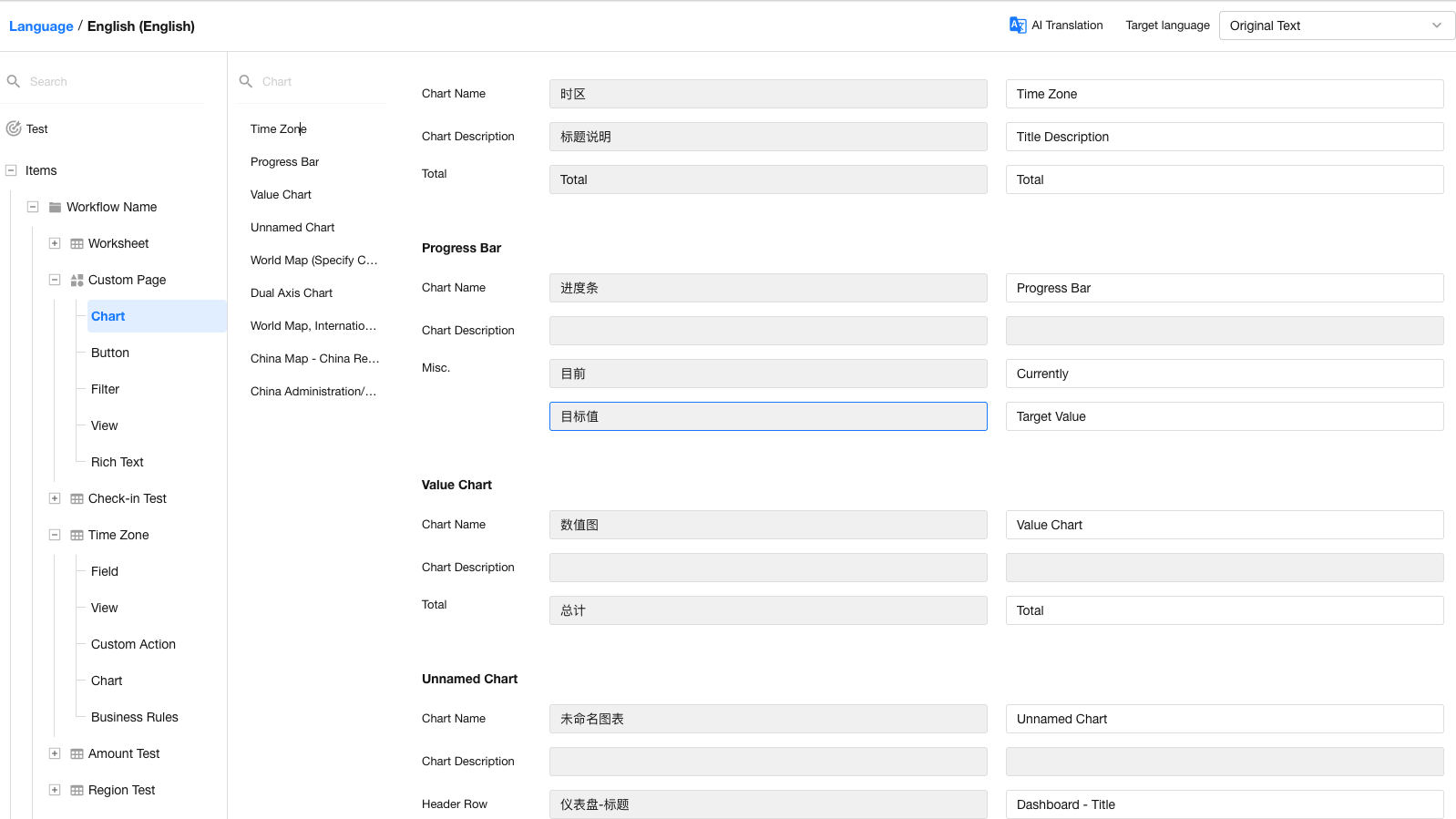
Enhancements to Application Multilingual Support
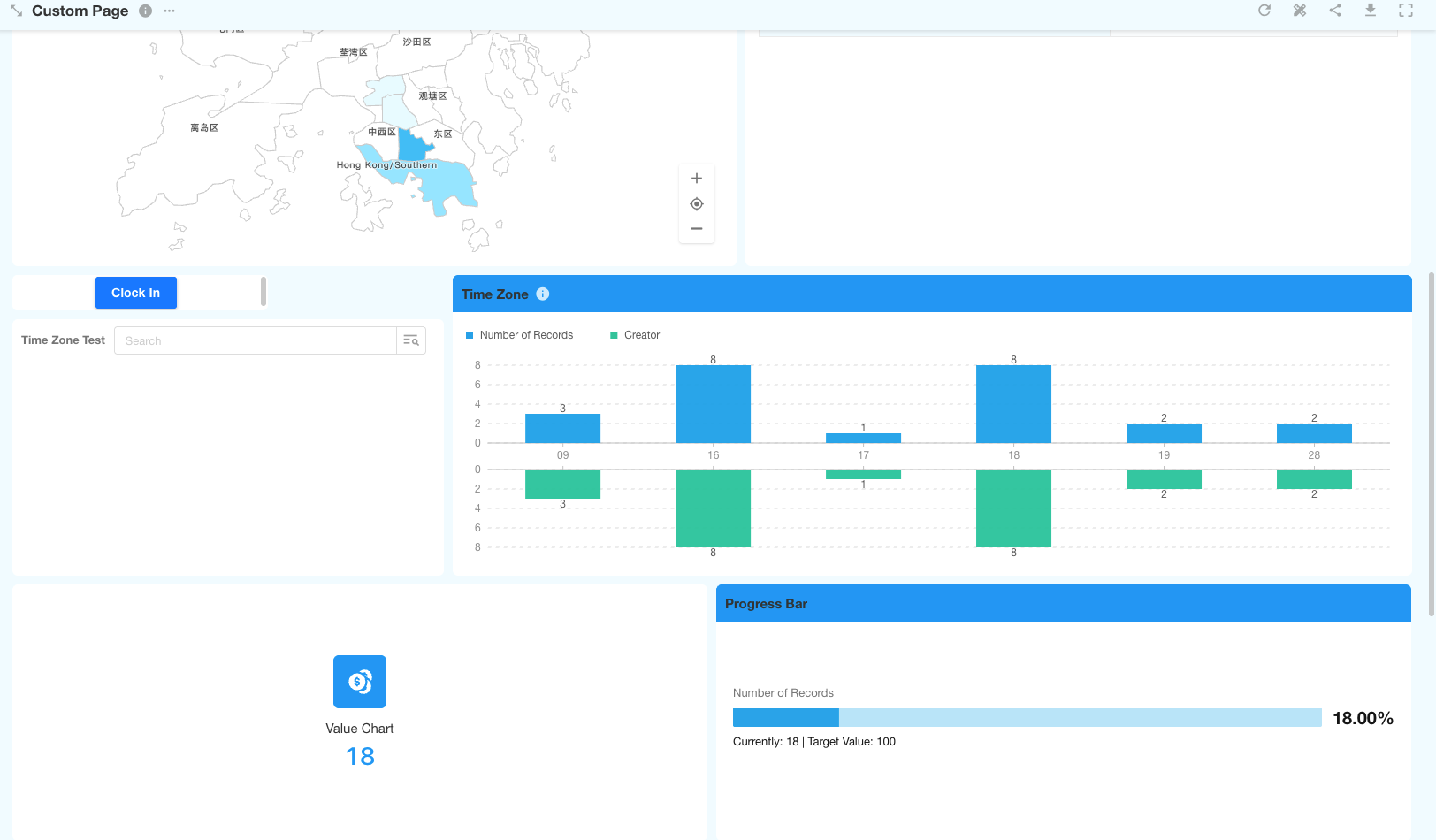
Added translation support for charts and approval nodes.
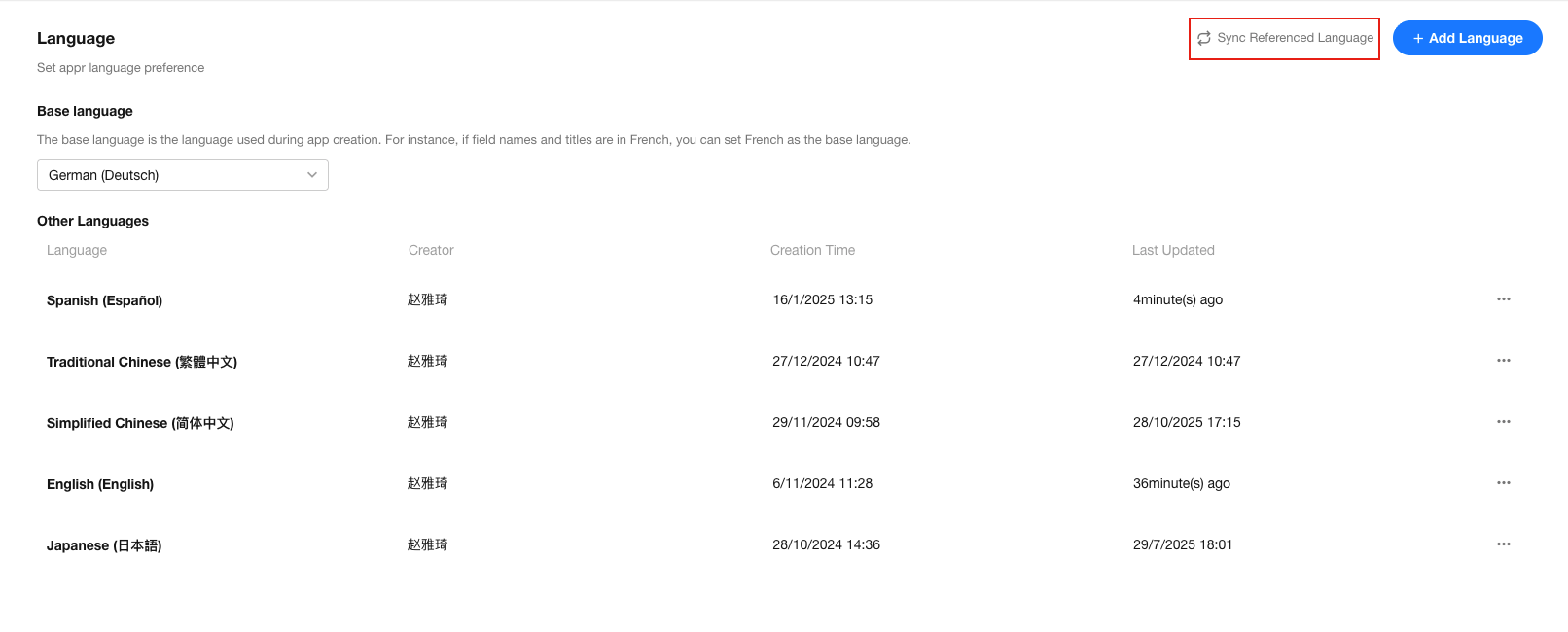
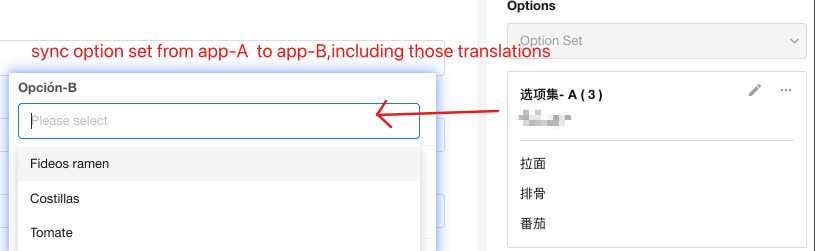
Supports syncing languages for cross-application references, such as option sets and relationship fields.
Worksheet and Field
Cascading Field Supports Multiple Selections
Cascading field now supports selecting up to 20 options, balancing business needs and system performance.
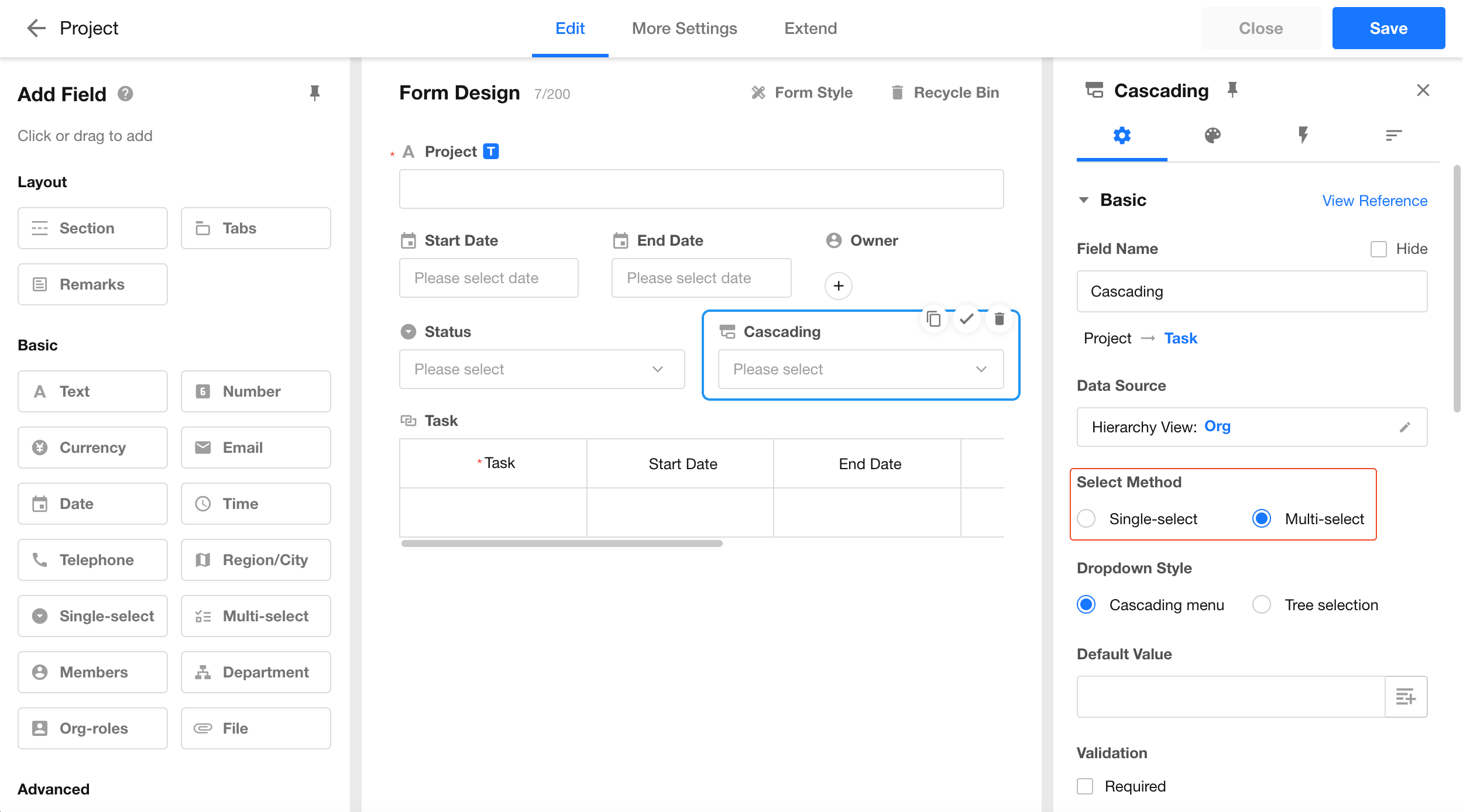
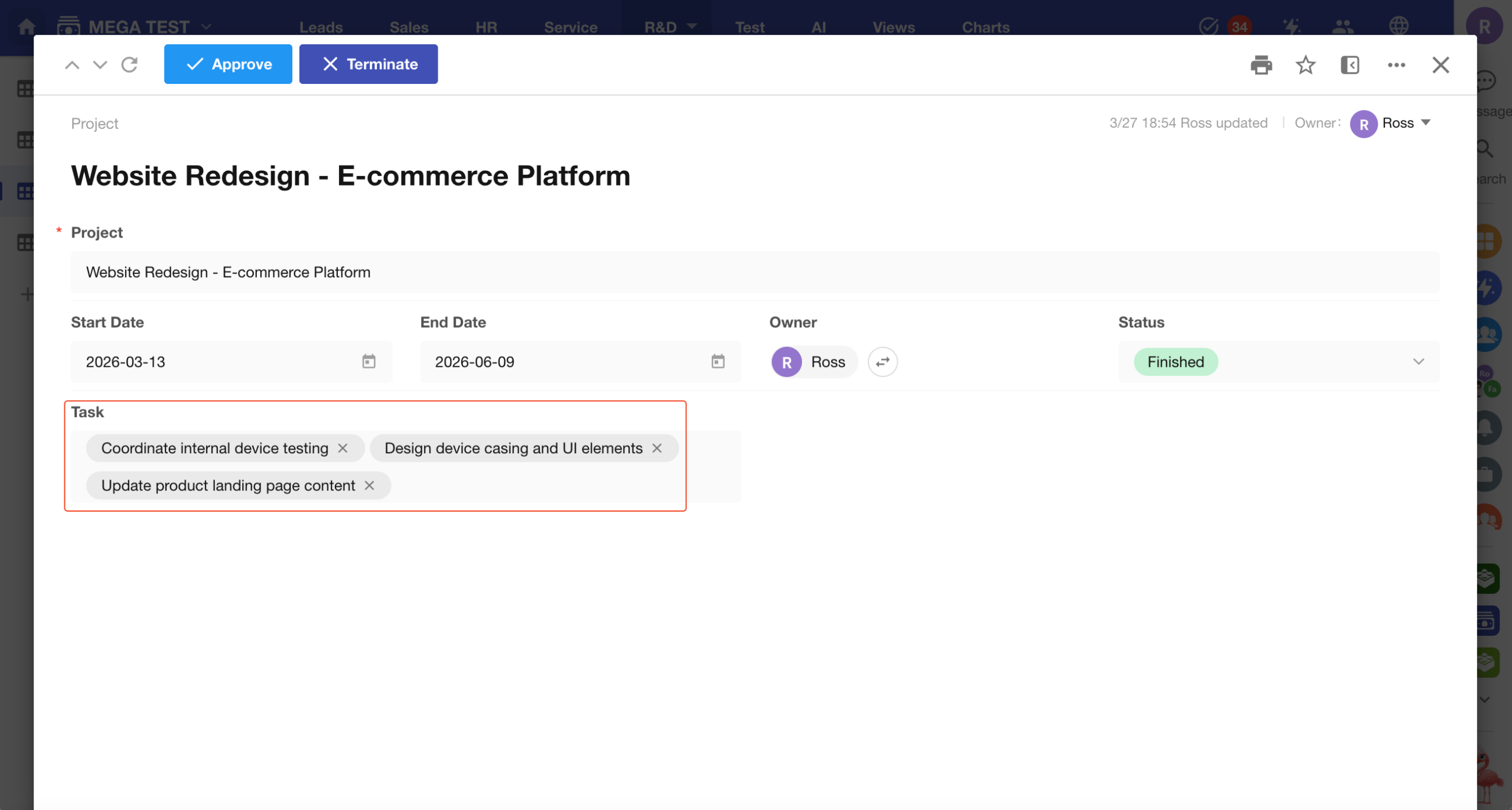
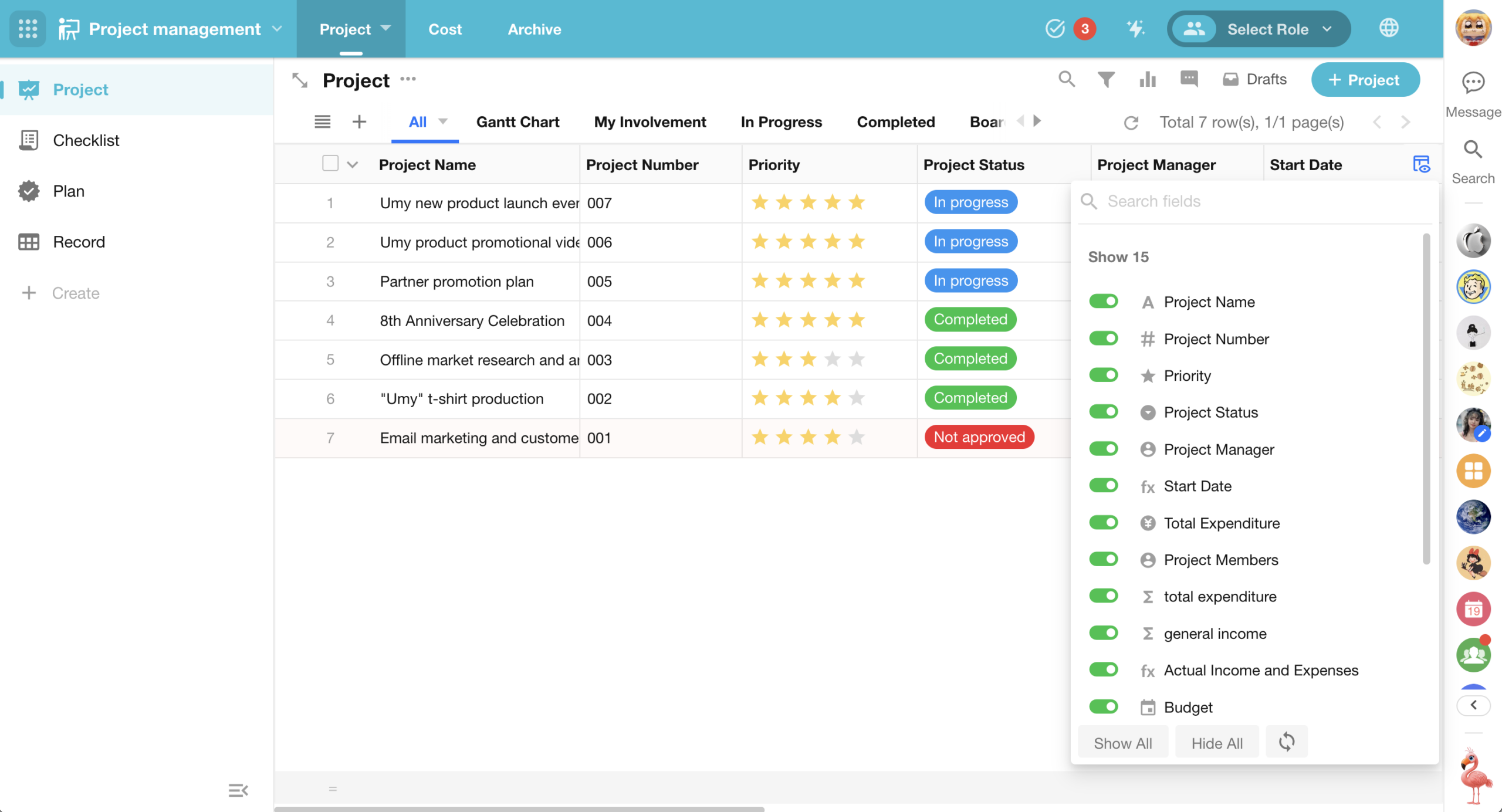
Table View Supports Personal Column Customization (Show/Hide & Sorting)
Based on the application administrator’s default configuration, users now can further adjust column order and visibility based on their preferences and save their settings.
Supported views:
- Table view
- Org view (display mode: tree table)
Behavior:
- Personal settings are saved per user
- Applies to shared and embedded views
Permissions:
- Available to all users
- Administrators can also use personal settings
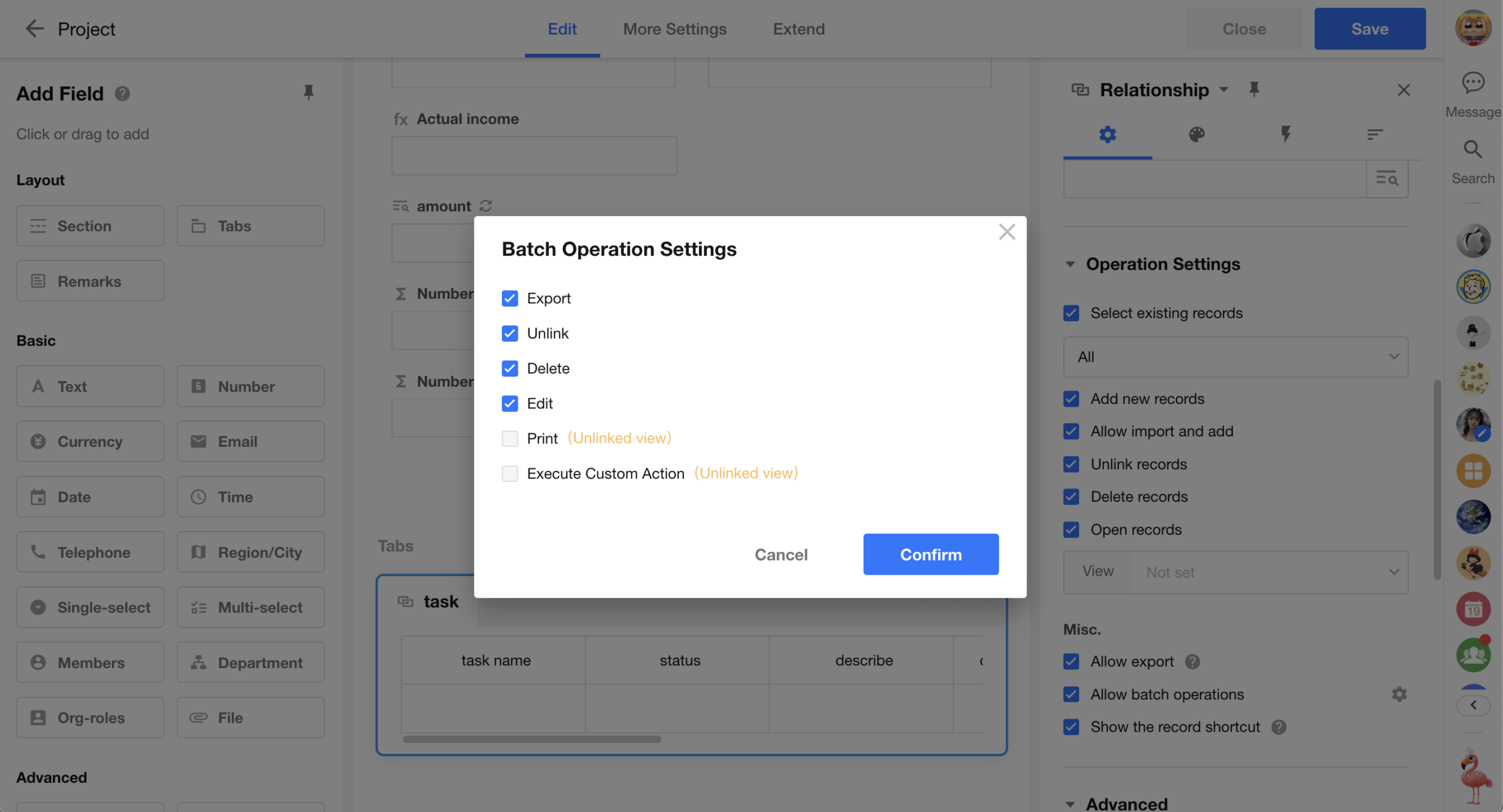
Enhanced Bulk Operations for Related Records
This update enhances bulk operations for relationship field when displayed as a tab table. Users can now perform bulk actions and import data directly from the related records table, without navigating to the related worksheet.
In addition, related records inherit color settings from the related view, improving visual clarity and consistency.
Enhancements:
- Bulk trigger configured custom buttons in views
- Bulk printing
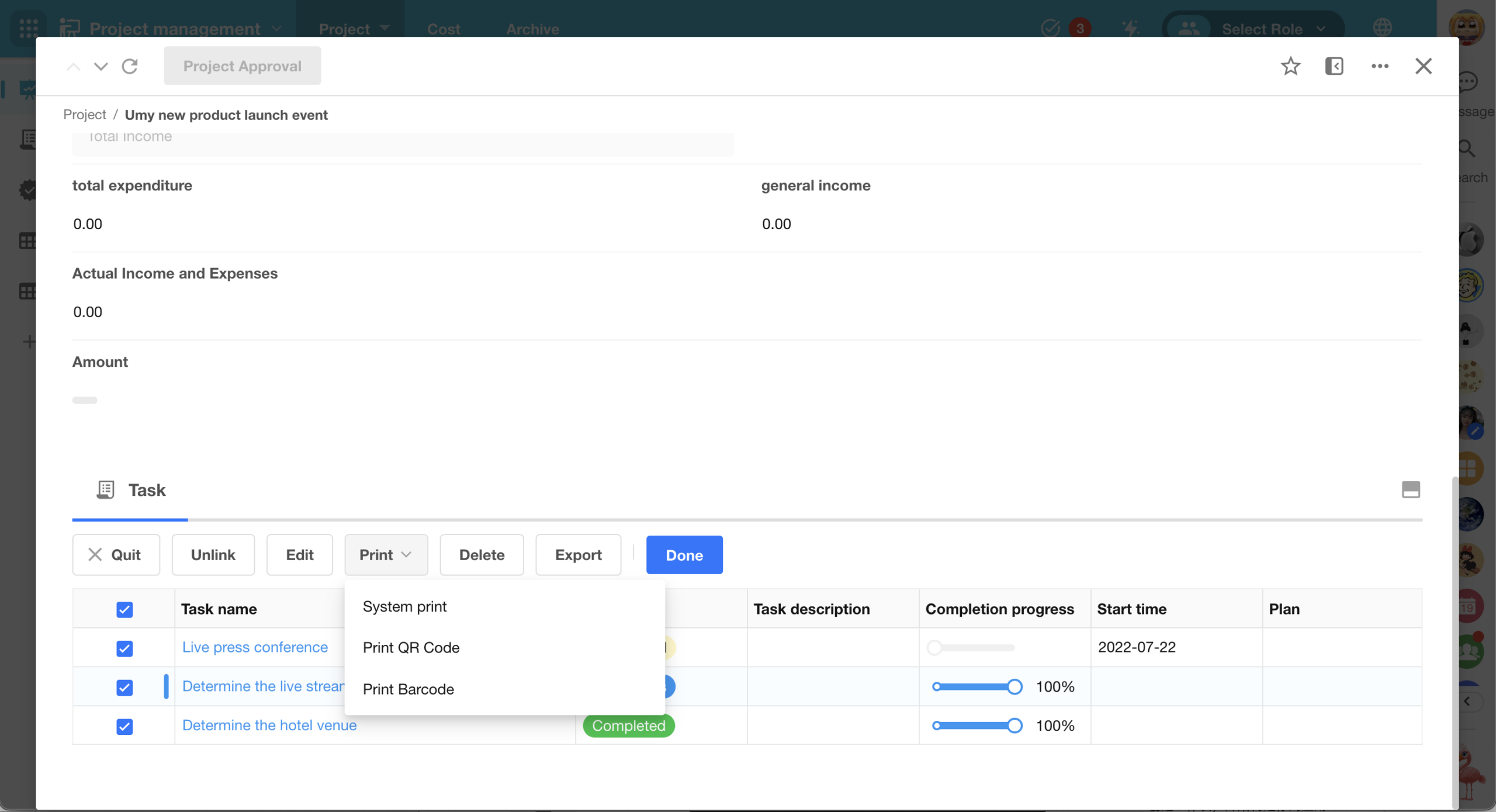
New import support:
- When relationship field is displayed as a tab table, users can import and add related records.
- The import option is available on web only.
- Import rules, capabilities, and limits are consistent with worksheet data imports.
Requirements:
- Users must have permission to create records.
- The relationship field must have Allow Import enabled.
Limitations:
- Importing related records is not supported when creating a new primary record.
- Import is not supported when editing a primary record in draft status.
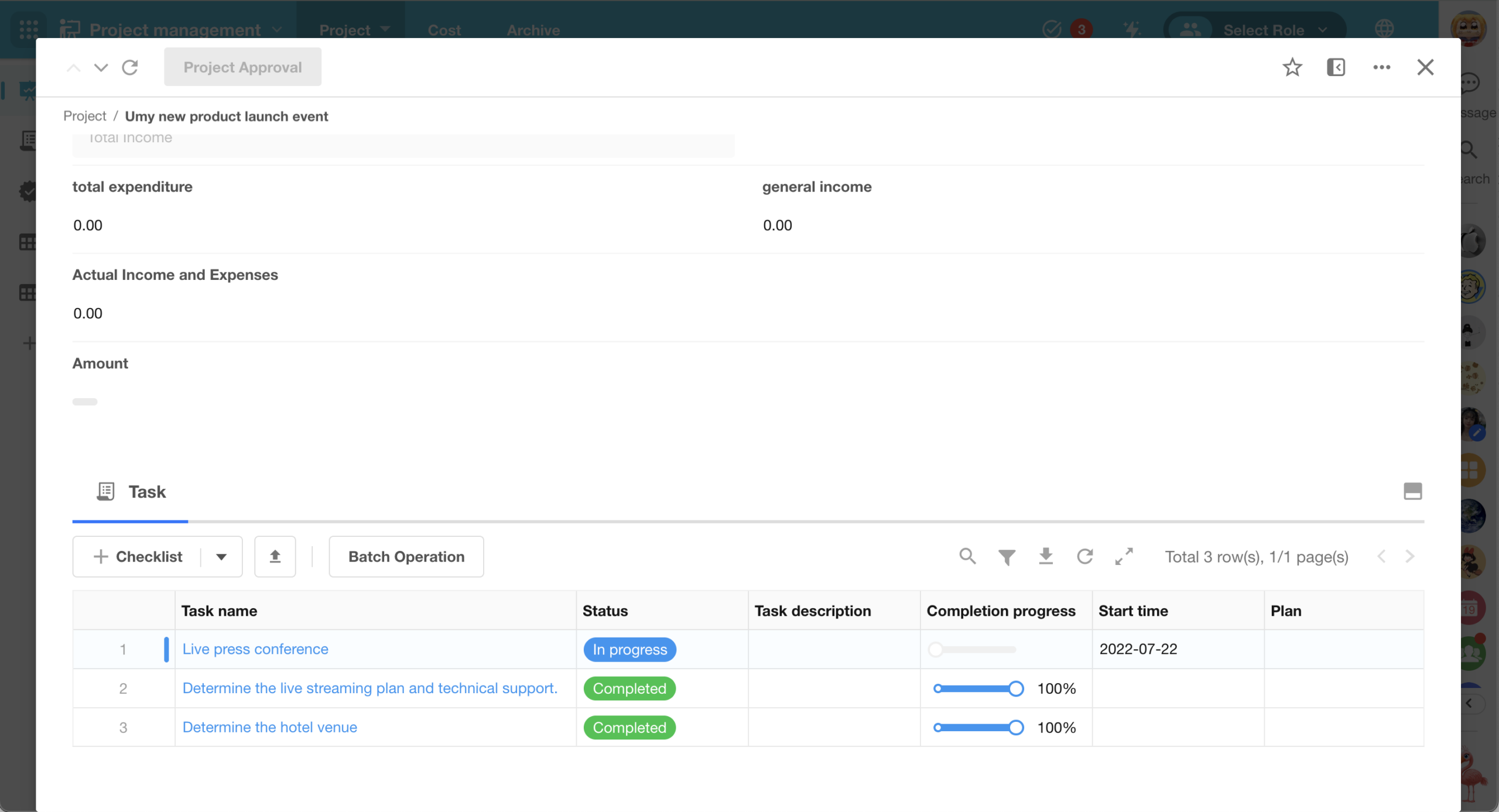
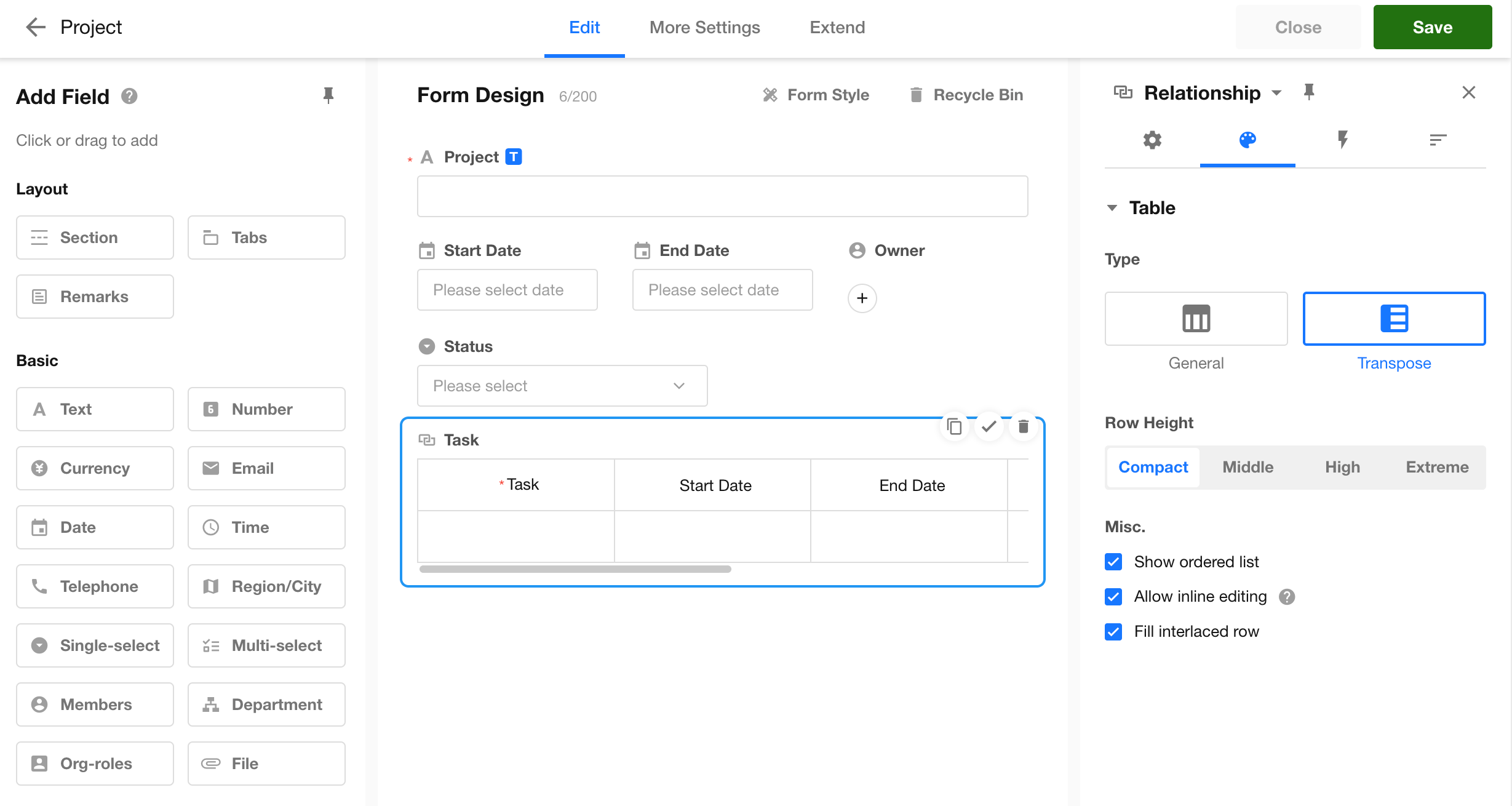
Row-to-Column Transposition for Table-Type Fields
This update introduces a transposed view for table-type fields, allowing fields to be displayed vertically as rows instead of the traditional horizontal layout with multiple columns per row.
Supported fields:
- Subform fields (entity tables)
- Relationship fields (table, tab table)
- Query records fields (table, tab table)
Display modes:
- General: fields are displayed as columns
- Transpose: fields are displayed as rows, with records expanded as columns
Limitations:
- Bulk editing and imports are not supported in transposed mode.
- To perform imports or bulk actions, switch back to general mode.
Display limits:
- Up to 50 records (columns) can be displayed in transposed mode.
📌 Transposed view is not currently supported on mobile.
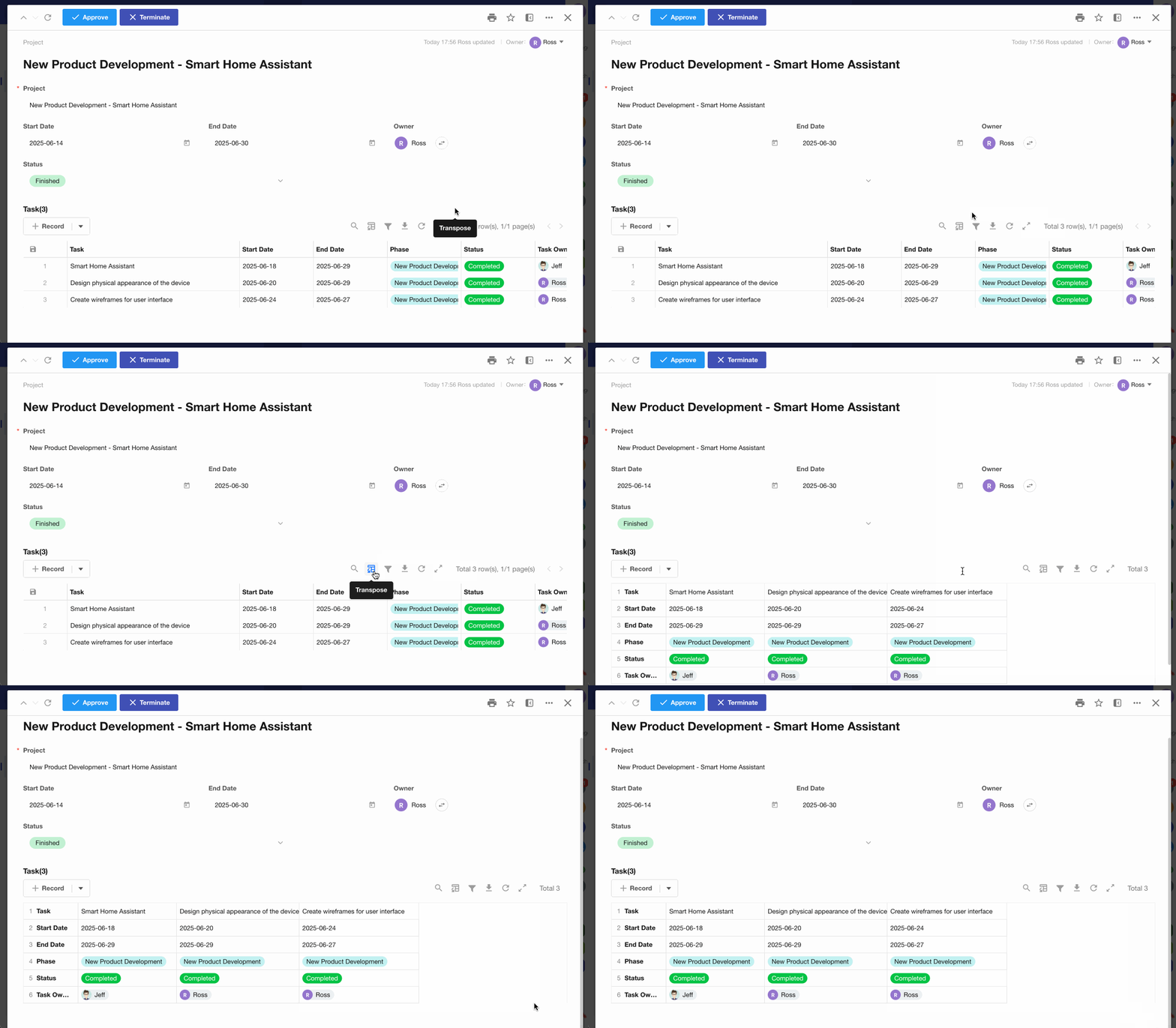
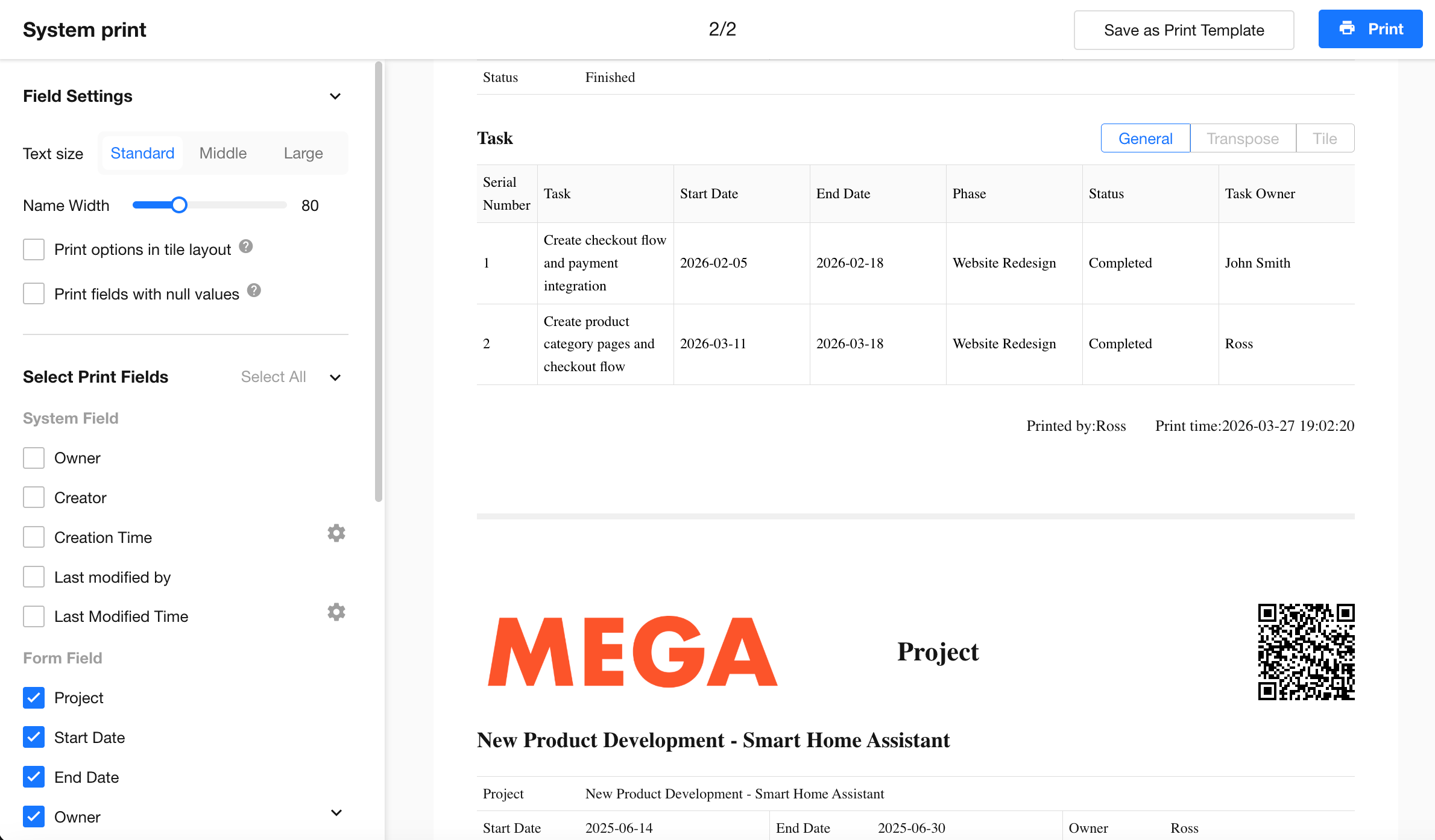
In addition, the above three field types support printing in a transposed view.
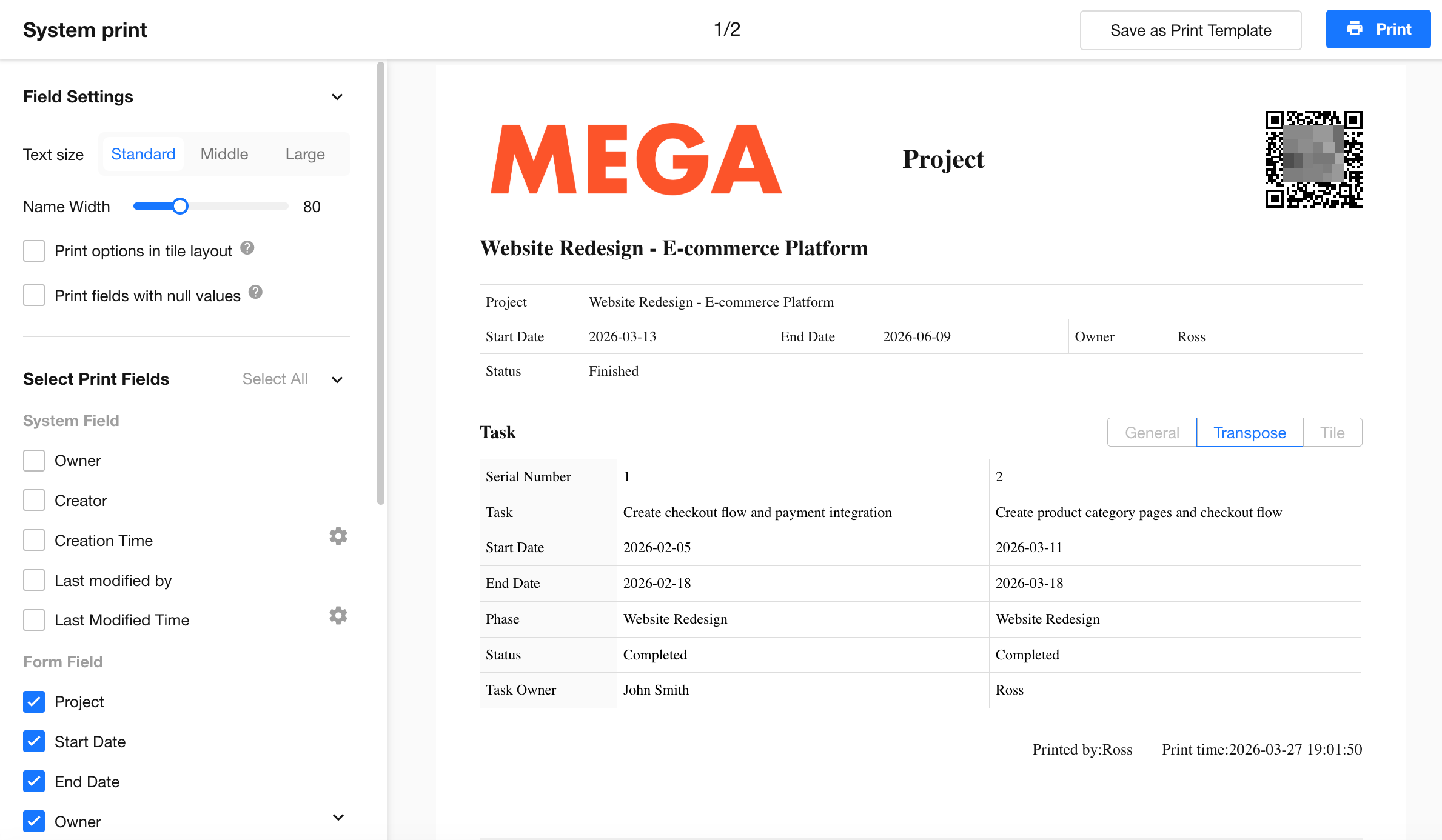
Batch Printing with System Templates
Batch printing is now supported using system print templates.
After selecting a template, records are automatically filtered based on its criteria. A record-level preview is generated, and a merged print file is created.
Worksheet Filters Support Manual Query Trigger
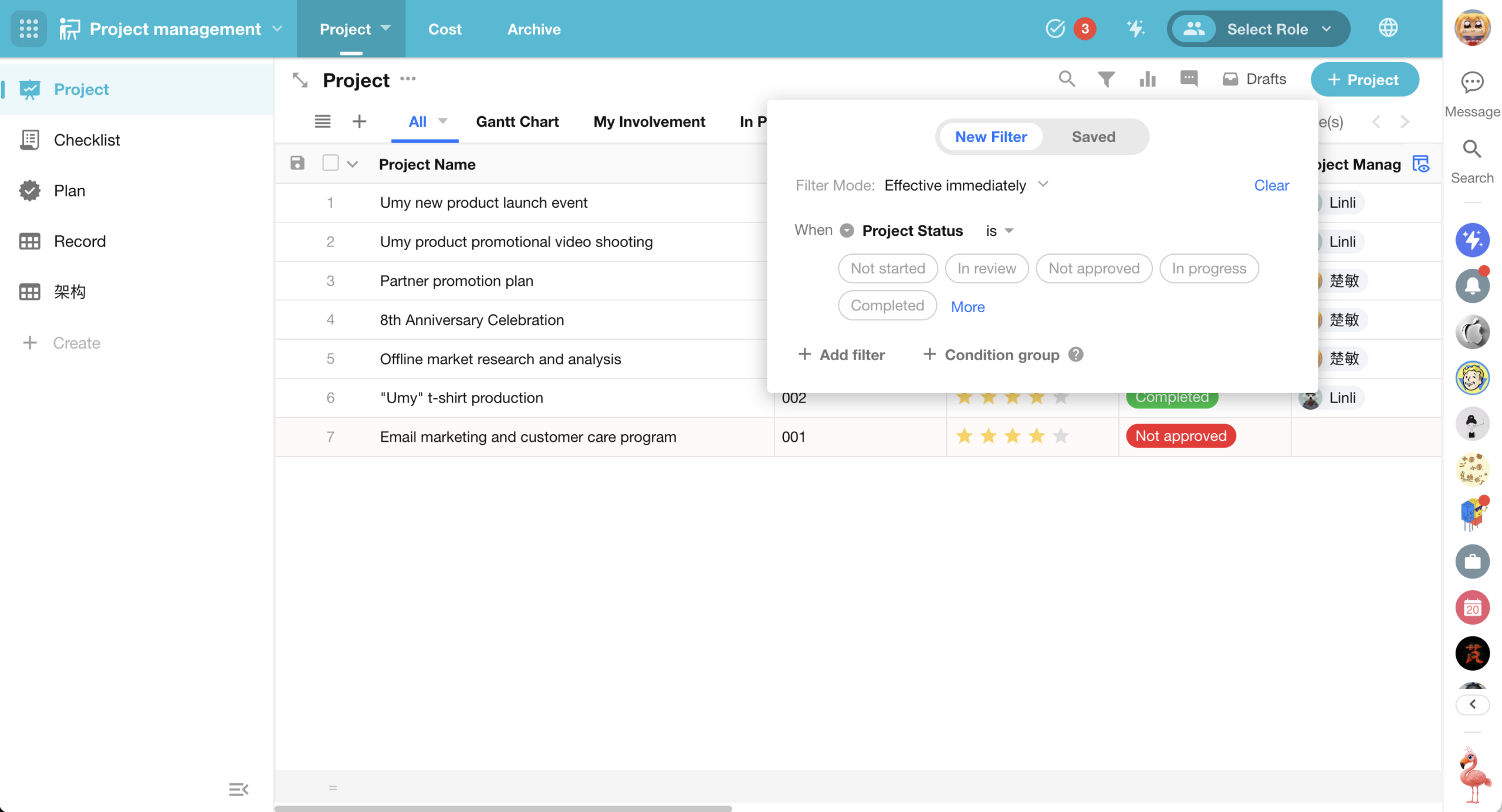
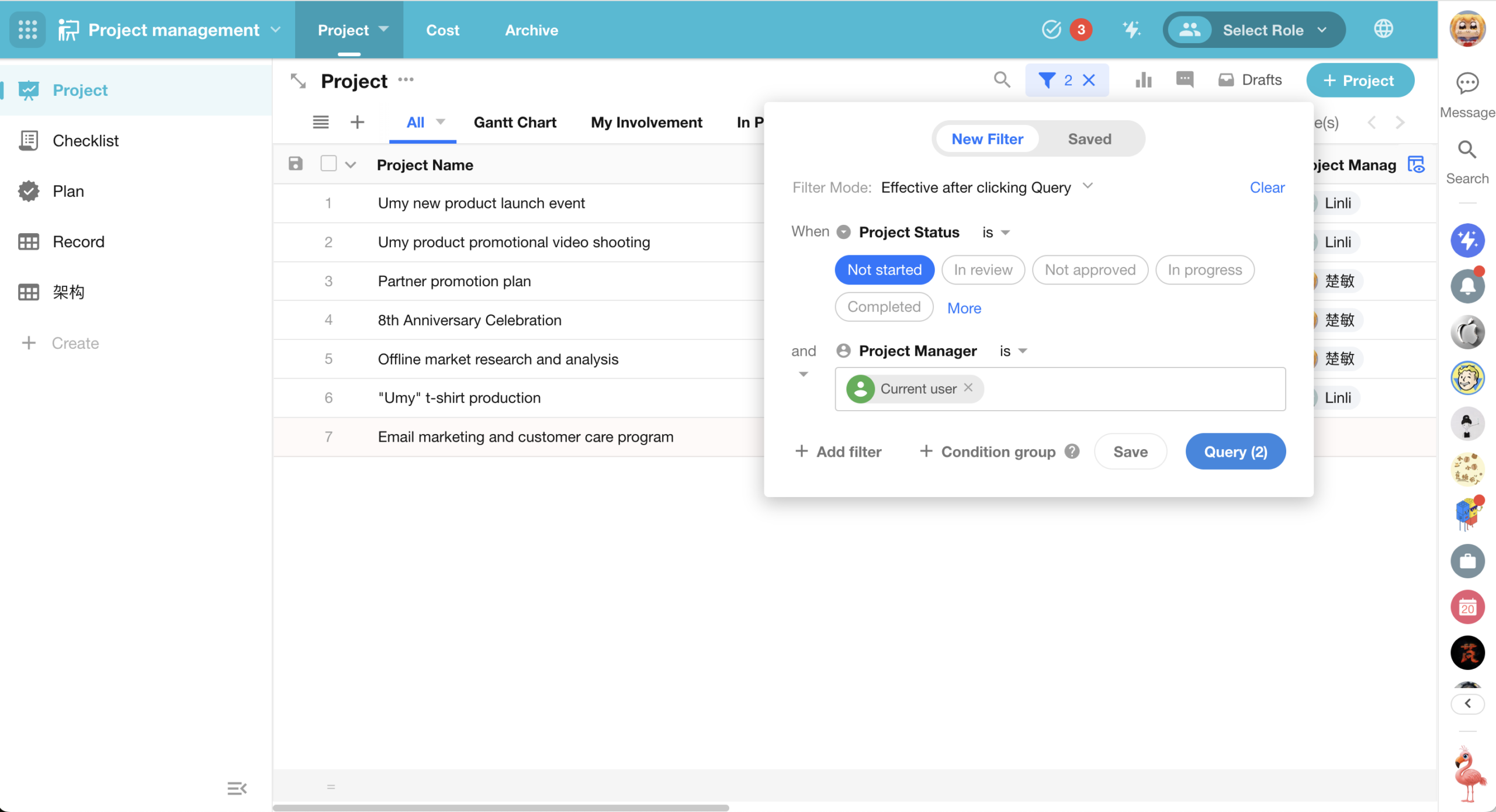
This update introduces a new filter mode for worksheet filters. In addition to real-time filtering, a “click to query” mode is now available. Users can configure multiple filter conditions and manually trigger the query to apply them.
This capability reduces interruptions and performance overhead caused by frequent refreshes. It is especially beneficial for large datasets, improving the smoothness and control of the filtering experience.
Filter modes:
- Instant (default): filters are applied immediately when conditions change
- Apply on query: filters are applied only after clicking the Query button
Filter mode is saved per user and does not affect other users.
Time Zone Support for Date Fields
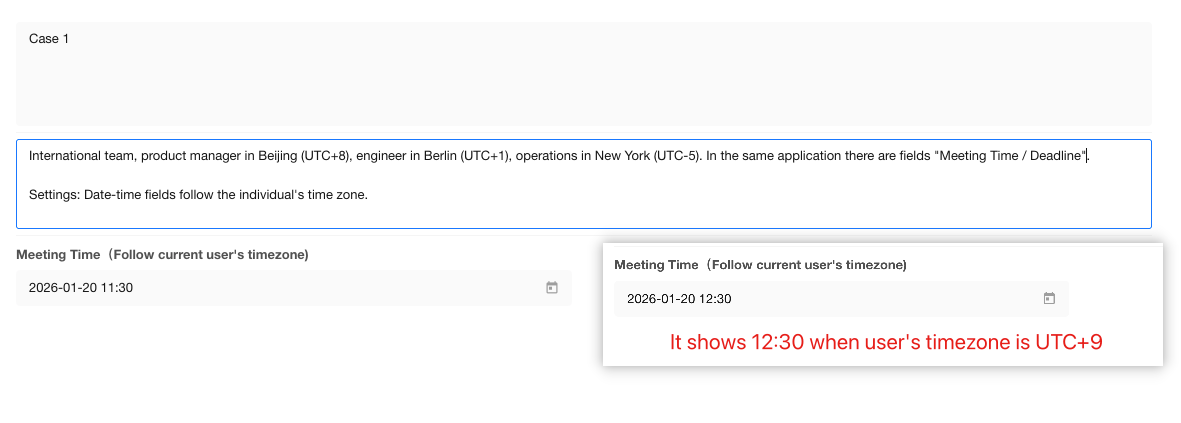
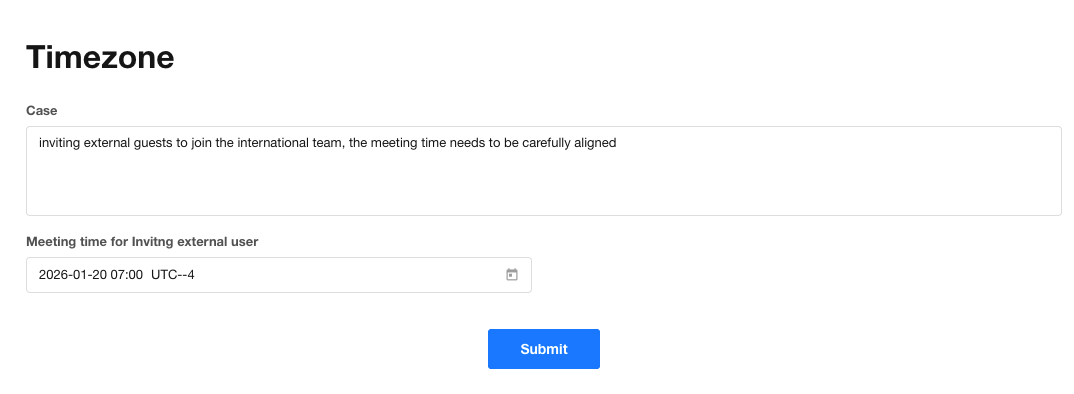
Date fields now support time zone configuration, allowing date and time values to be displayed based on either the user’s time zone or the application time zone. This ensures consistent interpretation of time across regions and roles.
Configuration options:
- Follow user time zone: Date and time are automatically displayed based on the current user’s time zone. Suitable for user-centric scenarios such as meetings, reminders, and personal tasks.
- Follow application time zone: Date and time are displayed based on the time zone configured in the application. Suitable for business-driven scenarios such as orders, finance, settlements, audits, and external user invitation deadlines.
Masking Enhancements: Keyword-Based Masking
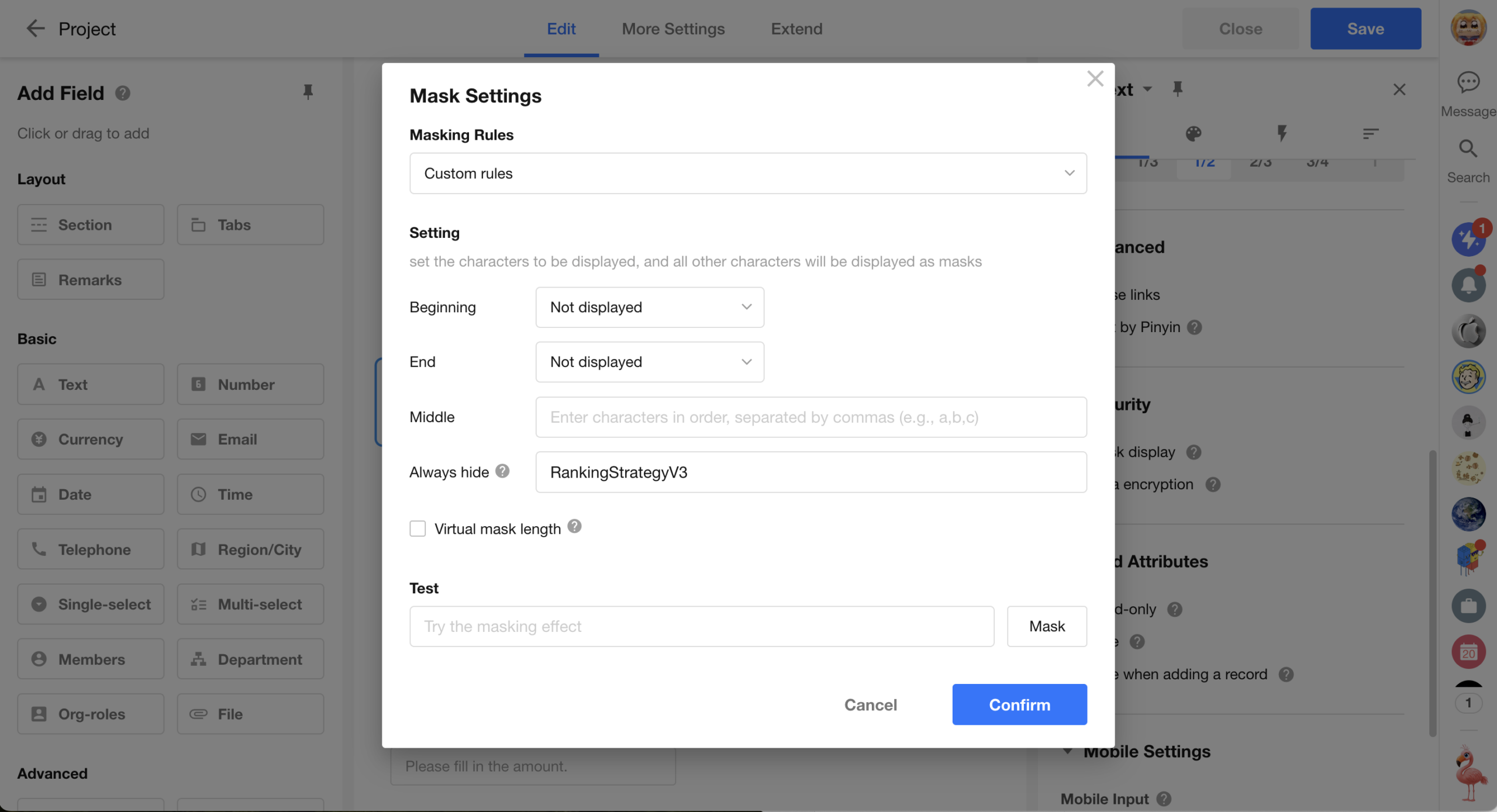
This update enhances masking for text fields by introducing keyword-based masking in custom masking rules. Administrators can define keywords that are always masked, enabling more granular protection of sensitive information.
This capability overrides existing beginning, end, and middle display rules, preventing unintended exposure caused by overlapping configurations and improving data security and control.
Priority rules:
- Keyword-based masking takes precedence over beginning, end, and middle display rules
- Keywords are masked even if they fall within visible beginning or end ranges
Multiple keywords:
- Supports configuring multiple keywords
- Keywords must be separated by commas (,)
Matching rules:
- Exact match only: masking is applied only when the content exactly matches a keyword
- Fuzzy or partial matching is not supported
Improved Dropdown Interaction for Relationship Field
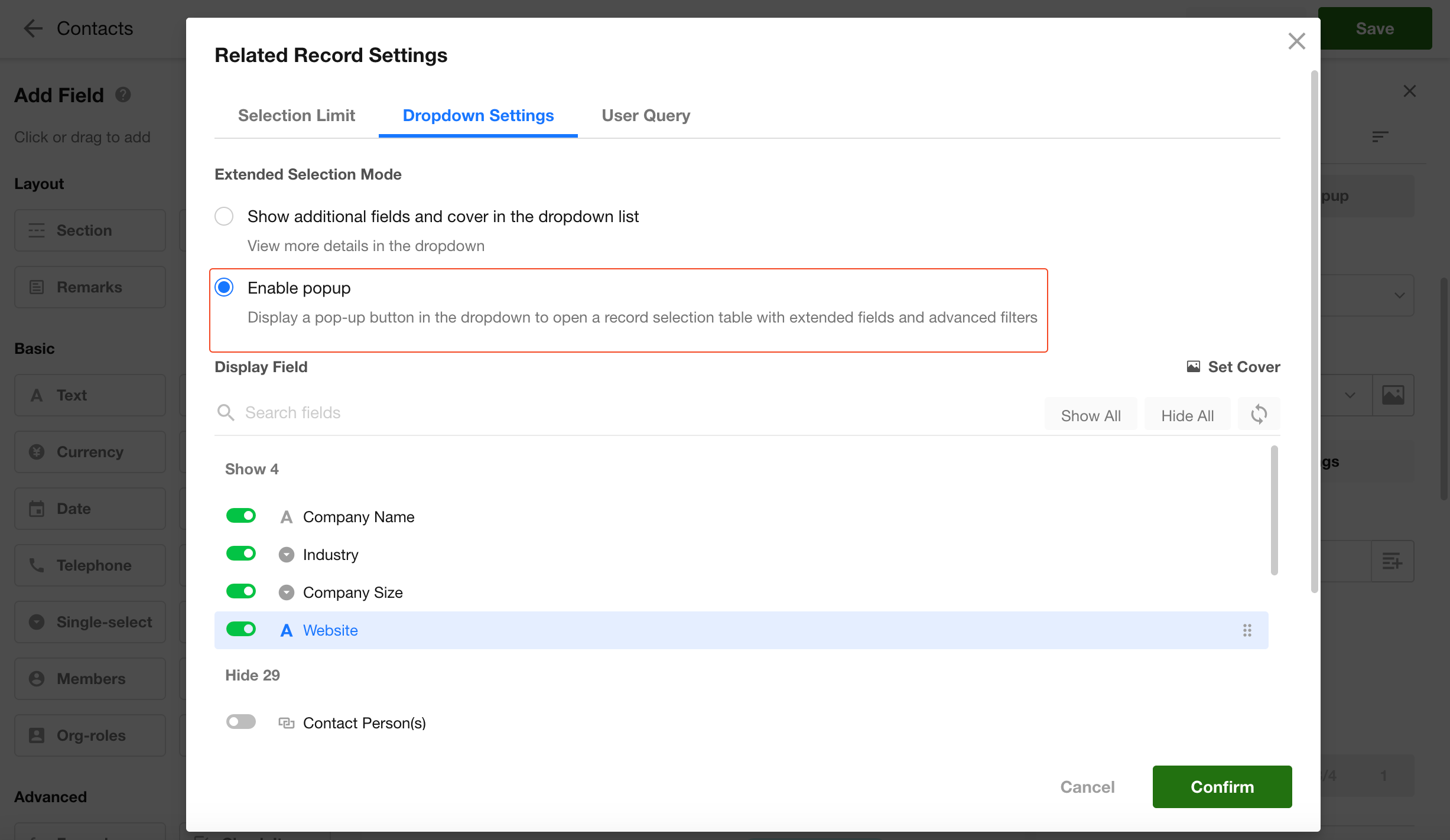
This update improves the selection experience for relationship field (single record) when displayed as a dropdown.
When Enable popup is selected in Dropdown Settings, the popup trigger is always visible on the right side of the field. Users can open the selection dialog directly without expanding the dropdown list.
Workflow
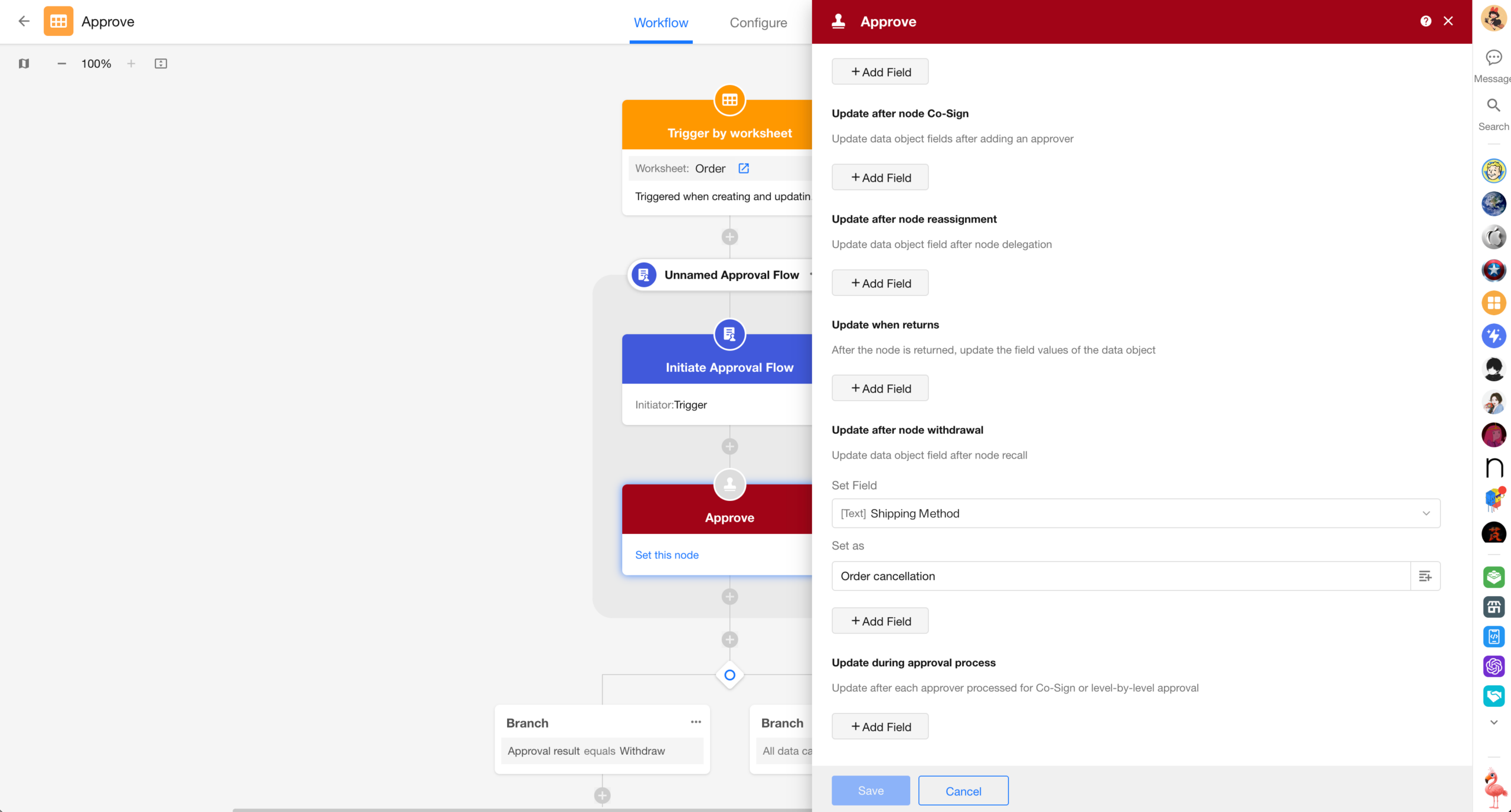
Data Updates After Approval Actions
During an approval process, when a request is withdrawn, approvers are added, or the request is reassigned, field values can be automatically updated based on configuration to keep data in sync.
Custom Page and Chart
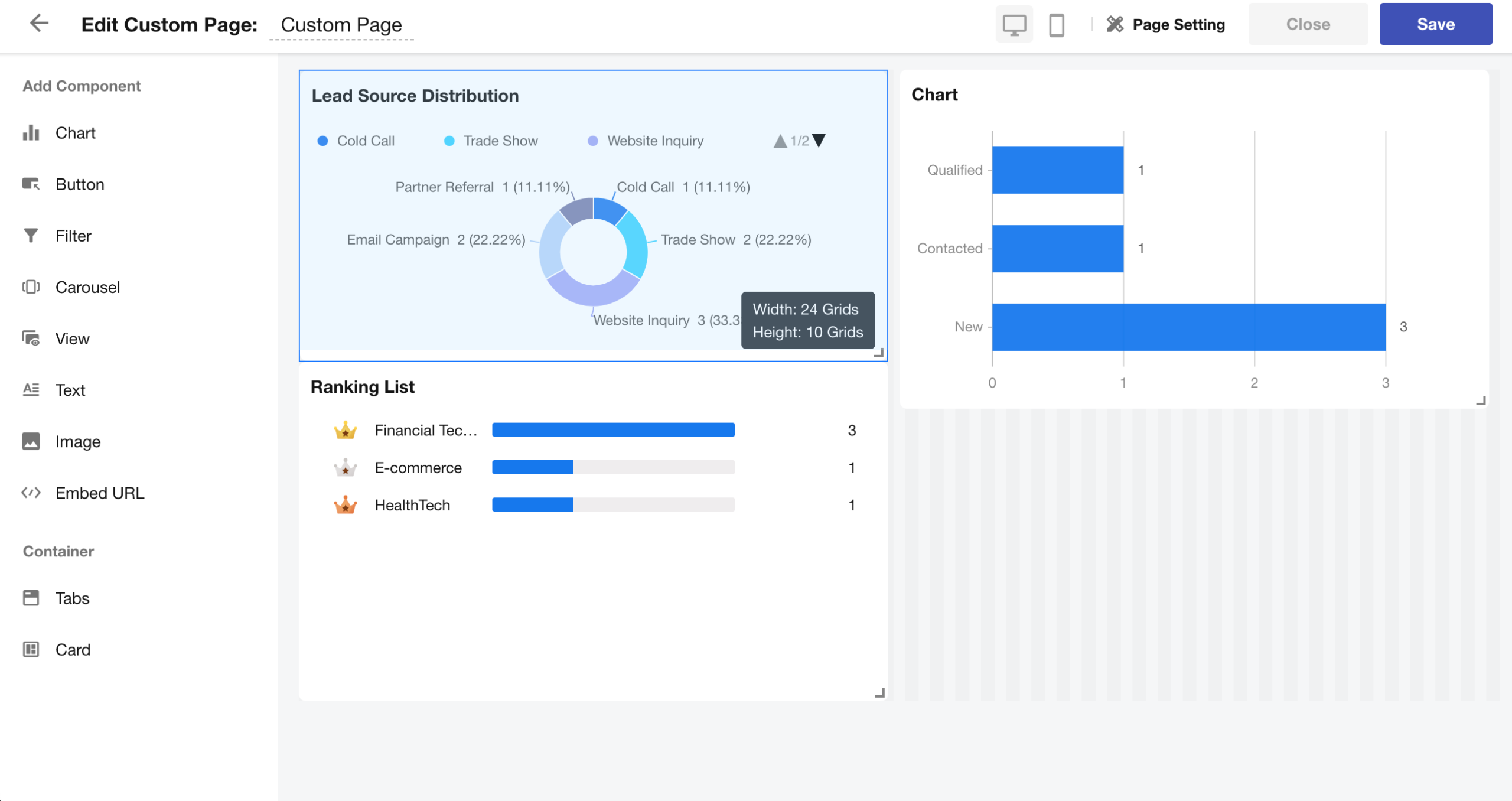
Canvas Drag Assistance in Custom Pages
When dragging or resizing components, alignment guides are displayed to assist with positioning. The current dimensions are also shown in real time at the bottom-right corner of the component.
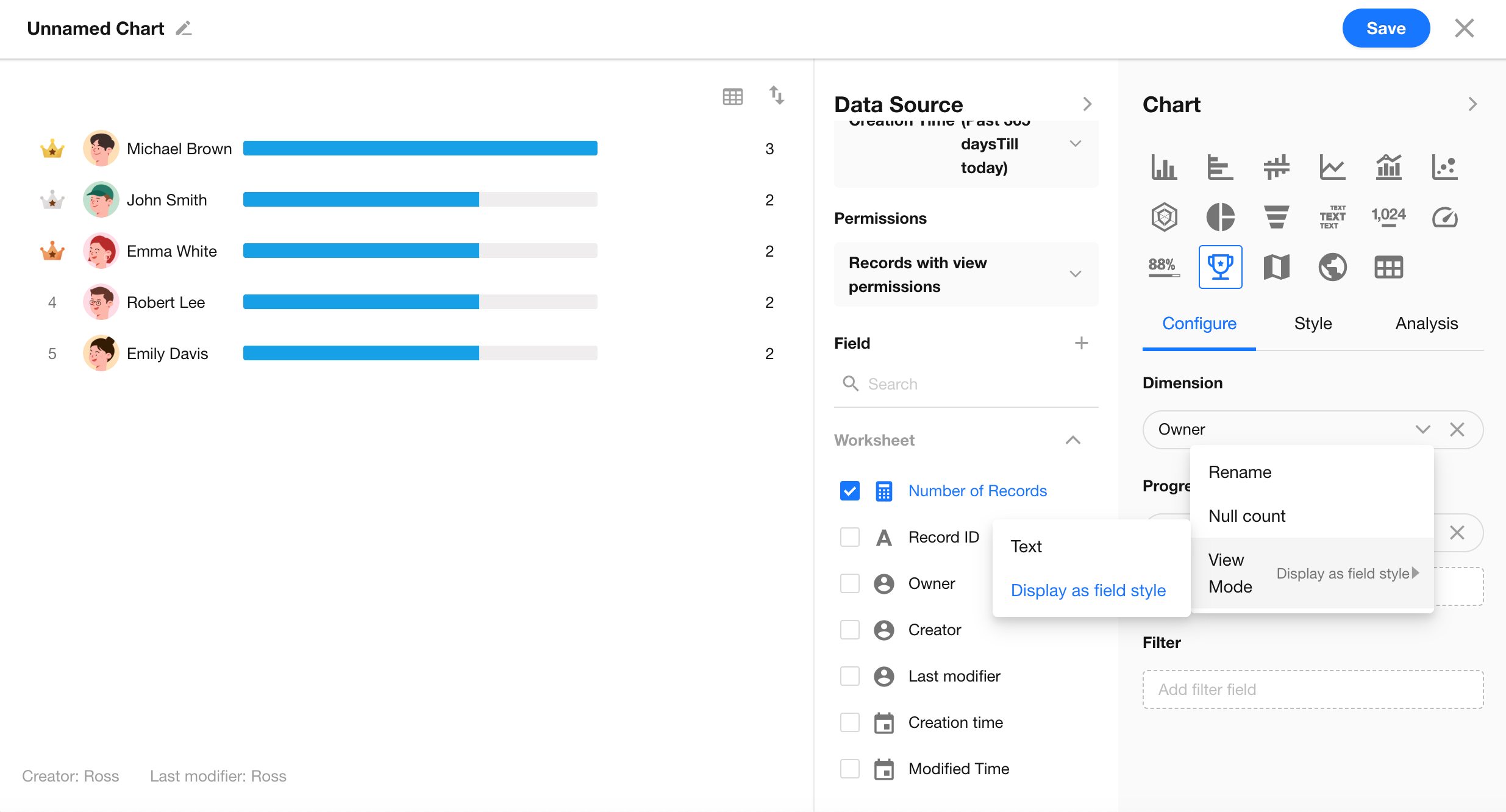
Pivot Table & Ranking List: Dimension Fields Display in Native Format
In pivot tables, dimension fields such as member, department, option, and check item fields can now be displayed using their native display format.
In ranking lists, member fields used as dimensions also support native format rendering.
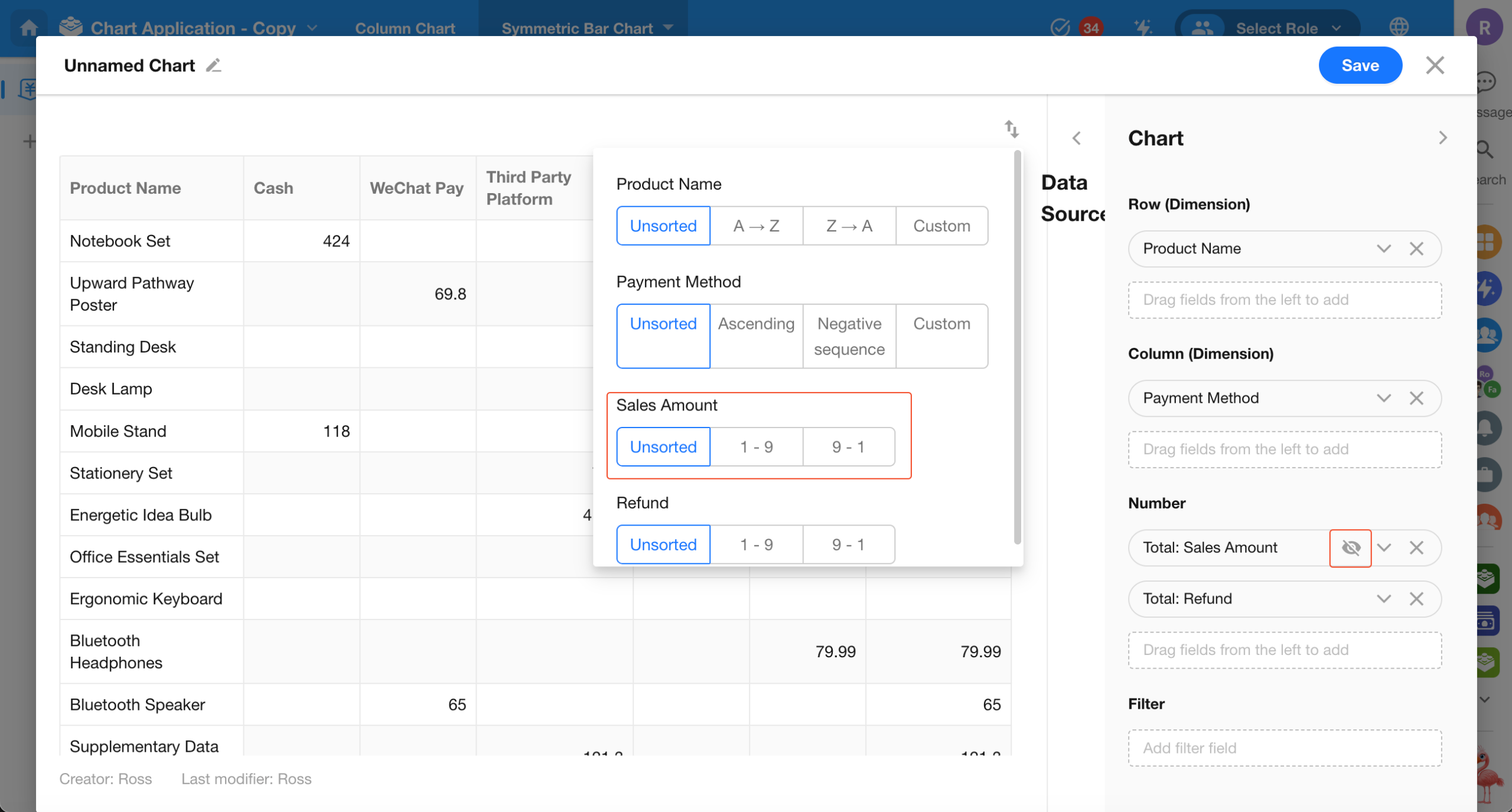
Pivot Tables: Hide Number Fields
Number fields can now be hidden from the pivot table. Hidden fields remain usable for sorting, calculation, and color rules.
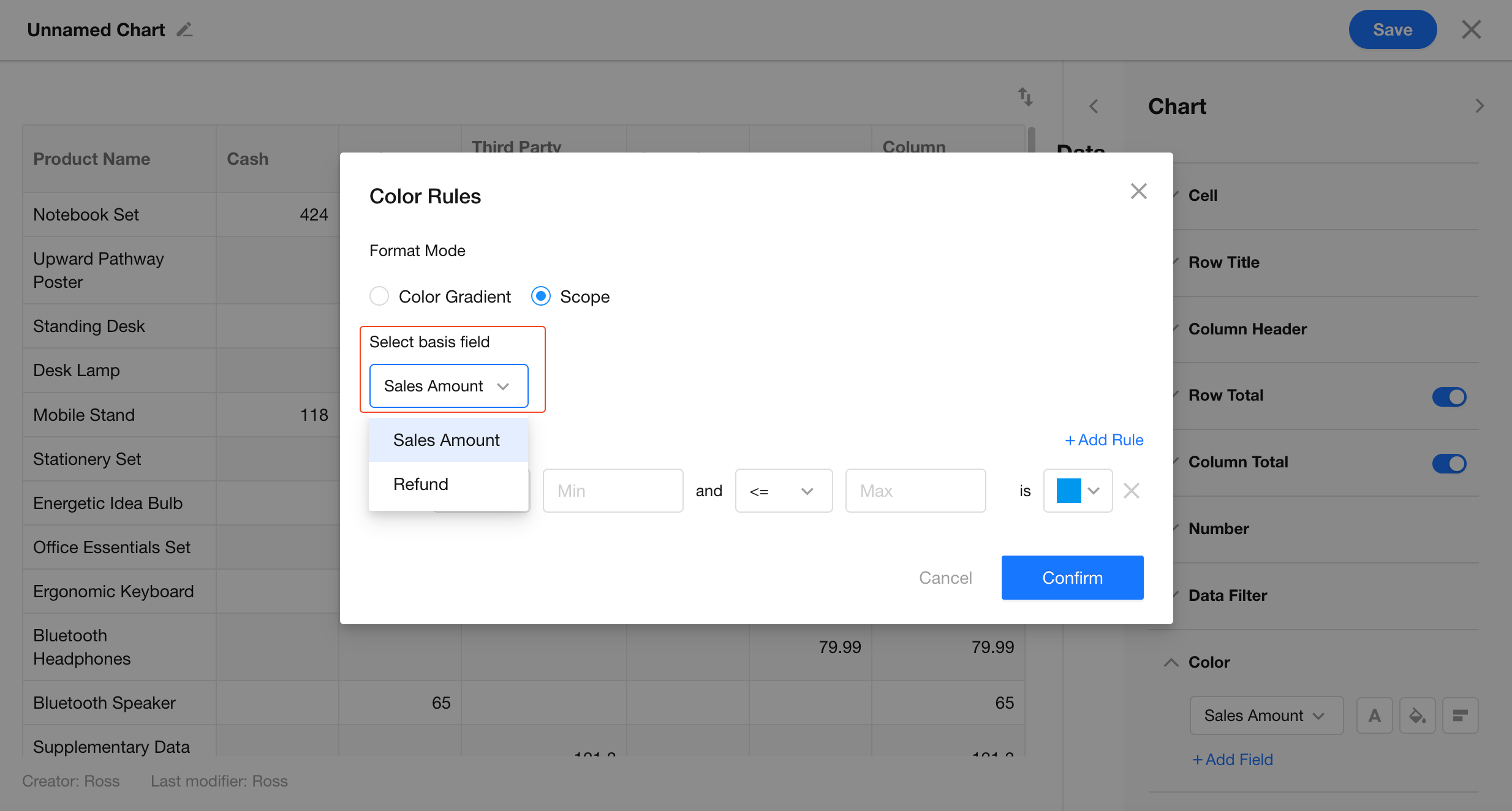
In scope mode, color rules now allow selecting a basis field.
API Integration
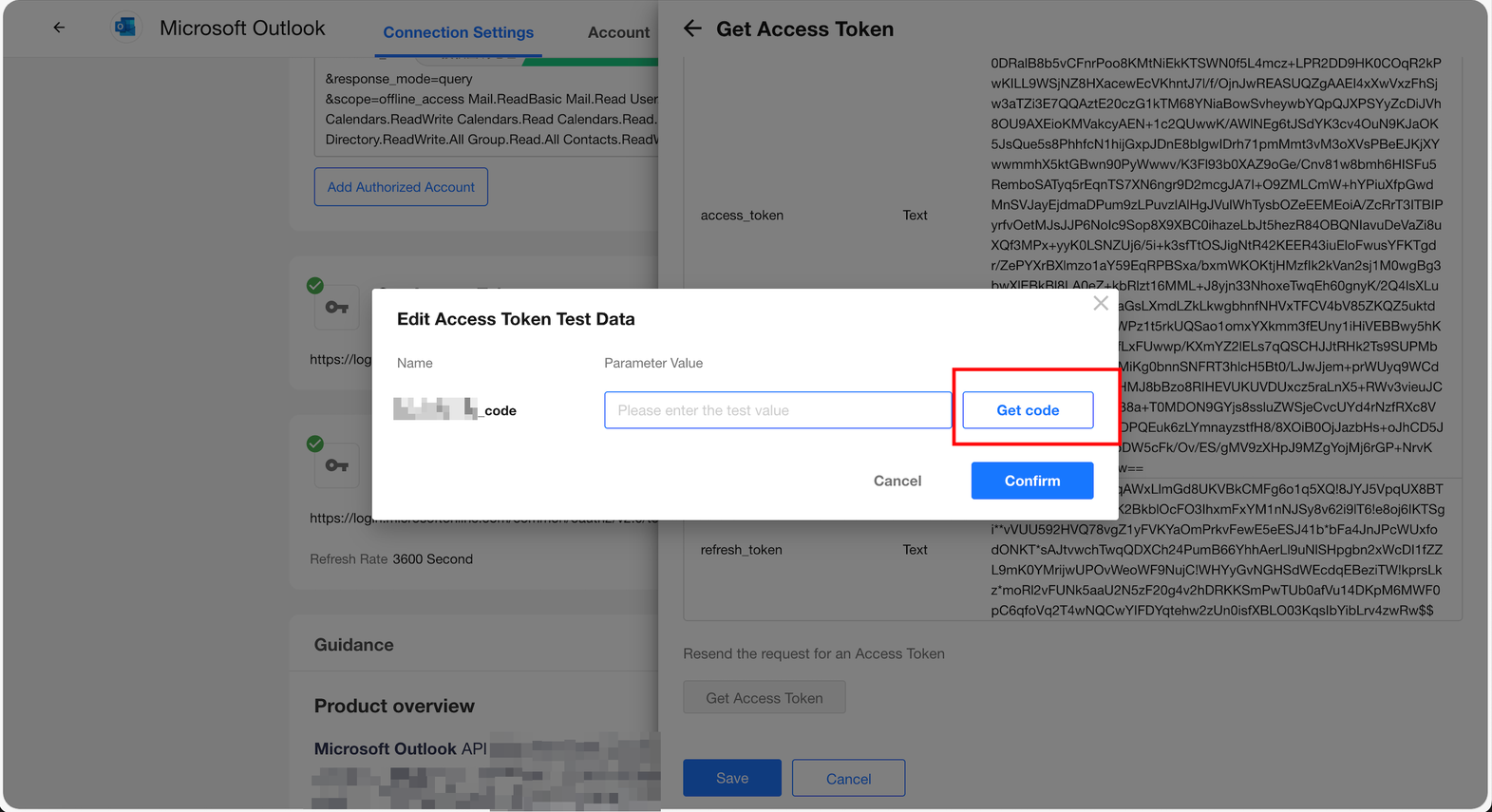
Authorization Code Authentication: Improved Setup and Logging
In the Get Access Token node, the code can now be retrieved and populated directly.
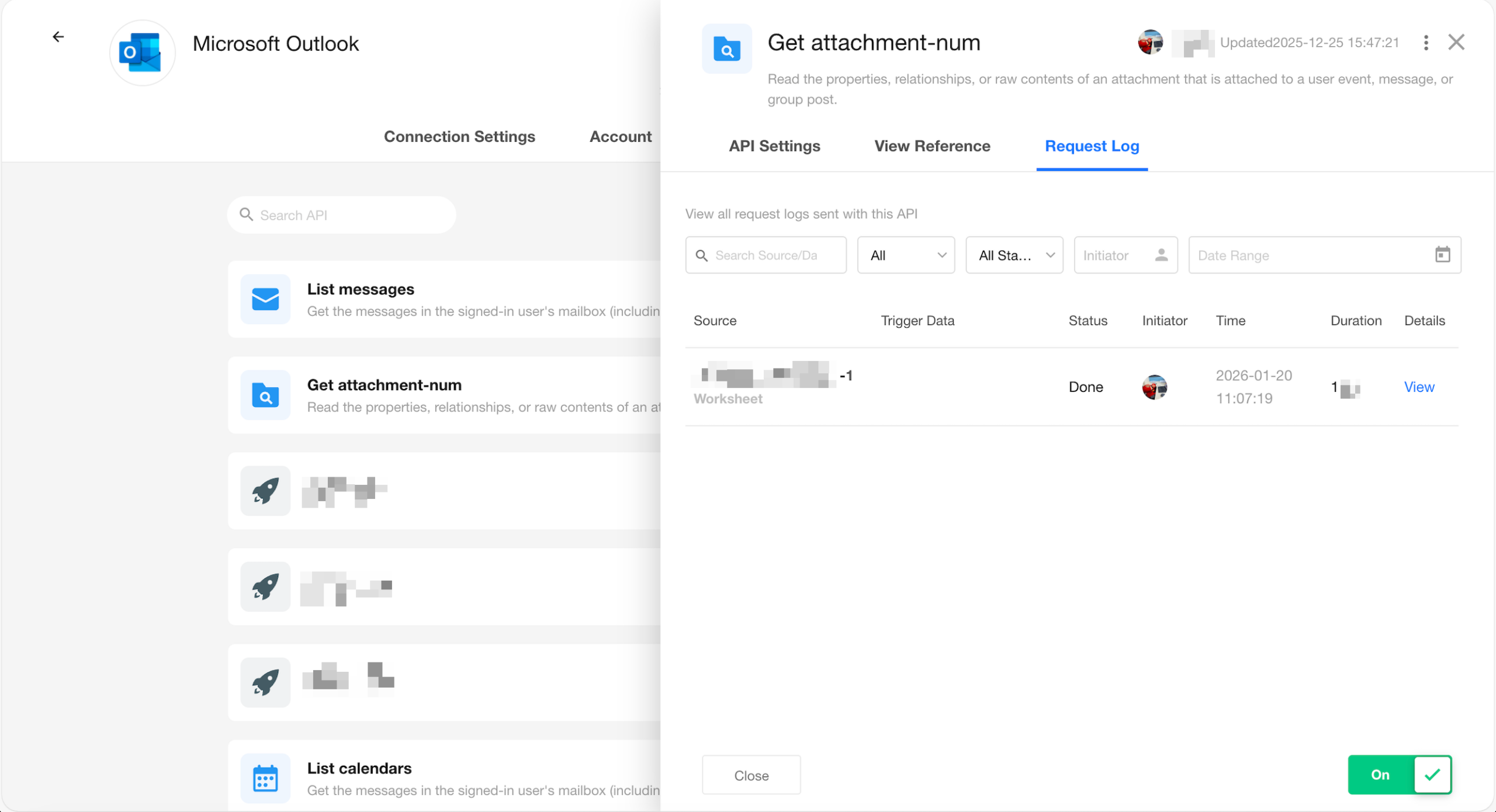
API request logs now show only requests made using the current authorized account.
Field Descriptions Displayed When Using Integrated APIs in Worksheets / Workflows
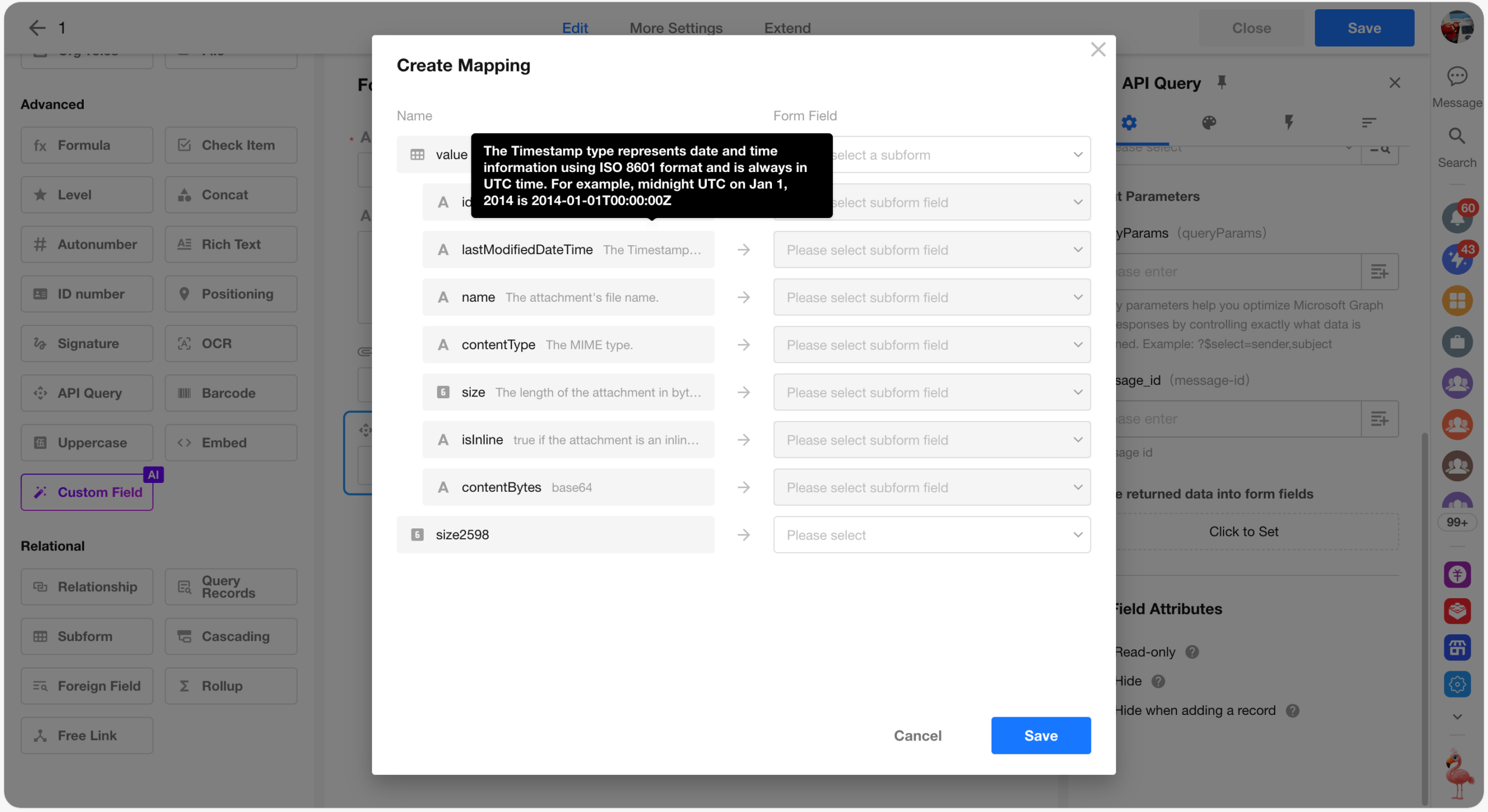
Worksheet
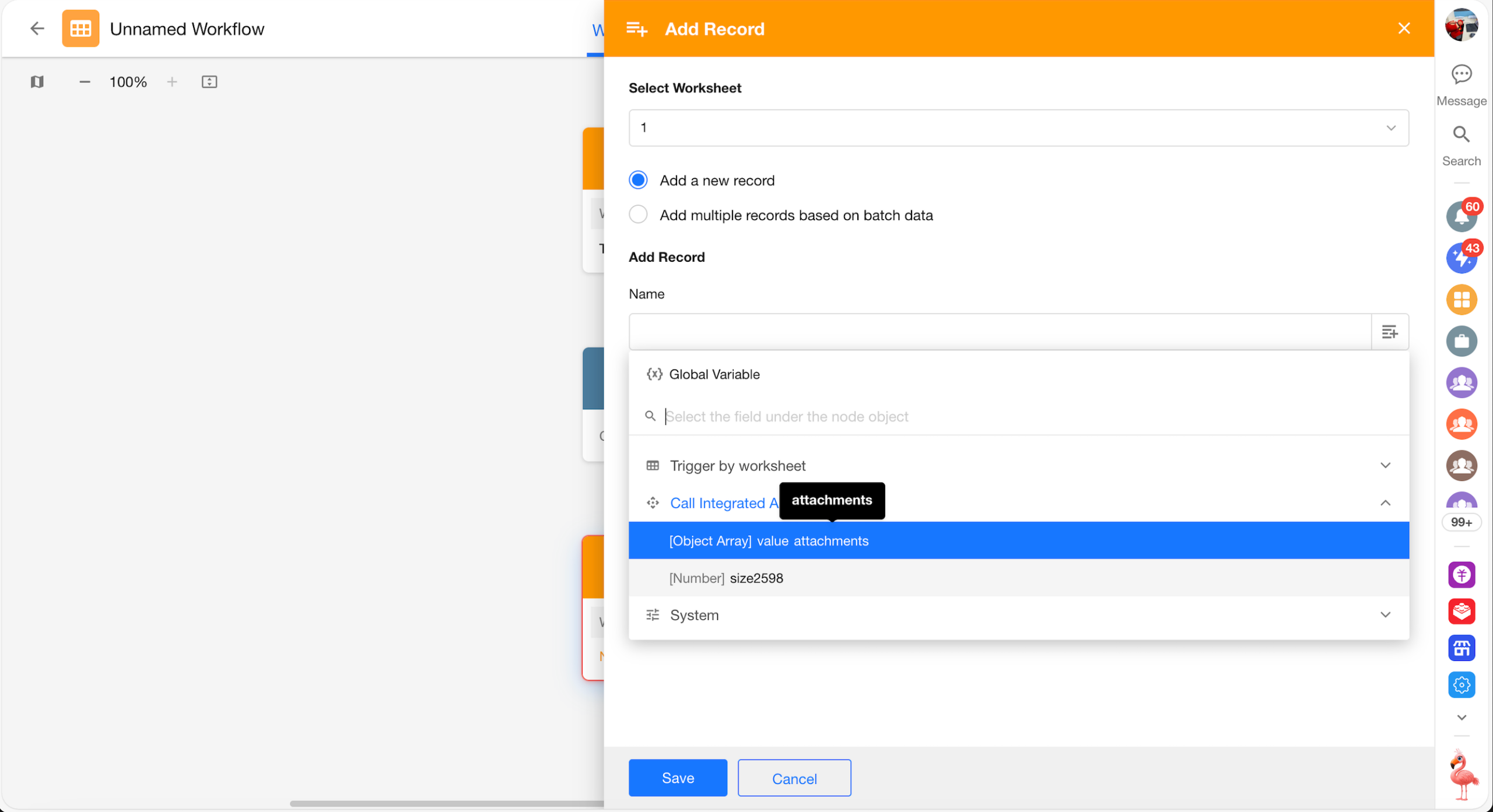
Workflow
Enterprise Identity Integration
Microsoft Entra Integration
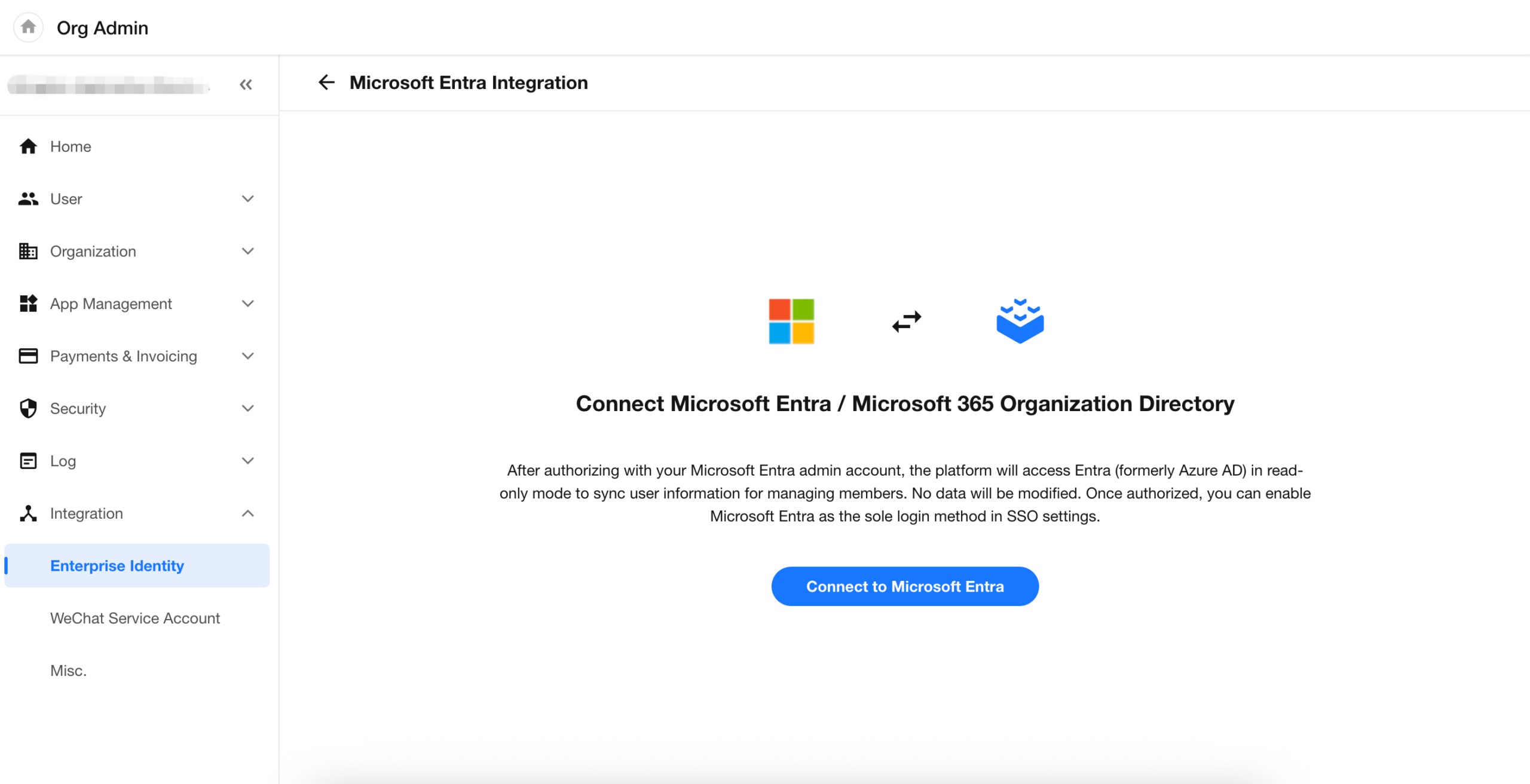
Organization Integrations now supports Microsoft Entra integration. By connecting to a Microsoft Entra directory (via administrator authorization), the platform can access the directory in read-only mode to retrieve and sync organizational users.
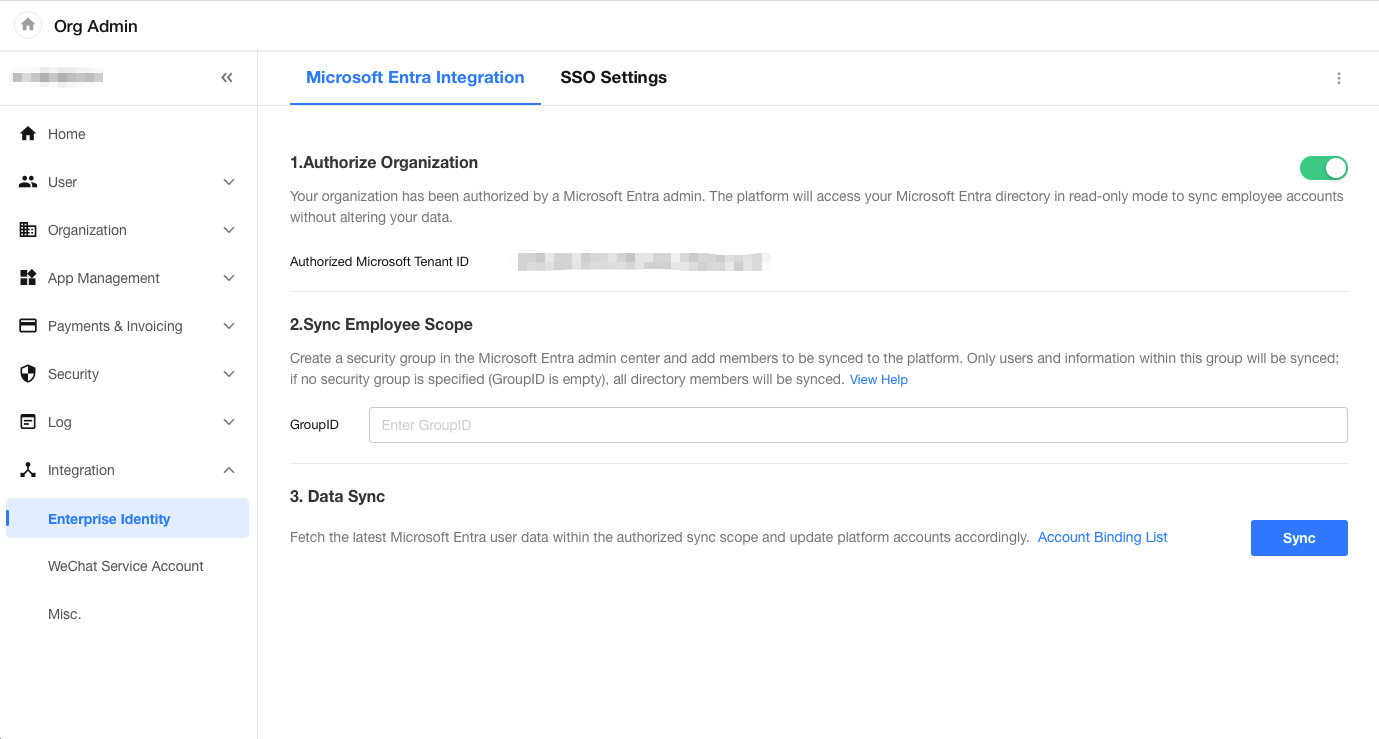
Configure user sync scope
After authorization, users from Microsoft Entra can be synced to the platform to create or update member records. Sync scope can also be controlled by specifying Group IDs (security groups).
Set Microsoft Entra as the Only Login Method
After completing Microsoft Entra integration, you can enable Set Microsoft Entra as the Only Login Method in SSO Settings.
After enabling:
- Password login, verification code login, and other SSO methods are disabled.
- Login security policies (such as password policies, sign-in verification, and multi-factor authentication (MFA)) are centrally managed by Microsoft Entra.
This is suitable for scenarios that require a unified identity provider and enhanced account security and compliance.
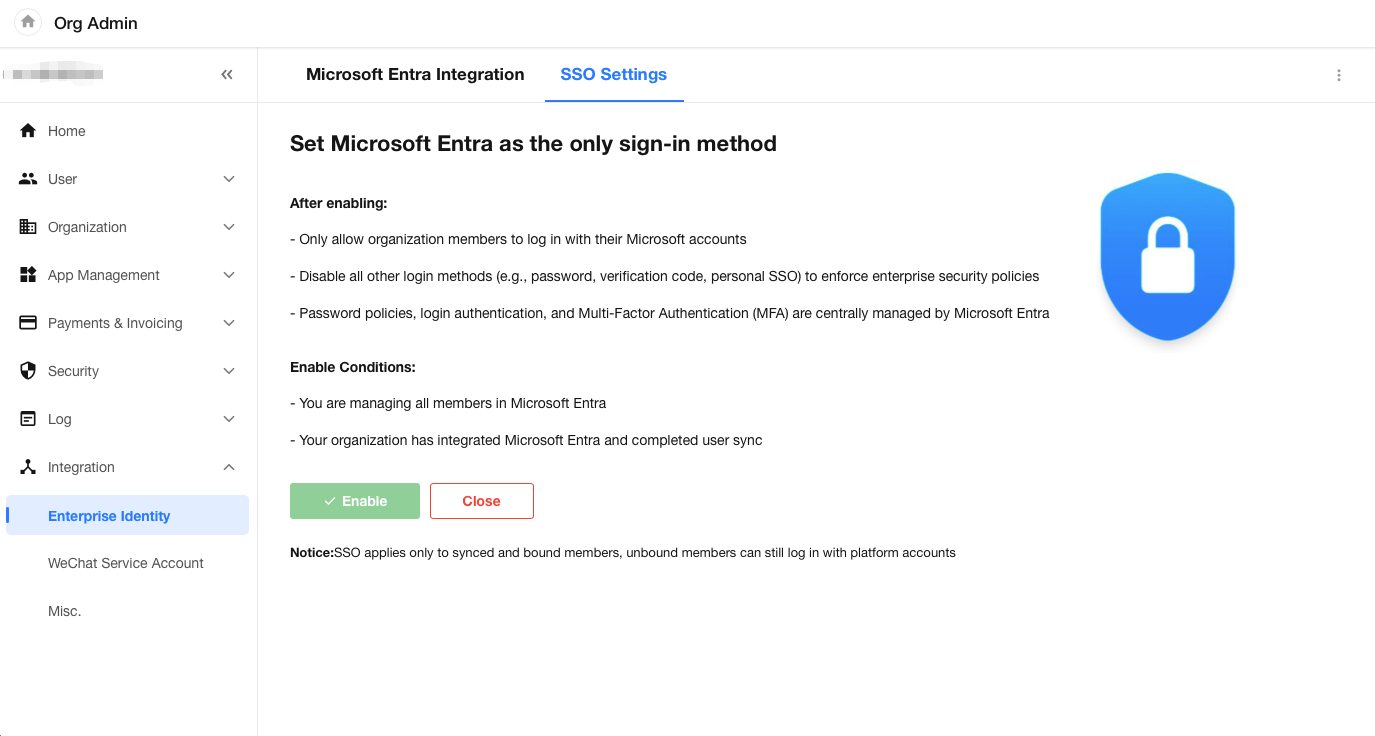
Once enabled, the organization’s login page will display only the Microsoft Entra sign-in option. If users attempt to sign in using other methods on different login pages, the request will be blocked.
Organization Management
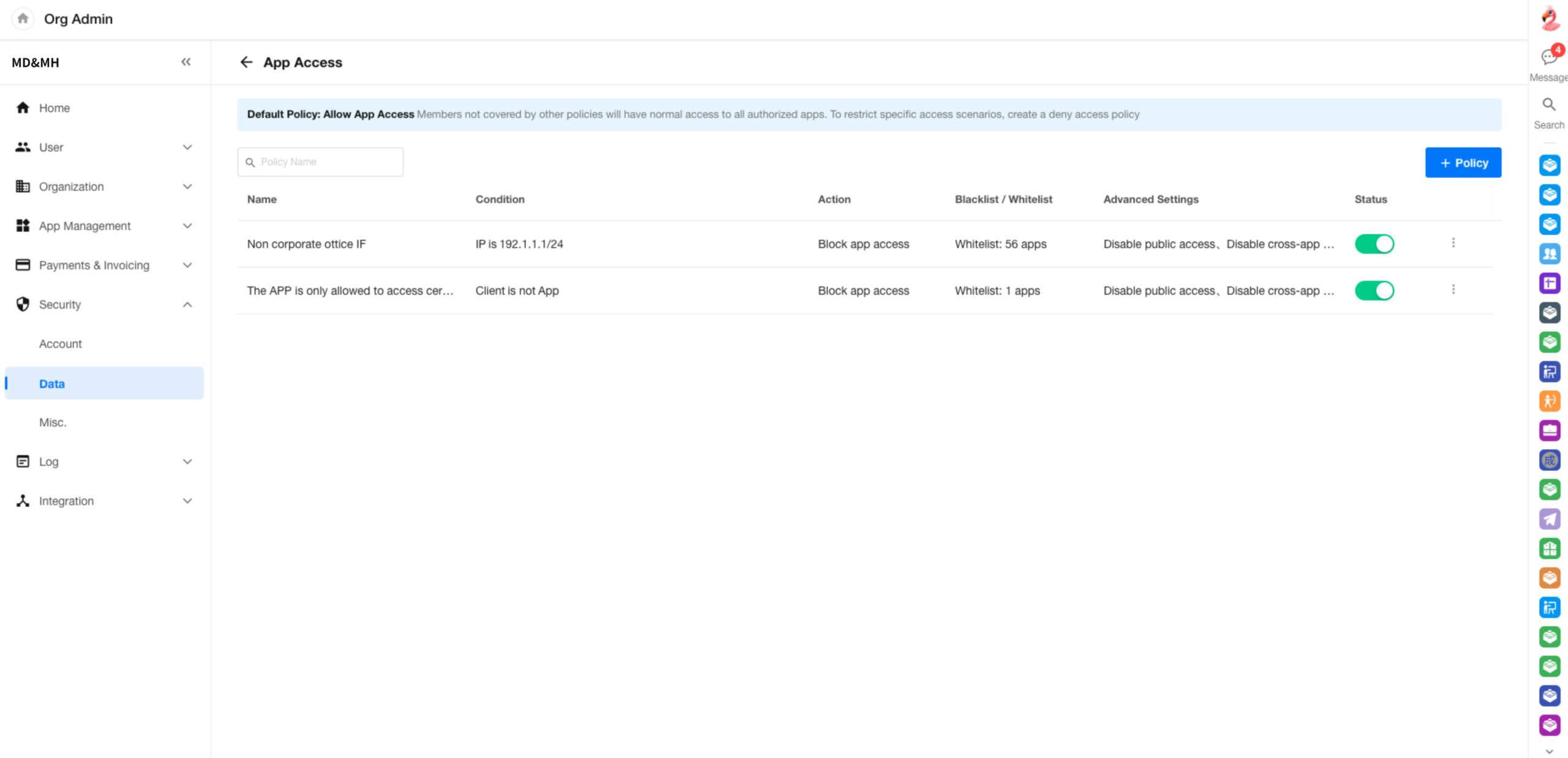
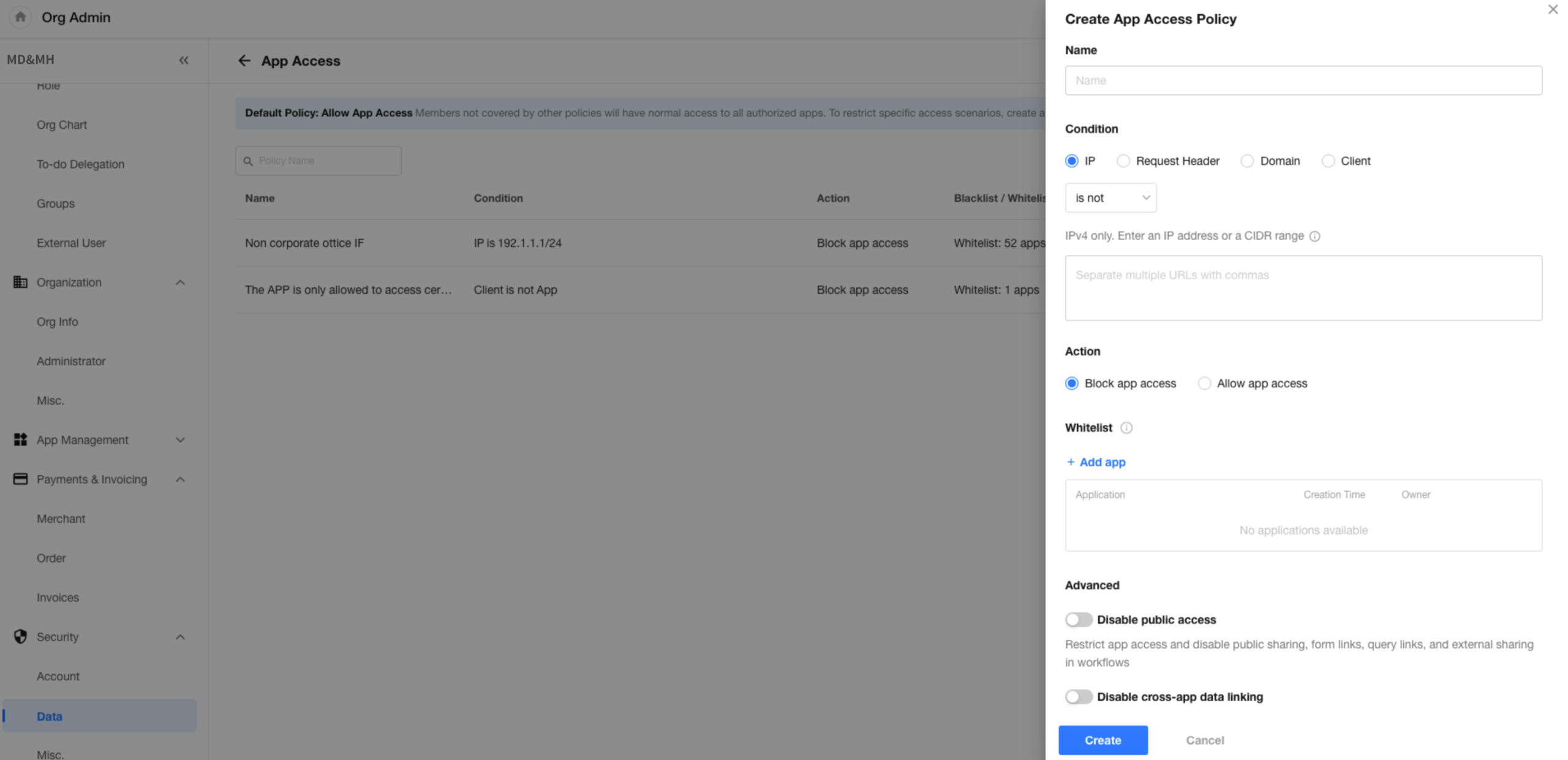
Application Access Policies
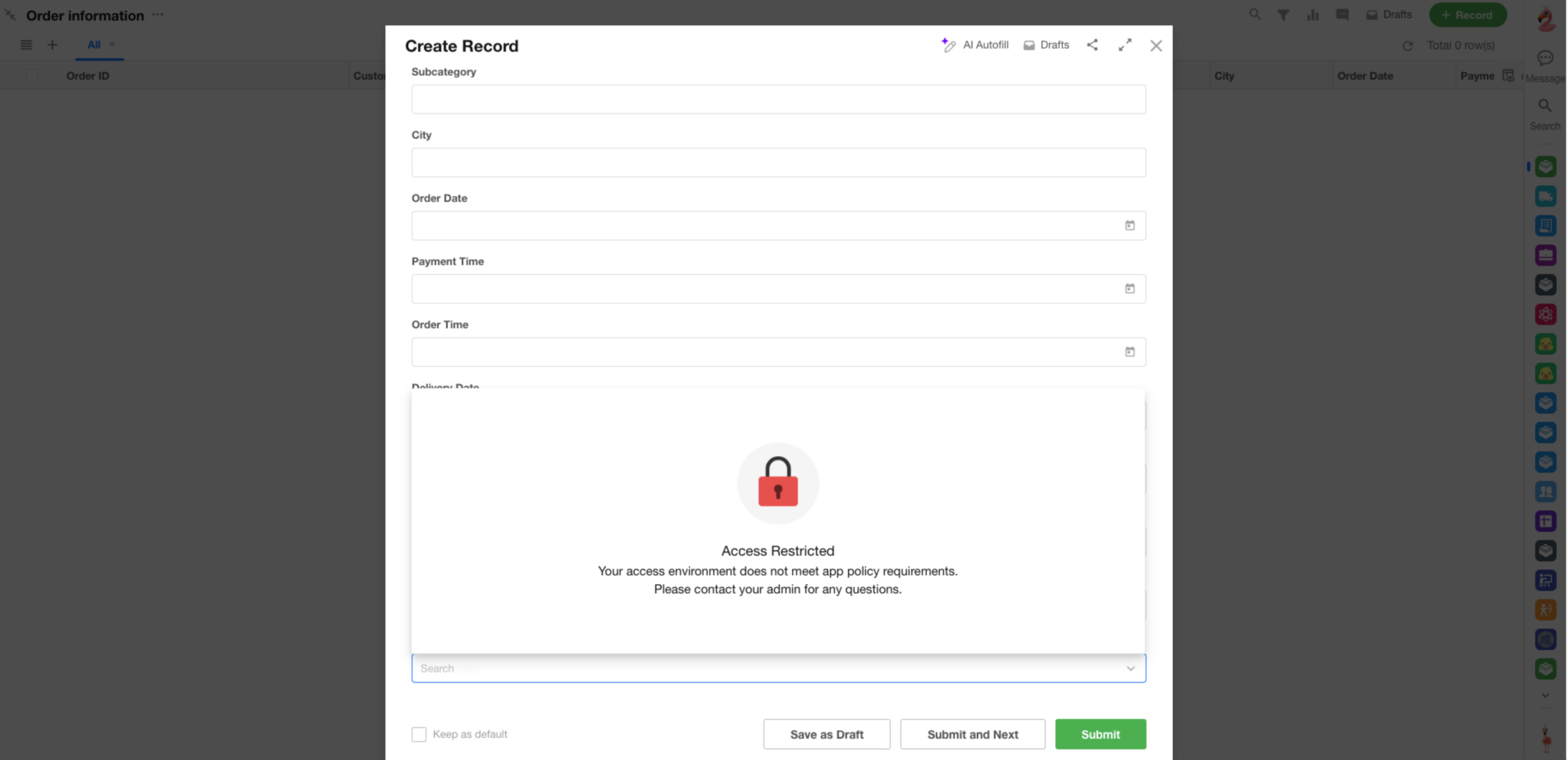
Application access policies can be configured in the Organization Admin Console. Access can be allowed or denied based on conditions such as IP address and client type. Each policy supports both allowlists and blocklists. Up to 10 policies can be created.
Availability:
- HAP SaaS: Available in Professional edition only
- HAP Server: Available in Professional edition only
- HAP Server (Application Platform Core): Supported and can be allocated as a feature quota (Note: In the Application Platform Core, policy conditions do not support request headers or domain names)
Policy evaluation logic:
To ensure data security, when multiple policies are matched, the most restrictive rule applies, with deny rules taking precedence:
- If multiple deny policies are matched, the application must be included in the allowlists of all matched policies for access to be granted
- If both allow and deny policies are matched, the deny policy takes precedence, and any applications in the blocklist are removed from the allowlist
- When multiple policies are matched, if any policy has advanced settings enabled (Disable public access / Disable cross-application data linking), those restrictions apply
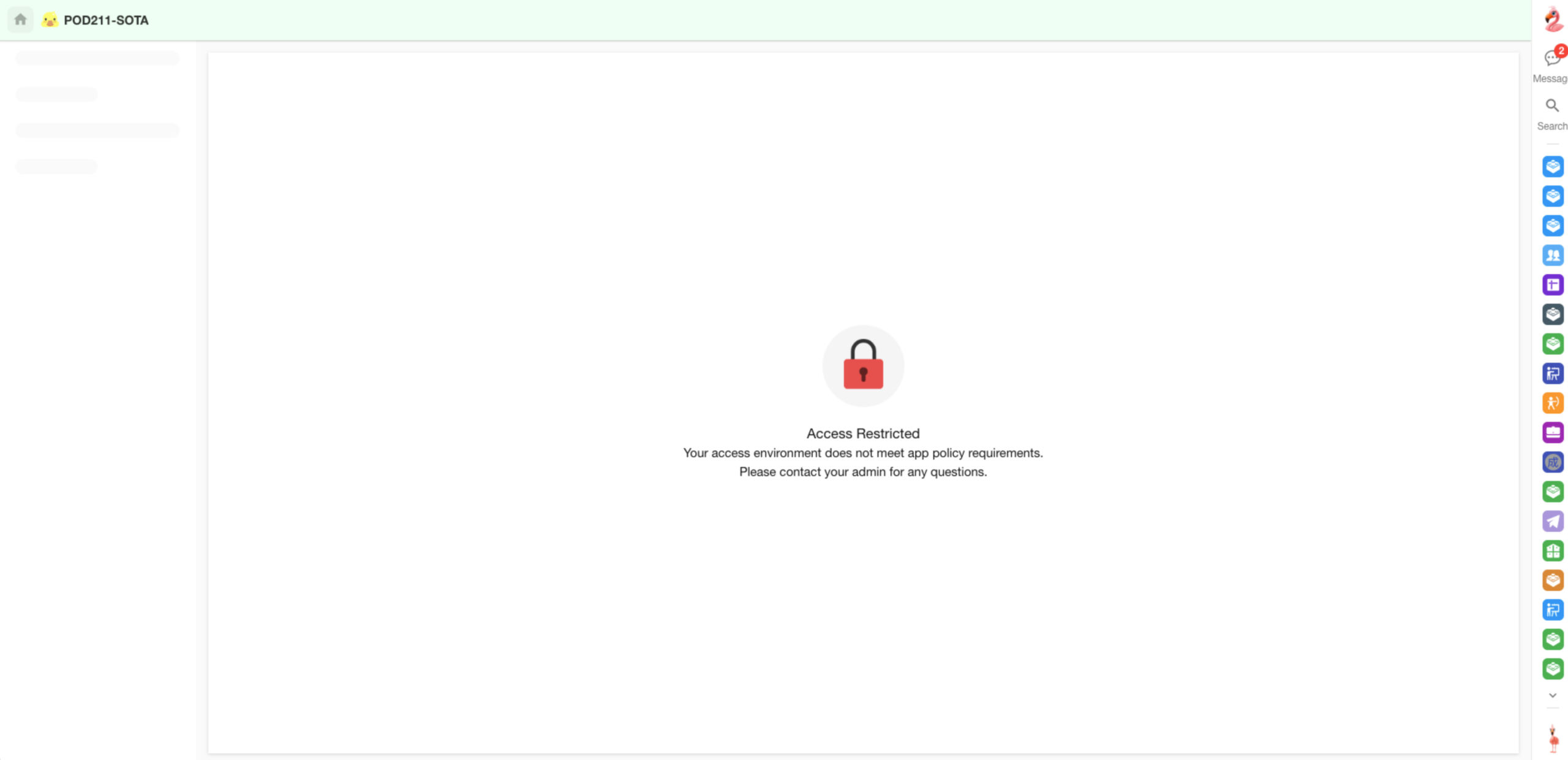
Restricted Access Behavior
Access to the application is blocked:
Access to cross-application related worksheet data is blocked:
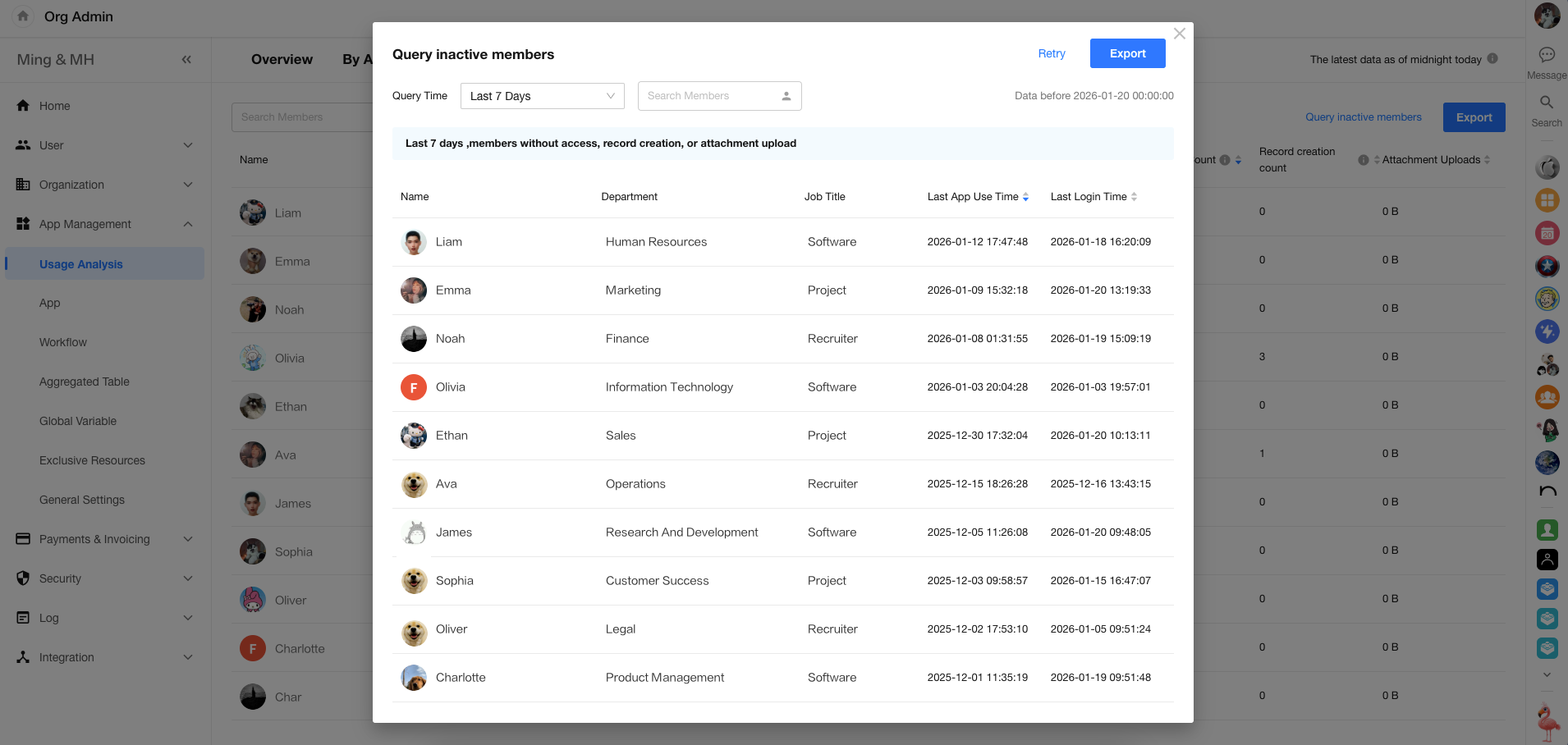
View Inactive Members
In the Organization Admin Console under Usage Analysis > By Member, you can view inactive users in the organization. Queries can be performed once per day, and results can be exported.
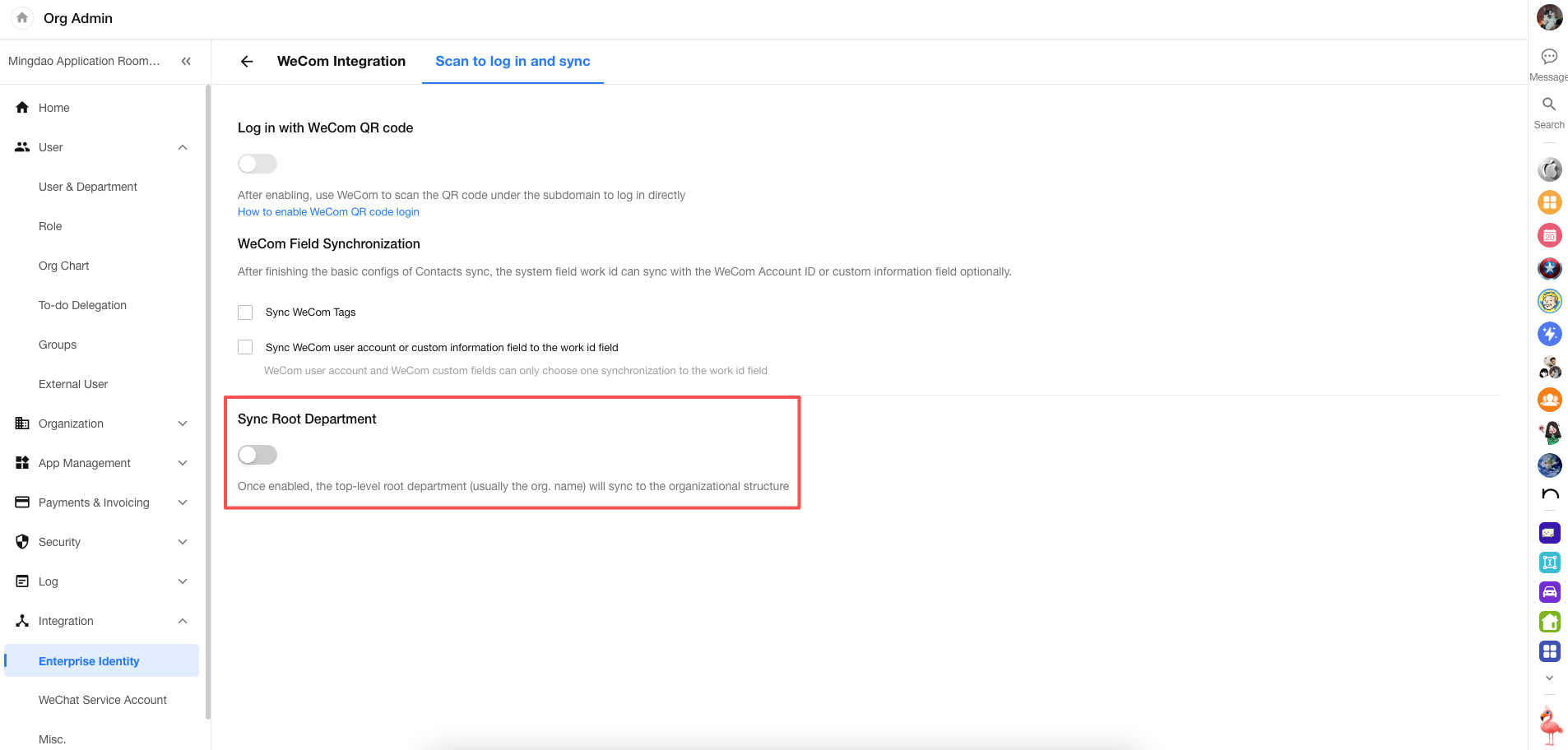
Third-Party Integration Supports Root Department Sync
When integrating with WeCom or DingTalk, you can enable root department sync. The top-level department (typically the organization name) will also be synced into the platform.
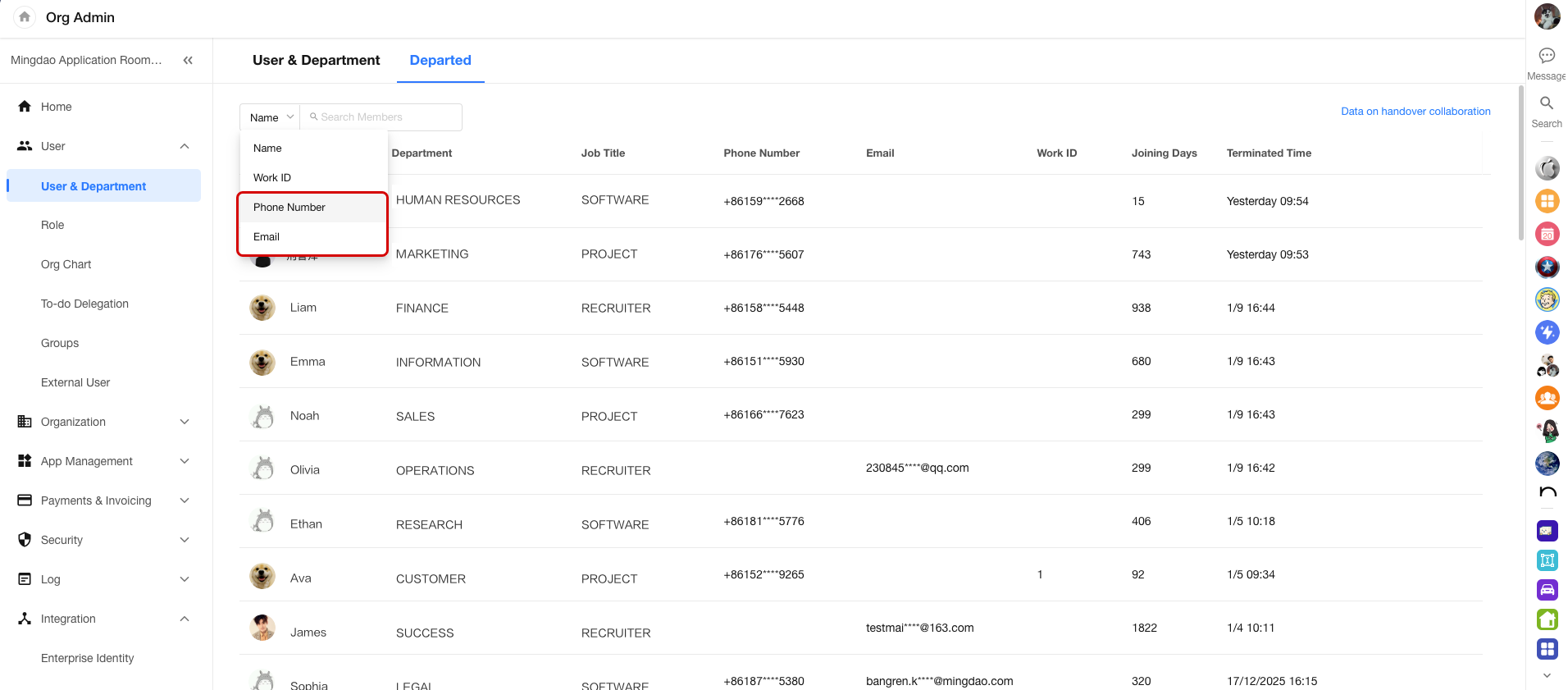
Search by Phone Number or Email in Departed Users List
APP&H5
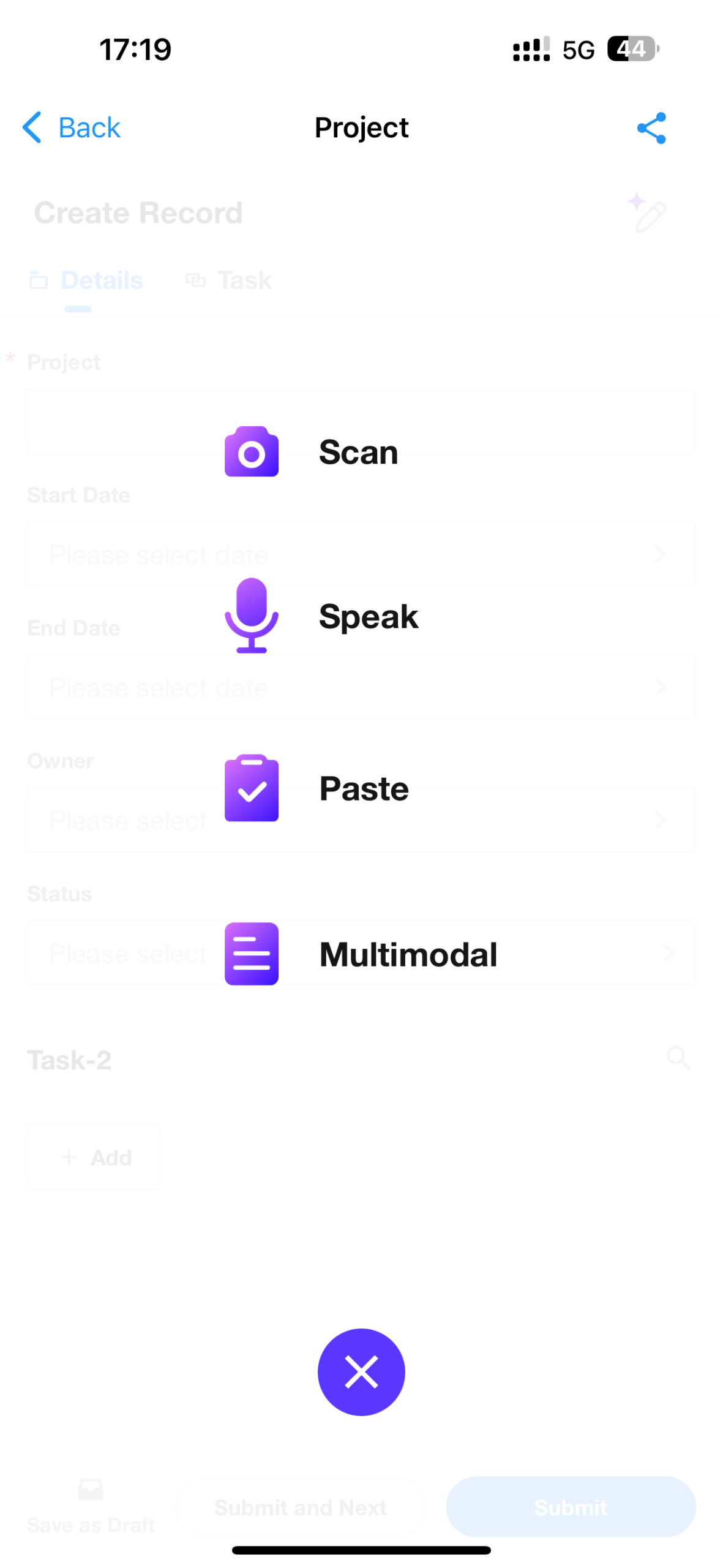
Smart Record Creation
Building on existing image-based record creation, this update introduces additional input methods, including voice input, text paste, and multimodal input. These options enable faster and more flexible record creation.
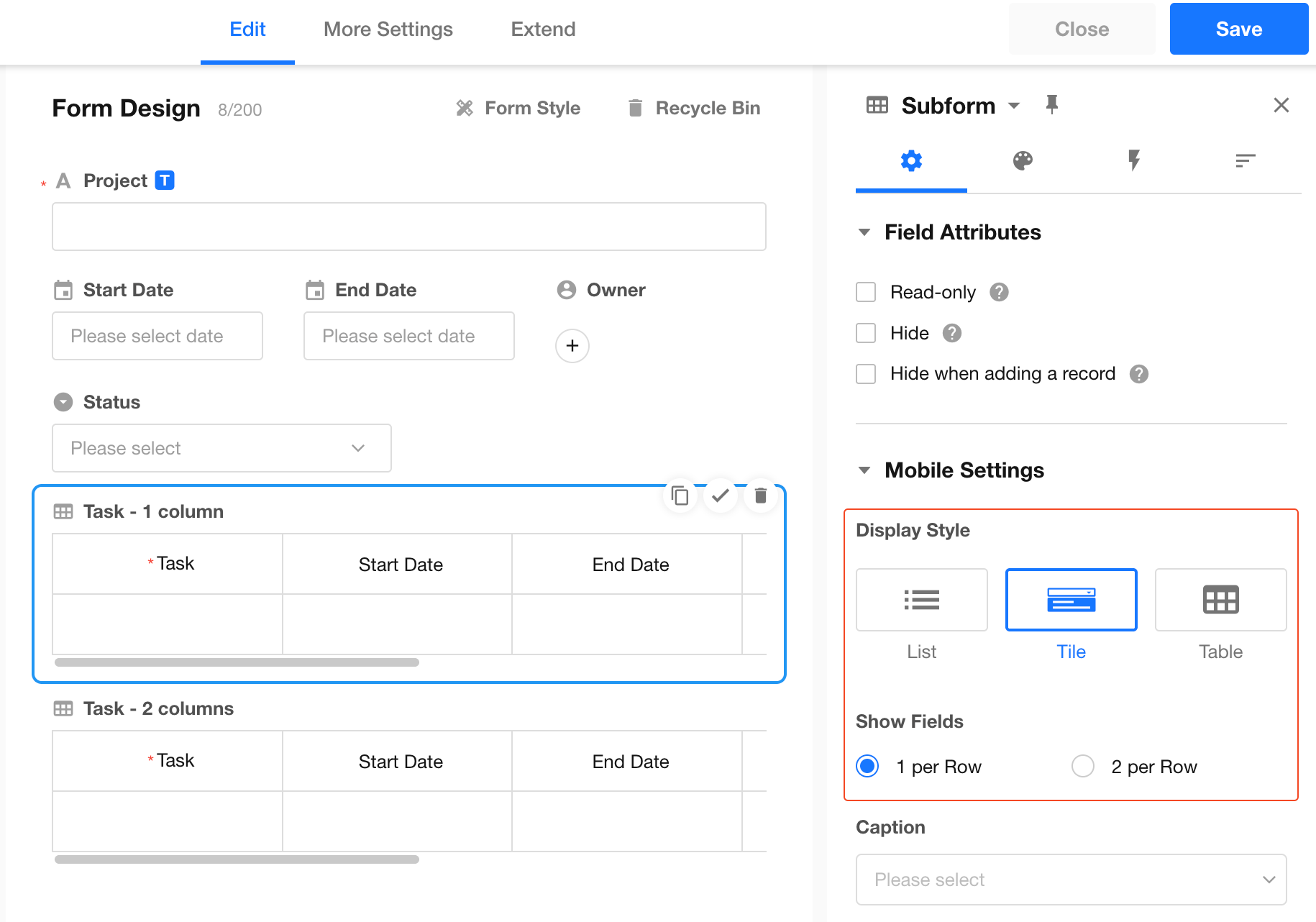
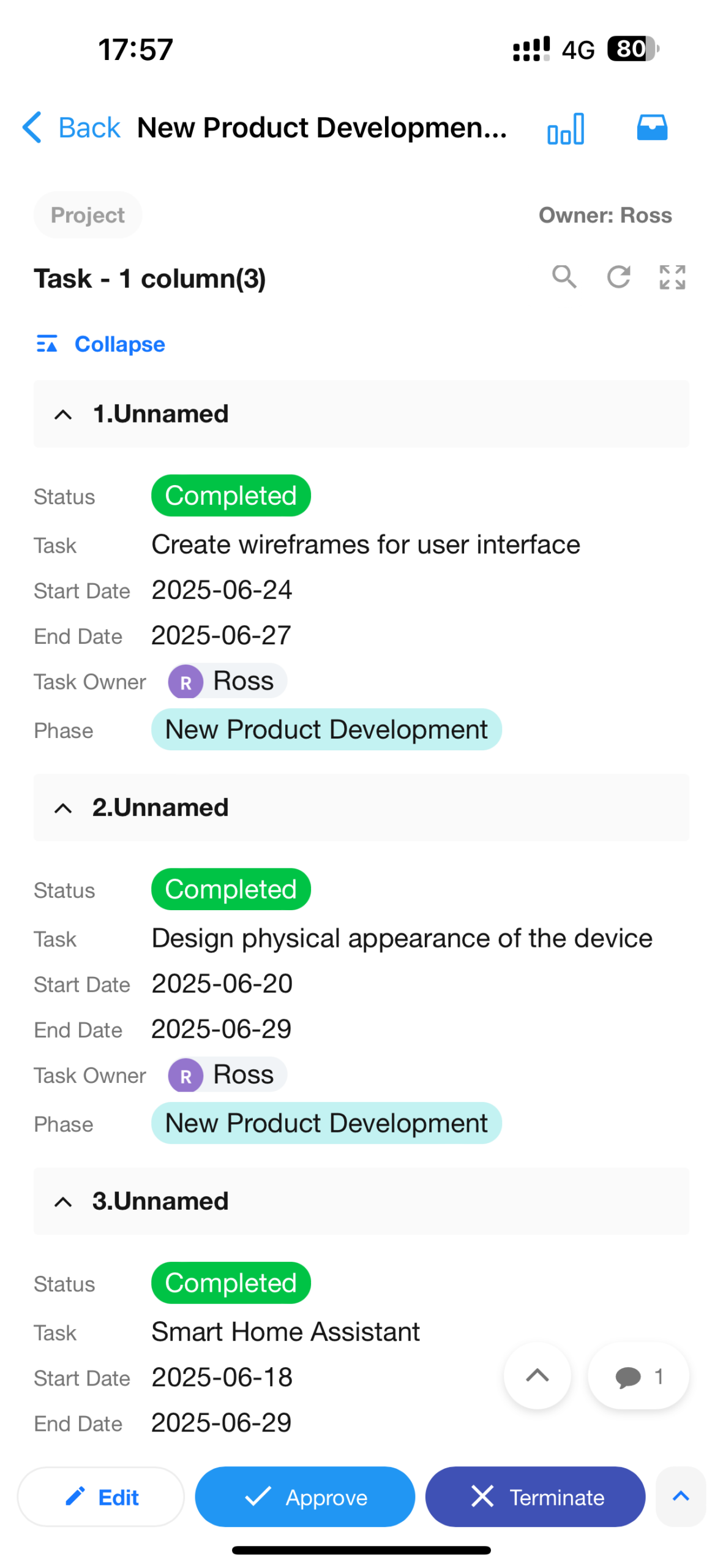
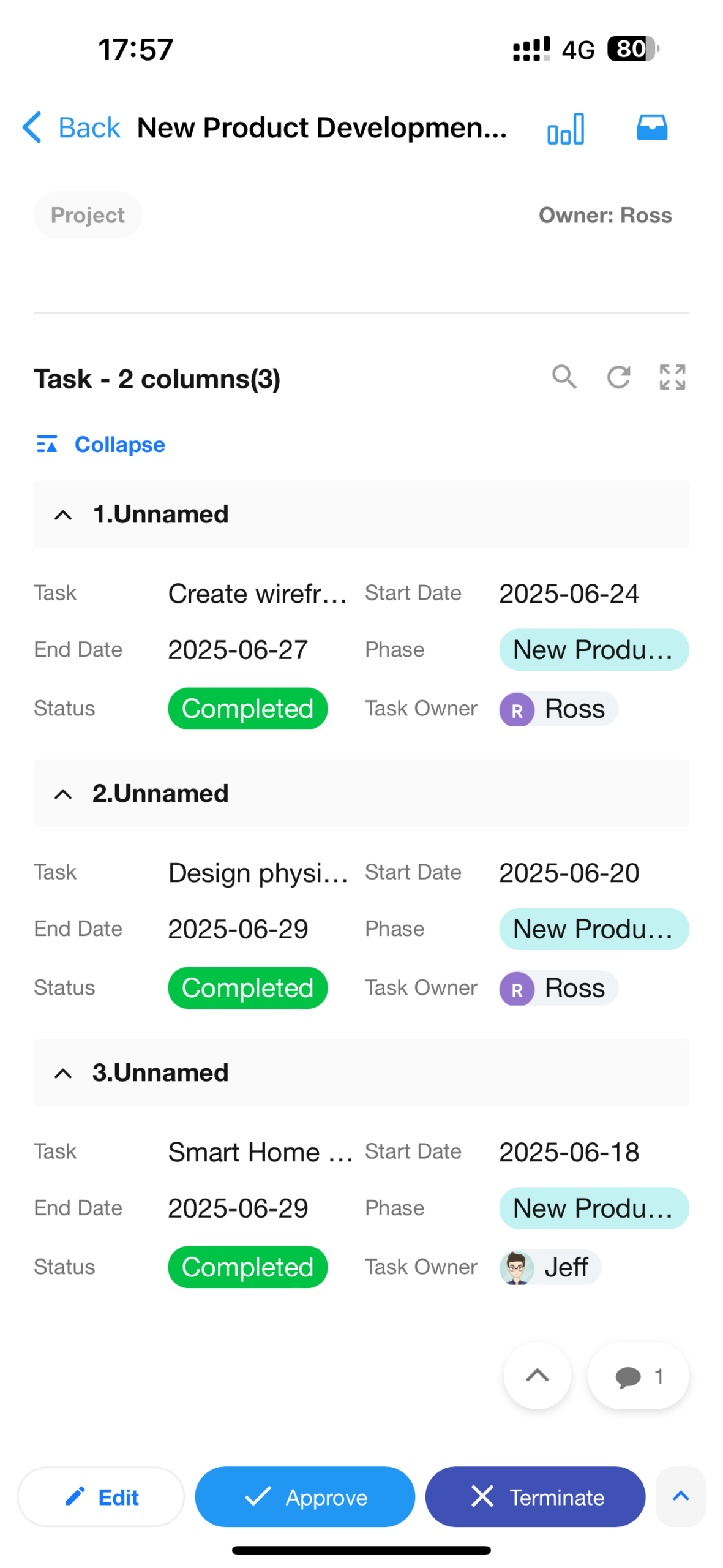
Subform: Two Fields per Row (Tiled Layout)
On mobile, when viewing subform records in a tiled layout, users can display two fields per row, improving readability and browsing efficiency.
 |
 |
Other Enhancements
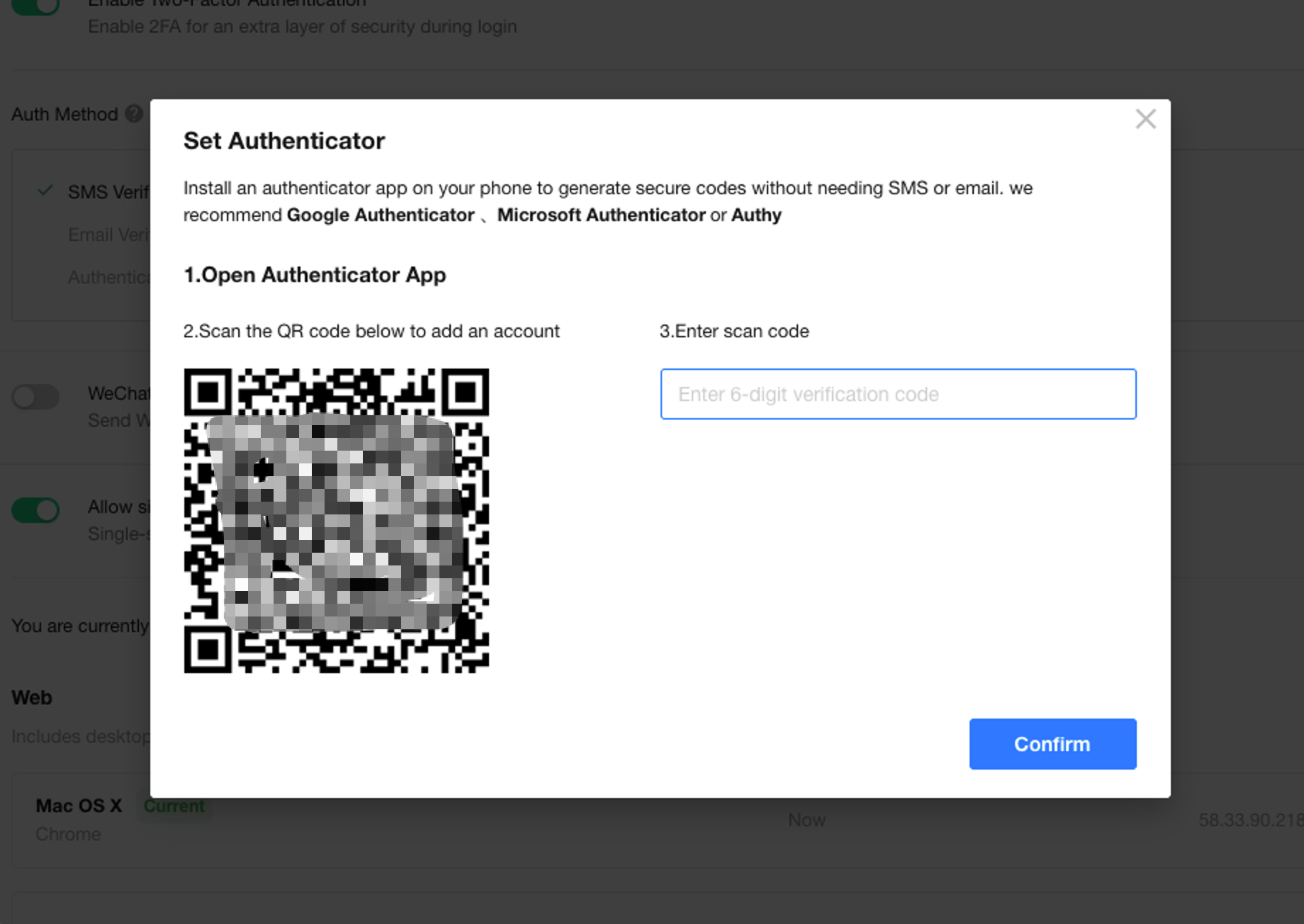
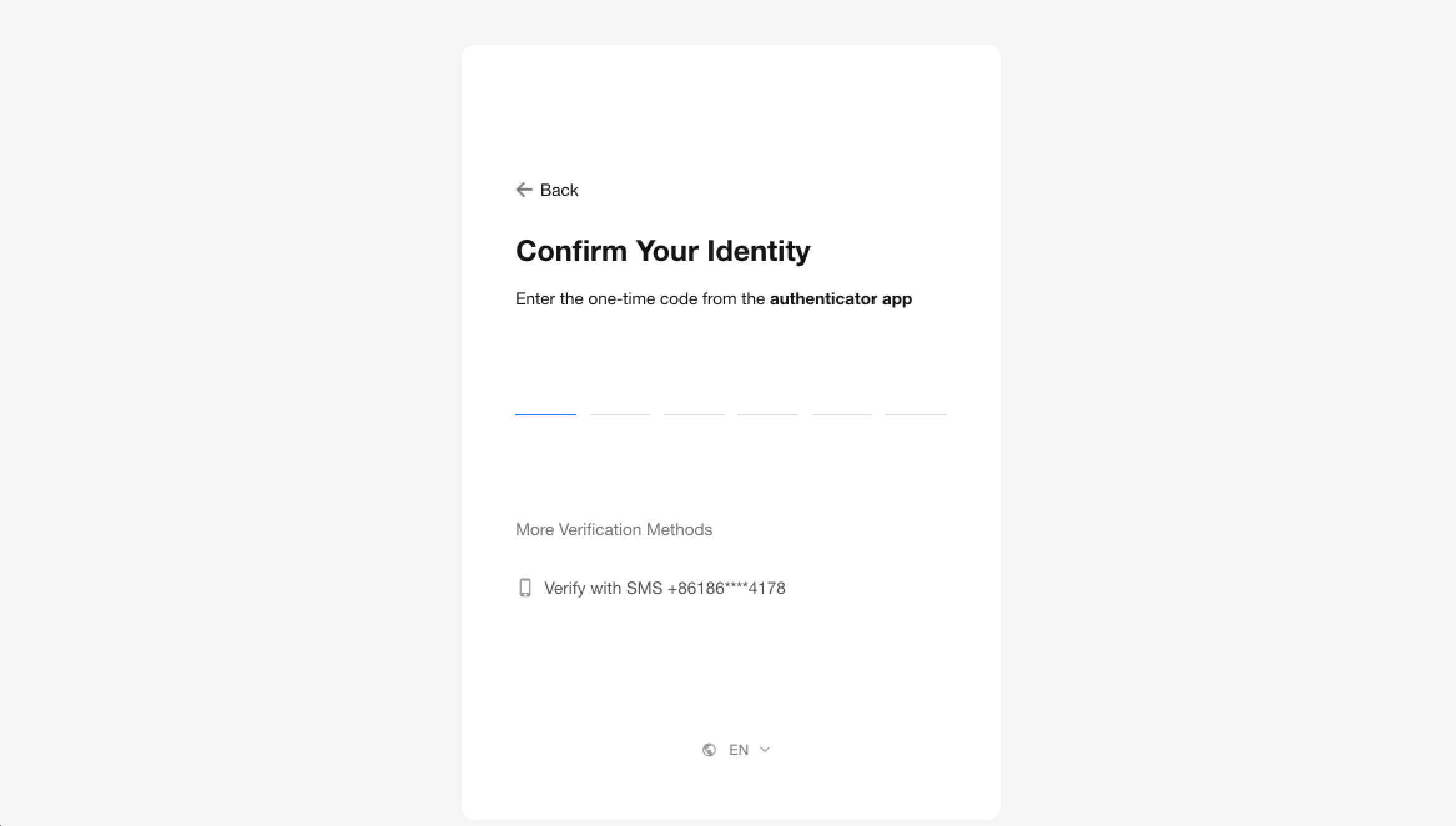
Two-Factor Authentication: Added Authenticator (TOTP) Method
Two-factor authentication for personal account now supports Time-based One-Time Password (TOTP). Users can generate verification codes using an authenticator app on their mobile device. We recommend Google Authenticator, Microsoft Authenticator, or Authy. This method is more convenient and avoids issues with receiving SMS or email codes.
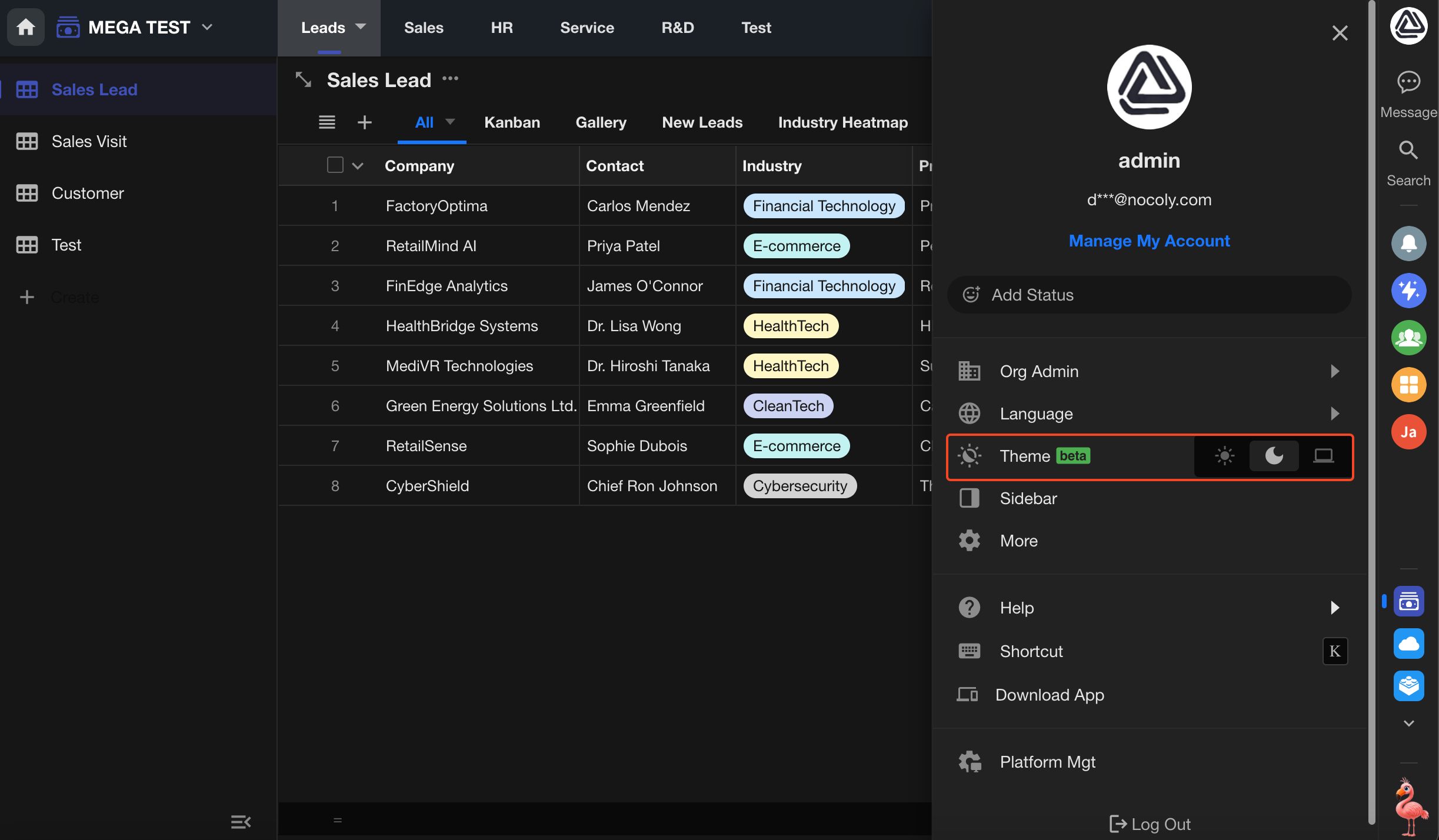
Dark Mode
The new dark mode uses a darker background and optimized color hierarchy to improve readability and visual comfort in low-light environments.
Export to Excel: File Field Preview Supported
Condition Values in Filters Support Relationship Fields (Table Type)
View Plugins: Added Functions
- Get the user’s current location (latitude and longitude) (app only)
- Get region/city list
- Get user details within the application
Organization API: Retrieve External Portal Users
Application API V3: Record Update Enhancements
For array-type fields, update operations now support configurable update modes (overwrite / add / remove).