
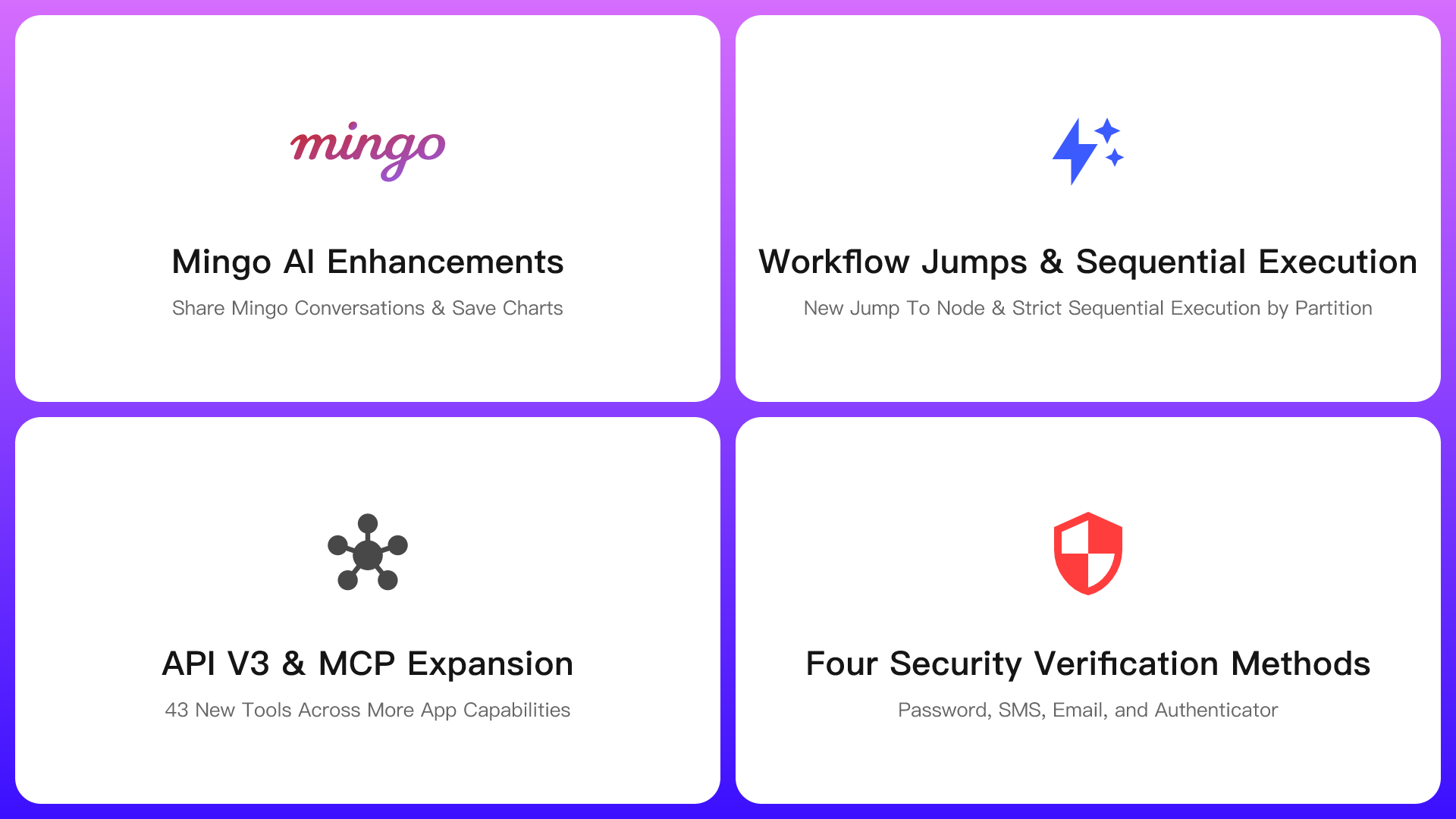
What’s New
- Share Mingo Conversations
- Save Charts from Mingo Data Queries
- New Jump To Node for Workflows
- Strict Sequential Execution by Partition for Workflows
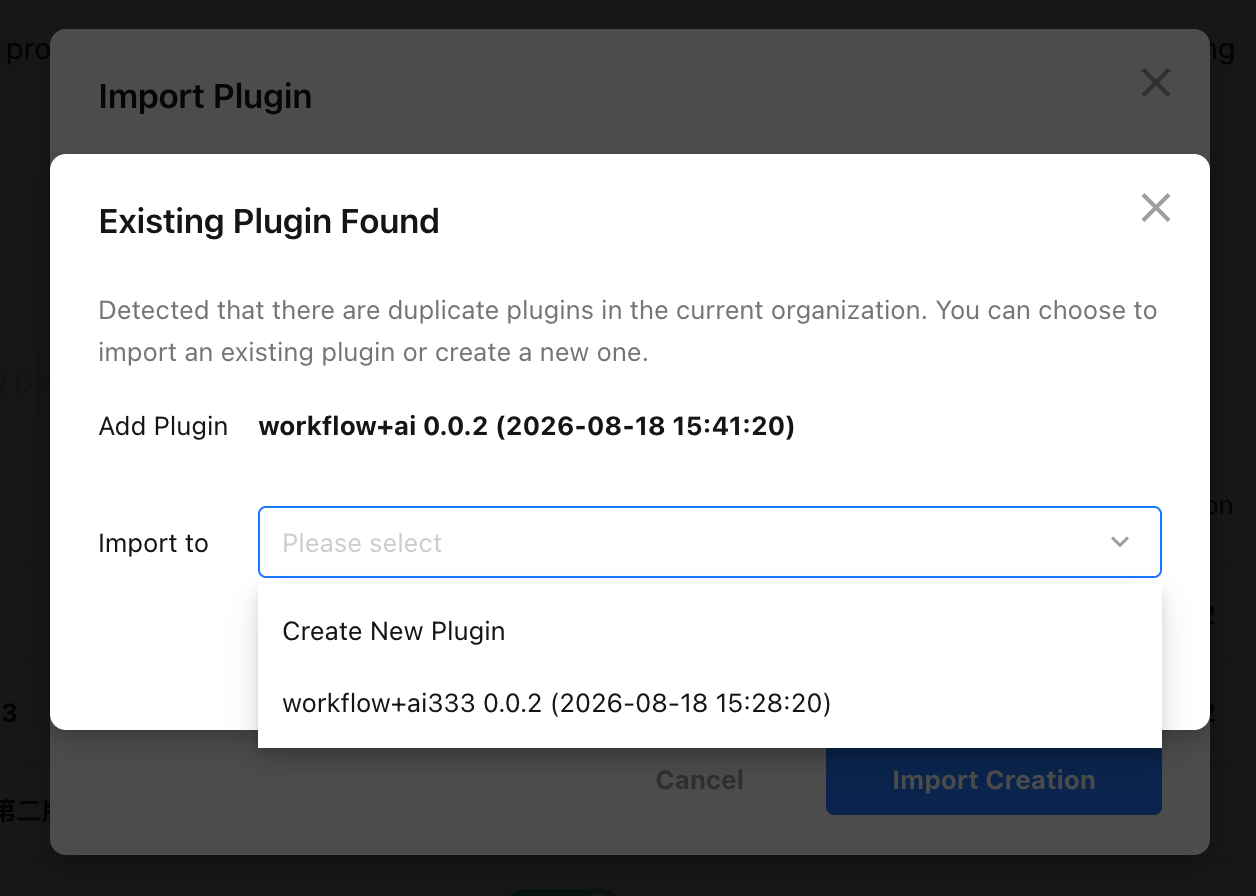
- Export, Import, and Upgrade Workflow Plugins
- Expanded API V3 Coverage for Apps, Views, Business Rules, Workflows, ChatBots, Custom Pages, Custom Actions, and More
- Four Security Verification Methods: Password, SMS, Email, and Authenticator App
- App Security: Block Screenshots and Screen Recording
- Print Limits by Template
- Independent Mobile Display Settings for Relationship and Query Records Fields
AI Capabilities
Mingo AI Enhancements
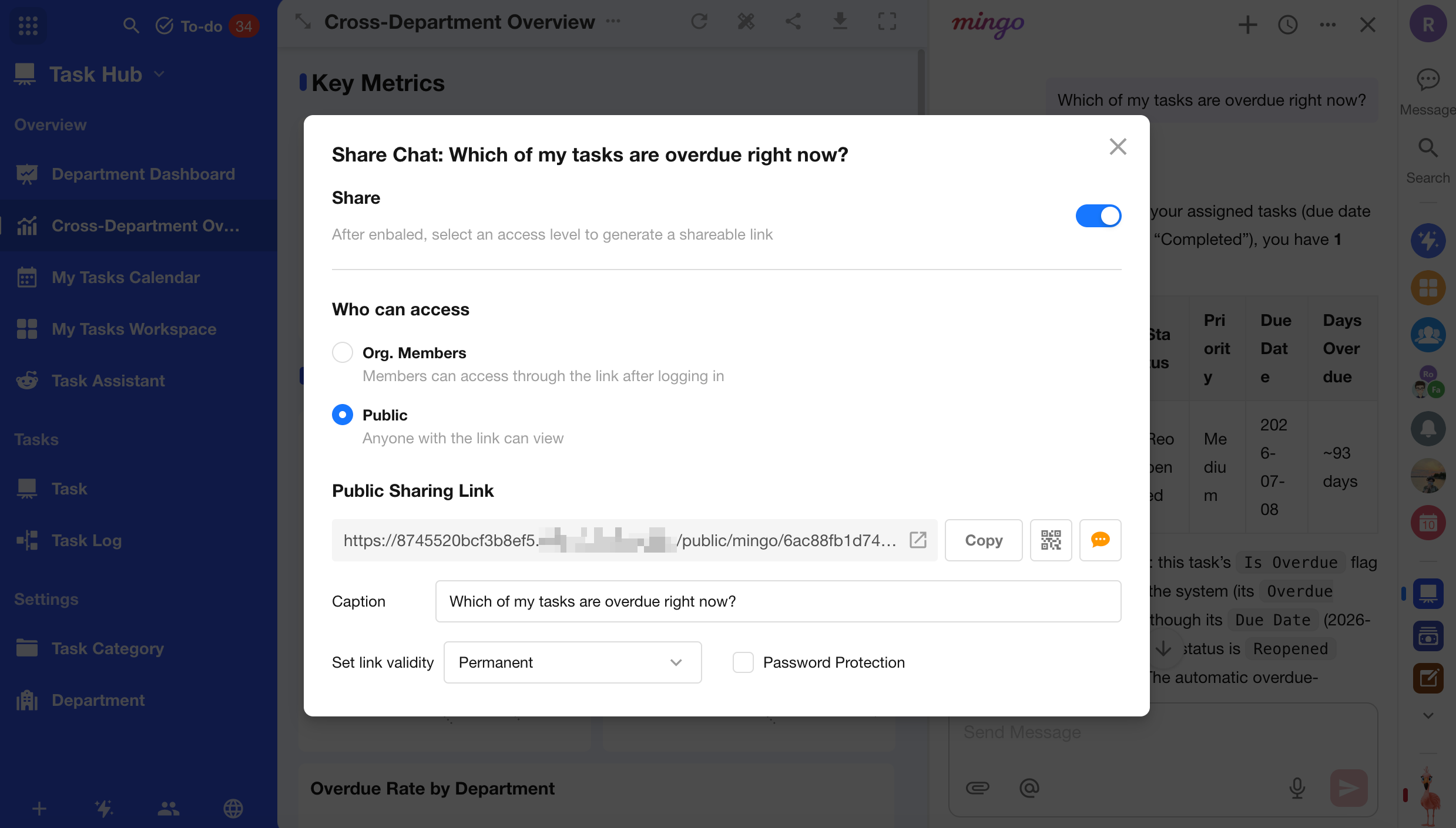
Share Mingo Conversations Mingo now supports conversation sharing, allowing users to generate a link to the full conversation and share it with others. Both organization-only and public sharing are supported for internal collaboration and external communication. A new share entry is also available from the chat history page for quicker access.
Quick Actions for Messages Mingo conversations now include common message actions. Responses can be copied, read aloud, regenerated, or shared, while user prompts can be copied. When sharing, users can select one or more conversation exchanges, making it easier to share only the questions and answers they need.
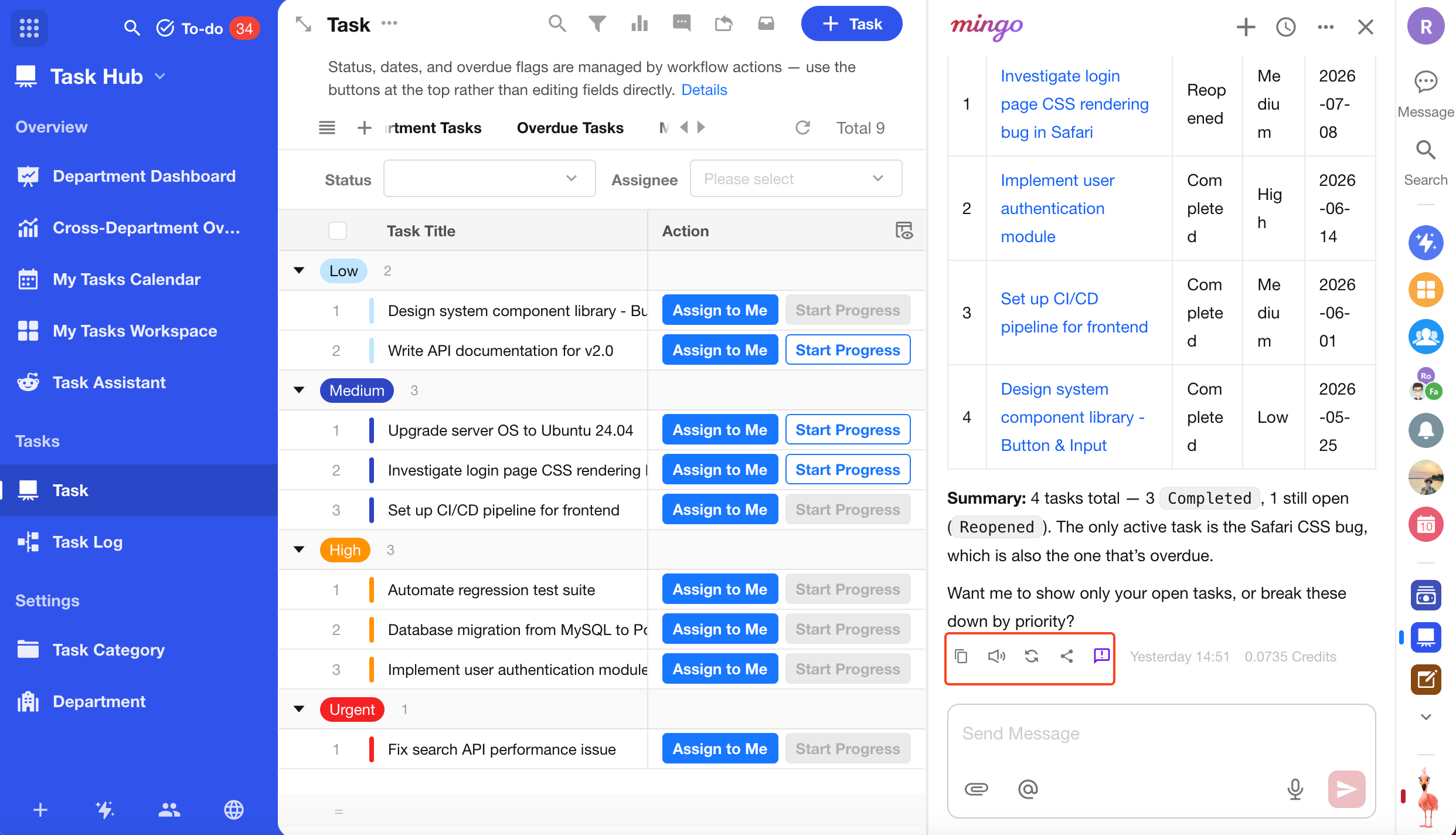
Save Charts from Mingo Data Queries When a chart generated from a Mingo data query is based on aggregated results from a single worksheet, a save icon is now available. The chart can then be saved to a worksheet or custom page.
Enhanced AI App Building with Mingo
- App build plans can now be saved as Markdown files.
- Mingo can now create business rules for worksheets, helping improve usability and data compliance.
- Mingo can now add filter components to custom pages for easier data interaction.
- Mingo can now generate more commonly used field types as needed, including subform, concat, signature, barcode, foreign field, rollup, cascading, and custom fields, supporting more business scenarios and more complete app structures.
Control Access to Mingo AI Organization administrators can now use permission groups in the Organization Admin Console to control access to Mingo AI capabilities, including Data Queries, AI App Building, and other Mingo features.
MCP
MCP now includes 43 additional app-related tools, expanding coverage across business rules, public forms, worksheet filters, custom pages, charts, views, custom actions, ChatBots, navigation, workflows, worksheet settings, and share cards.
| Module | Tool Name | Description |
|---|---|---|
| Business Rules | create_business_rule |
Create worksheet business rules for field interactions, validation, row locking, and highlighting. Field interactions include show/hide, read-only, required, and default value settings. |
get_business_rule_list |
Get a worksheet’s business rules, including ID, name, type, and enabled status. | |
get_business_rule_detail |
Get the full configuration of a business rule, including trigger conditions and actions. | |
update_business_rule |
Replace the full configuration of a business rule, including its name, conditions, actions, and enabled status. | |
delete_business_rule |
Delete a business rule from a worksheet. | |
| Public Forms | get_public_form_config |
Get the full configuration of a worksheet’s public form, including theme, field layout, advanced submission rules, and sharing link. |
switch_public_form |
Enable or disable a public form. Enabling it for the first time initializes its configuration and public link; disabling it immediately stops external access. | |
update_public_form |
Partially update a public form’s title, description, brand logo, theme colors, and field layout. | |
update_public_form_settings |
Replace advanced public form settings, including submission limits, CAPTCHA, WeChat submission restrictions, validity period, and more. | |
refresh_public_form_url |
Generate a new public link and share ID, and immediately invalidate the previous link. | |
reset_public_form_fields |
Reset public form fields by syncing the latest worksheet fields and removing deleted fields. | |
| Worksheet Filters | get_worksheet_filter_list |
Get all quick filters visible to the current user, including personal and public filters. |
get_worksheet_filter |
Get the full filter condition tree for a specified quick filter. | |
save_worksheet_filter |
Create or overwrite a quick filter, with support for personal or shared access. The root node uses group. | |
delete_worksheet_filter |
Delete a quick filter by ID without affecting worksheet data. | |
| Custom Pages | get_custom_page_structure |
Get the full component tree and layout of a custom page, including filters, embedded views, charts, and component coordinates. |
update_custom_page_config |
Partially update custom page metadata, including page name, description, and navigation icon. | |
delete_custom_page |
Delete a custom page and all components on the page. | |
| Charts | get_chart_list |
Get all charts in a worksheet, including ID, name, and type. |
get_chart_details |
Get the full configuration of a chart, including dimensions, metrics, chart type, filters, styles, and more. | |
sort_charts |
Reorder charts in a worksheet. | |
delete_chart |
Delete a chart from a worksheet by chart ID. | |
| View Management | get_view_structure |
Get the full configuration of a view, including displayed columns, sorting, filters, grouping, and advanced properties. |
update_view |
Partially update a view’s configuration, including displayed columns, filters, sorting, and grouping, using PATCH. | |
sort_views |
Reorder multiple views in a worksheet. | |
| Custom Actions | get_custom_action_list |
Get all custom actions in a worksheet, including dialog parameters and binding configurations. |
update_custom_action |
Update a custom action’s name, icon, action type, parameter mappings, or triggered workflow. | |
delete_custom_action |
Delete a custom action from a worksheet. | |
| ChatBot | create_chatbot |
Create an app-specific AI assistant and configure its name, icon, welcome message, and connected worksheets or knowledge bases. |
get_chatbot_details |
Get the full configuration of a ChatBot, including prompts, preset questions, and knowledge base settings. | |
update_chatbot |
Partially update a ChatBot’s basic information, welcome message, and display settings. | |
delete_chatbot |
Delete a ChatBot from an app. | |
| Navigation and Groups | sort_app_sections |
Reorder top-level navigation groups in an app. |
update_app_section |
Update the name and icon of an app group, including first-level and second-level groups. | |
delete_app_section |
Delete an app group and move its worksheets and custom pages to the parent group. | |
sort_app_items |
Reorder app items within a group, including worksheets, custom pages, and ChatBots. | |
set_app_items_display |
Configure app item visibility in PC and mobile navigation in bulk, including hidden and selectively visible states. | |
| Workflow | get_workflows_list |
Get all workflows in an app. |
update_workflow_info |
Partially update workflow metadata, including workflow name and business description. | |
close_workflow |
Disable a running workflow. | |
discard_workflow_draft |
Discard an unpublished workflow draft and revert to the current published version. | |
| Advanced Worksheet Settings | get_worksheet_settings |
Get worksheet settings, including basic configuration, form display, post-submission behavior, and sharing permissions. |
update_worksheet_settings |
Partially update form behavior, post-submission navigation, and advanced permission settings for a worksheet. | |
| Share Cards | get_share_card_setting |
Get share card settings for a worksheet across views, individual records, and public forms. |
update_share_card_setting |
Partially update the title, description, and icon of share cards used in sharing scenarios such as WeChat and DingTalk. |
Worksheets and Views
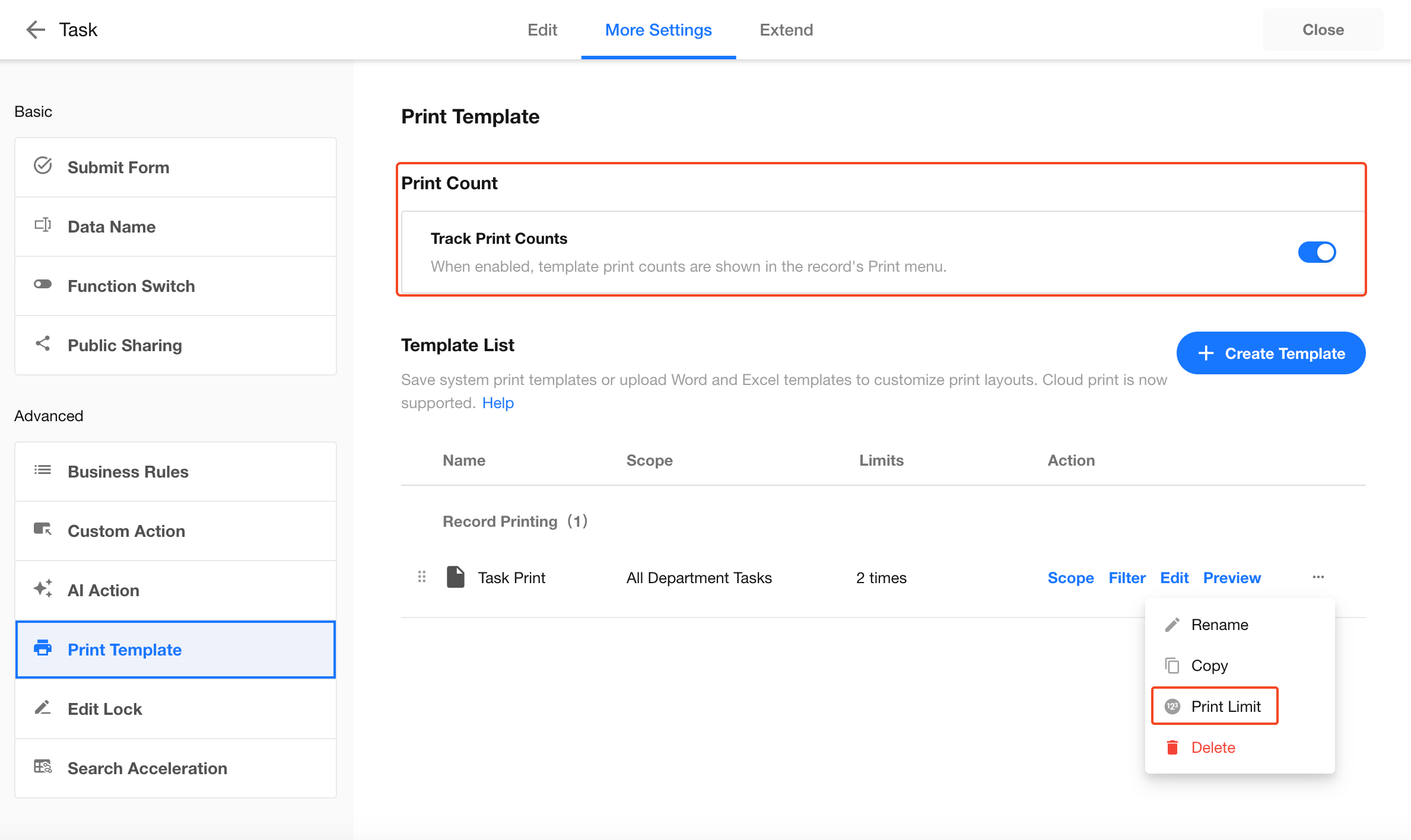
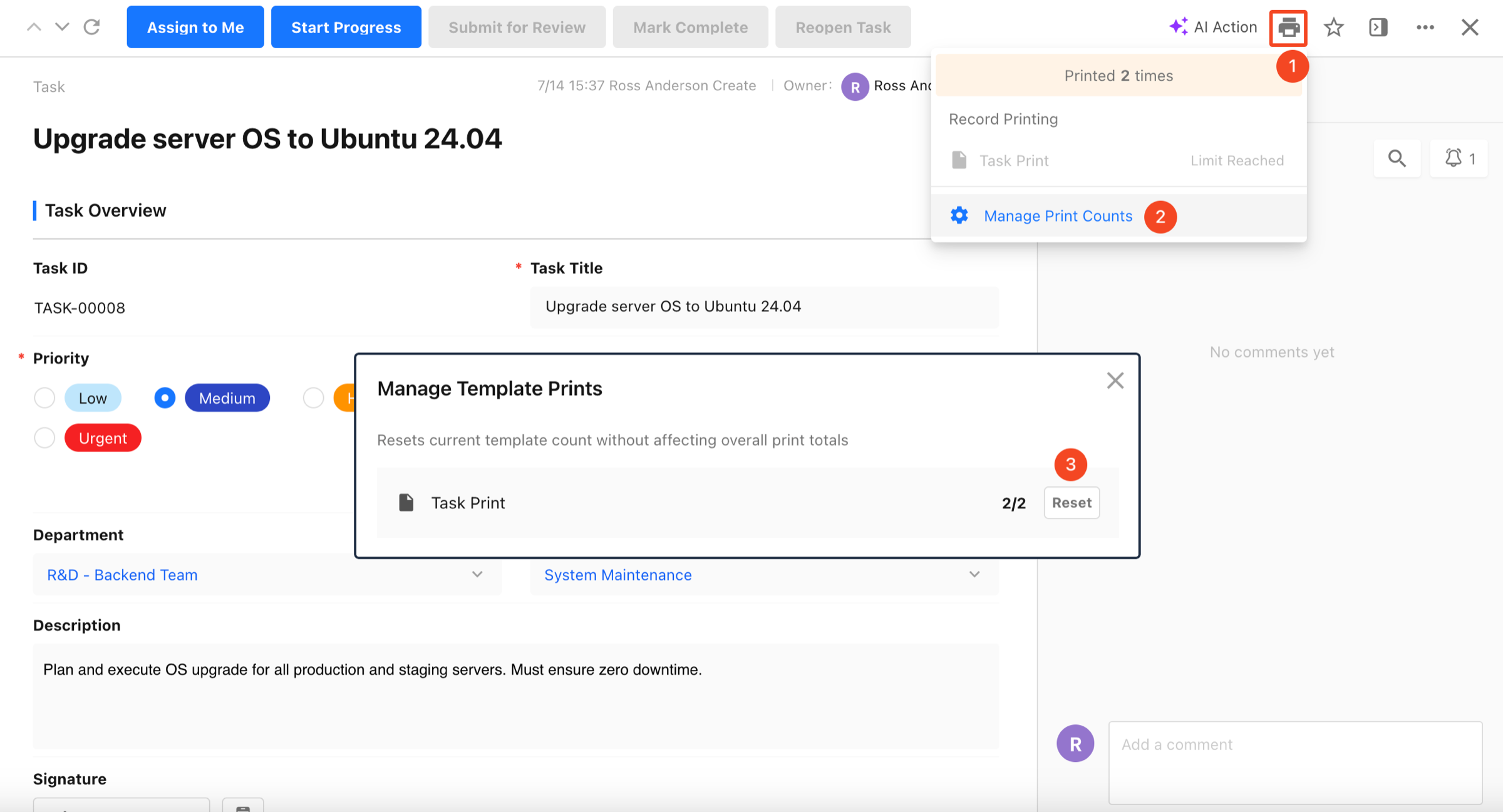
Print Limits by Template
Record print tracking can now be enabled, with a maximum number of prints configurable for each template and record. Once enabled, the print count for the current record is shown in the print menu. When a template reaches its limit, it can no longer be used to print that record. App administrators can reset the print count for a template on the current record. Related configuration changes, resets, and print actions are recorded in the corresponding logs. Available in: Professional Edition and above
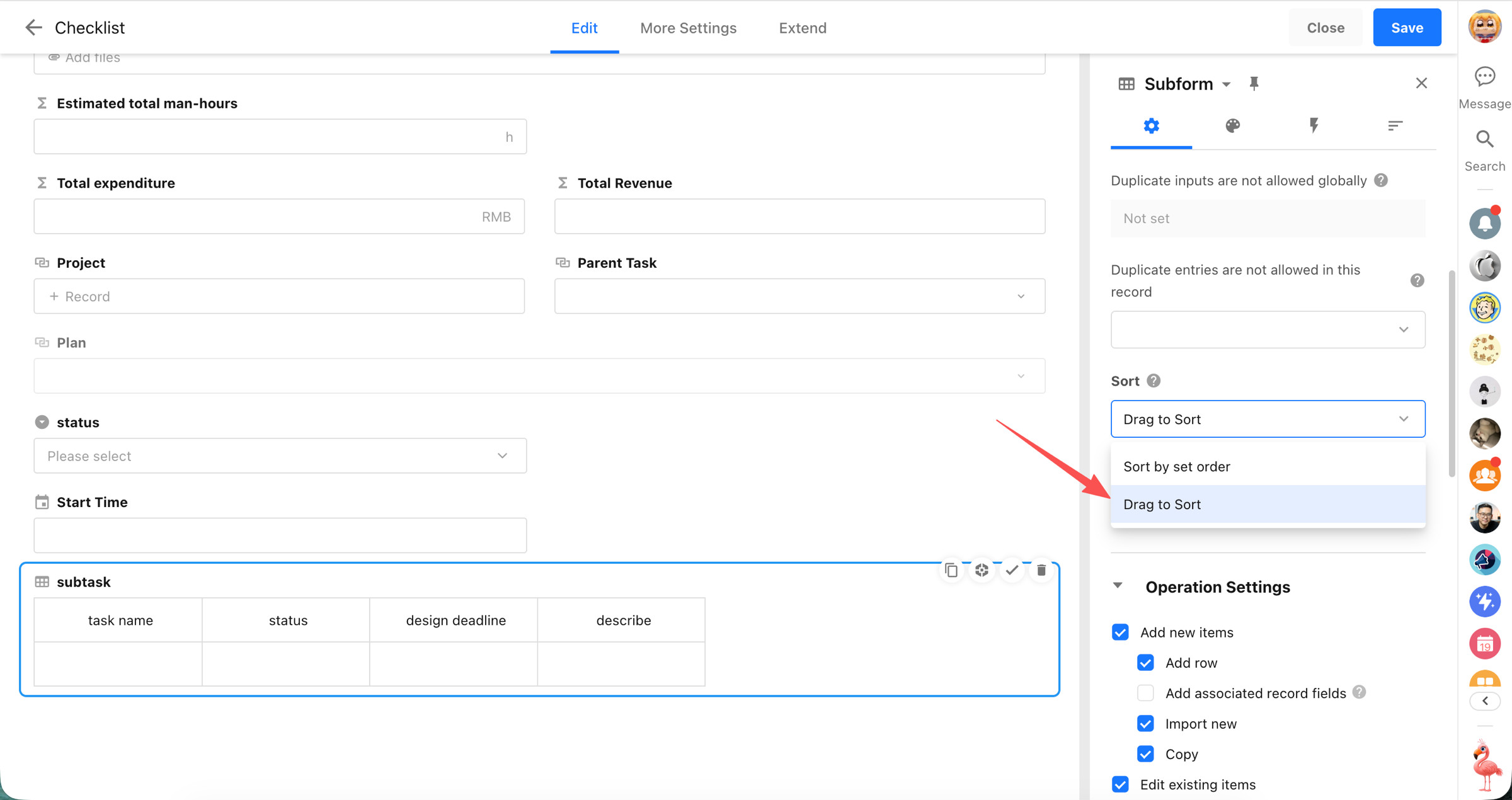
Drag-and-Drop Reordering and Row Insertion for Subforms
Subforms now support drag-and-drop reordering and row insertion. When Drag to Sort is enabled, users can drag records to change their order and insert new rows at a specific position, making subform management more flexible and intuitive.
Availability
- Supported for blank subforms and entity subforms, except in Transposed View.
- For entity subforms, the order in the field and the order in the worksheet view are stored separately and do not affect each other.
- Drag-and-drop reordering is not currently supported in tree table mode.
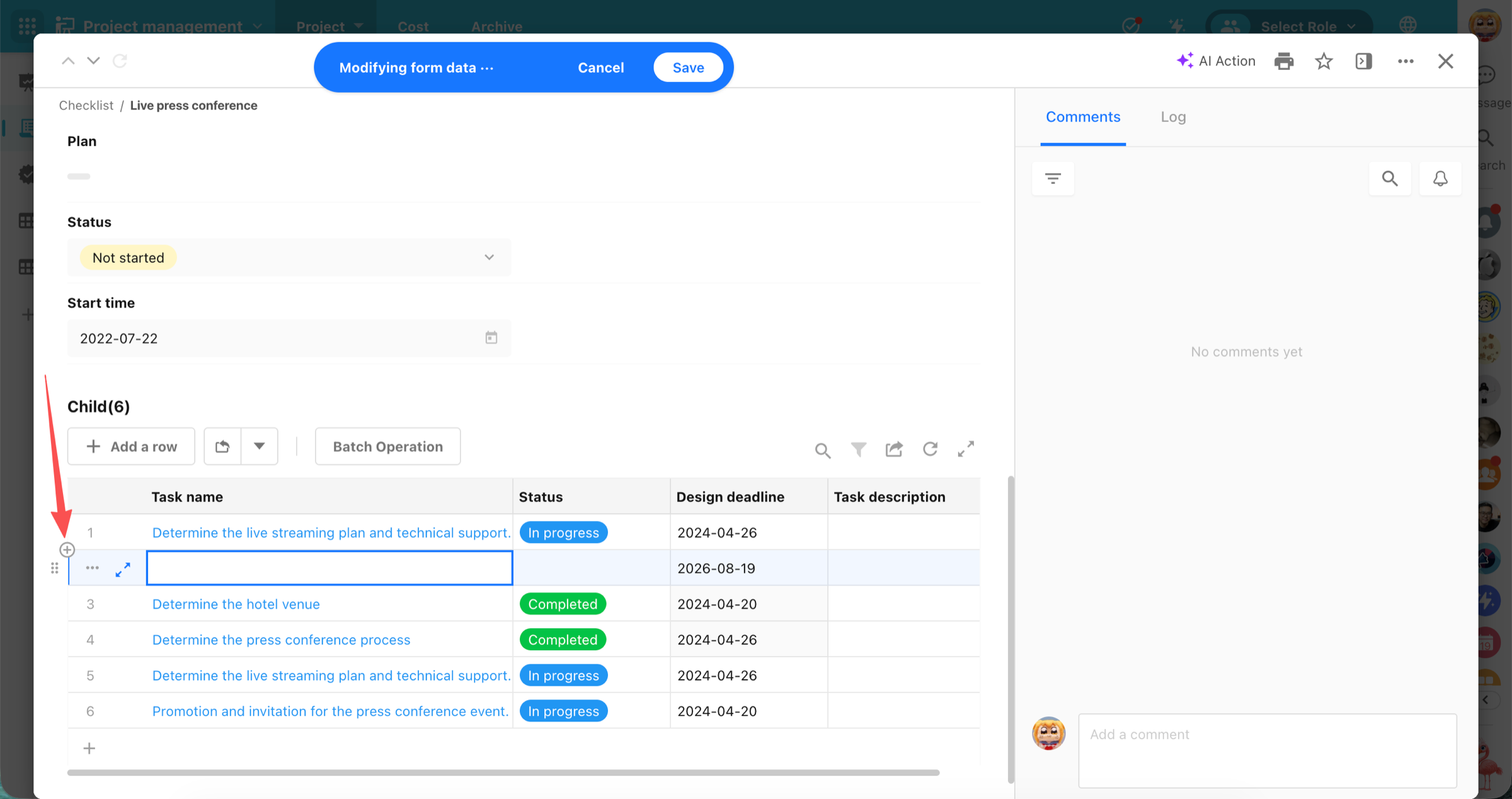
Insert Rows
- When Drag to Sort is enabled, new rows can be inserted at a specific position in the subform.
- Drag-and-drop reordering supports up to 200 rows. Once this limit is reached, additional rows cannot be inserted.
Pagination and Scrolling
- Drag-and-drop reordering is supported in scroll mode.
- In pagination mode, records can only be reordered within the current page. Reordering across pages is not currently supported.
Saving and Logs
- Reordering subform records alone does not mark the form as modified.
- Drag-and-drop reordering actions are not recorded in logs.
Reuse Worksheet Column Styles
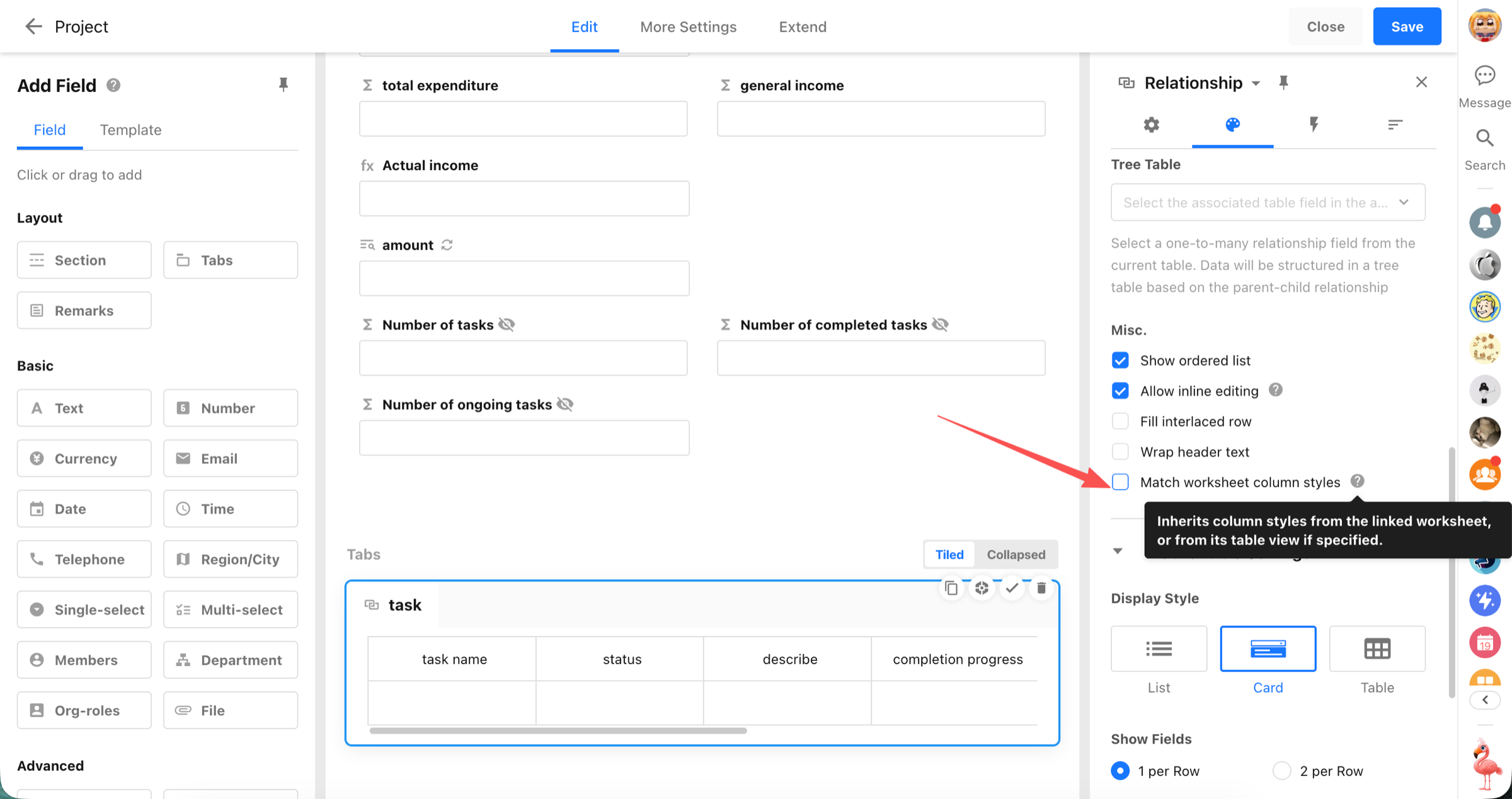
Relationship fields, entity subform fields, and query records fields now support a new Match Worksheet Column Styles option. When enabled, table displays reuse the column widths, alignment, and field styles configured in the data management view, reducing repetitive setup and keeping table layouts consistent across record details, shared pages, and record selection dialogs.
Availability
- Relationship fields: table and tab table
- Subform fields (entity): table and tab table
- Query records fields: table and tab table
Column Style Settings
- A new Match Worksheet Column Styles option is available.
- The option is disabled by default.
- When disabled, the field continues to use its own saved column width settings.
- When enabled, it uses the column styles configured in the data management view, including:
- Column width
- Alignment
- Field style
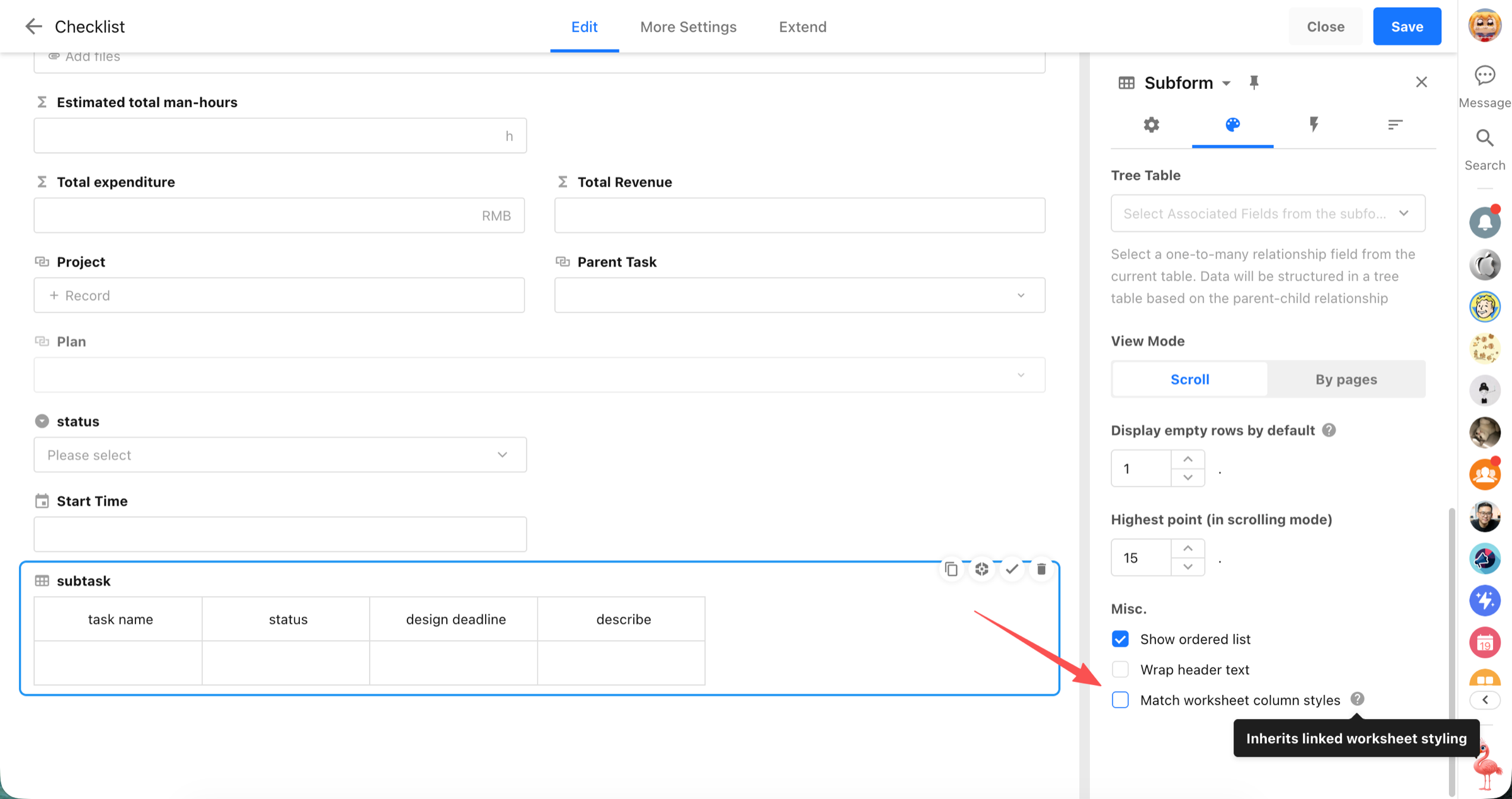
Behavior After Enabling
- Column width changes made by dragging within the field are not saved.
- When column styles change in the data management view, the corresponding display areas update accordingly.
The same settings also apply to:
- Shared pages
- Record selection dialogs for relationship fields in table mode
Return Values for Hidden Fields
Hidden fields can now return values when referenced by member scope settings, cascading fields, worksheet query filters, or custom fields, ensuring that related filters, selectable ranges, and calculations continue to work correctly. This prevents dependent configurations from breaking when a referenced field is hidden.
Table Views
- Fields configured as Hidden can still return values in table views.
- Hidden fields among displayed columns can also return values when required by related configurations.
- This applies to scenarios including:
- Members / Department / Organization Roles: Selection Scope = Other Field Values
- Cascading fields: selection scope filtered by other fields
- Hidden fields used as filter conditions in Query Worksheet default values
Record Details
- Improved value-return behavior when custom fields reference hidden fields.
- If only the referenced field is hidden, its value is still returned so the custom field can calculate correctly.
- If both the custom field and the referenced field are hidden, the referenced field value is no longer returned.
Case-Sensitive Filtering for Text Field
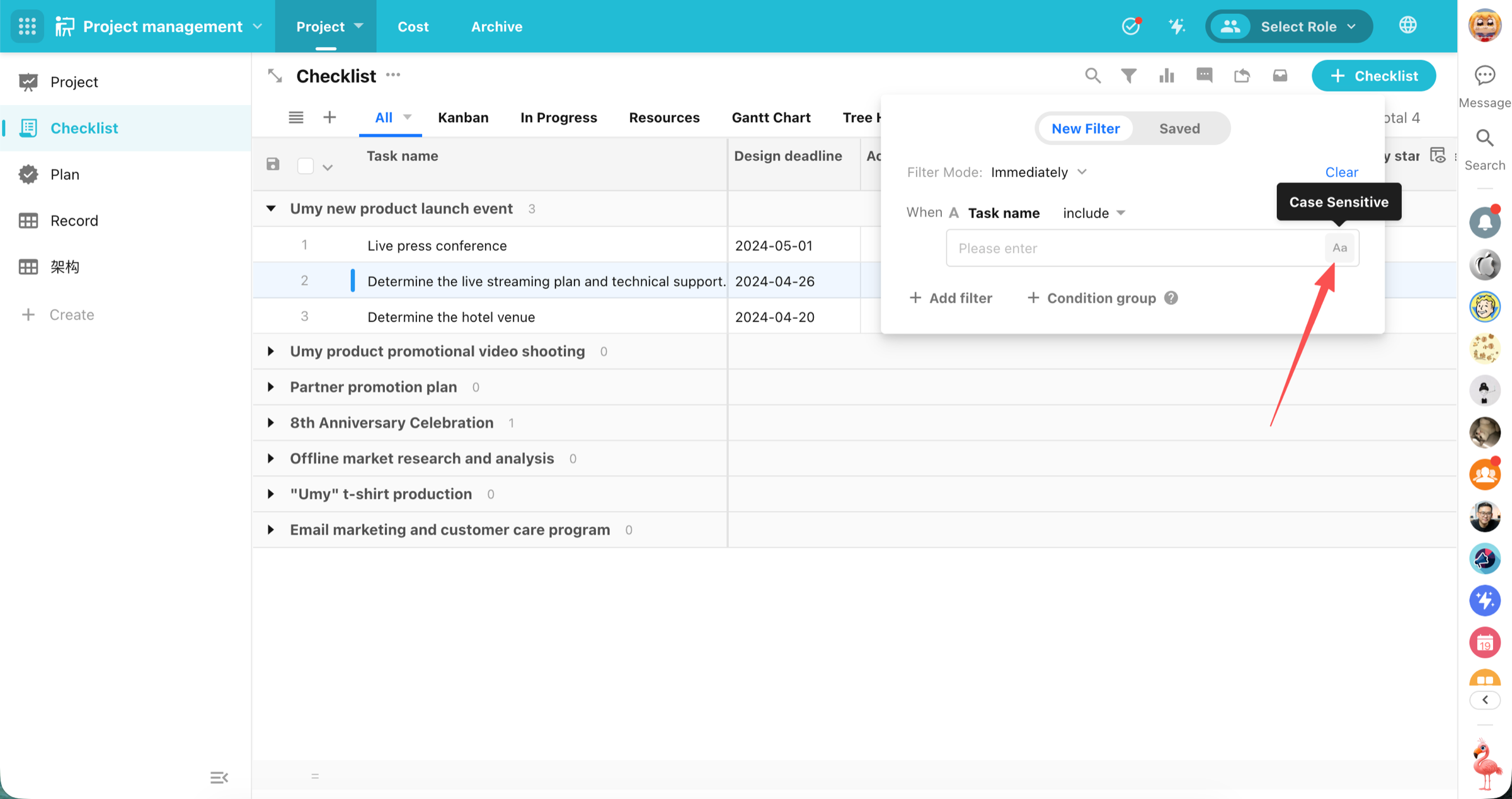
Text-based filters in worksheets and workflows now support a Case Sensitive option, allowing users to choose whether uppercase and lowercase characters are treated as different values. The same setting is also available across other configurations that reuse worksheet filters.
Key Details
- Supported field types: text, ID number, email, telephone, and concat fields.
- All text filter operators except Equals / Does Not Equal support case sensitivity settings.
Also Available In
- Custom action filters
- Chart filters
- Rollup field filters
- Field event filters
- Relationship field filters
- Query records field filters
- Embed field filters
- Business rule filters
Export Option Assignment Values with Worksheet Records
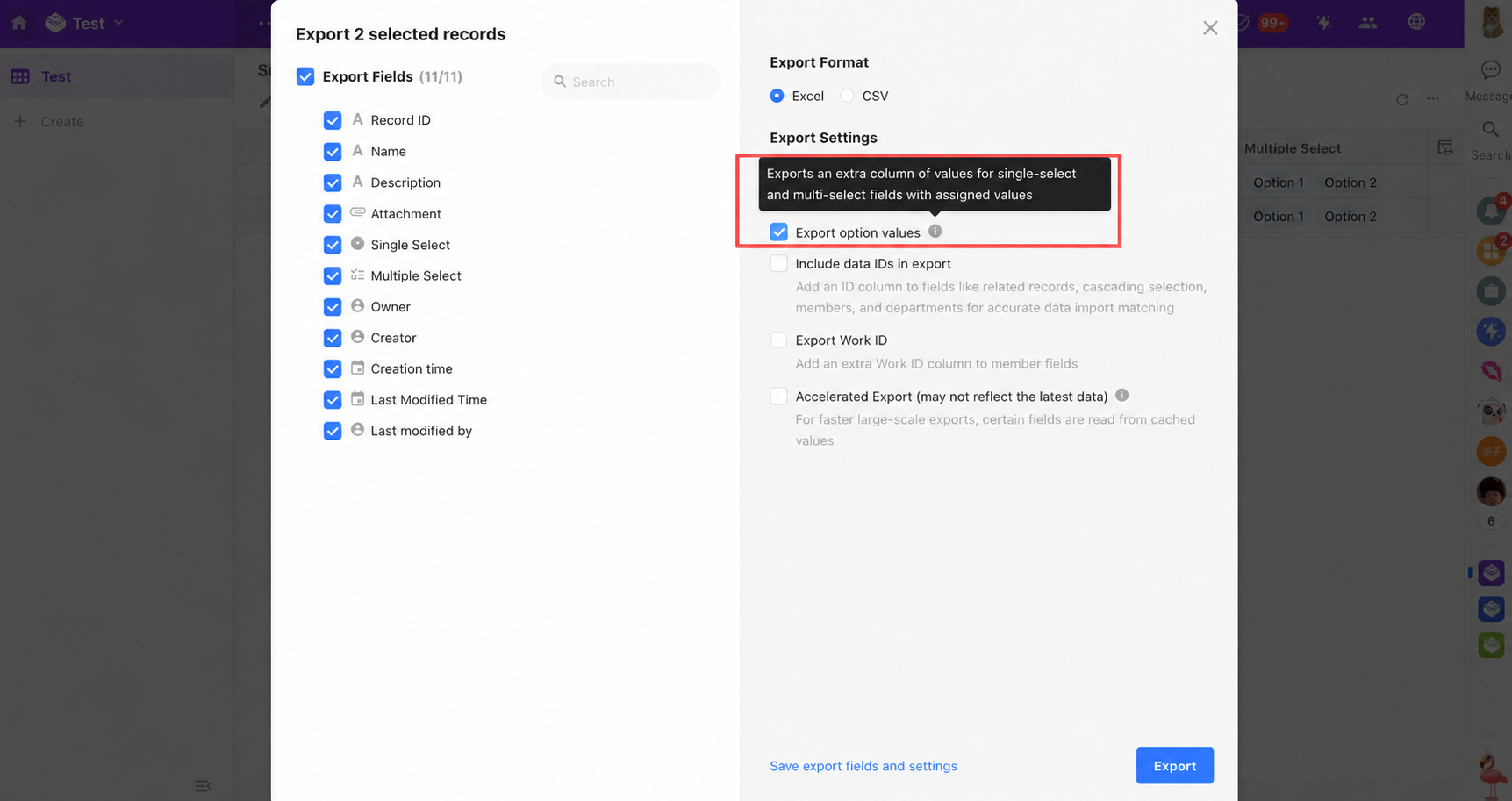
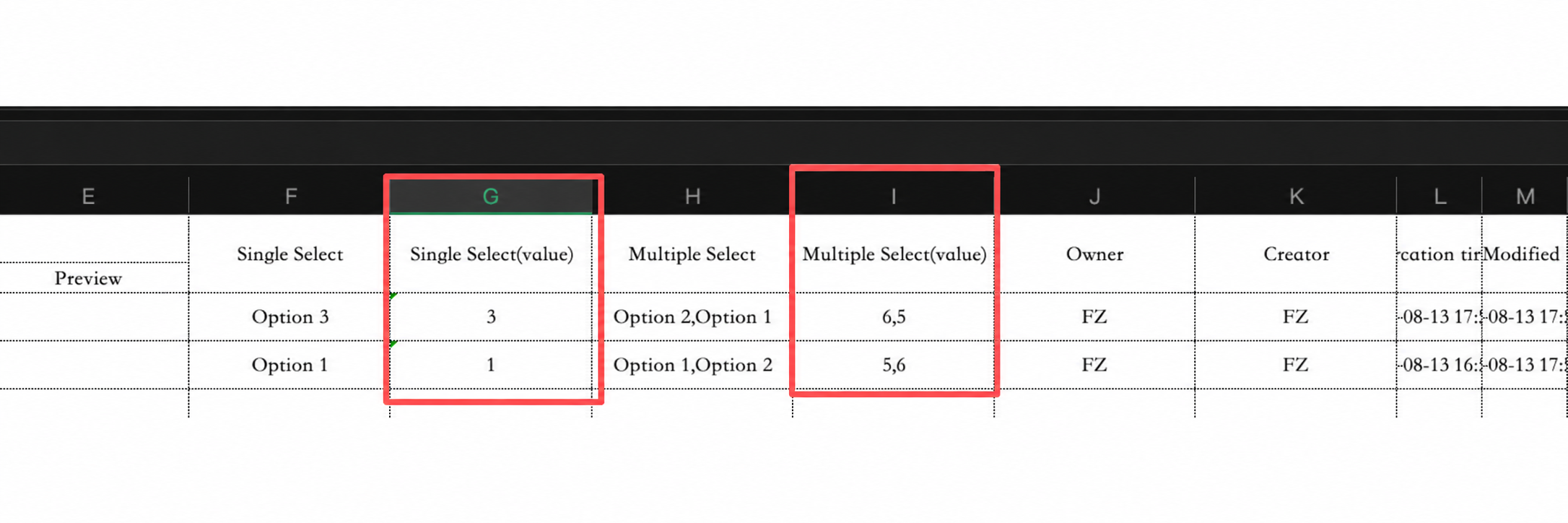
When exporting worksheet records, single-select and multi-select fields now support exporting their configured option assignment values alongside the display text, making subsequent scoring and statistical analysis easier.
Workflow
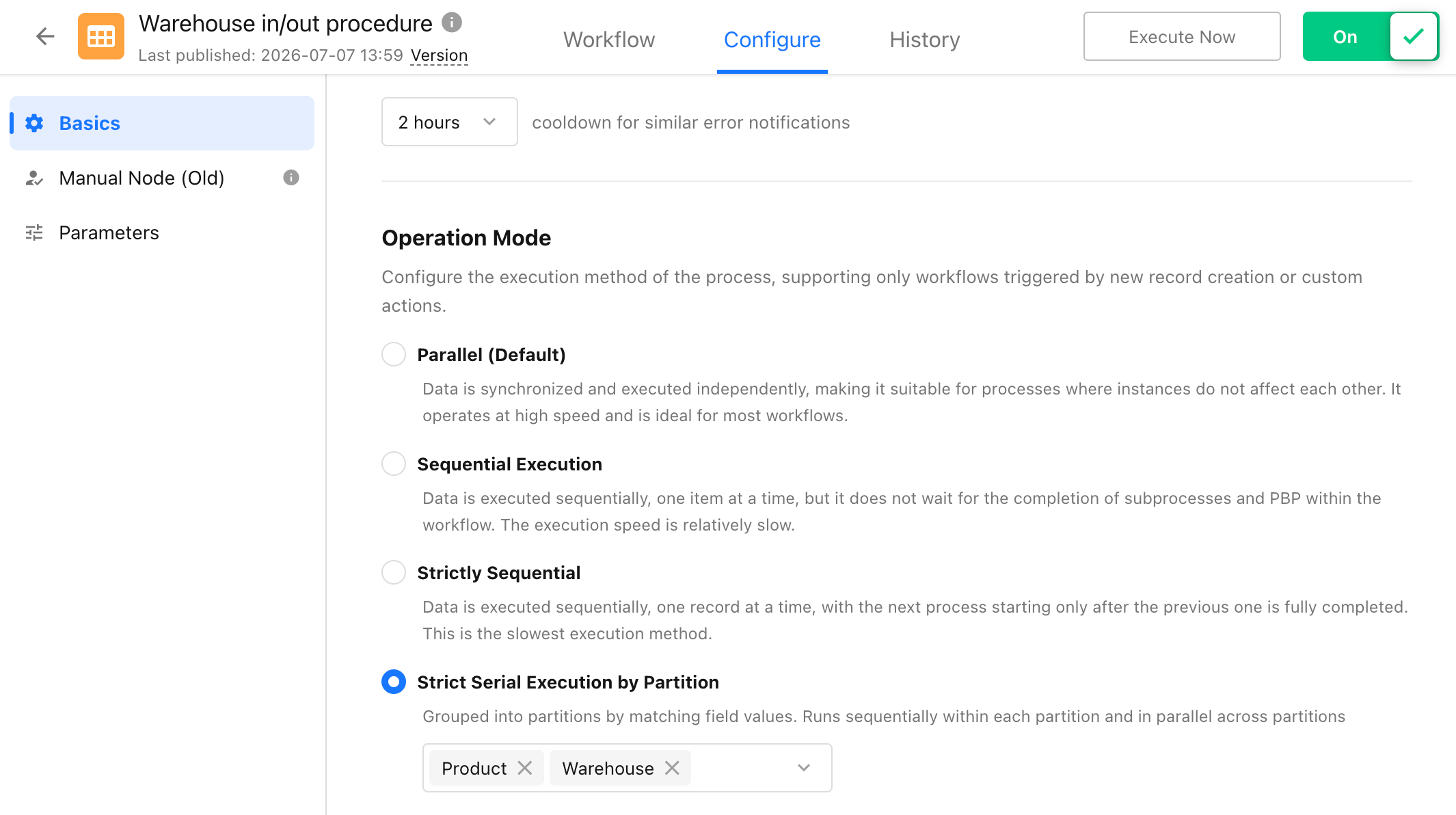
Strict Sequential Execution by Partition
Workflows triggered by new worksheet records or single-record custom actions now support Strict Sequential Execution by Partition in workflow global settings. When enabled, workflow runs are assigned to partitions based on the configured field value. Runs within the same partition execute strictly in sequence, while runs in different partitions execute in parallel.
New Jump To Node
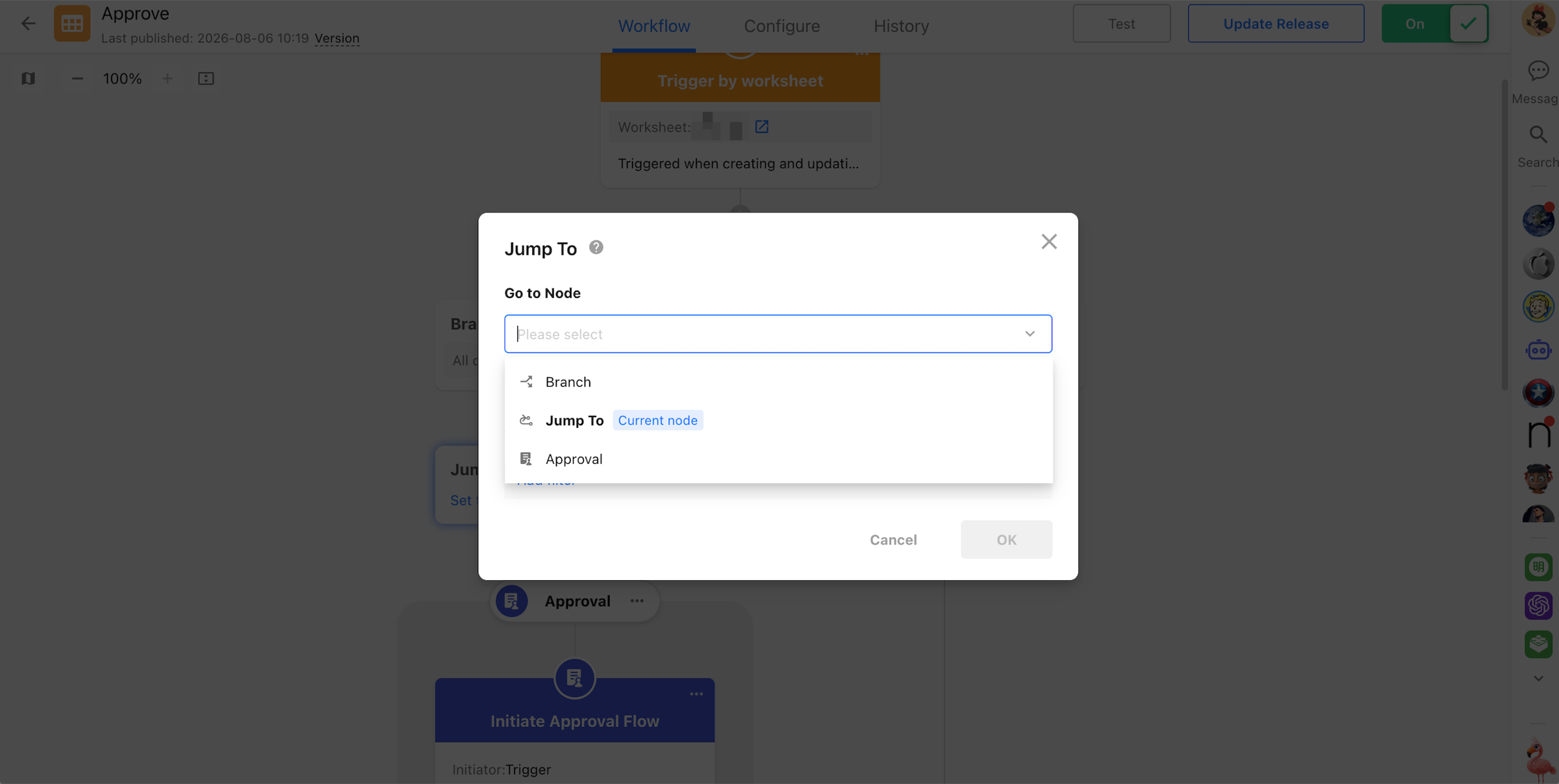
A new Jump To node allows workflows to jump to a specified node during execution, making it possible to roll back steps, rerun part of a workflow, or change the execution path based on business conditions. The node supports both direct and conditional jumps. It can jump to a node in the current branch or the main workflow. If the target node has already run, execution restarts from that node and continues from there. When a jump is triggered within a branch, the current branch ends immediately. Other unfinished parallel branches are no longer waited on, and execution resumes from the target node.
New Update Record Followers Node
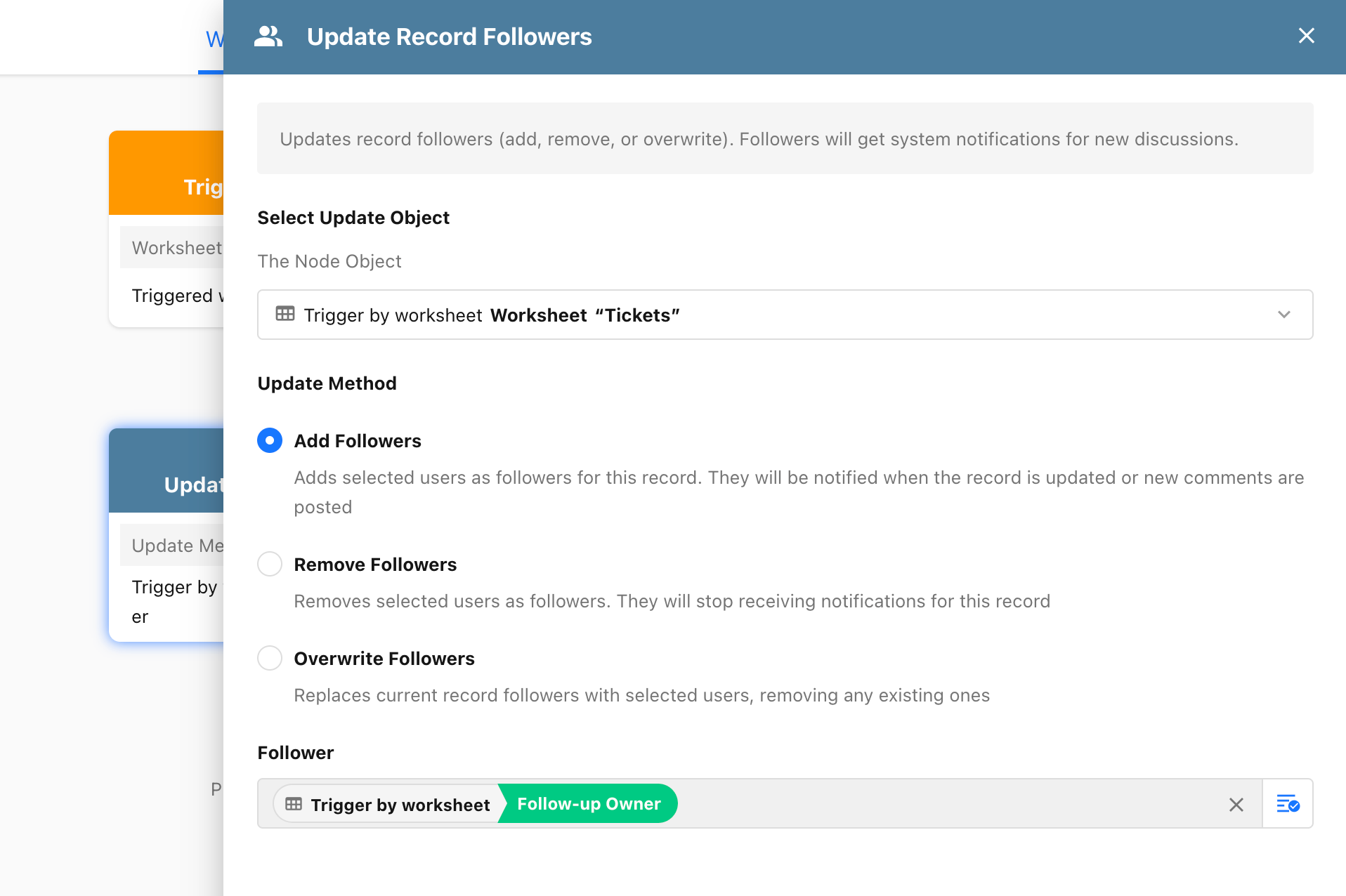
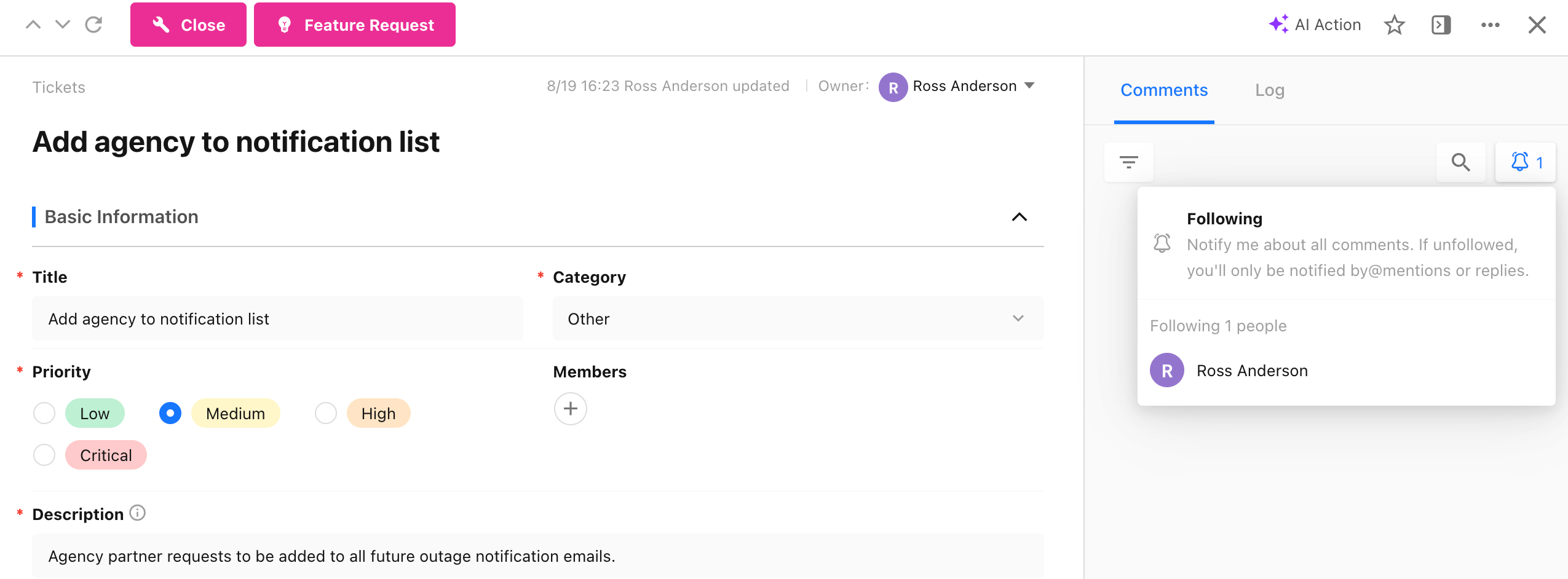
A new Update Record Followers node allows workflows to dynamically add, remove, or replace followers for a record. This reduces the need for manual follower management and helps keep follower lists and notification recipients accurate.
Third-Party User IDs in Get User Information
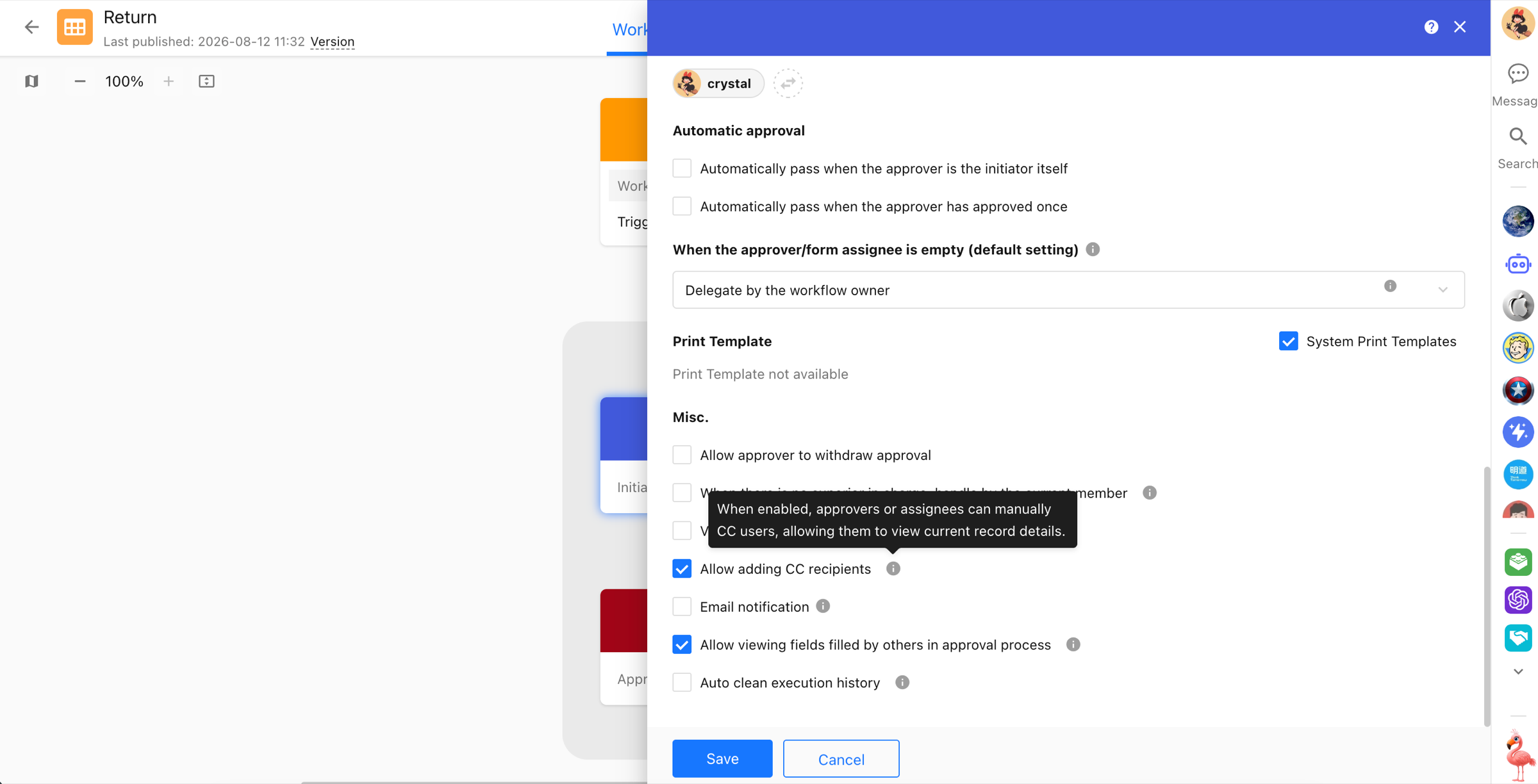
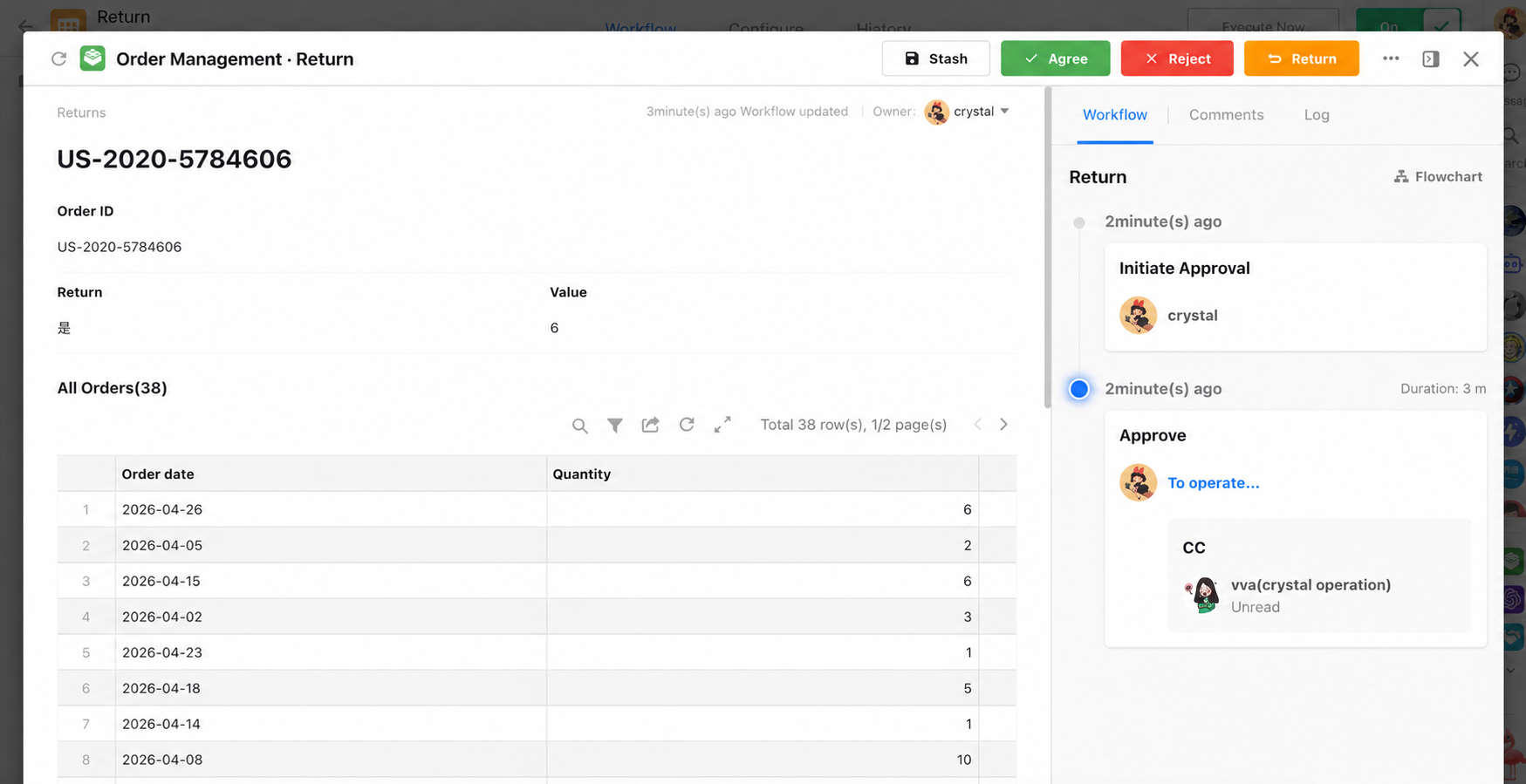
Allow Approvers and Form Fillers to Add CC Recipients
Approval and Fill in nodes now include an Allow Adding CC Recipients option. When enabled, approvers or form fillers can add CC recipients while processing the node. CC recipients can view the record and participate in discussions, but they do not take part in the approval or affect the workflow result.
Organization Management and API Integration
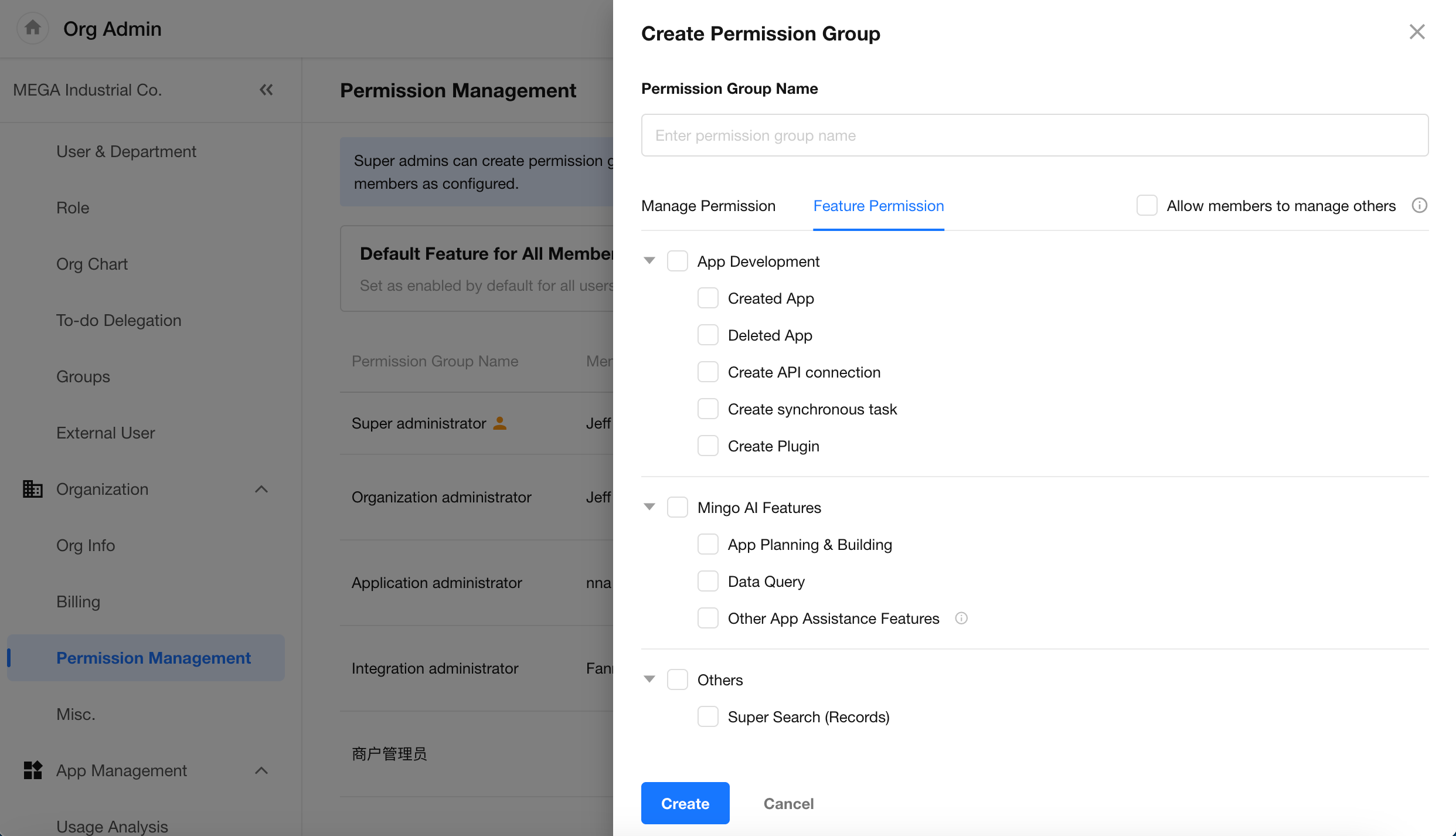
Organization Admin Renamed and Expanded as Permission Management
The former Administrator module in the Organization Admin Console is now Permission Management, with permission groups used to manage both organization-level administrative permissions and feature access. In addition to assigning organization management permissions to administrators, permission groups can also control feature access for regular users, including creating apps, creating API connections, using Mingo AI capabilities, and more.
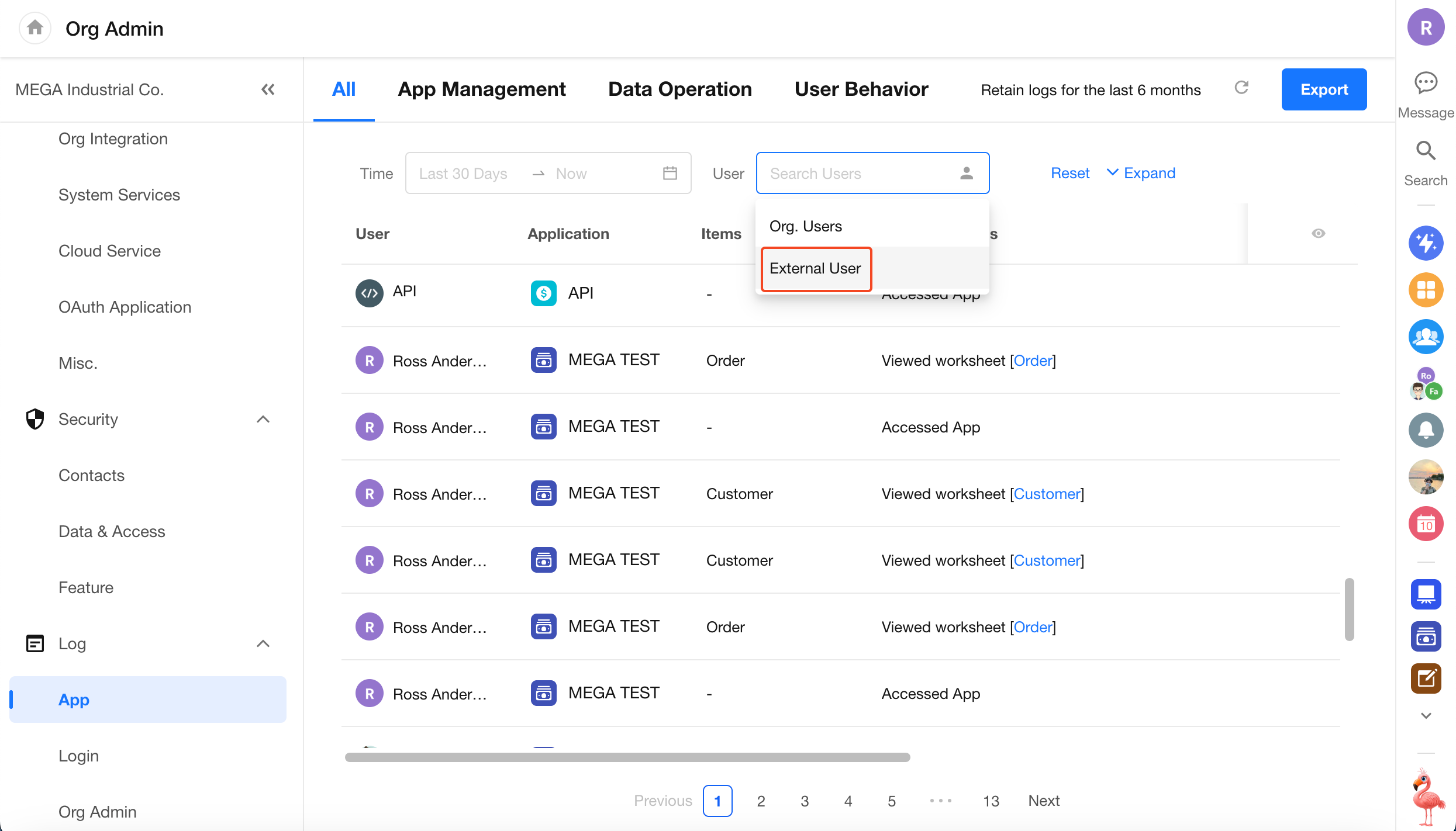
Filter Application Logs by External Portal Users
Application logs can now be filtered to show activity from external portal users.
Organization API: Import and Upgrade Integration APIs
New APIs
New APIs have been added for:
- Apps
- Views
- Members
- Workflows
- ChatBots
- Custom Pages
- Custom Actions
App & H5
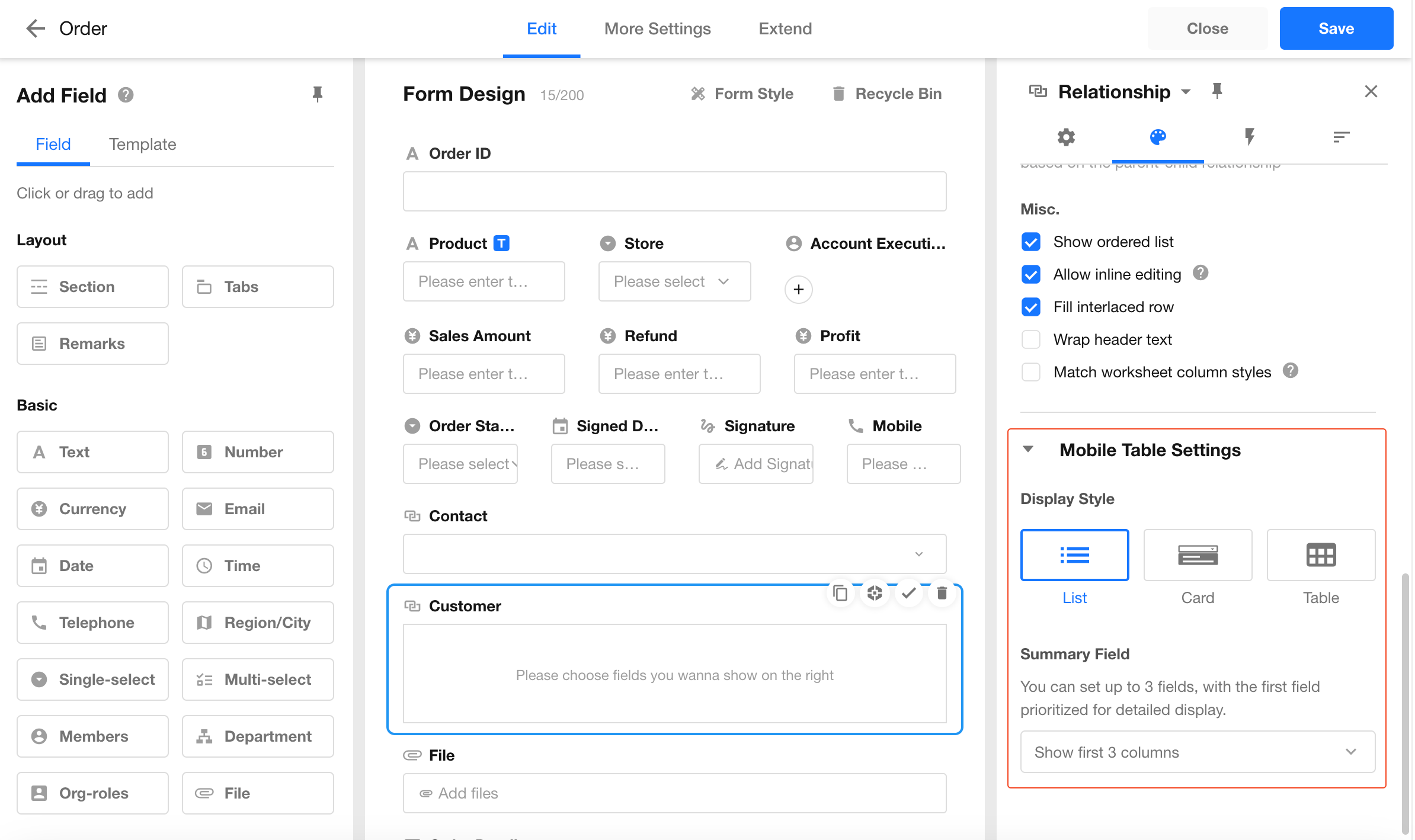
Independent Mobile Display Settings for Relationship and Query Records Fields
Relationship fields and query records fields can now use independent mobile display settings, instead of following the PC configuration. This allows users to choose layouts that are better suited to smaller screens and mobile interactions.
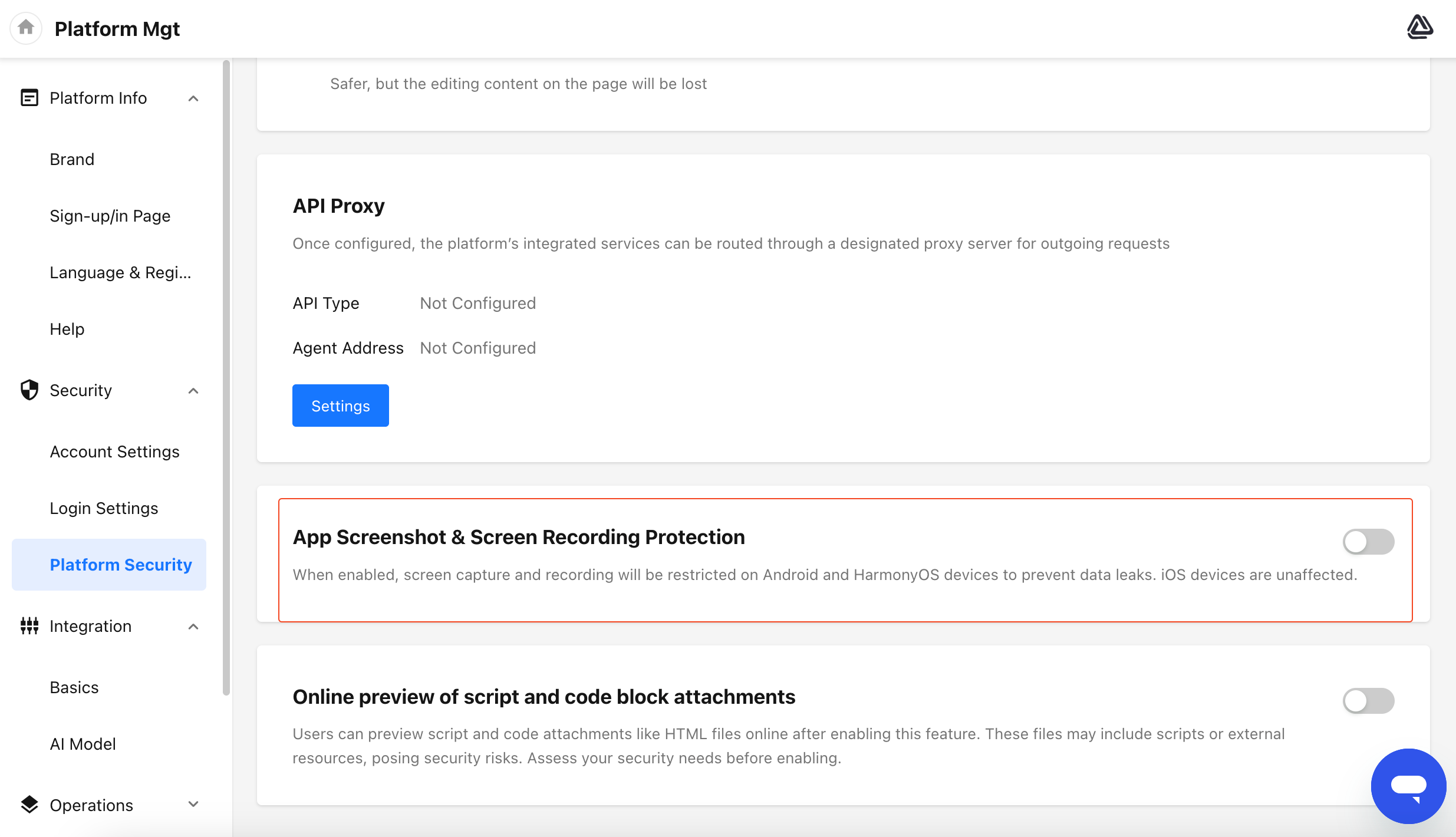
App Security: Block Screenshots and Screen Recording
The mobile app can now block screenshots and screen recording to help protect sensitive business information. This feature currently supports Android and HarmonyOS only and is available for HAP Server. Administrators can enable App Screenshot & Screen Recording Protection under Platform Security settings in Platform Management.
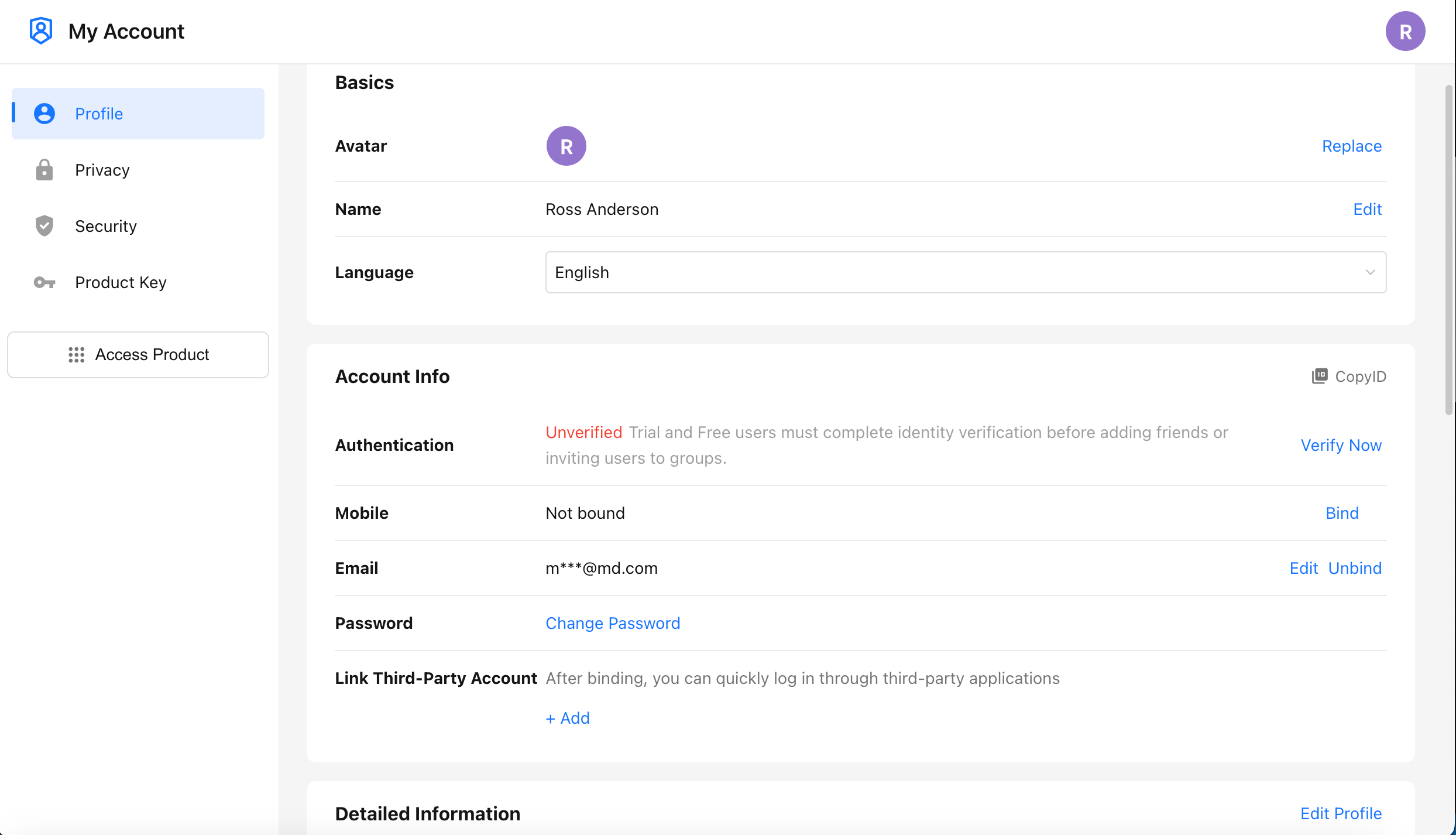
Personal Account
Redesigned Personal Account
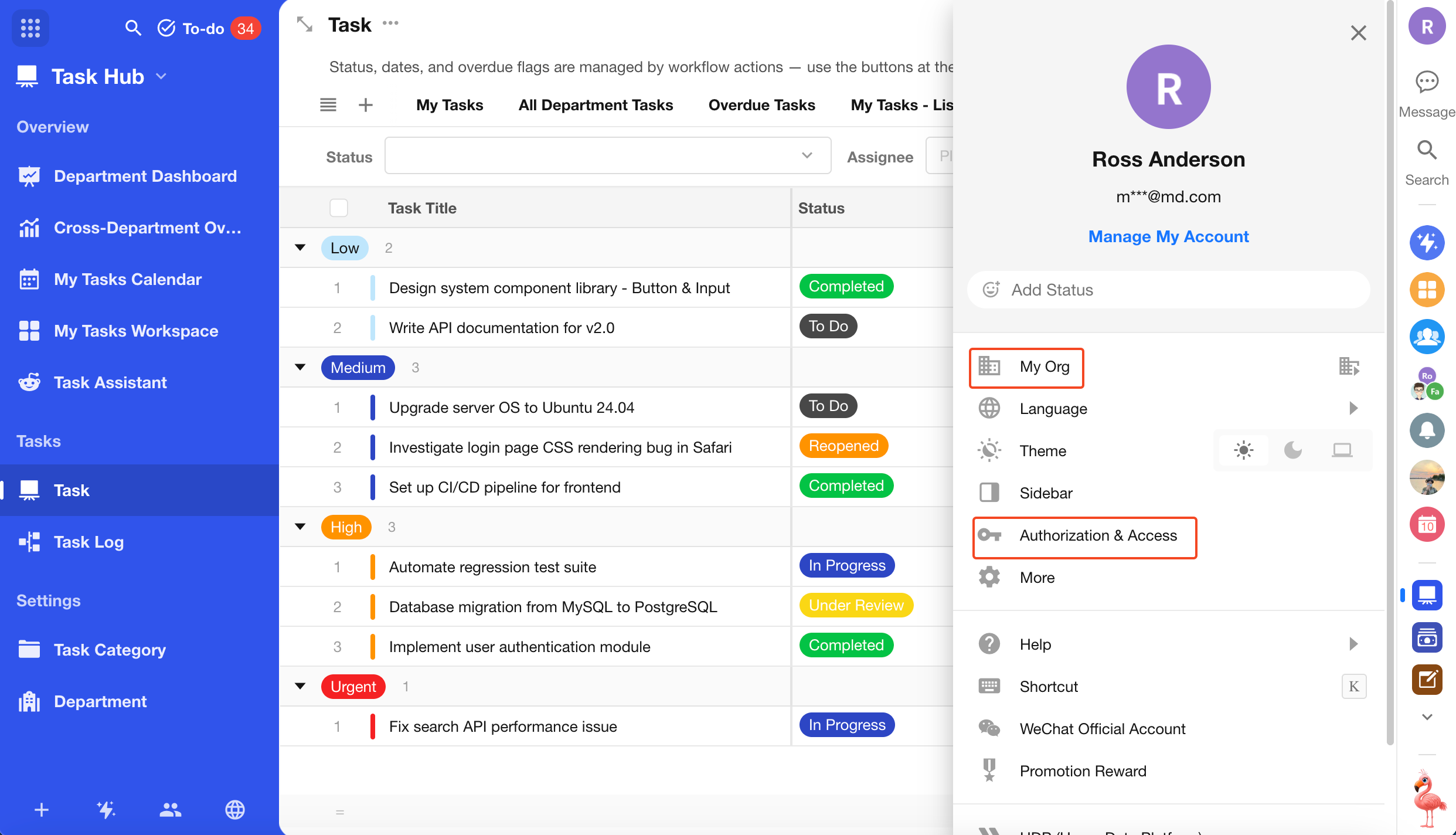
The Personal Account page has been redesigned with an updated layout and clearer information organization. Note: My Org, Access Token, and Authorized Apps have moved to the sidebar that opens from the user avatar.
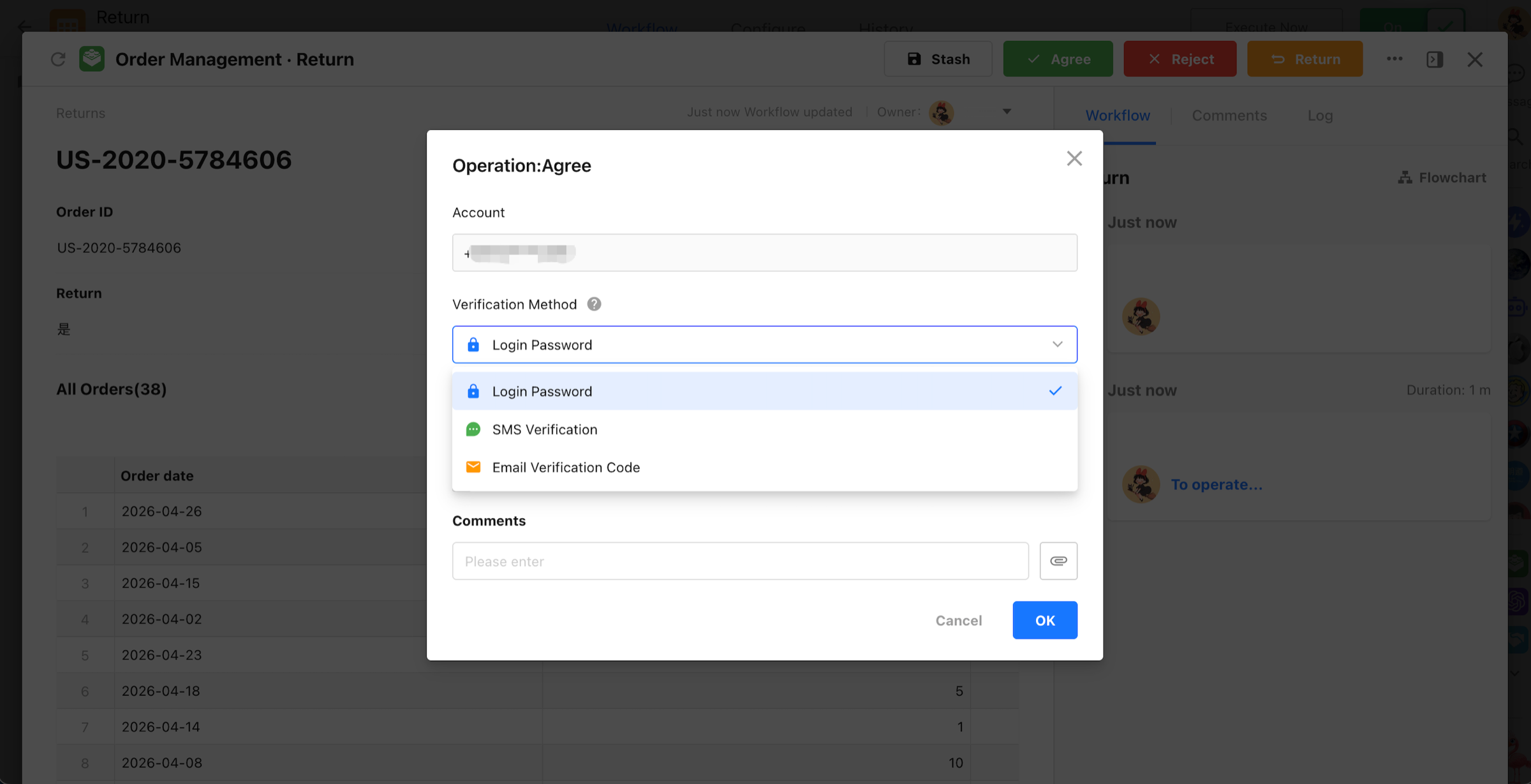
Four Security Verification Methods
The previous Login Password Verification setting has been upgraded to Security Verification and can be used in approval nodes, fill in nodes, and custom actions. Security verification supports four methods:
- Login password
- SMS verification code
- Email verification code
- Authenticator app
SMS and email verification require a linked phone number or email address. For authenticator app verification, users must first enable two-factor authentication and complete the app setup. On mobile, security verification now works with existing biometric and gesture authentication. When available, enabled biometric or gesture authentication can be used first, avoiding duplicate verification steps and creating a smoother mobile experience.
Plugin Center
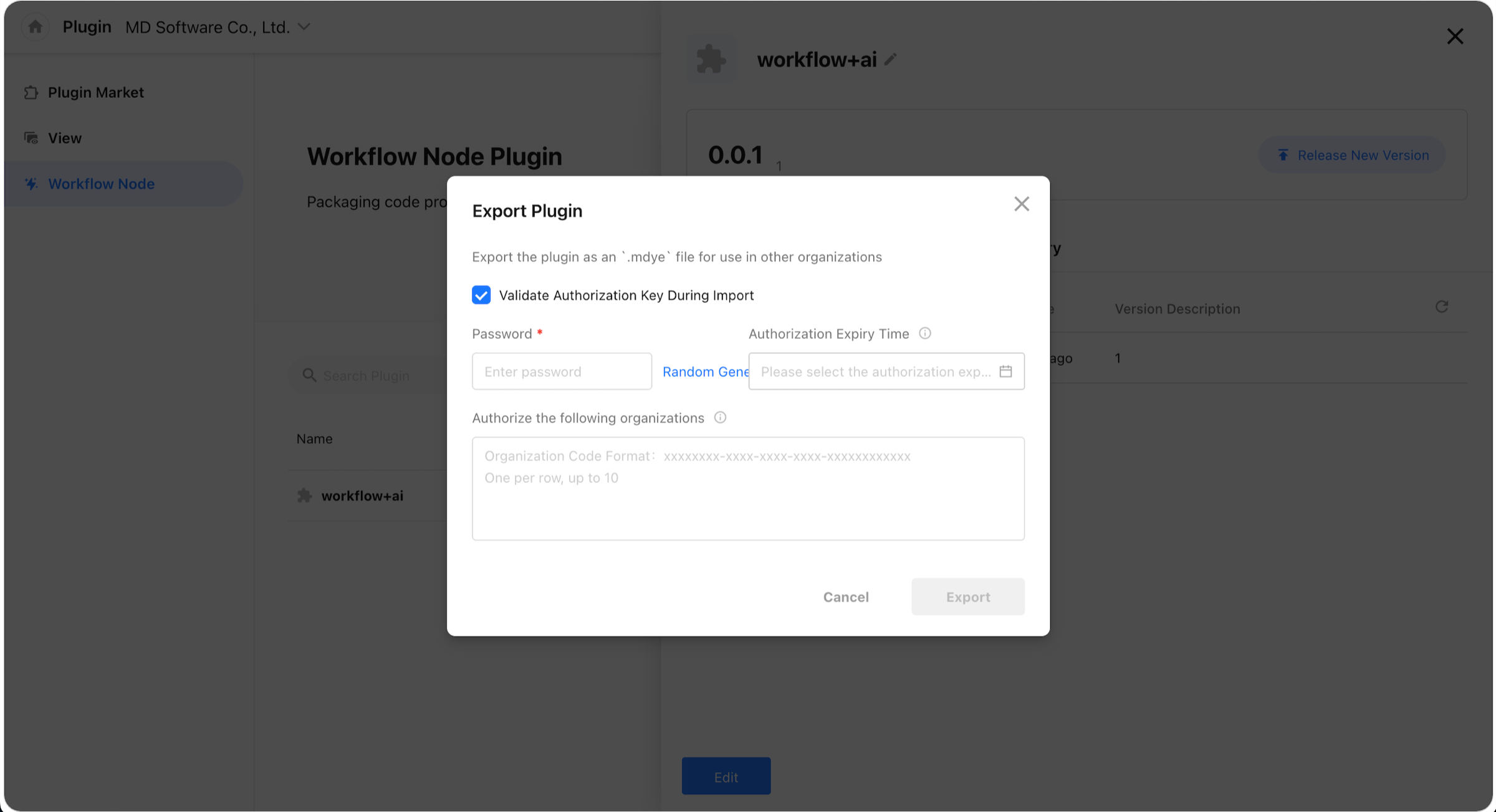
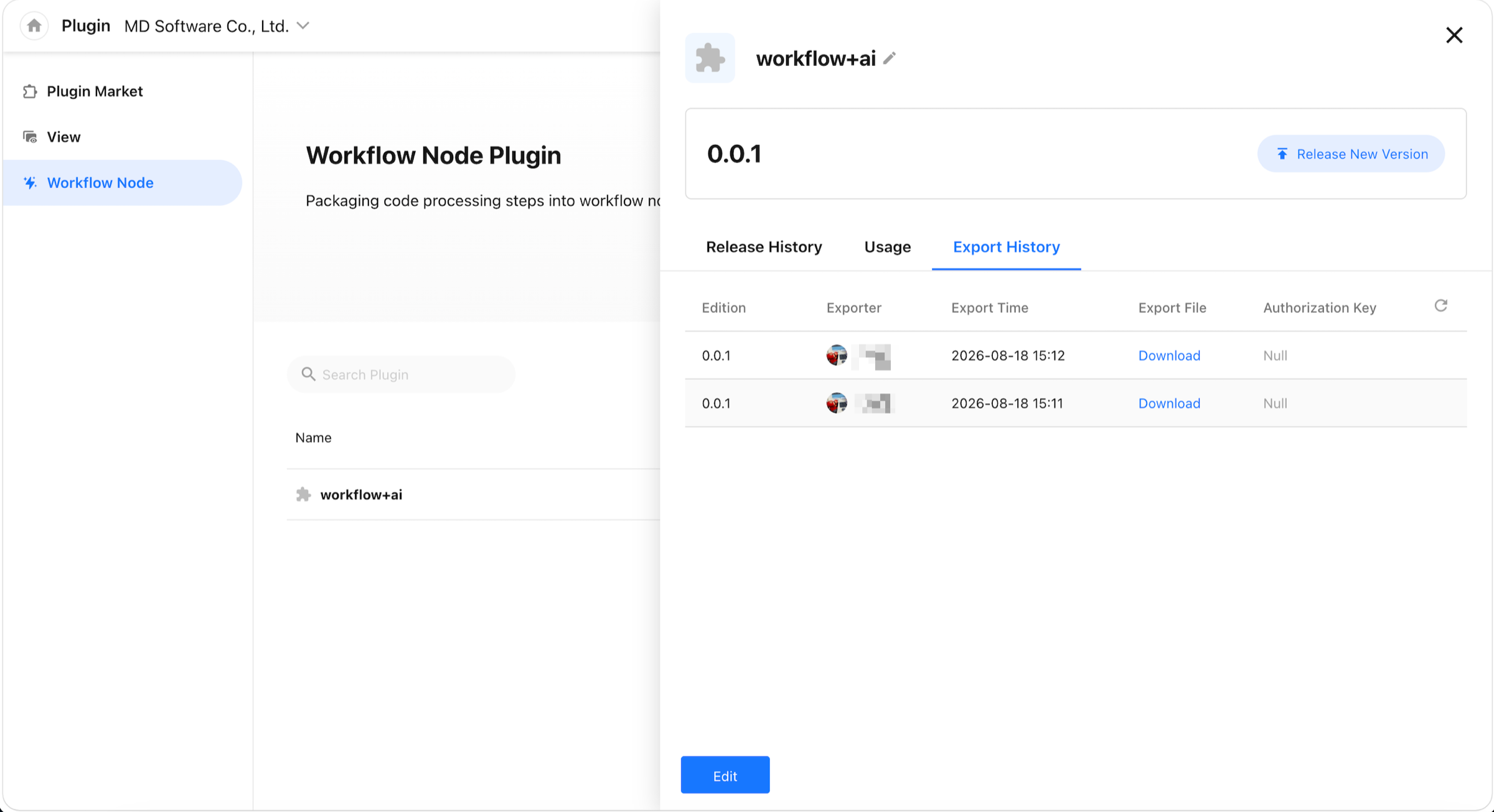
Export, Import, and Upgrade Workflow Plugins
- Export and download workflow plugins
- Import workflow plugins
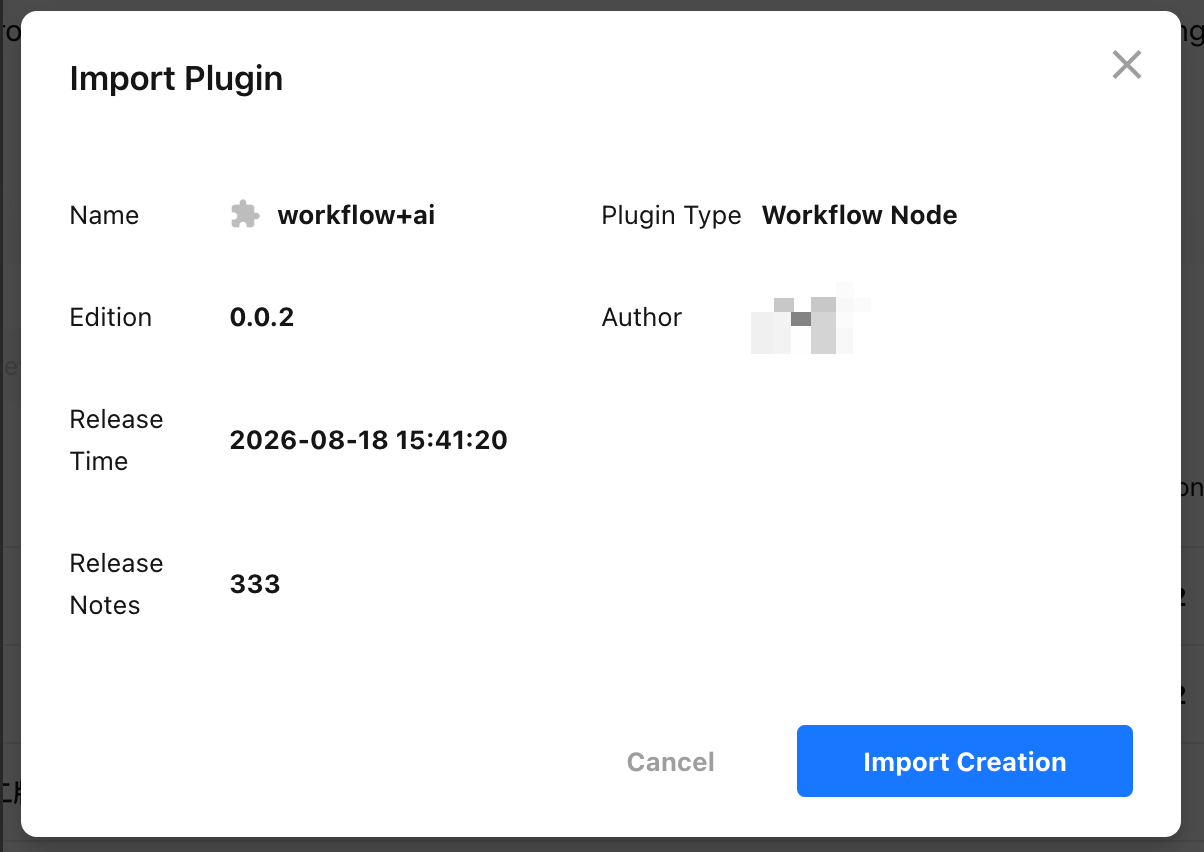
- When a plugin from the same source is detected, choose whether to create a new plugin or update the existing one
Performance and Experience
Faster Loading and Smoother Performance on PC
- Faster page loading: Pages and heavier content now load on demand, reducing unnecessary resources during initial load and lowering both wait time and device resource usage.
- More responsive complex forms: After a field changes, only affected content is recalculated and refreshed, reducing unnecessary full-form processing. The improvement is especially noticeable in forms with many fields and rules.
- Smoother Gantt views: Gantt views now render only the visible area instead of all rows at once. For example, with 1,000 rows and an 800 px viewport, the number of rendered rows can drop from around 1,000 to about 30, reducing DOM rendering by approximately 90%.
- Faster subform search: Searchable fields are identified in advance, and processing stops once a match is found, reducing unnecessary traversal and formatting in large subforms.
Improved Experience on PC and Mobile H5
- Smoother record interactions: Reduced redundant refreshes and unnecessary animations in record details, improving the experience when creating, viewing, and switching between records.
- More consistent dialogs and selectors: Dialogs, dropdowns, user selectors, worksheet selectors, and related interactions have been standardized for a more consistent experience across modules.
- More stable multi-layer dialogs: Positioning, focus handling, closing behavior, and back navigation have been improved to reduce overlap, misalignment, accidental closing, focus loss, and incorrect navigation between dialog layers.
- Smoother mobile H5 forms: Reduced large-scale rerendering caused by field changes, improving input responsiveness in complex forms.
More Reliable Requests and Submissions
- Fewer duplicate requests: Printing, scan uploads, user and organization selection, and other scenarios now load resources on demand, reducing duplicate requests caused by scrolling, expanding content, or repeated initialization and lowering server resource usage.
- Reduced duplicate submissions: Actions such as create, save, send, approve, fill, and pay are temporarily disabled while a request is in progress, reducing the risk of duplicate data or repeated operations caused by repeated clicks.
Other Improvements
Lightweight One-Way Relationships
Relationship fields now support lightweight one-way relationships, maintaining the relationship only in the current worksheet to improve performance when many relationship fields are used.
Workflow AI Agent Enhancements
- Improved context handling, filter conditions, parameter validation, error retries, and prompts for workflow AI Agents.
- ChatBots now show the reasoning process and allow the working process to be collapsed.
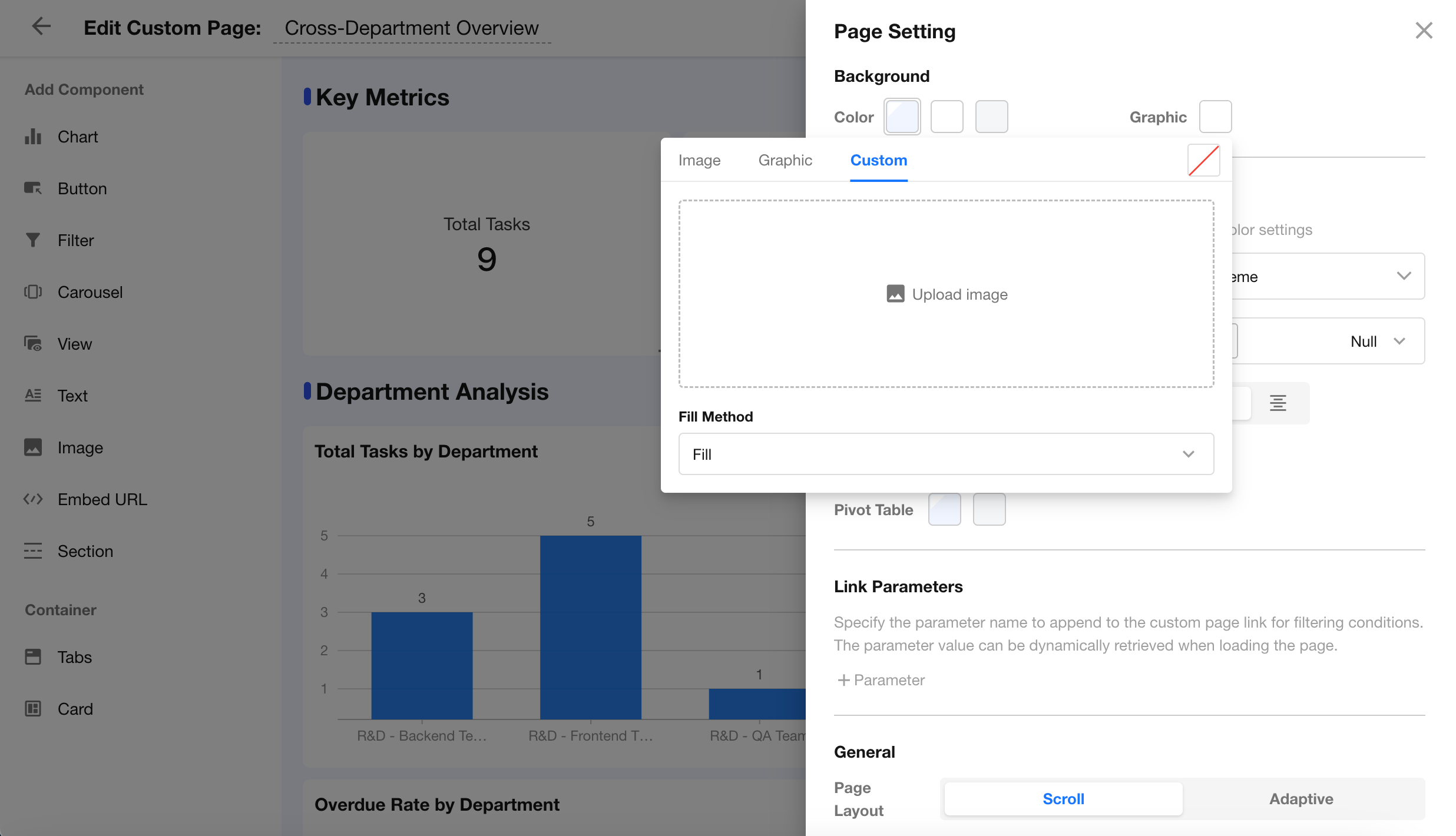
Background Images for Custom Pages
Custom pages now support uploading images directly as page backgrounds, providing more flexibility for personalized page designs.
API Restrictions for Locked Apps
When an app is locked, its structure can no longer be modified through APIs. Only basic data queries remain available.
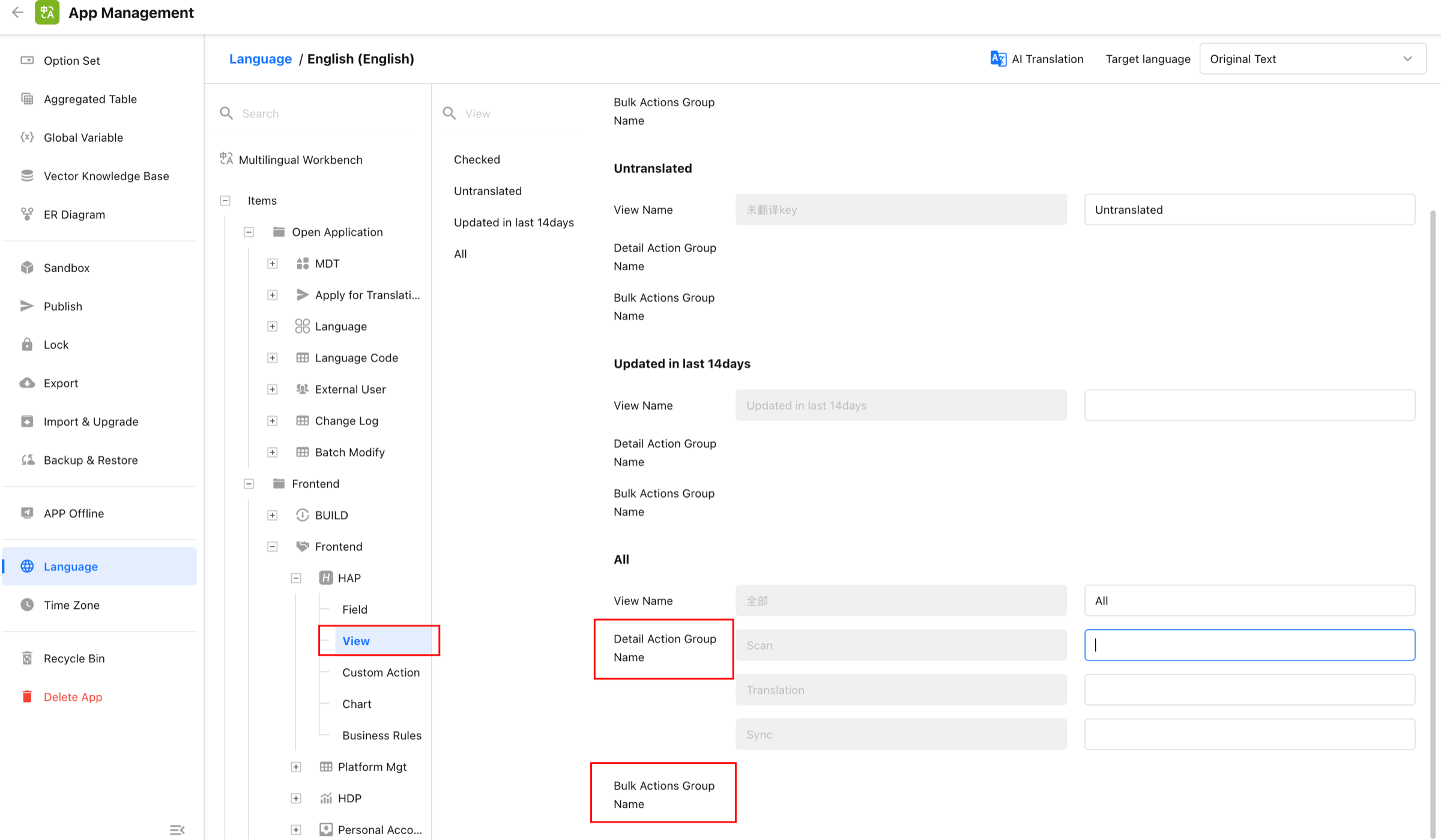
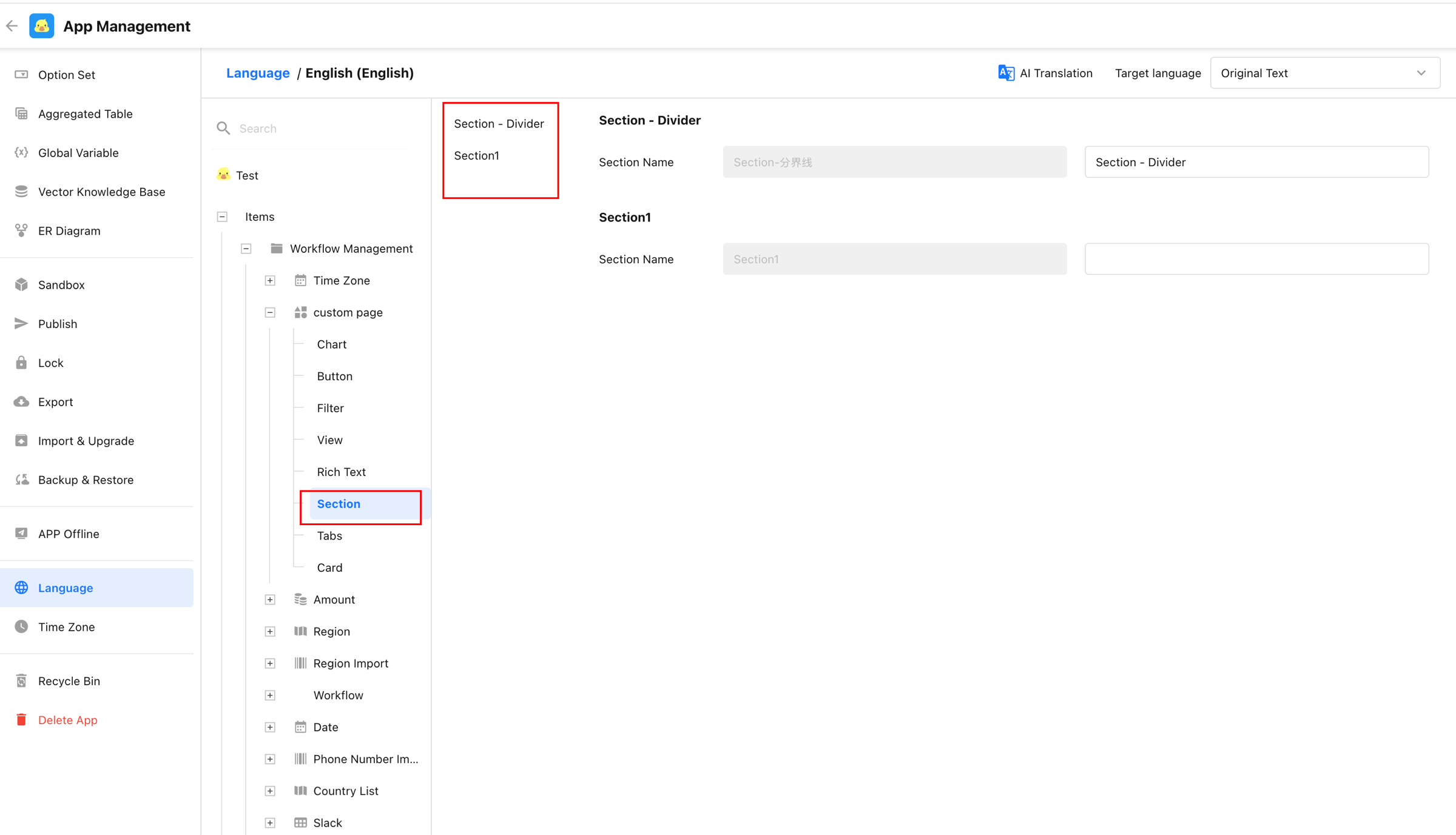
Expanded App Language Coverage
App language settings now support translations for custom action group names and custom page section names.
Multilingual Backups for Apps
Both Restore App and Restore as New App now support multilingual backups.
Search in File Transfer Assistant
The File Transfer Assistant in Chat now supports keyword search, making it easier to find historical messages and bringing its search capabilities in line with private chats.
Want a live technical walkthrough of V7.5? Join our upcoming webinar with Teh Li Wei on Friday, October 16, 2026, at 14:00 HKT / SGT (06:00 UTC) on YouTube Live, or visit nocoly.com to get started today.