
What’s New
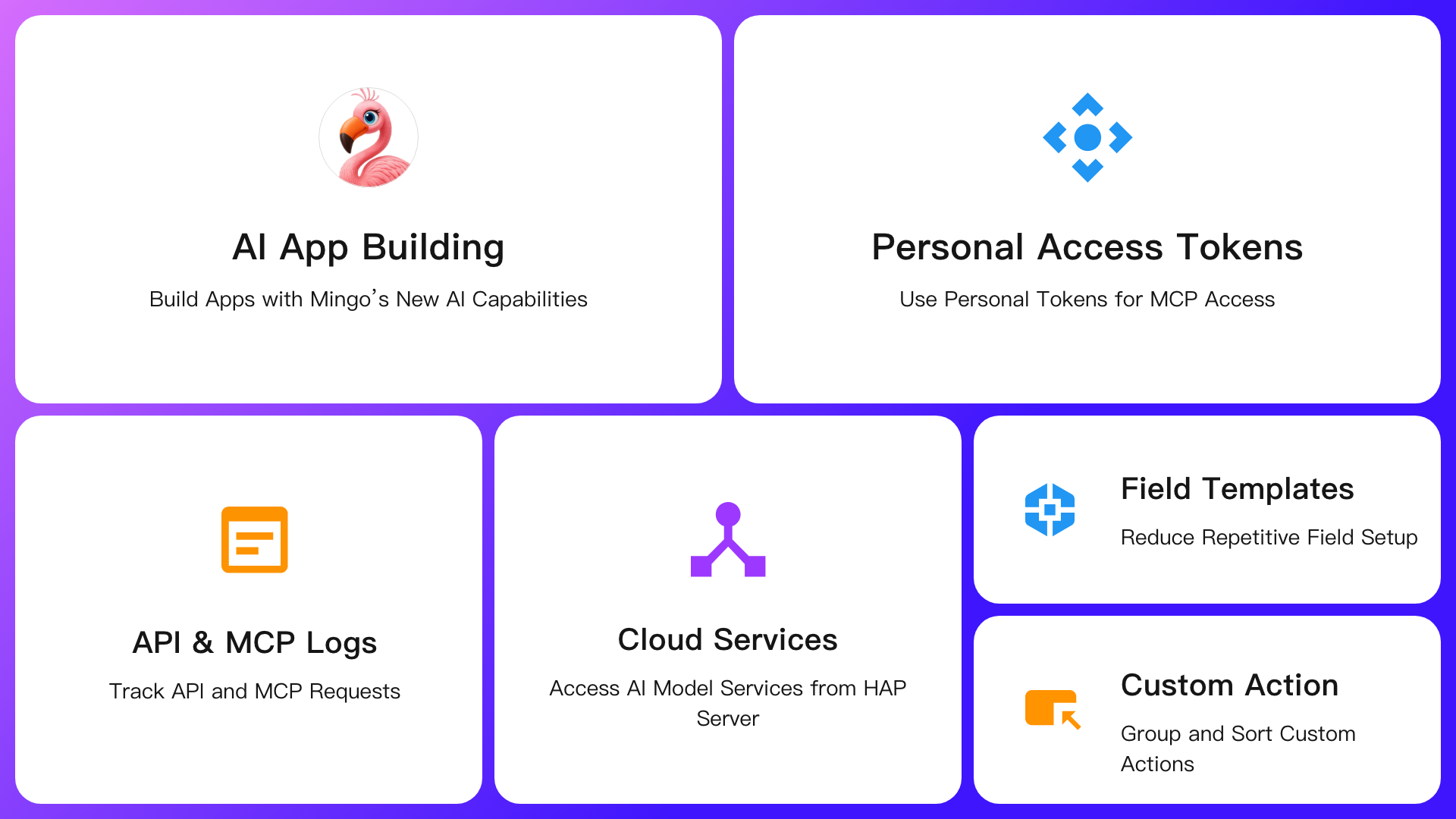
- Expanded Mingo Capabilities for App Building, Data Queries, and Product Guidance
- Personal Access Tokens
- API and MCP Requests Added to Logs
- Cloud Services — AI Model Services
- Field Templates for Reusing Field Configurations
- Custom Action Grouping and Sorting
AI Capabilities
Mingo
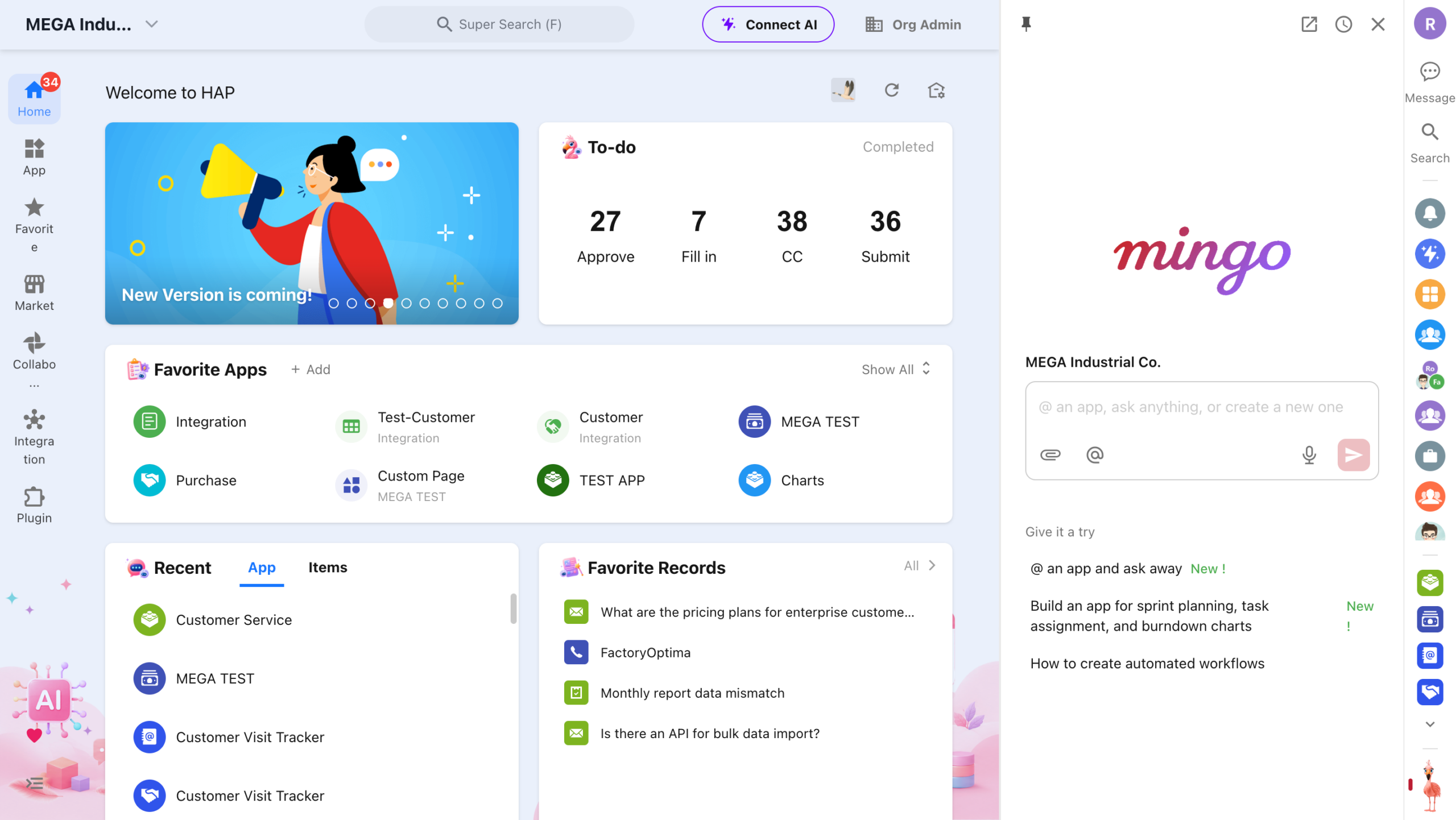
Mingo now comes with expanded capabilities for app building, data queries, and product guidance. Users can describe what they need in natural language, and Mingo will understand their intent, break down tasks, and ask follow-up questions when more information is needed.
With Mingo, you can:
- Build apps: Turn business requirements into an app plan and have Mingo help build the app.
- Query data: Search, filter, analyze, and summarize business data across your apps.
- Get product guidance: Learn how features work, how to configure them, and get recommendations for specific use cases.
There is no need to understand worksheet structures, field definitions, or complex configurations in advance. Mingo follows HAP’s organization, permission, and billing rules. Users can only access data they have permission to view, and data queries do not modify existing data.
AI App Building
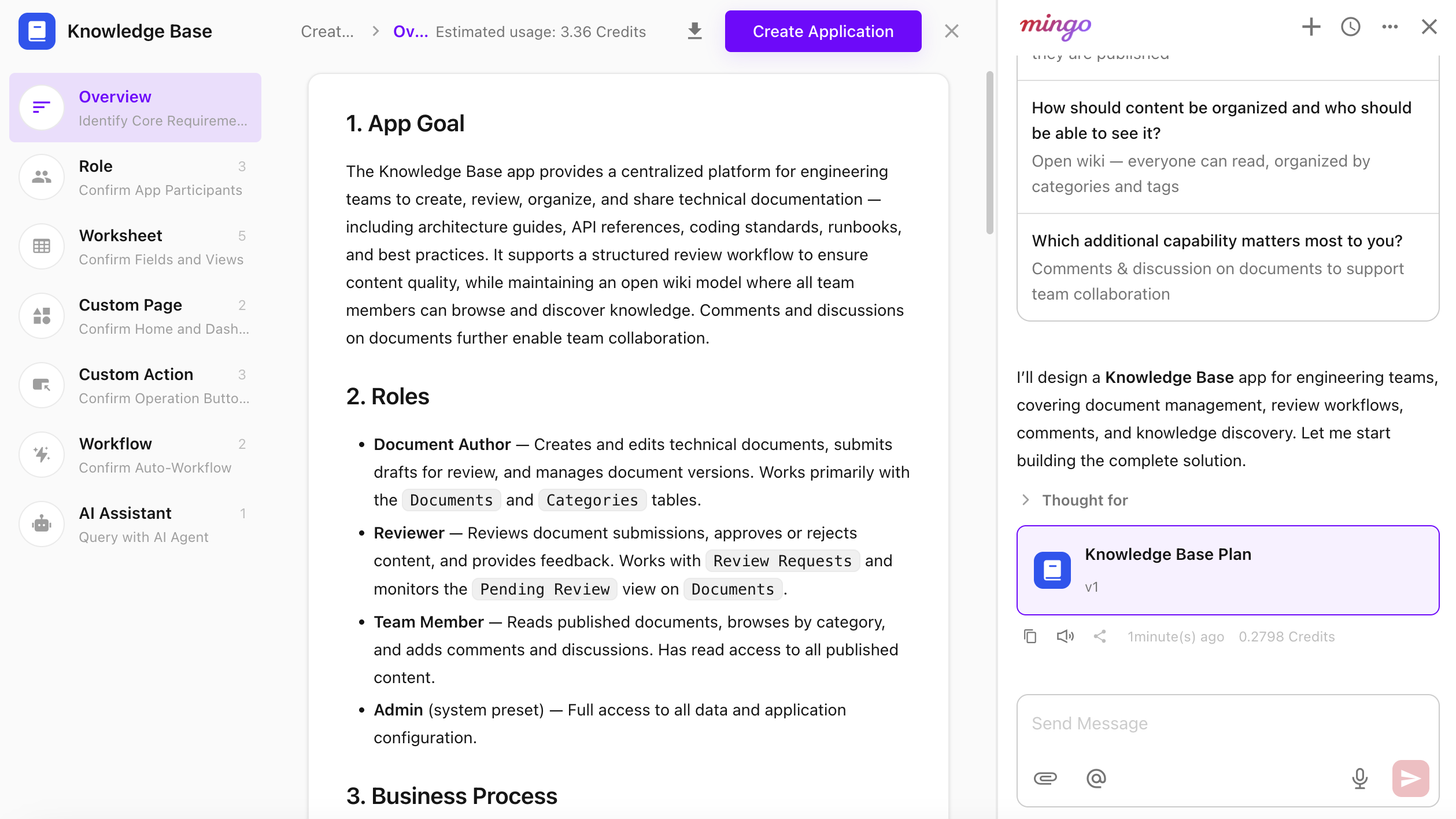
AI App Building lets users generate an app directly from a description of their business scenario and management requirements. Simply describe what you want to manage, and Mingo will create an app plan for review. Once confirmed, Mingo automatically builds the app without coding or configuring everything from scratch.
The process consists of two stages:
- Build Plan: Mingo clarifies requirements through conversation and generates an app plan that can be previewed and adjusted.
- App Generation: Once the plan is confirmed, Mingo builds the app step by step and displays the progress in real time.
Mingo can automatically generate the app structure, navigation groups, worksheets and fields, relationships between worksheets, views, roles and permissions, custom pages, dashboards, AI assistants, workflows, custom actions, sample data, app descriptions, and more.
An estimated cost is provided before generation begins. During the build, users can preview the app in real time and resume from where they left off if the process is interrupted. More complex apps may take longer to generate, so keep the page connected until the build is complete.
Data Queries
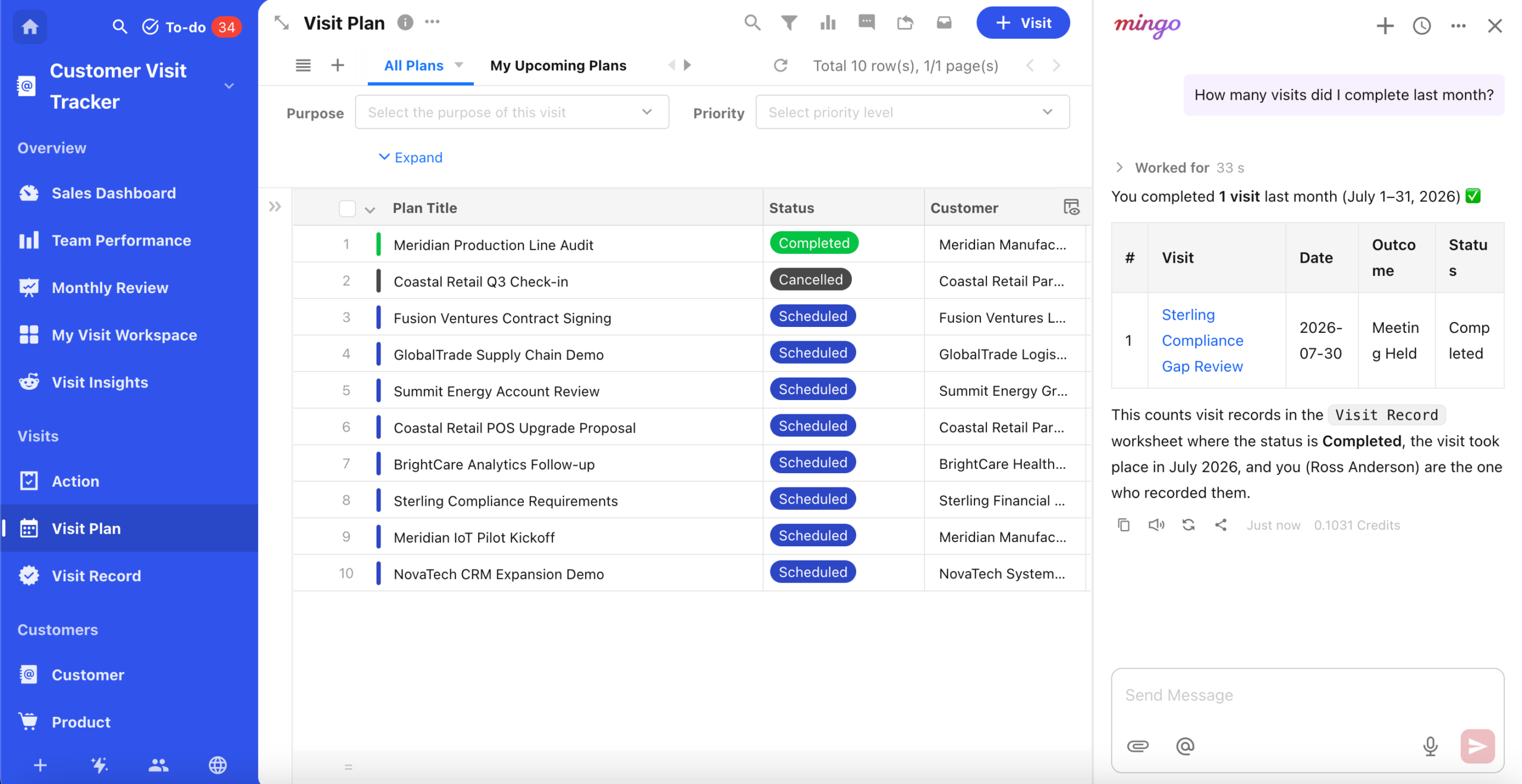
Data Queries let users search, analyze, and summarize business data in existing apps using natural language, without manually configuring views, filters, or charts.
You can query:
- App information, worksheet lists, and field structures
- Record lists, record details, and related records
- Aggregated results such as grouping, counting, summing, and pivoting
Mingo understands expressions such as “assigned to me,” “from my department,” “this month,” “the last 7 days,” “this quarter,” and “overdue,” and automatically converts them into the appropriate filters or time ranges. Results can be presented as text, tables, or charts, with links to relevant records where applicable.
Data Queries are read-only and do not create, update, or delete records. Requests that involve data changes are handled through data maintenance capabilities.
Connect AI
Connect AI makes it easy to connect HAP capabilities such as MCP, Skills, and CLI with popular AI Agent tools including Claude Code and Codex. Users can work with HAP directly from their AI environment without needing to understand underlying protocols or deal with complex setup.
- MCP — Connect AI Agents directly to HAP through a standard protocol and work with data in real time through conversation.
- CLI — Access HAP capabilities through terminal commands, ideal for scripts and automation.
- Skills — Give AI Agents HAP-specific knowledge so they can use platform capabilities more accurately and reliably.
Getting Started
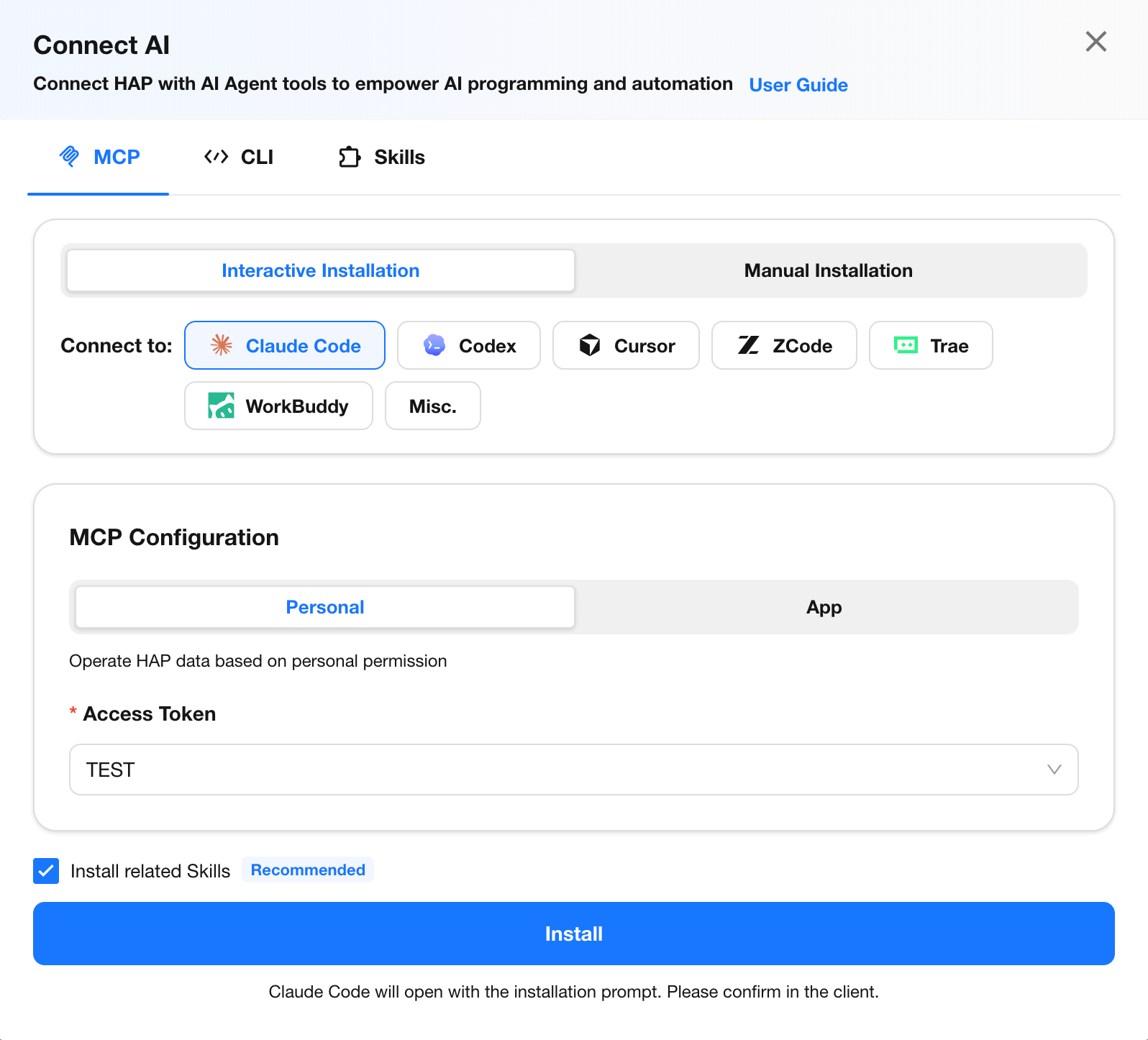
- On the HAP home page, click Connect AI, switch between the MCP, CLI, and Skills tabs, select your AI tool, and follow the setup guide.
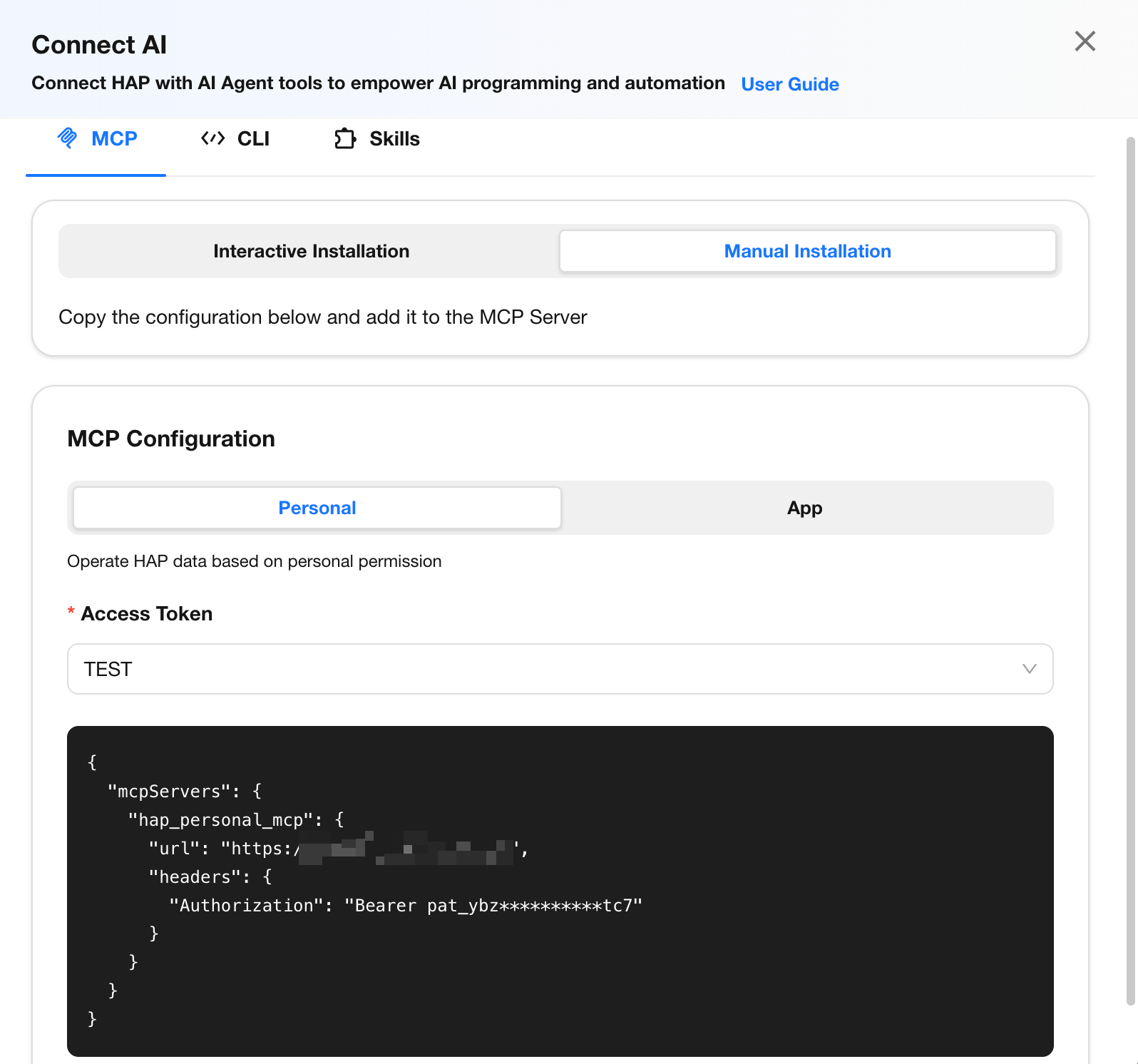
- Each connection method supports both Interactive Installation, which completes setup through a guided prompt in the AI client, and Manual Installation, which lets you copy and run commands in the terminal.
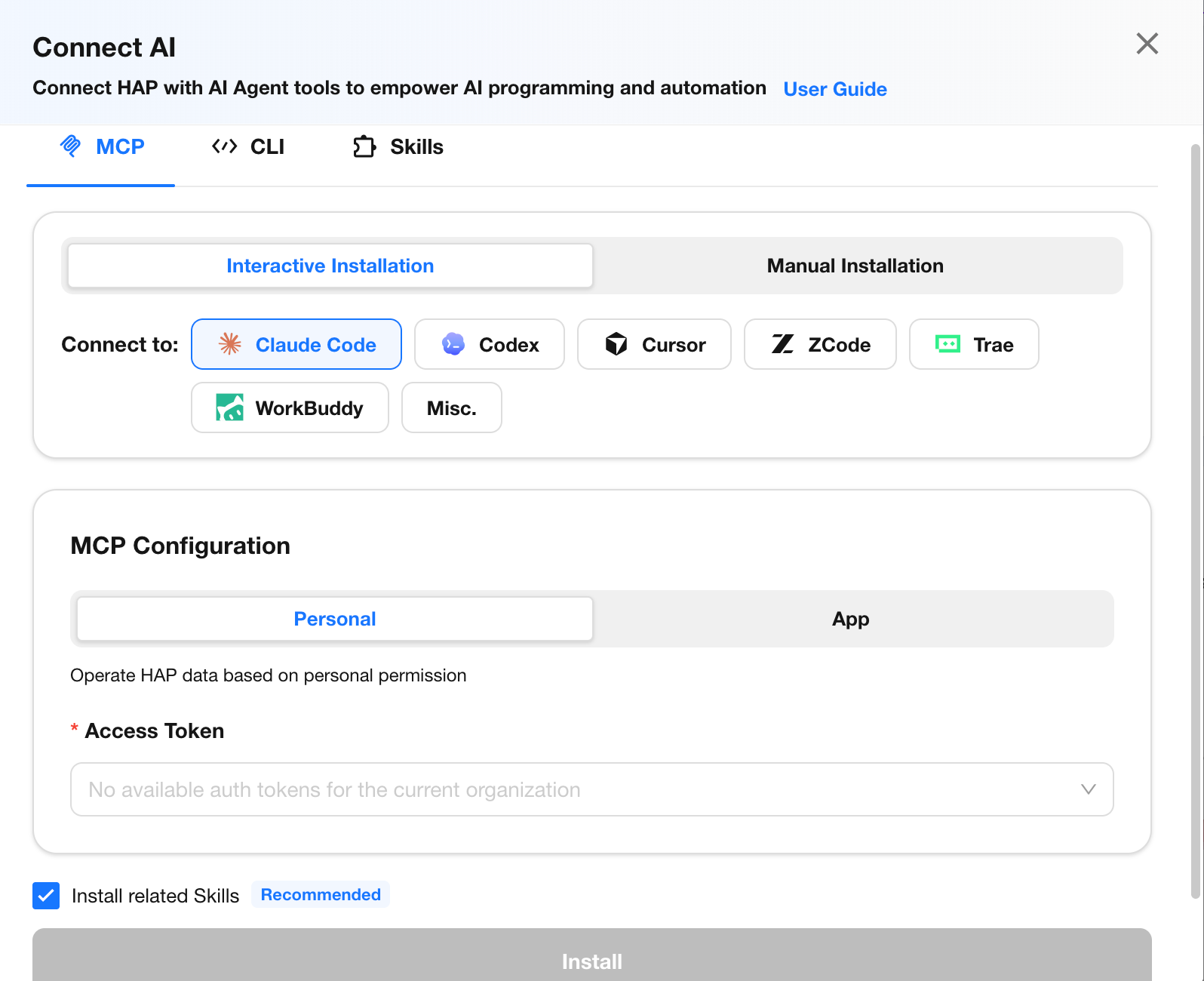
MCP
MCP (Model Context Protocol) is a standard protocol that enables AI Agents to connect with external systems. Once configured, an AI Agent can work directly with HAP data through conversation—for example, querying records, creating or updating data, and triggering workflows—without writing custom code.
MCP supports two modes based on authentication method and permission scope:
MCP with Personal Access Token (based on the user’s own permissions)
- The AI operates under the user’s identity and permissions, so its access is limited to the data and actions available to that user.
- Ideal for personal scripts, data synchronization, and automation tasks performed through an AI Agent under the user’s identity.
MCP with Application Key (based on the application’s authorized scope)
- The AI operates within the permissions granted to the application, with access boundaries managed centrally and typically configured by an administrator.
- Ideal for application-specific scenarios that require consistent permission boundaries or shared access across multiple users.
We recommend installing the companion Skill as well to help the AI use MCP capabilities more accurately.
 |
 |
CLI
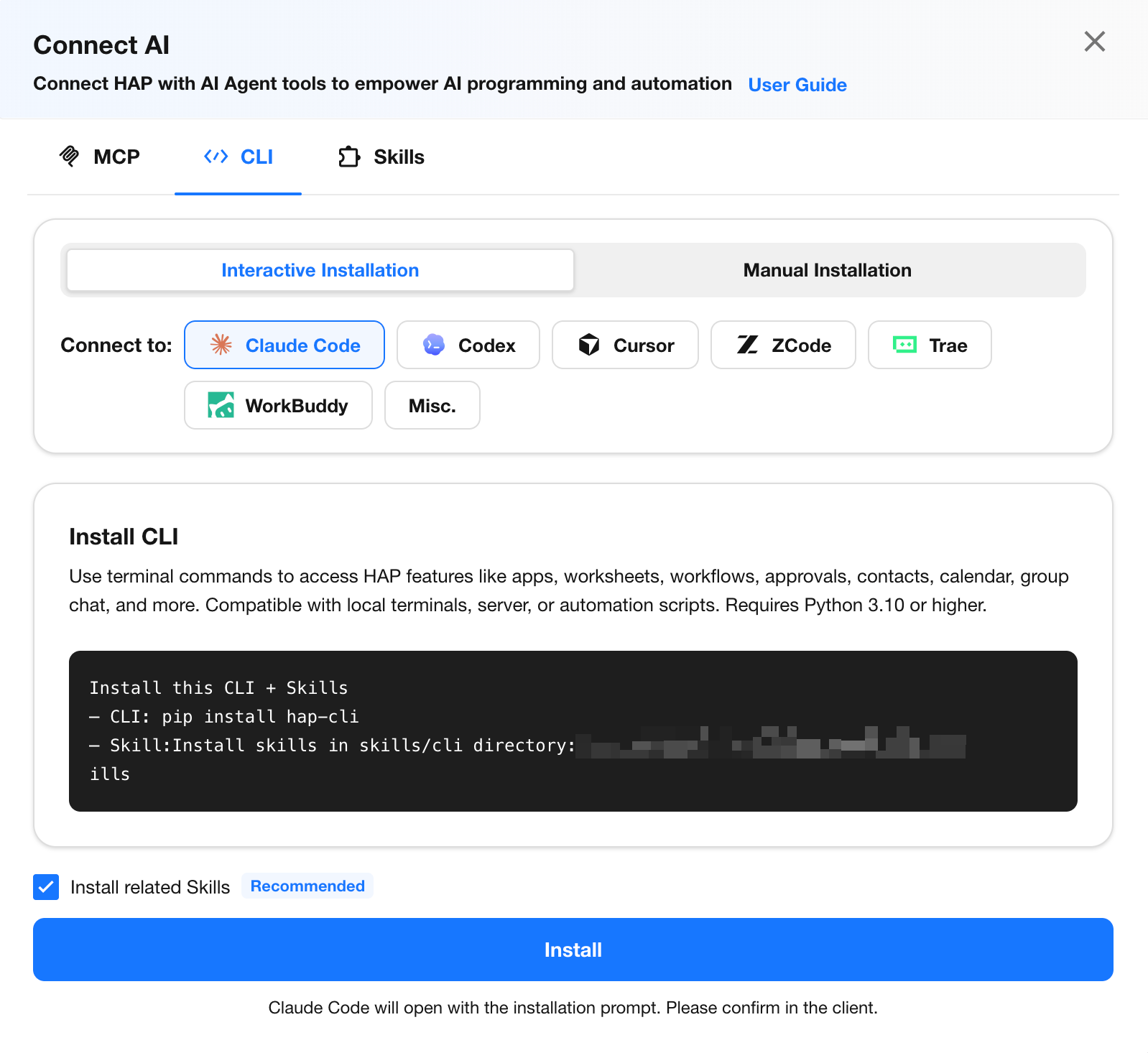
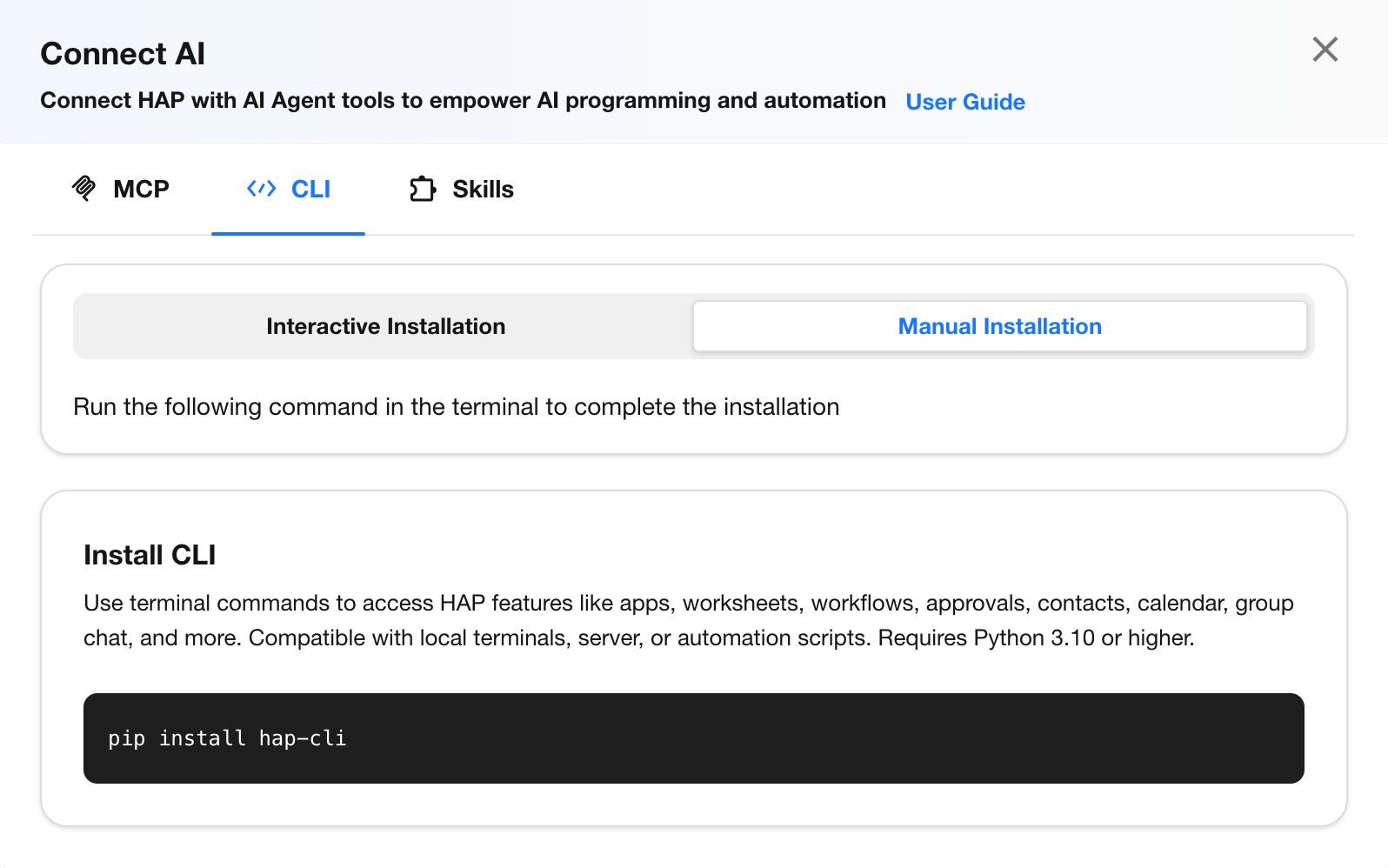
CLI is HAP’s command-line tool for accessing platform capabilities directly from the terminal. It supports operations across apps, worksheets, workflows, approvals, contacts, calendars, group chats, and more.
Compared with MCP’s conversational, real-time interaction, CLI is better suited for batch operations and repeatable tasks in local terminals, server scripts, and automation workflows.
How to use: Go to Connect AI – CLI, copy the installation command, and run it in your terminal. Once installed, you can use CLI commands directly or combine CLI with a Skills to let an AI Agent execute tasks from natural-language instructions.
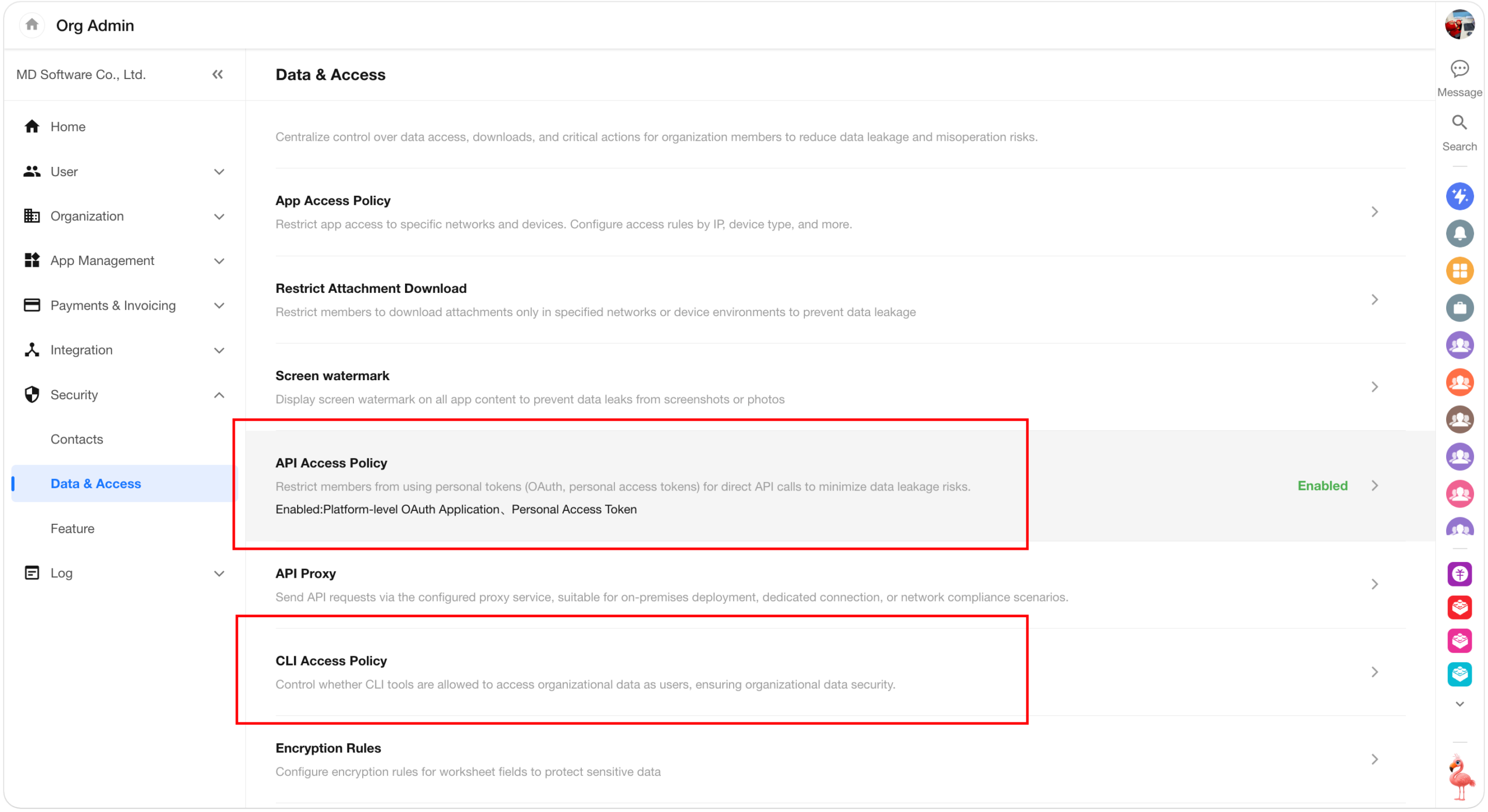
Access control: CLI access is governed by organization-level policies. If CLI access is disabled, an organization administrator must enable it under Organization Admin Console – Data & Access. See API/MCP/CLI Access Policy Controls for details.
 |
 |
Skills
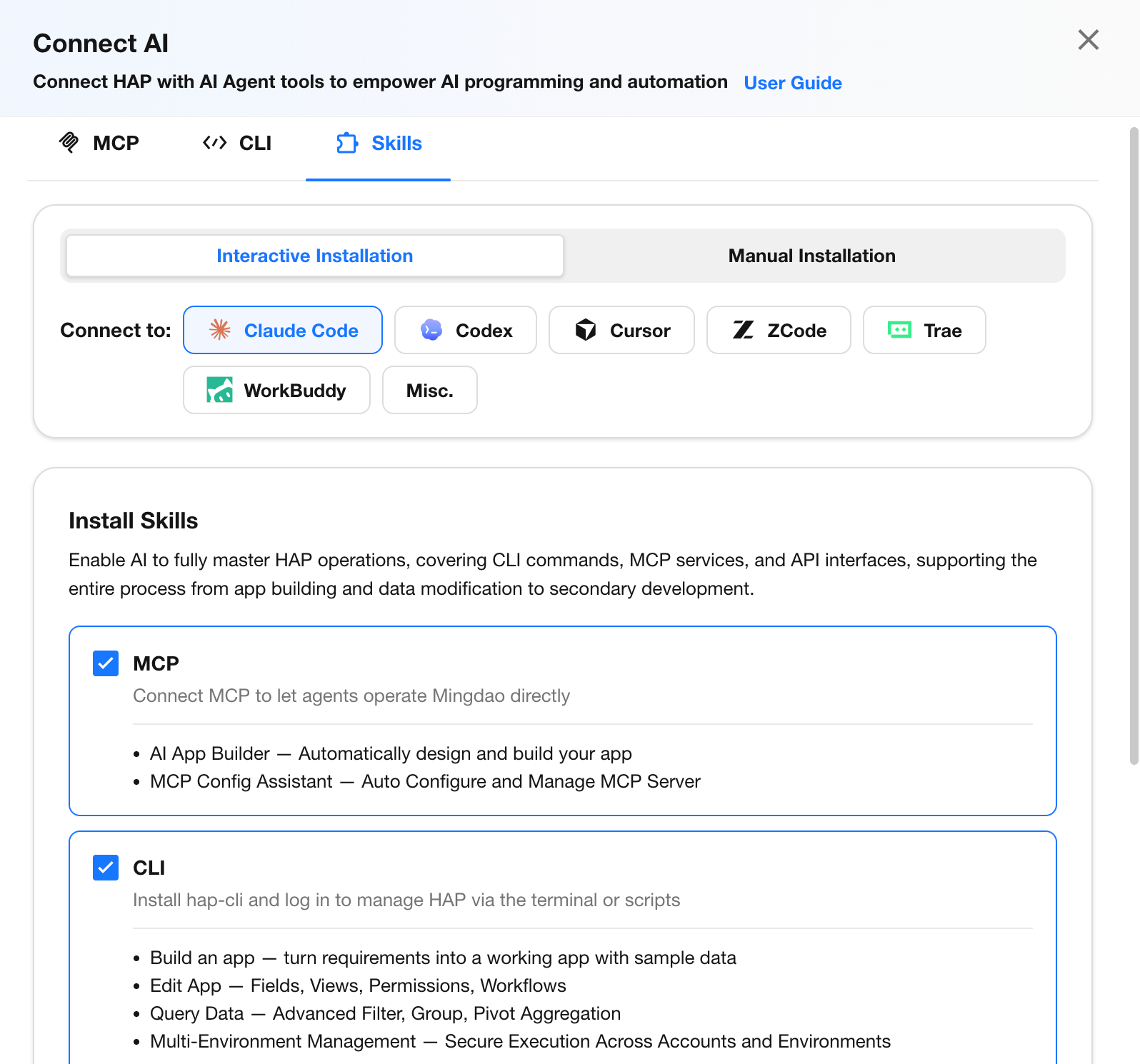
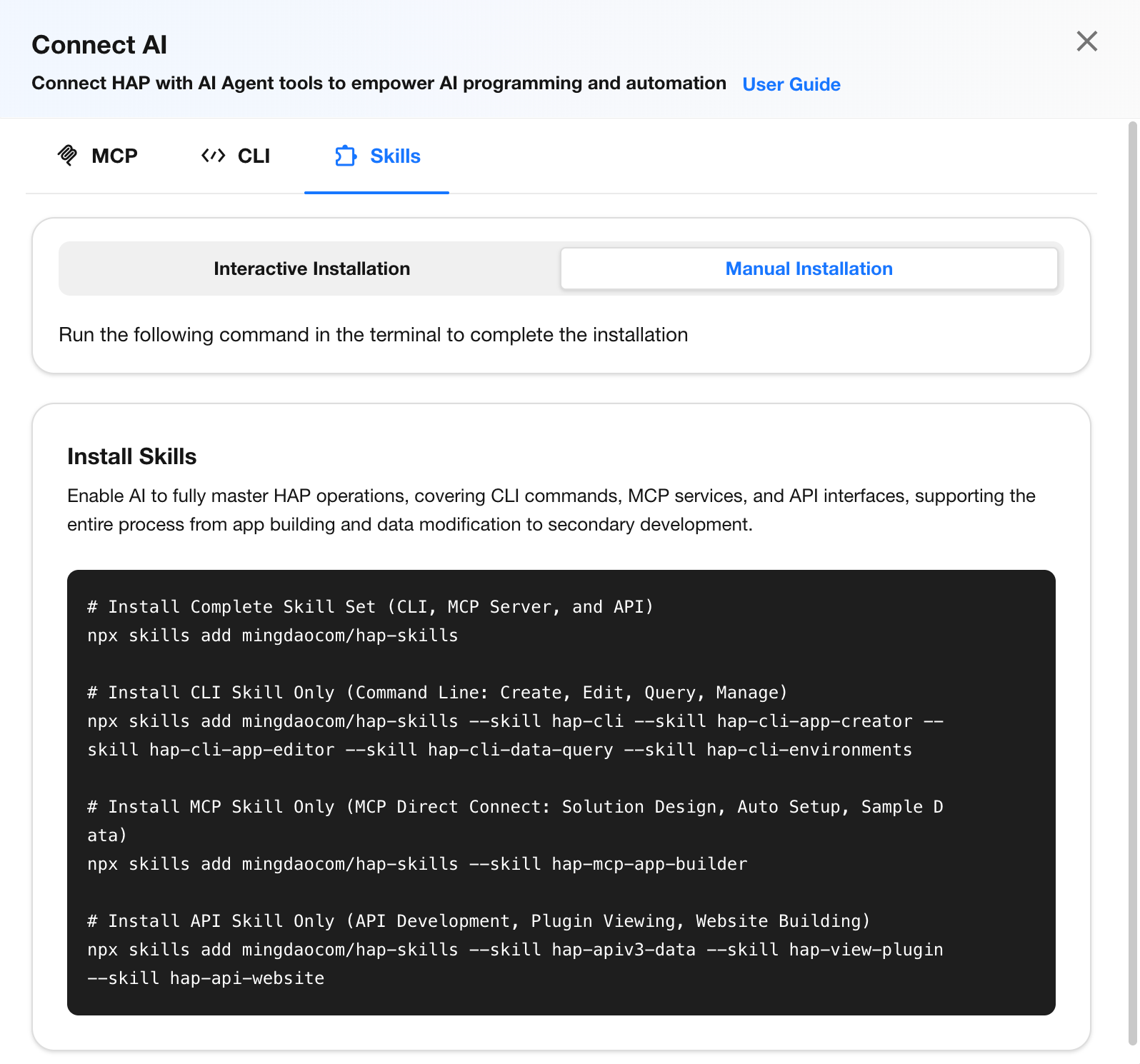
Skills give AI Agents the HAP-specific knowledge they need to use platform capabilities more effectively. They help the AI choose the right capability, pass parameters correctly, and request confirmation before destructive actions, making tasks such as building apps, modifying apps, and querying data more accurate and reliable.
- CLI Skill (Command-Line Operations)
Built on the HAP CLI, this Skill enables AI Agents to work with HAP directly from the terminal, including building and modifying apps, querying data, and managing multiple environments. The CLI must be installed and signed in first.
- MCP Skill (AI App Building)
This Skill brings Mingo’s AI App Building capabilities to local AI clients through MCP. Once MCP is configured, users can follow the same end-to-end app-building workflow available in Mingo directly from their local AI client.
- API Skill (API Development)
Built on the HAP V3 API, this Skill is designed for application-level development, including API-based data development, view plugin development, and frontend project setup. API authentication must be configured first.
 |
 |
Worksheets and Views
Field Templates
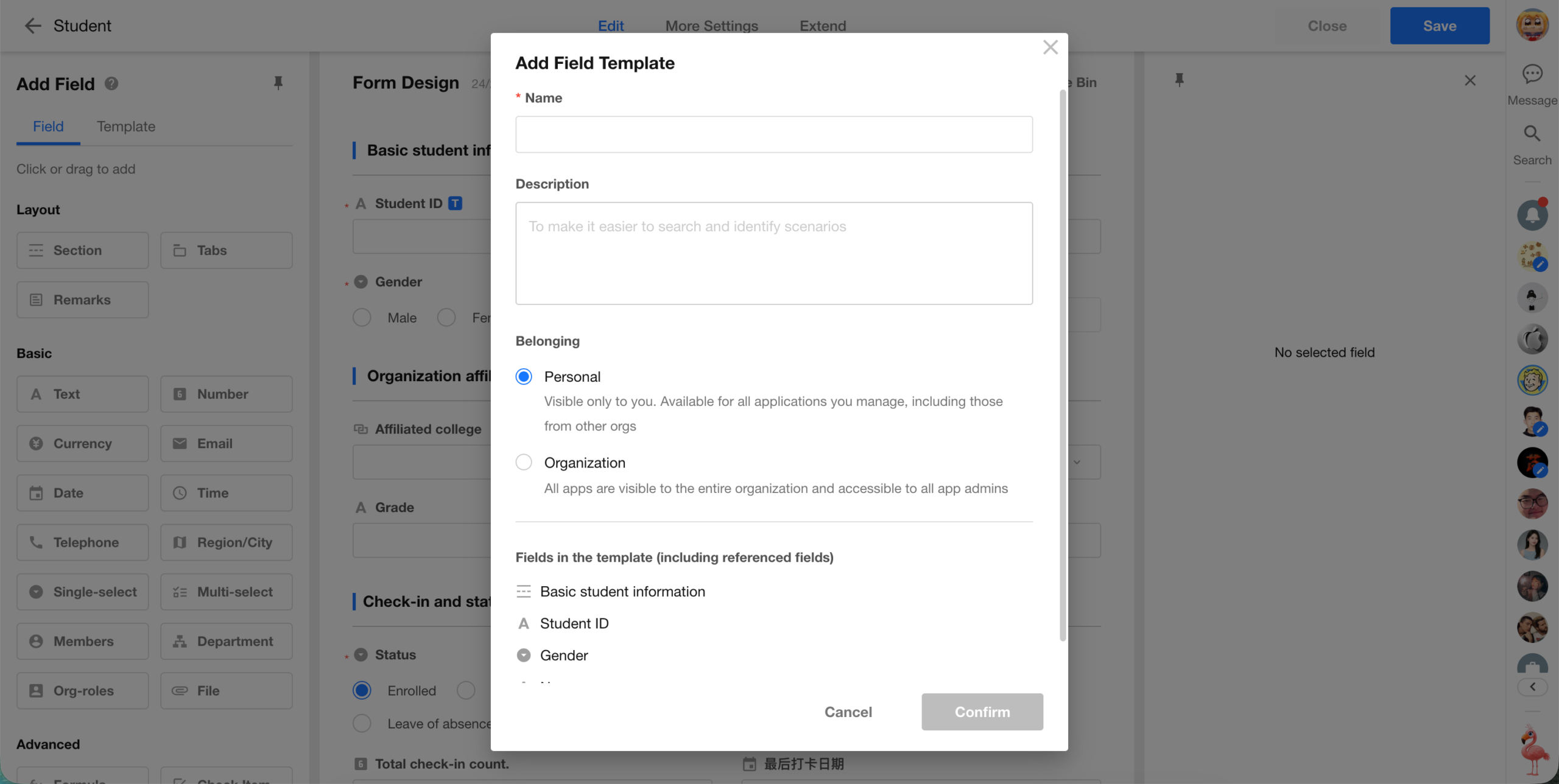
This update introduces Field Templates, allowing users to save one or more fully configured fields as a reusable template and apply them when creating new fields. Templates can be created for personal or organization-wide use, making it easier to reuse common fields or standardize field configurations across the organization.
Field Templates reduce repetitive setup during app building while helping maintain consistent field configurations and data standards.
Key Features
- Templates can include field settings, styles, and descriptions.
- If a template includes fields that reference other fields, such as formula fields or uppercase fields, the referenced fields are automatically included to keep the template complete and ready to use. Each template can contain up to 30 fields, including automatically added referenced fields.
When creating a field template, configure:
- Template name (must be unique within the same ownership scope)
- Template ownership
- Personal
- Visible and manageable only by the creator.
- Available in apps where the creator is an app administrator.
- Organization
- Can be created and managed only by organization administrators or super administrators.
- Available across all apps in the organization.
- Personal
- Template description (optional)
Related Fields
- If a template includes relationship fields, query records fields, or other related fields, the required relationships are created automatically when the template is applied.
- For organization templates, app administrators can view the structure and data of related worksheets from the current worksheet once the template is applied.
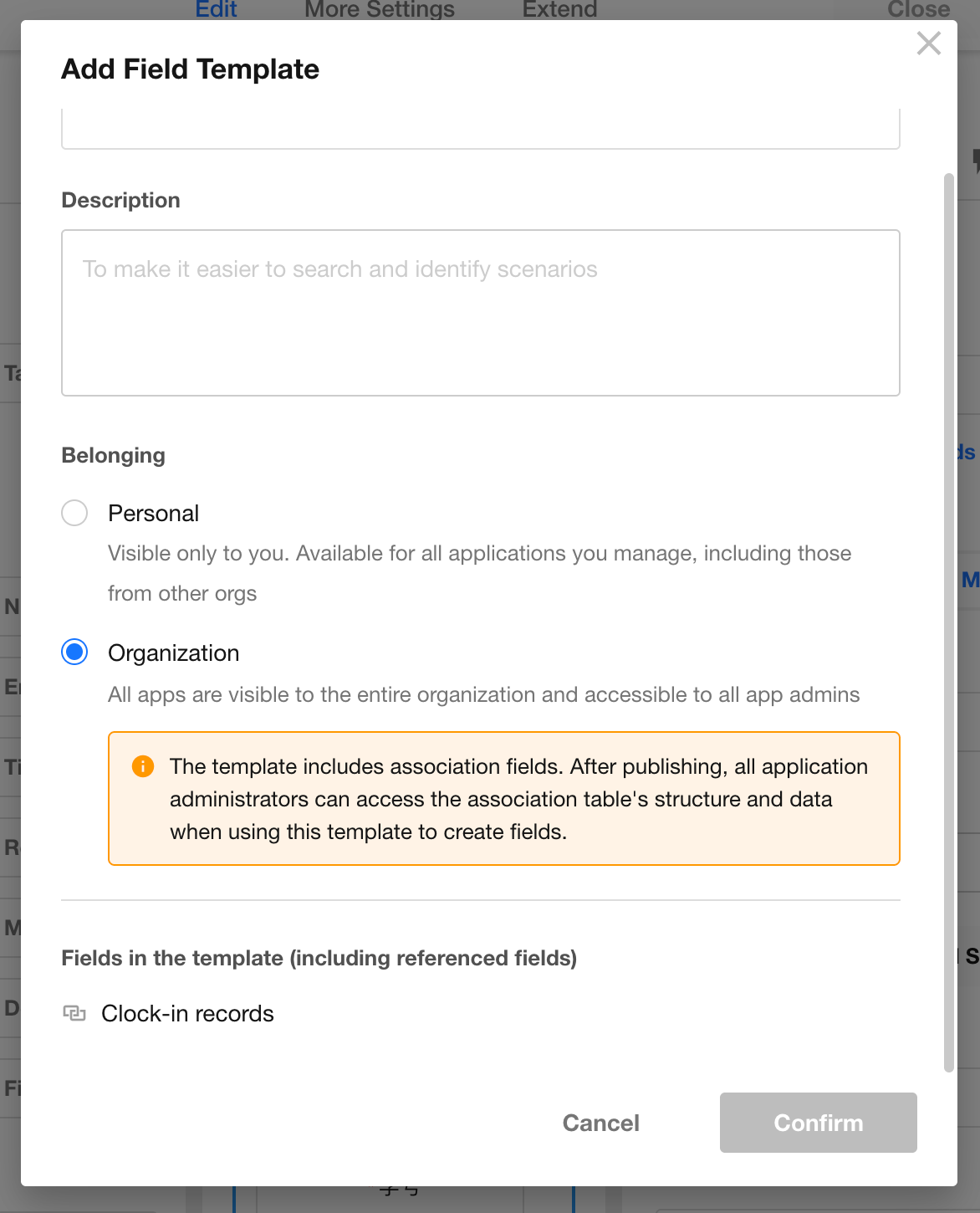
Template Management
- Edit the template name, ownership, and description.
- Delete a template without affecting fields that were previously created from it.
Limits
- Up to 100 personal templates and 100 organization templates can be created.
Subform Filtering
This update adds filtering to subforms, making it easier to find relevant records and work efficiently with large volumes of subform data.
Availability
- Filtering is not currently supported for subforms in tree table mode.
- Filters can be applied to all visible fields in a subform.
While Editing
- If a subform contains unsaved changes, its filter cannot be changed while the form is in edit mode.
Editing Filtered Results
- Filtered records can be edited individually or in bulk.
- Once a filter is applied and subform editing begins:
- The current filter is locked:
- The filter field, operator, and value cannot be changed.
- The filter cannot be cleared.
- New subform records:
- Are excluded from the current filter by default.
- Appear at the top of the list for easier editing and data entry.
- The current filter is locked:
- The current filter is retained after the form is saved, so there is no need to set it again.
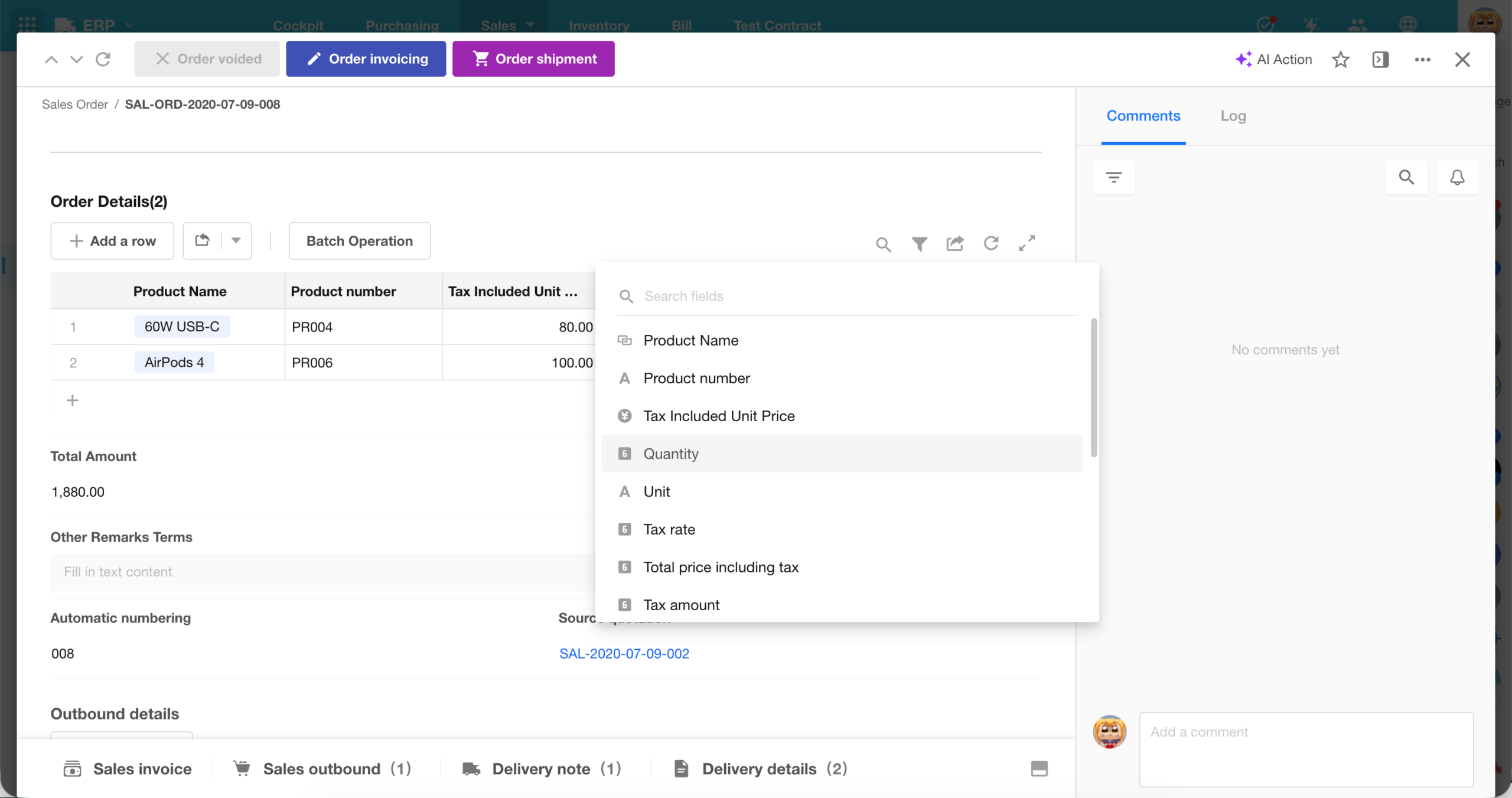
Summary Statistics for Relationship and Query Records Fields
This update adds summary statistics to relationship fields and query record fields displayed in table or tab table mode. Users can summarize displayed fields and switch calculation methods as needed.
This makes it easier to quickly view counts, totals, and other summary results when working with related or queried records.
Summary Configuration
- Configure the fields to summarize and the calculation method for each field.
- The number of fields available for summary statistics depends on the fields currently displayed.
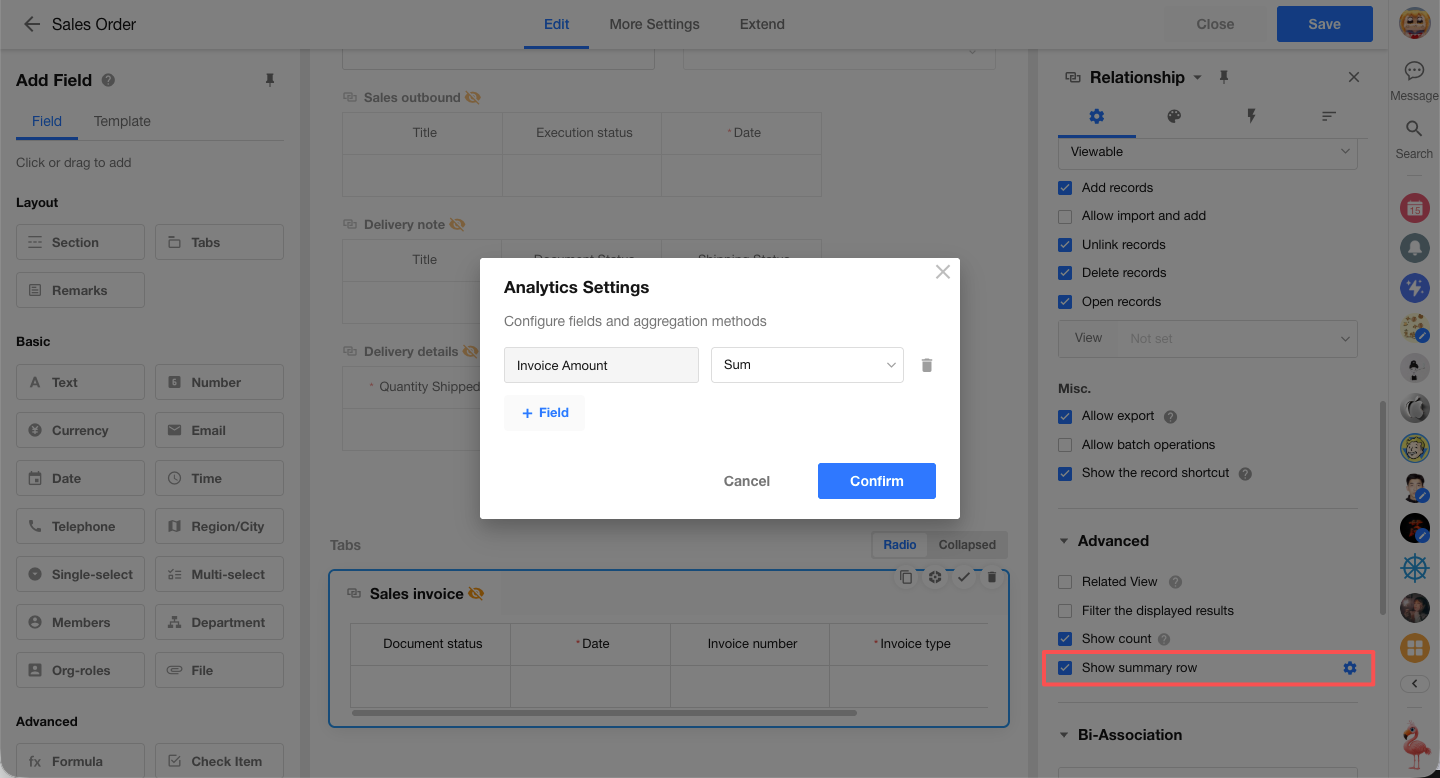
On-Demand Statistics
- For fields without a predefined calculation method, users can select one temporarily while viewing the data.
- Temporary calculation methods are not saved and do not change the existing configuration.
- Dynamic statistics: Calculate summary values in real time for the currently selected records.
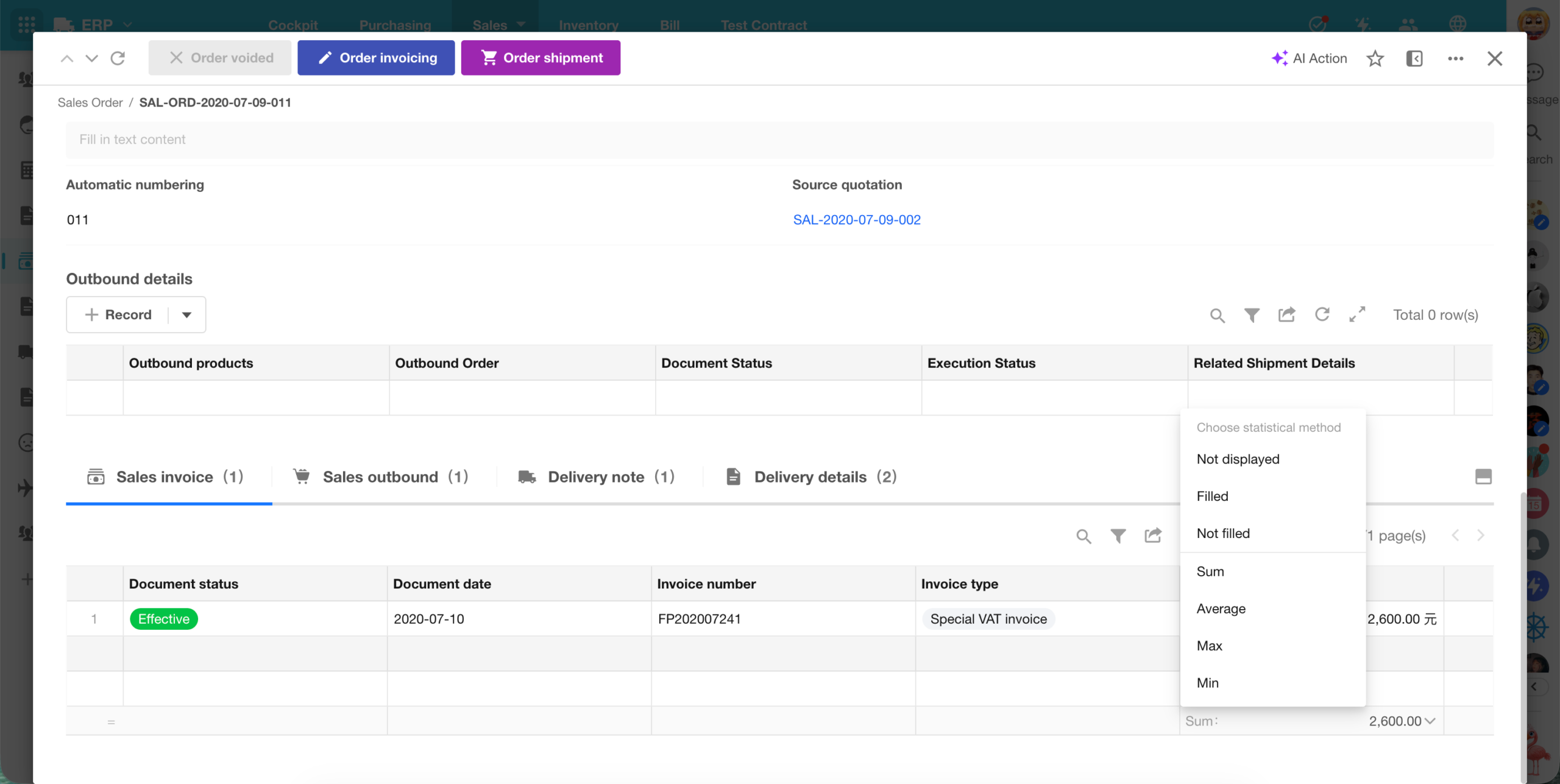
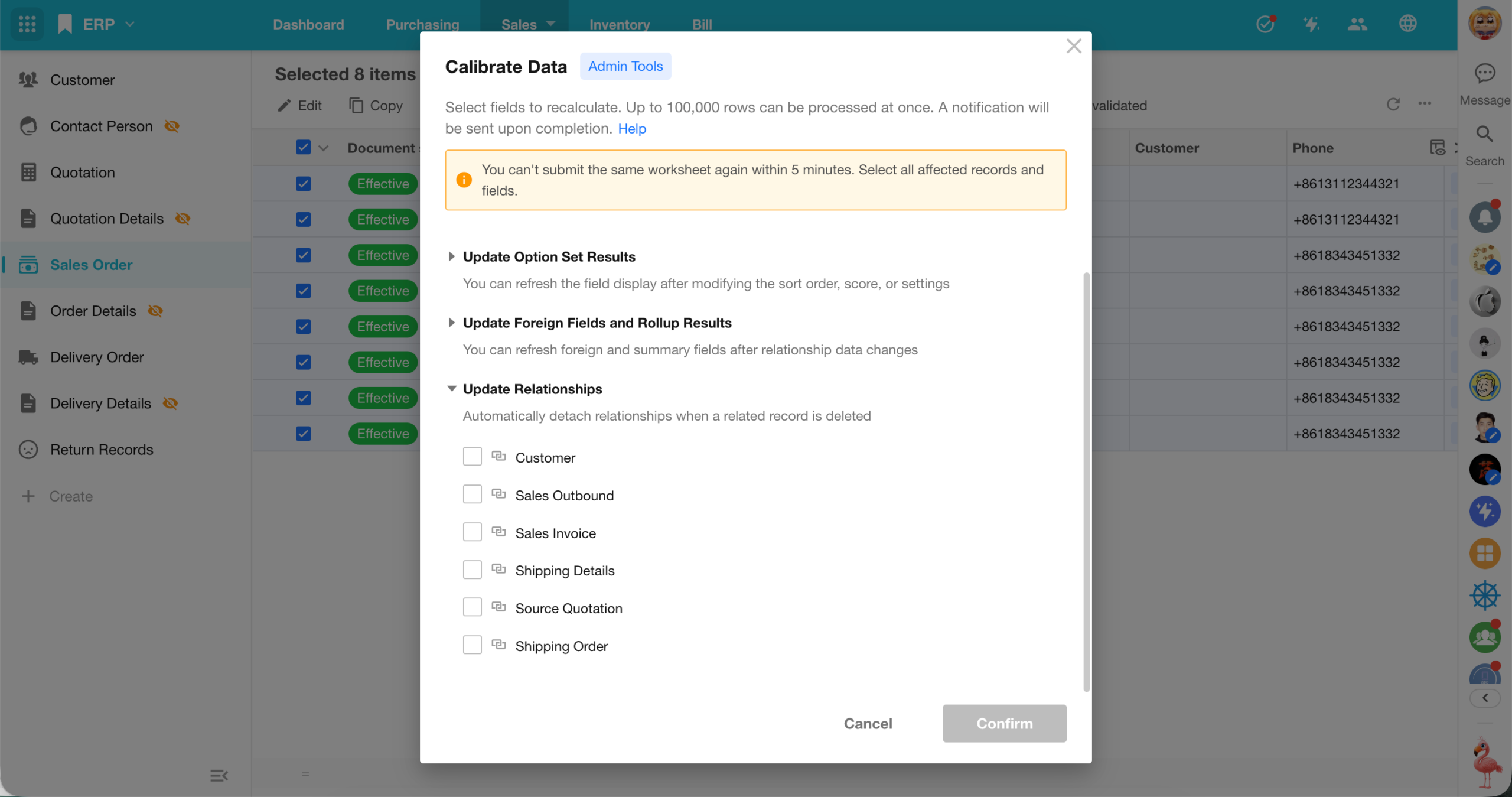
Data Calibration: Clear Invalid Relationships
This update adds a new Update Relationships Between Records calibration type to Data Calibration, allowing the system to clear invalid relationships that point to deleted records.
Common Scenarios
- Reverse relationships still show deleted records after a large number of records have been permanently deleted in bulk.
- Relationships are not fully removed after relationship fields are cleared in bulk.
- Invalid relationships cause inaccurate results in rollup fields.
What’s Updated
- Invalid relationships to deleted records are automatically removed.
- Deleted records no longer appear in reverse relationships after calibration.
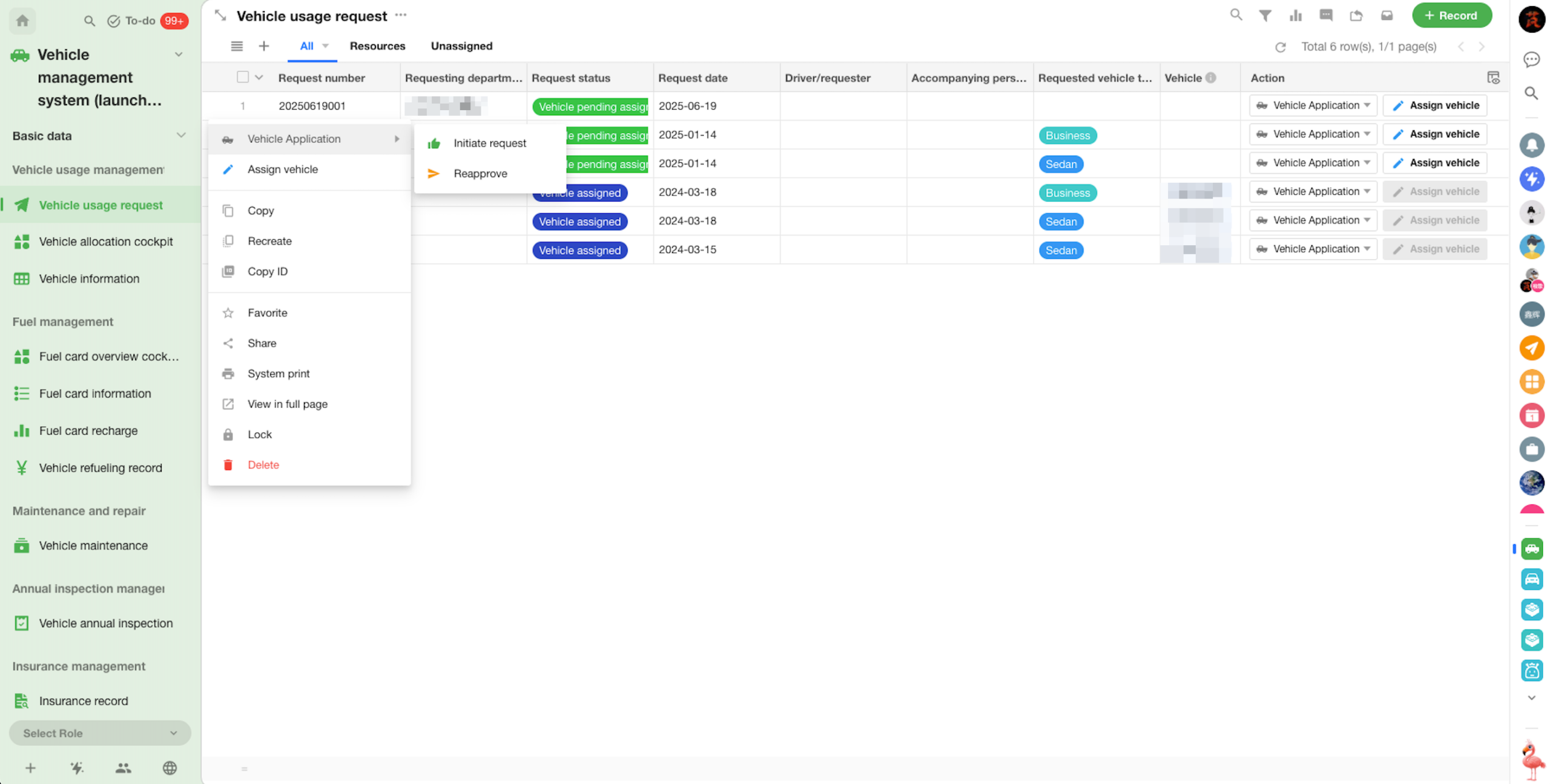
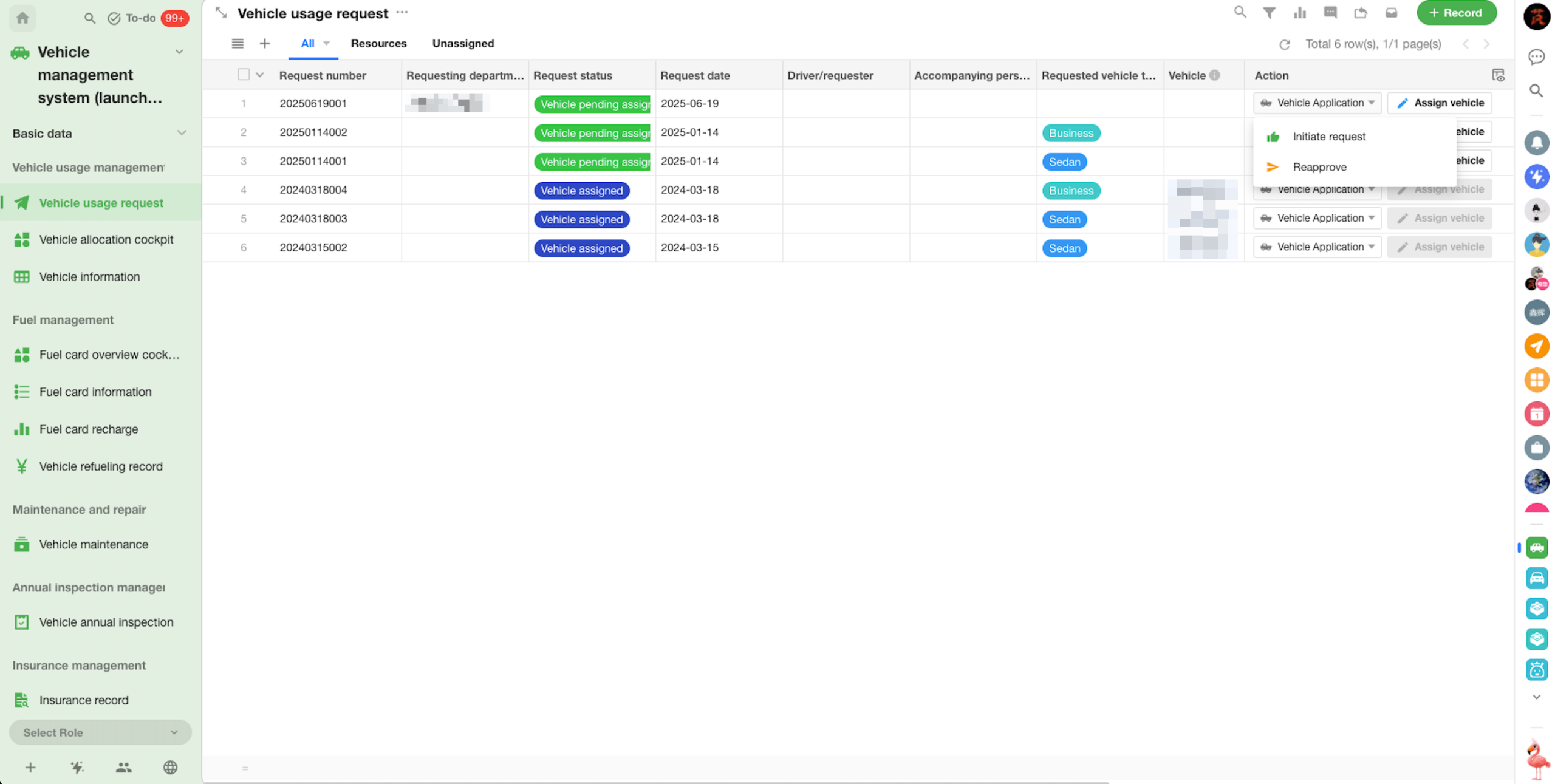
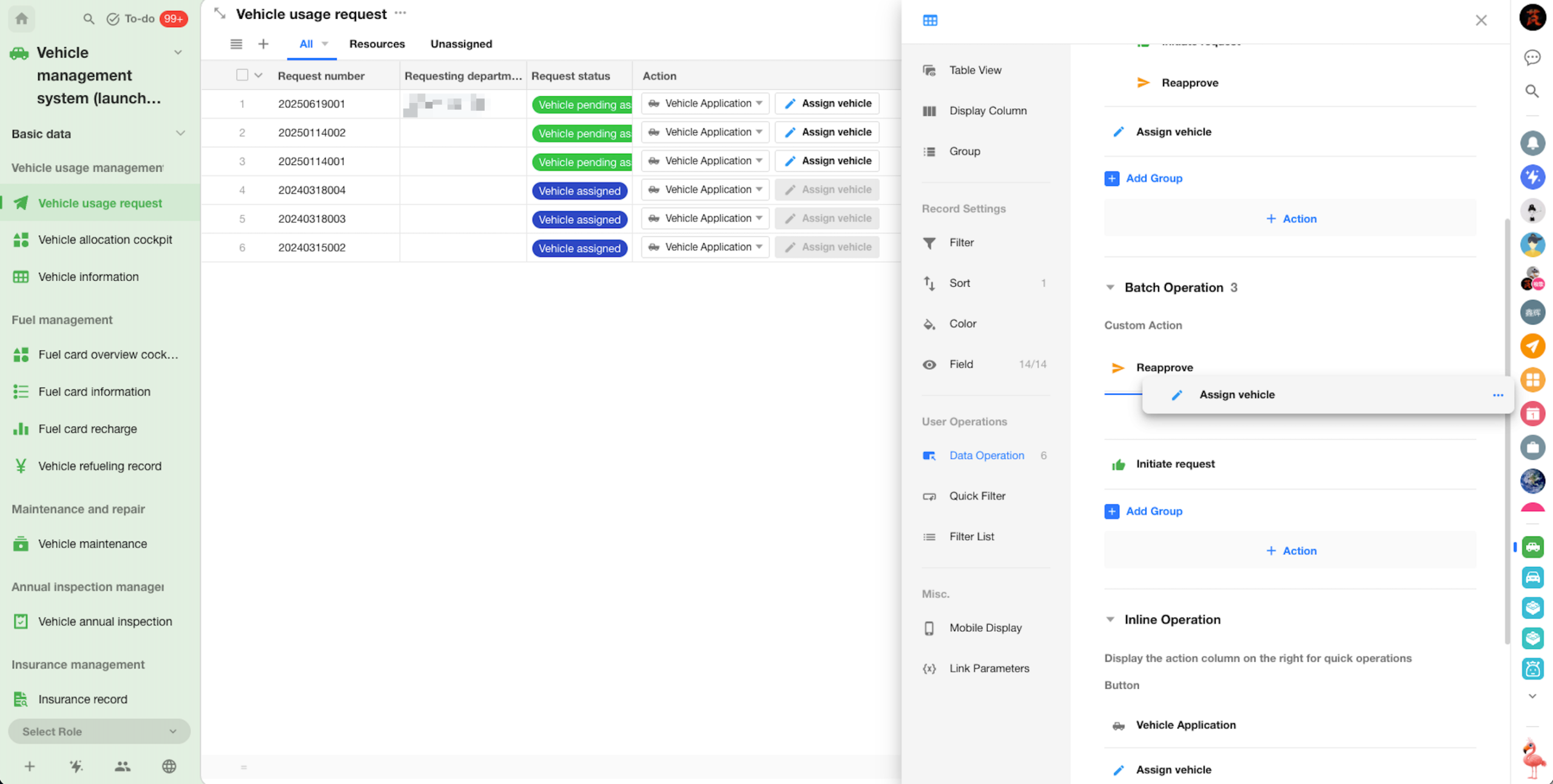
Grouping and Sorting for Custom Actions
- Custom actions can now be organized into groups in record details, inline actions, and record quick actions.
 |
 |
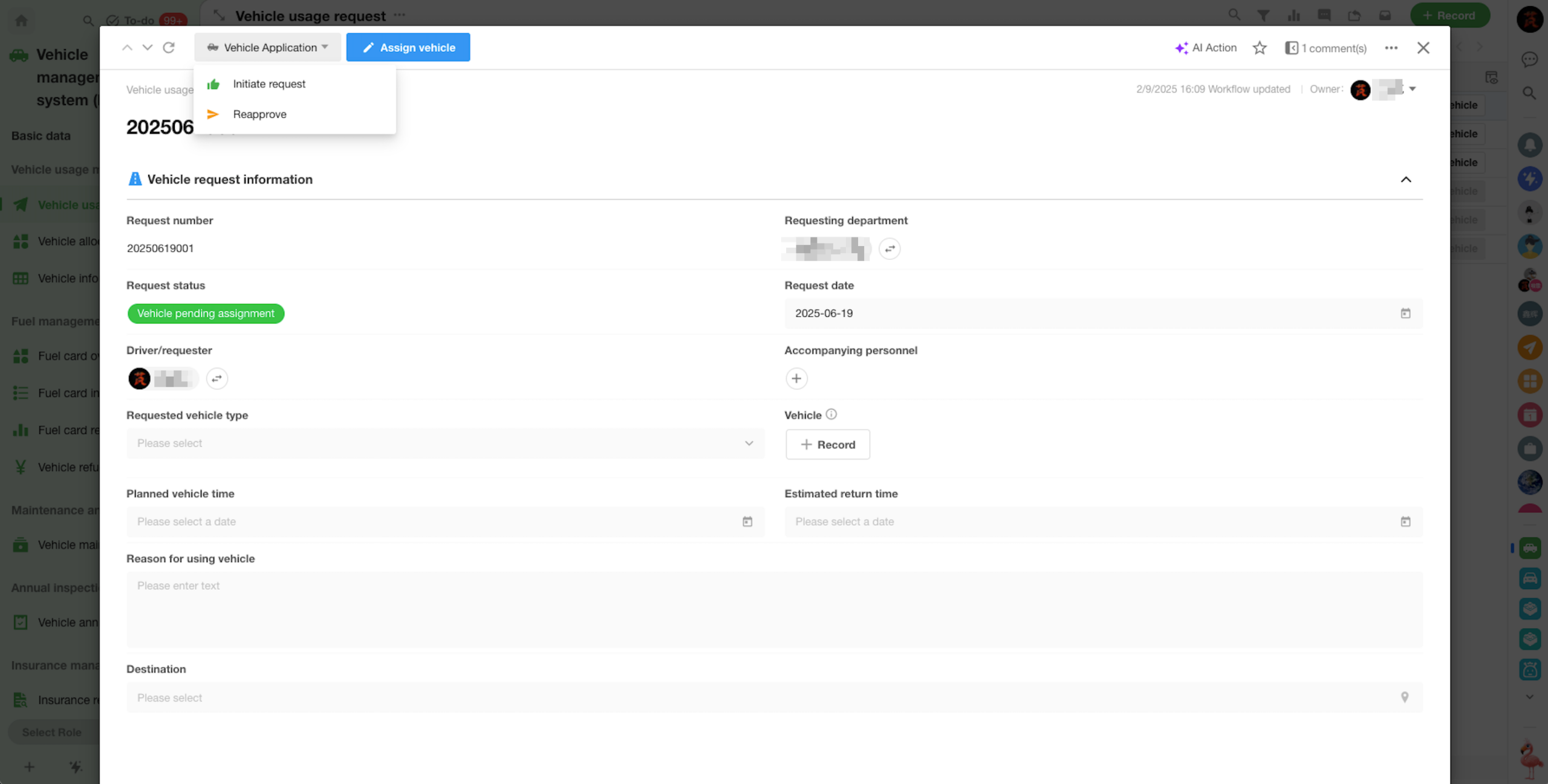 |
- Custom actions can now be reordered to control their display order.
Workflow
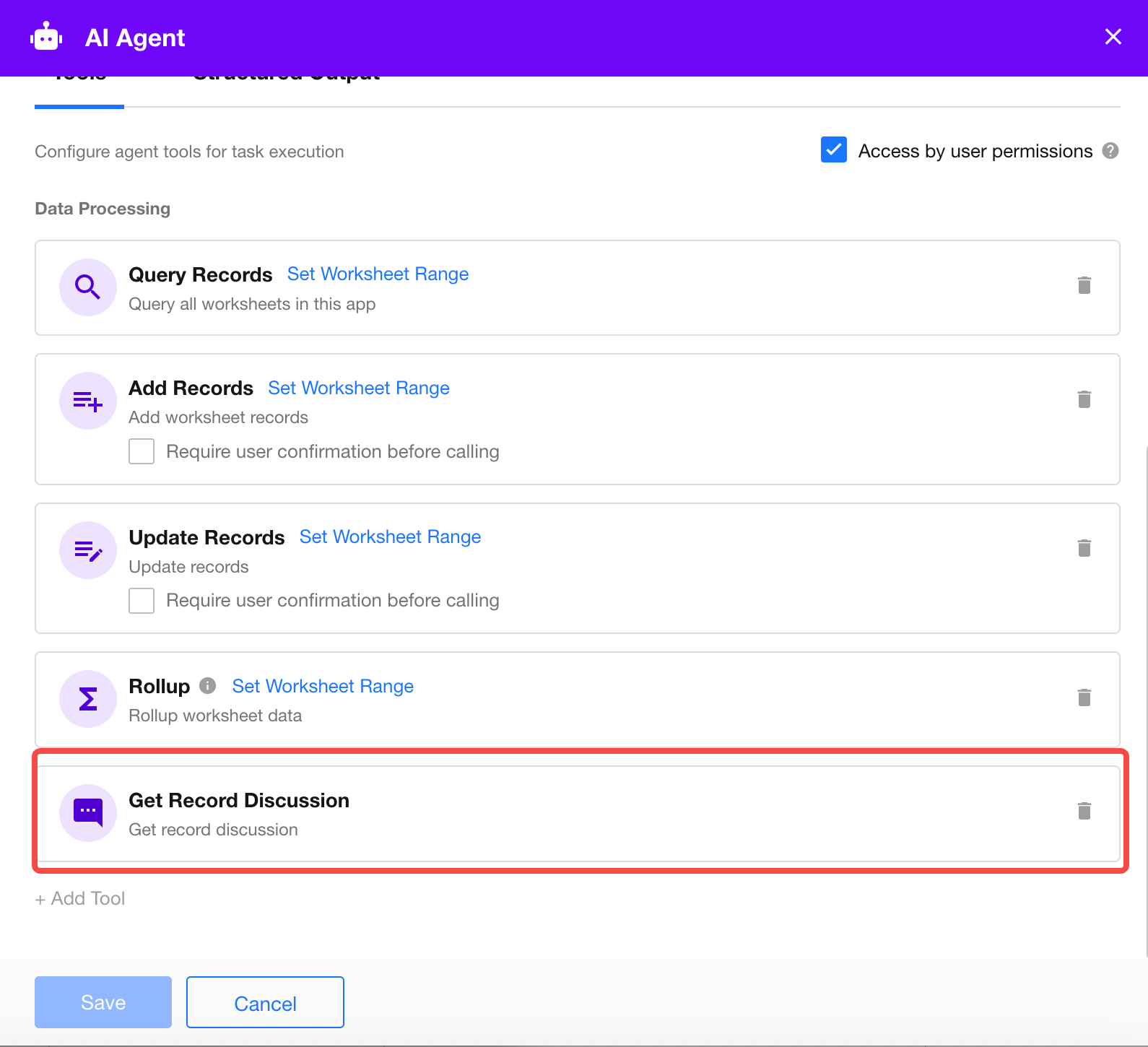
New Get Record Discussions Tool for AI Agent Nodes
The AI Agent node now includes a new Get Record Discussions tool, allowing the AI Agent to retrieve discussions after retrieving a record. Up to 50 discussions can be retrieved.
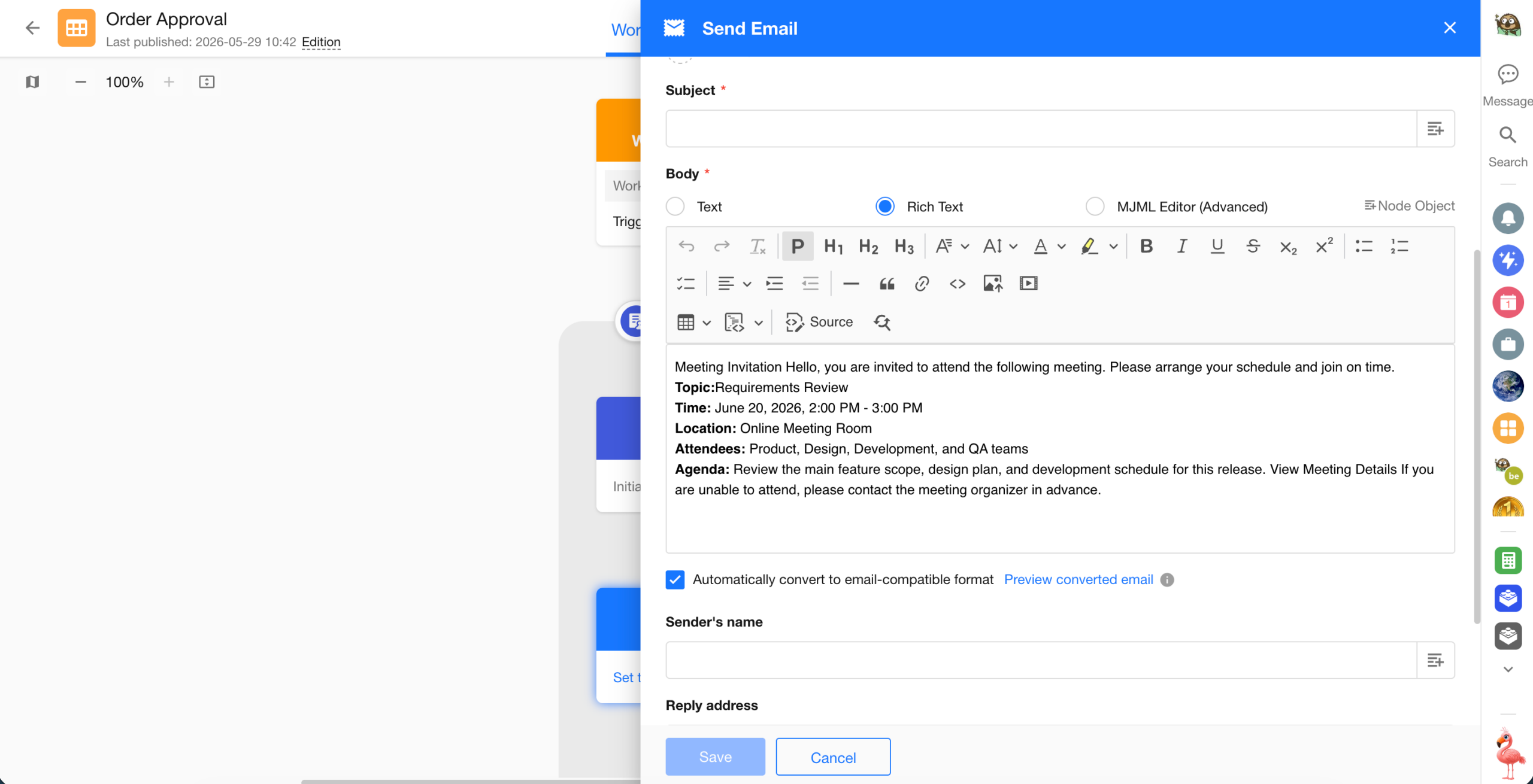
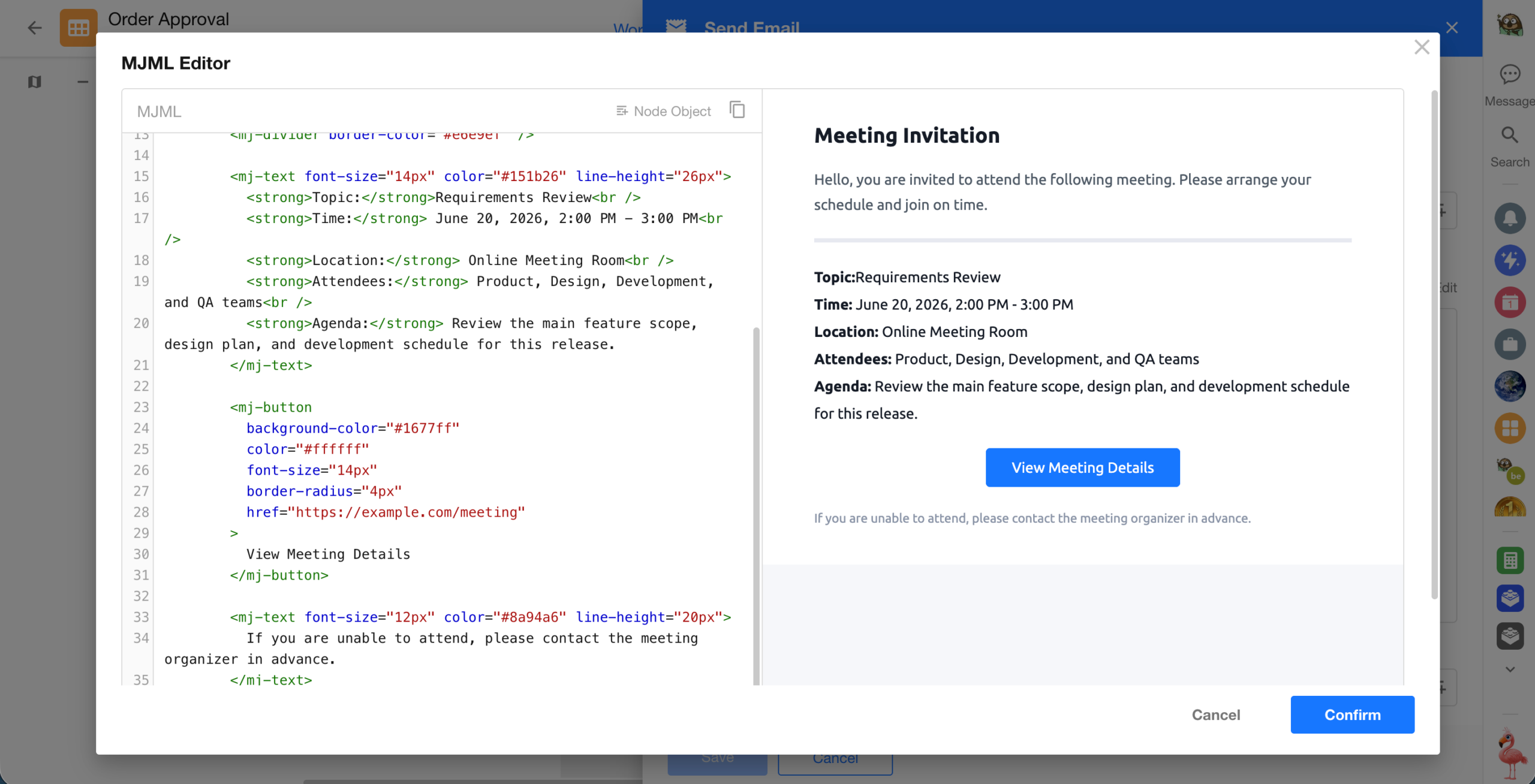
MJML Support in the Send Email Node
The Send Email node now supports MJML, alongside the existing Text and Rich Text formats. Users can edit email content in Rich Text or MJML and convert it to HTML before sending, helping improve rendering consistency across email clients.
 |
 |
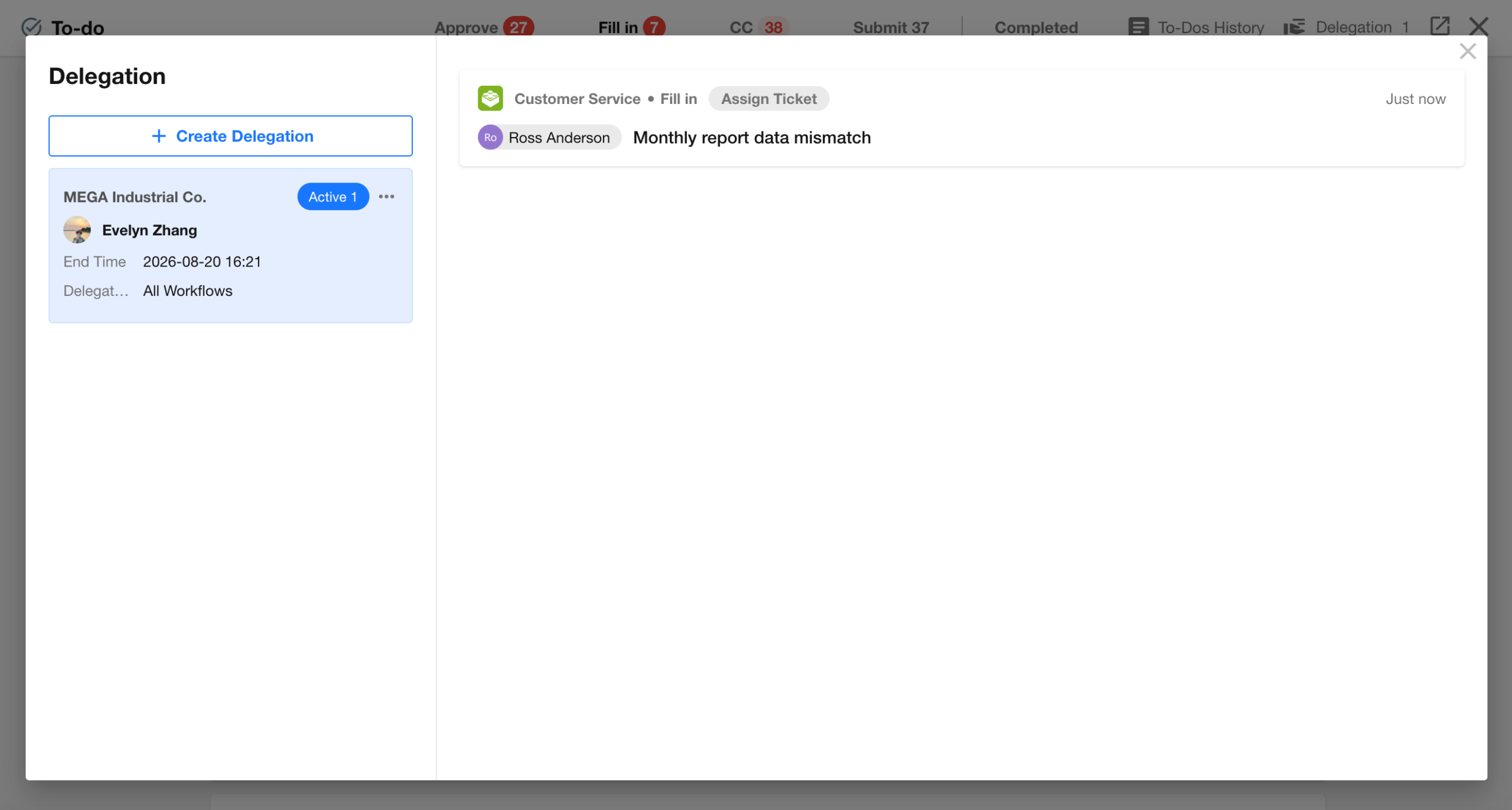
New My Delegations List for Managing Delegated Workflows
A new My Delegations list is now available in workflow to-dos. Delegators can view workflow to-dos handled on their behalf during the delegation period and open the details to track progress.
They can also revoke a delegation from the delegation details. Once revoked, subsequent approval steps are handled by the delegator directly.
Custom Pages and Charts
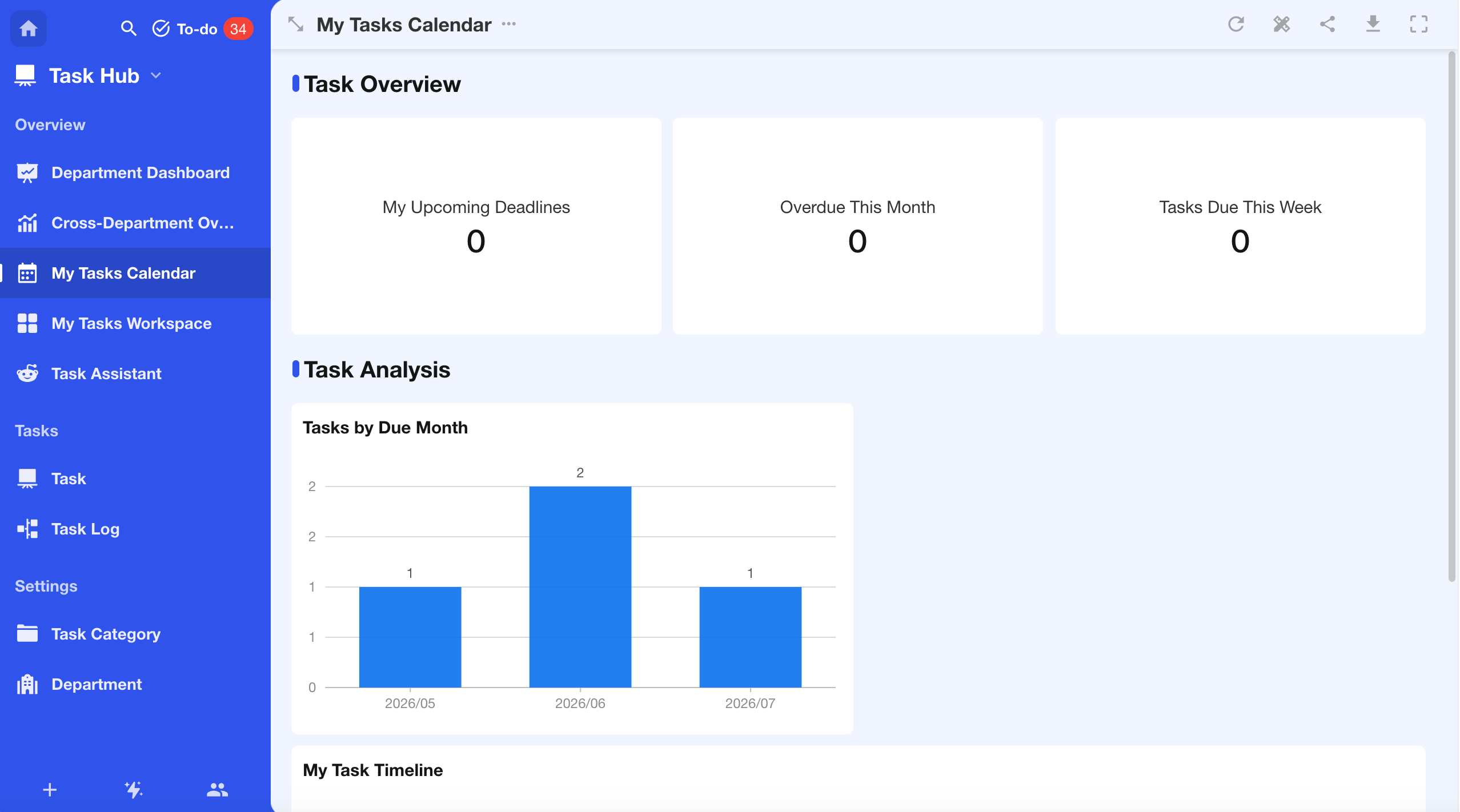
New Section Component for Custom Pages
Custom pages now include a new Section component for adding section headings and visually separating content areas, making page layouts easier to organize and scan.
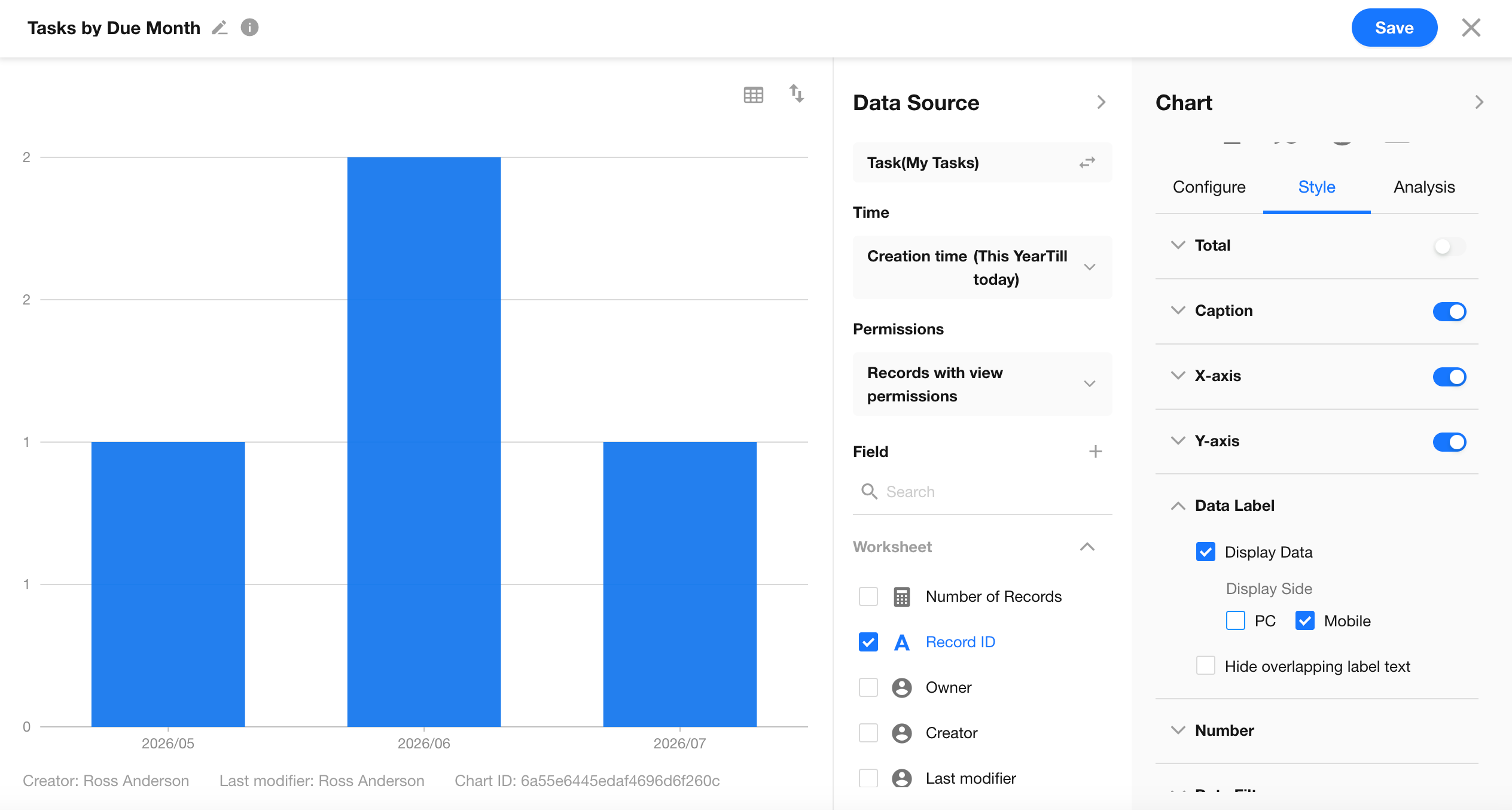
More Flexible Data Label Settings for Charts
Bar, line, pie, and other charts now support separate data label settings for PC and mobile, allowing users to tailor label visibility for different screen sizes.
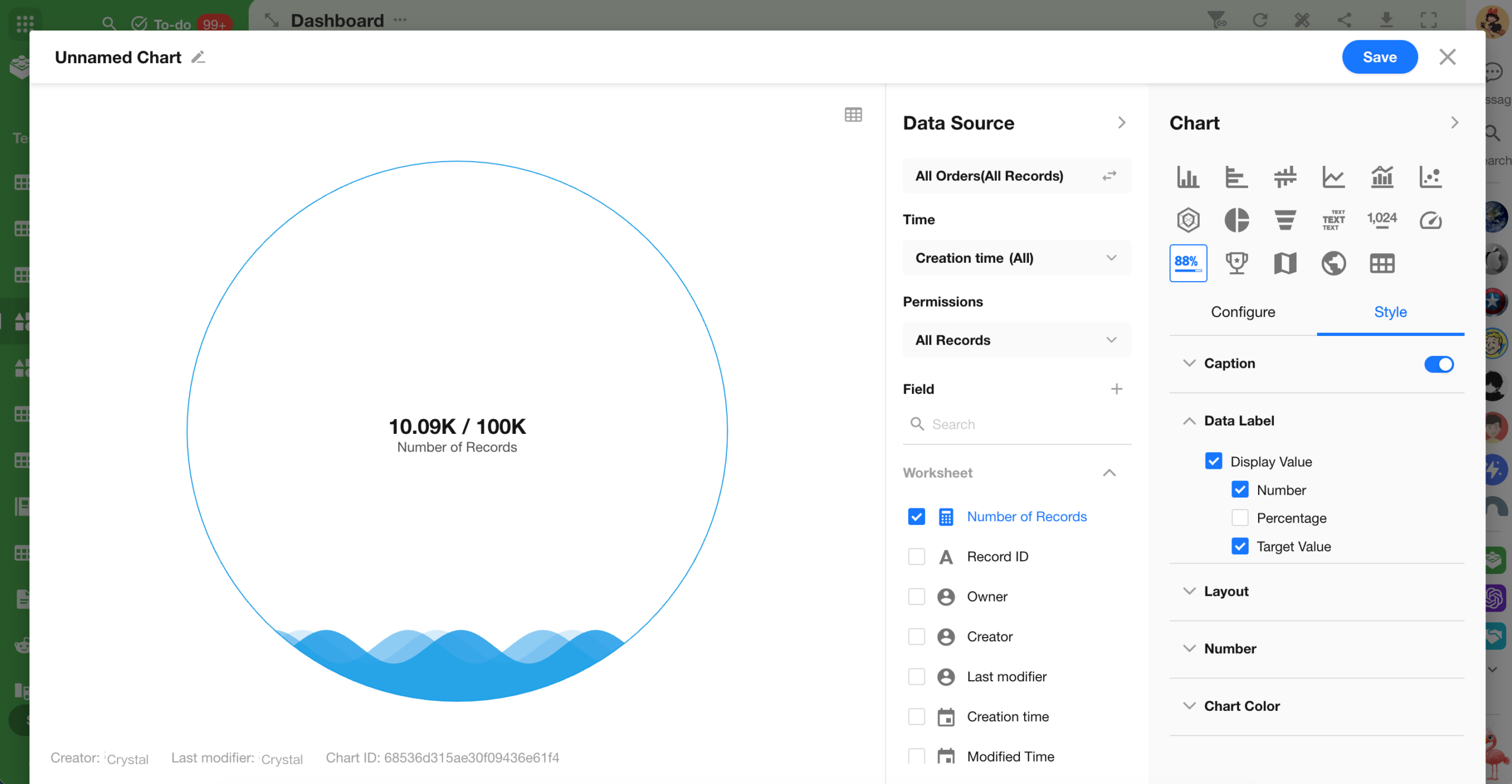
For progress bars, users can now select multiple data labels instead of just one, making it possible to display Number, Percentage, and Target Value together.
 |
 |
Organization Management and API
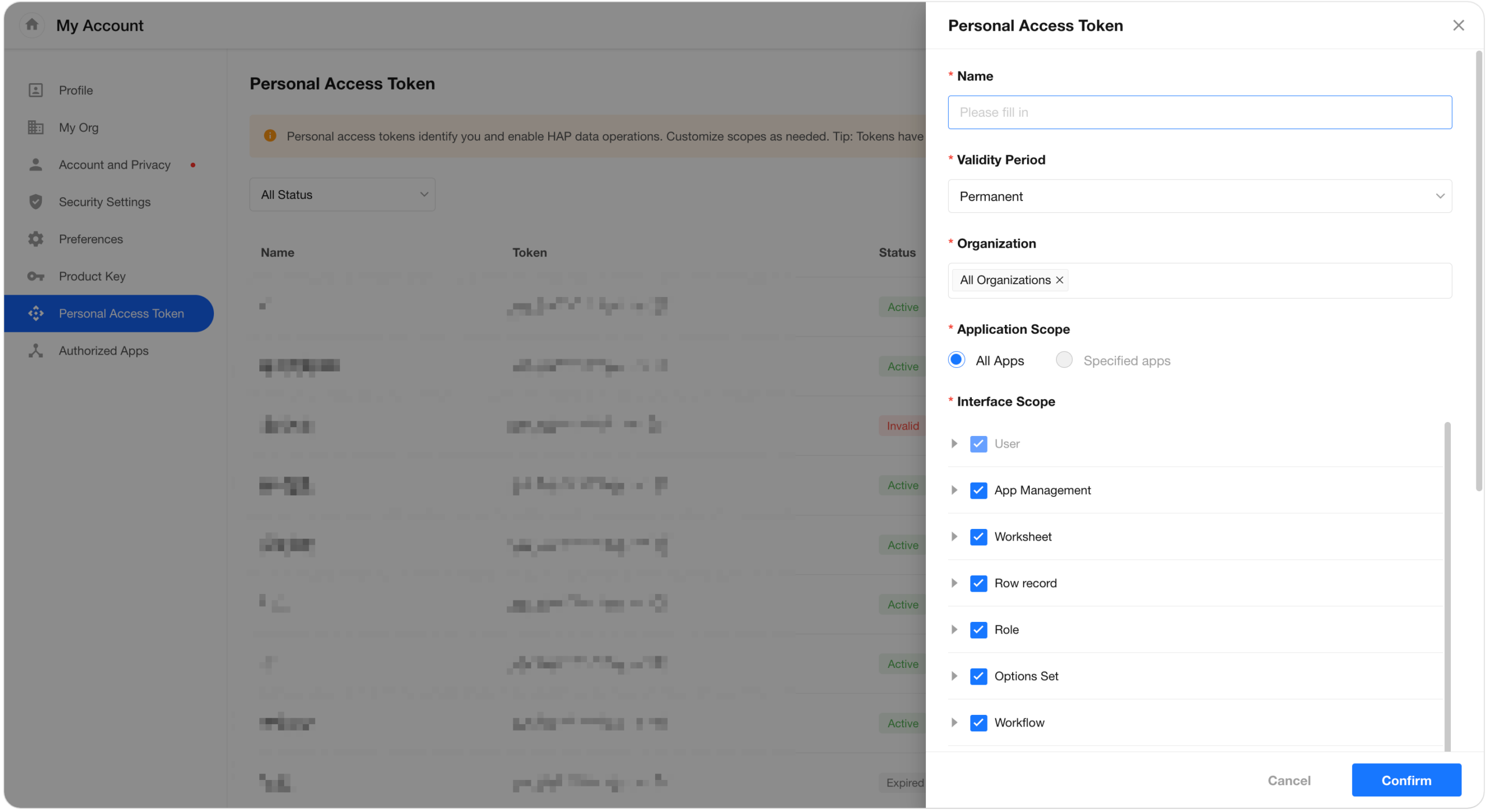
Personal Access Tokens
HAP now supports Personal Access Tokens (PATs) for accessing APIs and working with data using a user’s own identity and permissions. They are well suited for personal scripts, data synchronization, and automation tasks performed through AI Agent tools.
Each token can be configured with specific organizations, apps, API scopes, and an expiration period, giving users more control over where and how the token can be used.
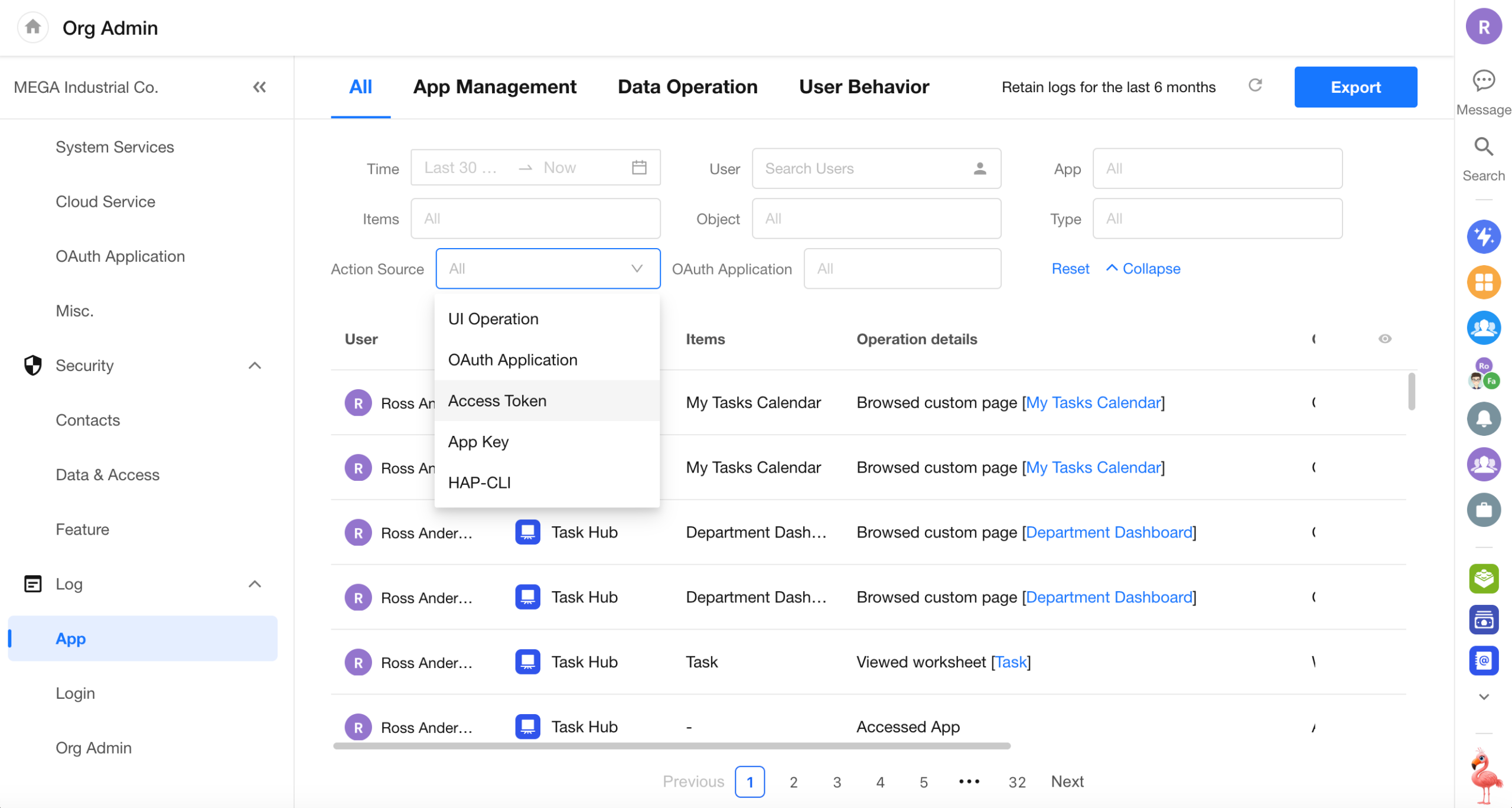
API and MCP Requests Added to Logs
API and MCP requests are now included in logs, making it easier to track related access and activity.
Access Policies for API, MCP, and CLI
Organization administrators can now configure access policies for API, MCP, and CLI, providing centralized control over access to these capabilities.
New APIs
This update expands API coverage across more app-building modules, enabling more complete and flexible app structures to be created through APIs.
- App
- Create app item groups
- Create app items in bulk
- Views
- Create views in bulk
- Custom Actions
- Create custom actions in bulk
- ChatBot
- Create ChatBots
- Custom Pages
- Update custom pages
- Charts
- Create charts
- Workflow To-Dos
- Get a user’s workflow to-do list
- Get approval to-do details
- Approve in bulk
- Revoke workflow instances
- Terminate workflow instances
- Send reminders for workflow instances
- Return workflow instances
- Workflow
- Create workflows
- Get workflow structure details
- Add workflow nodes in bulk
- Delete workflow nodes
- Delete workflows
- Publish workflows
- Validate workflows
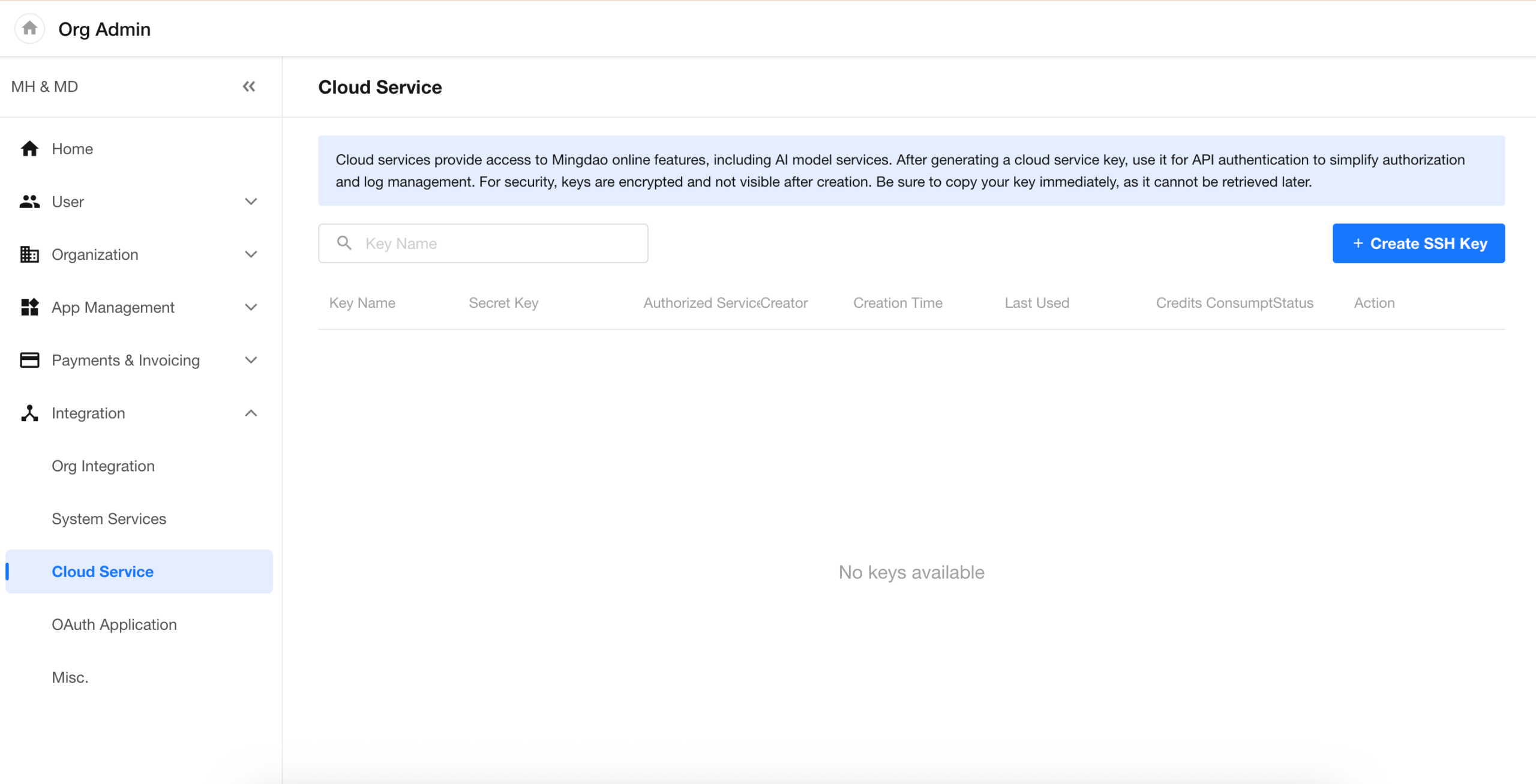
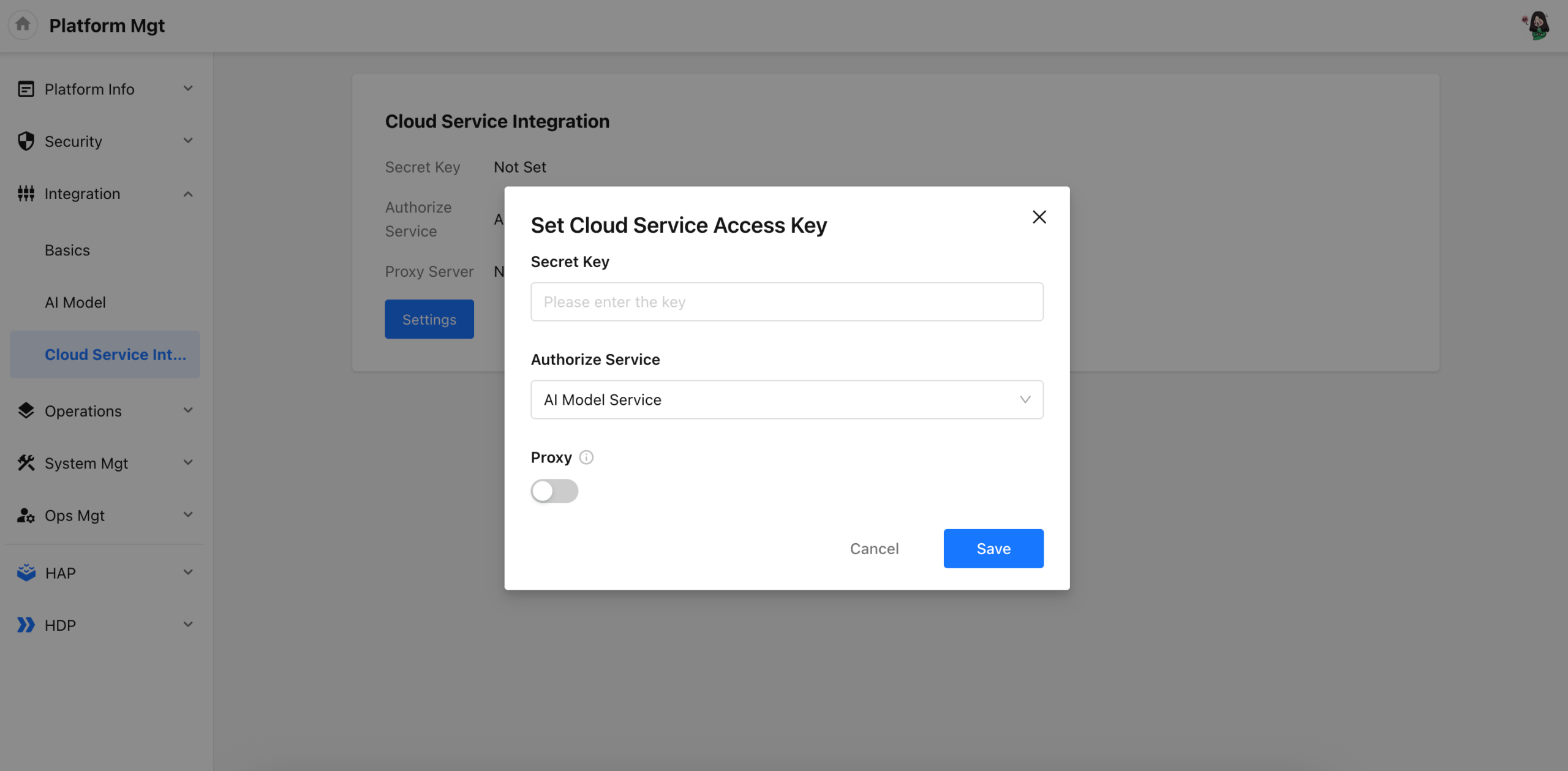
Cloud Services — AI Model Services
Cloud Services allow HAP Server to securely access online services provided by HAP SaaS. The initial release supports AI Model Services.
This is designed for HAP Server customers who want to use AI capabilities in apps, workflows, and other scenarios without integrating with or maintaining model services themselves. It simplifies AI access while providing more centralized control over usage and costs.
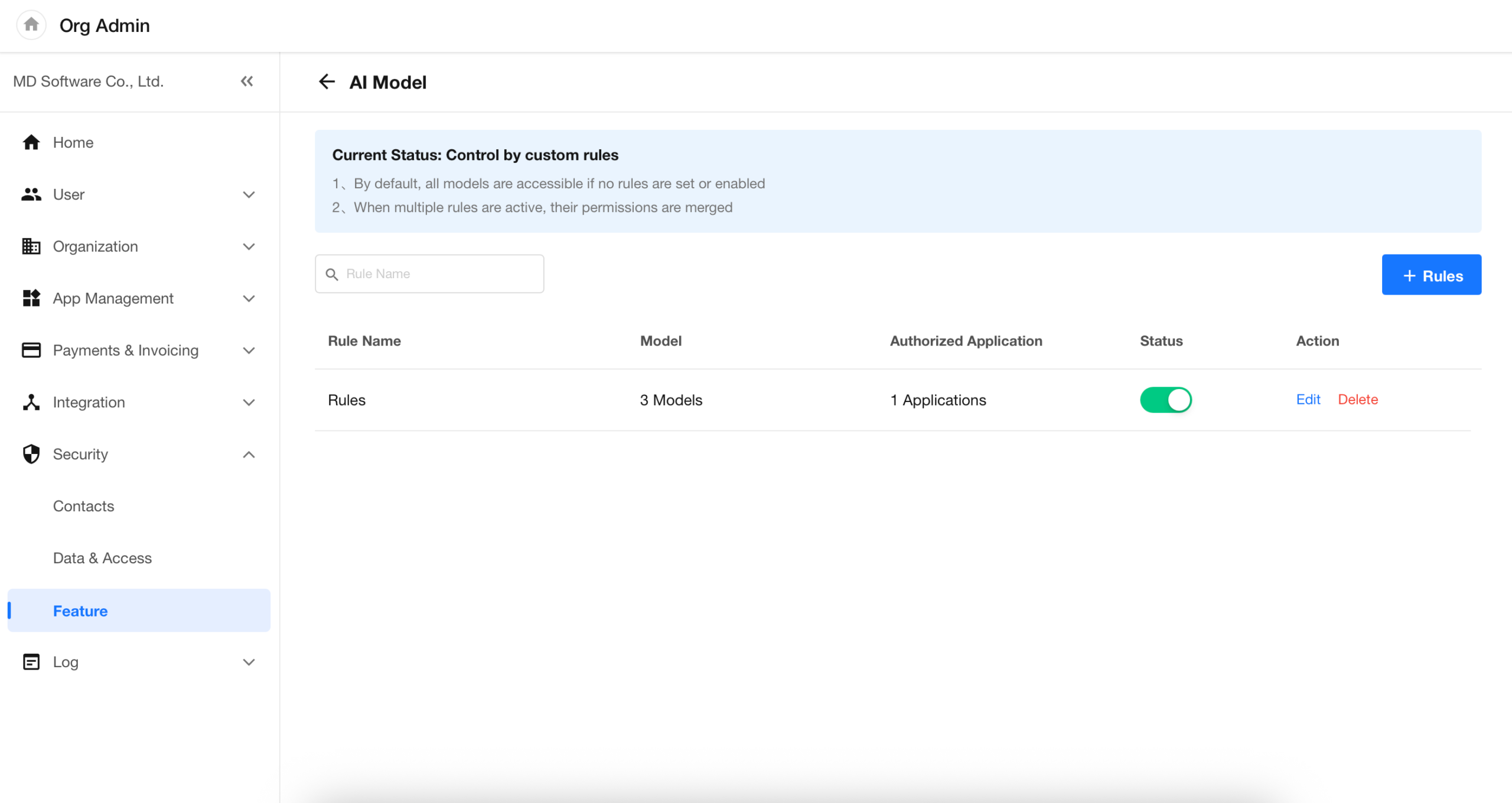
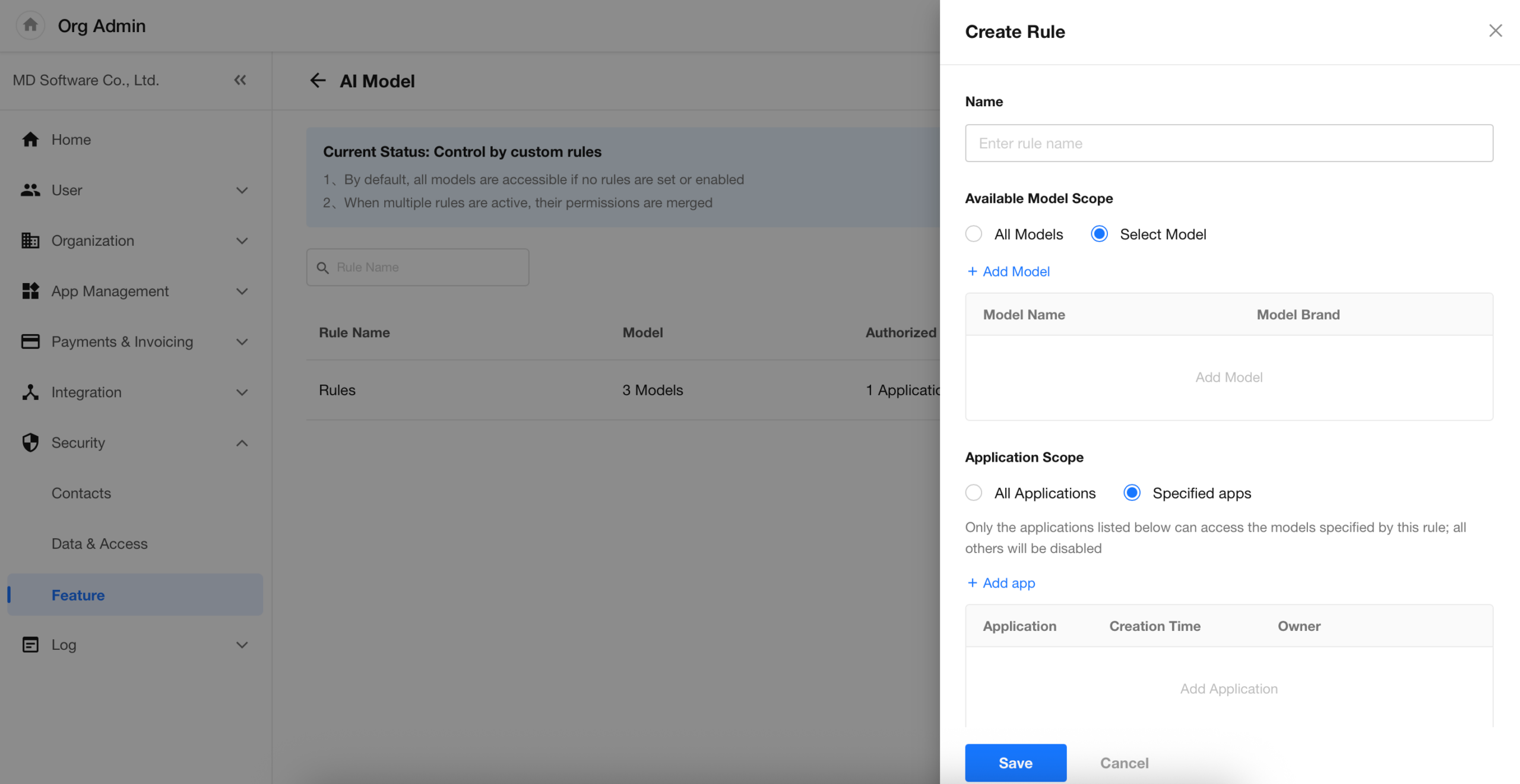
App-Level AI Model Authorization
Organization administrators can now authorize specific AI models for selected apps.
Authorization rules make it possible to control access to high-cost, sensitive, or test models, providing more granular AI governance, cost control, and security management.
Updated AI Model Billing Rules
AI model billing is changing from a single input-based pricing model to separate charges for input, output, and cache hits. Mingo, previously available at no charge, will also be billed under the new AI model pricing rules.
Once the new rules take effect, usage and charges will be calculated based on actual resource consumption. Historical billing records will remain under the previous pricing rules.
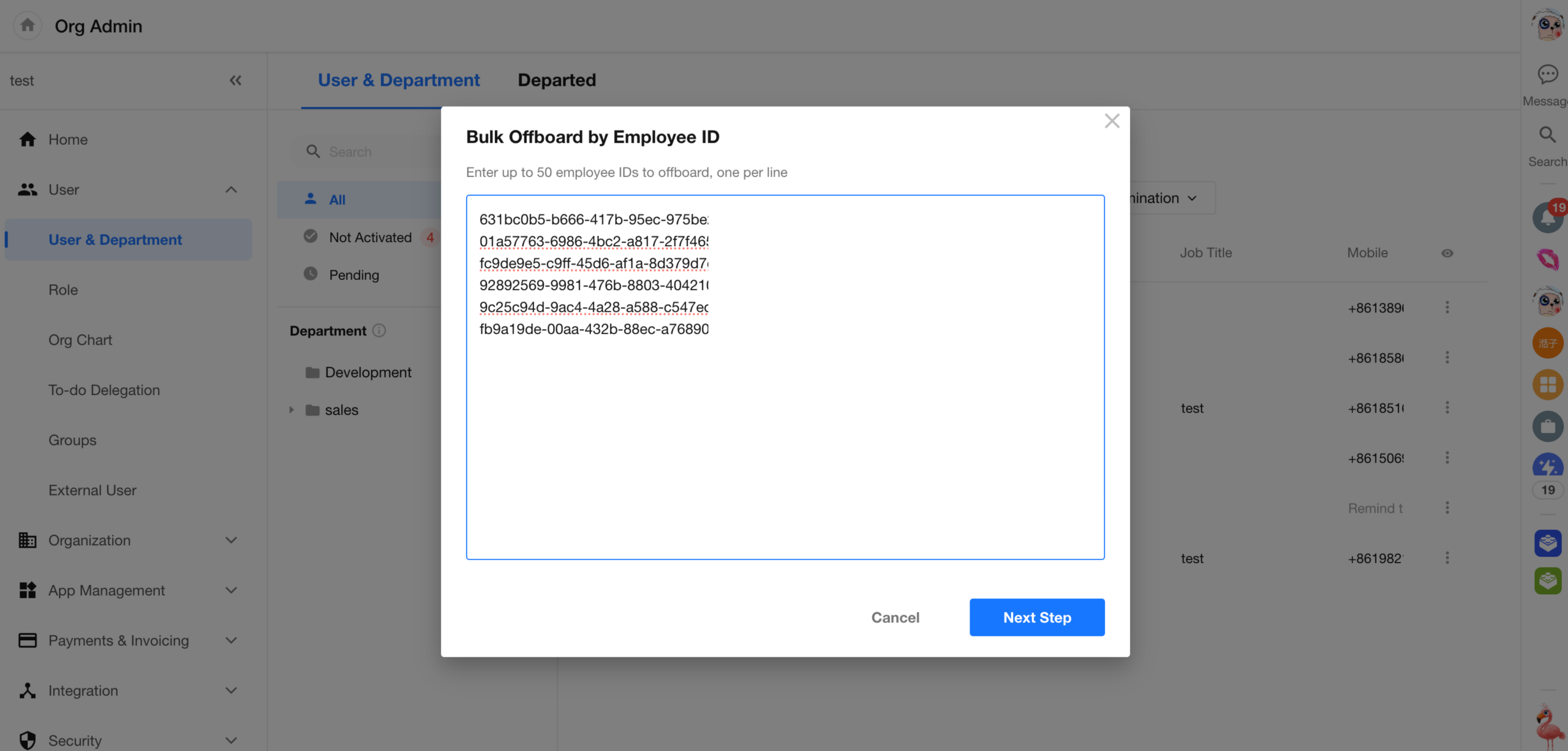
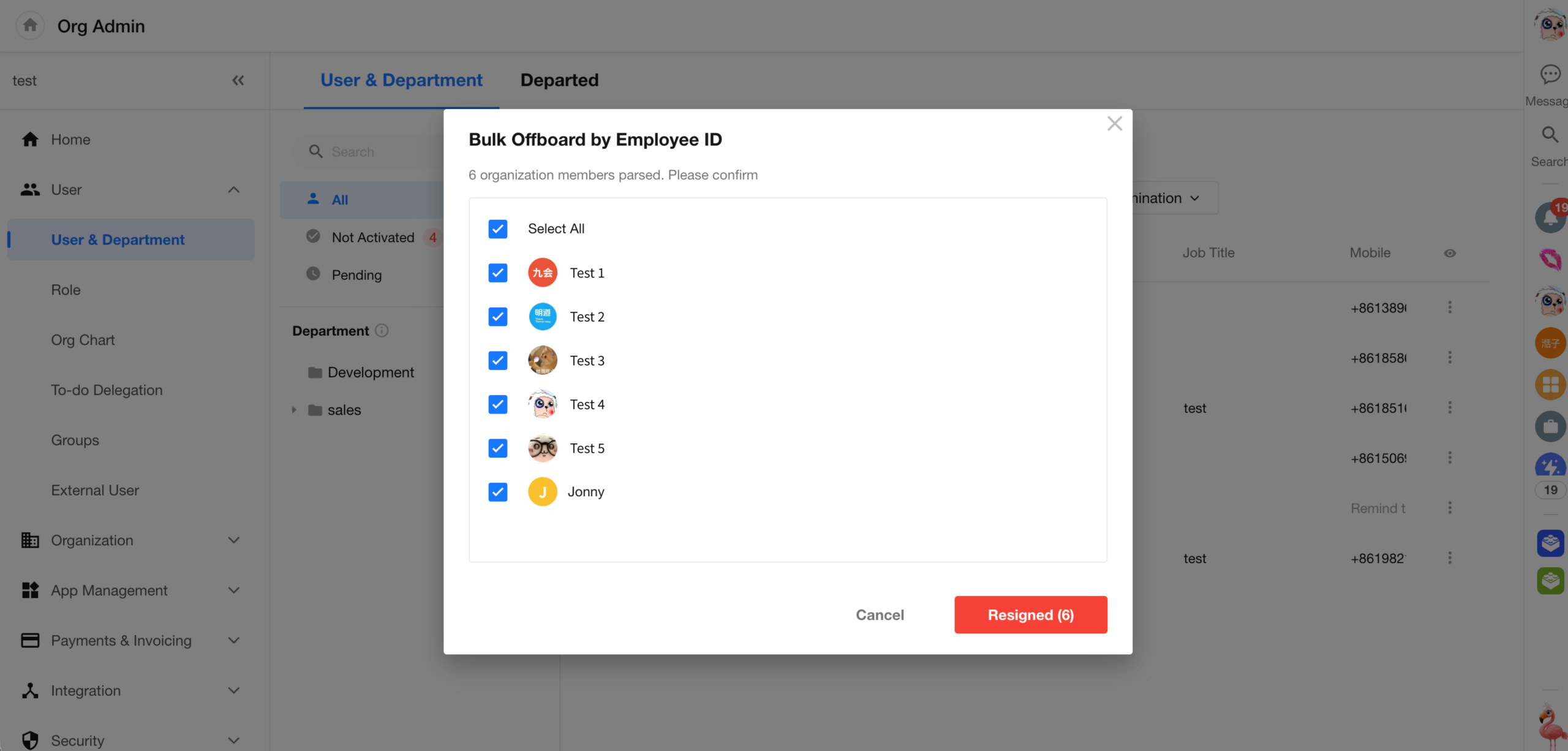
Bulk Offboarding by User ID
Member management now supports bulk offboarding by User ID.
To make User IDs easier to obtain, member exports under Usage Analysis > By Member now include a User ID column.
External Portal
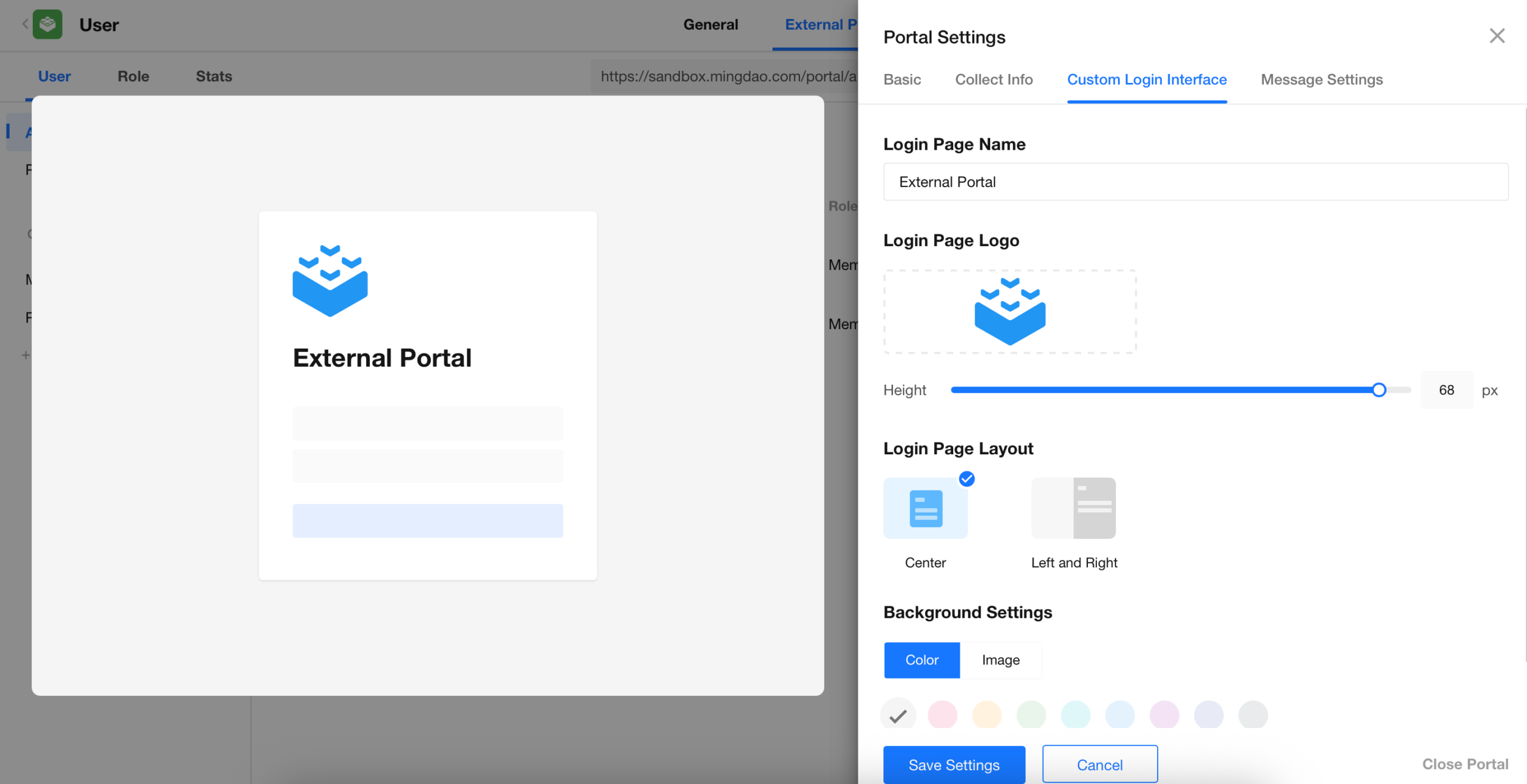
Custom Logo Sizing
The logo on the external portal login page can now be resized to better fit different branding needs and prevent it from appearing too small.
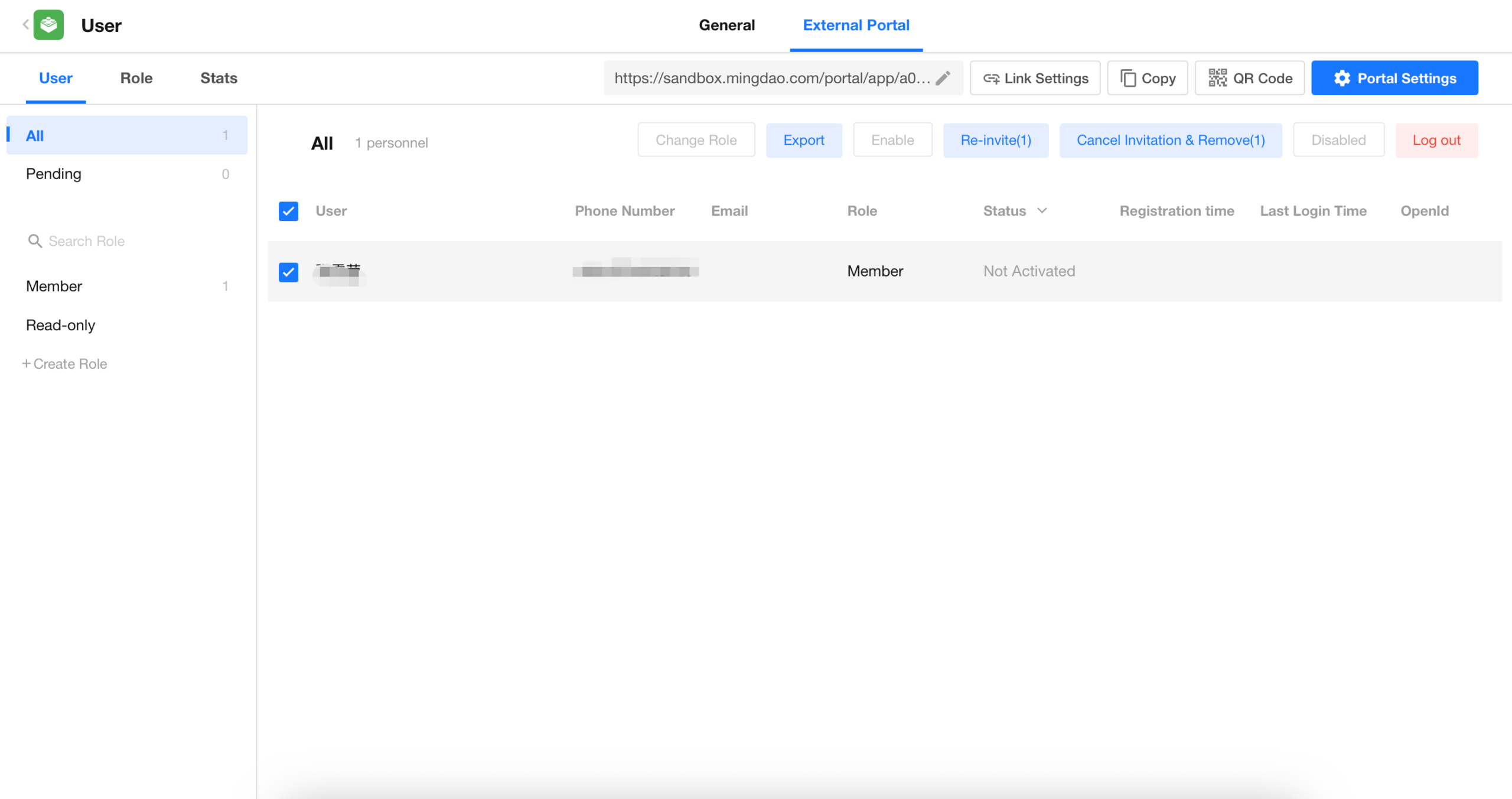
Bulk Re-invite and Removal for External Users
The external user list now supports bulk actions to re-invite users or cancel invitations and remove users, reducing repetitive individual operations.
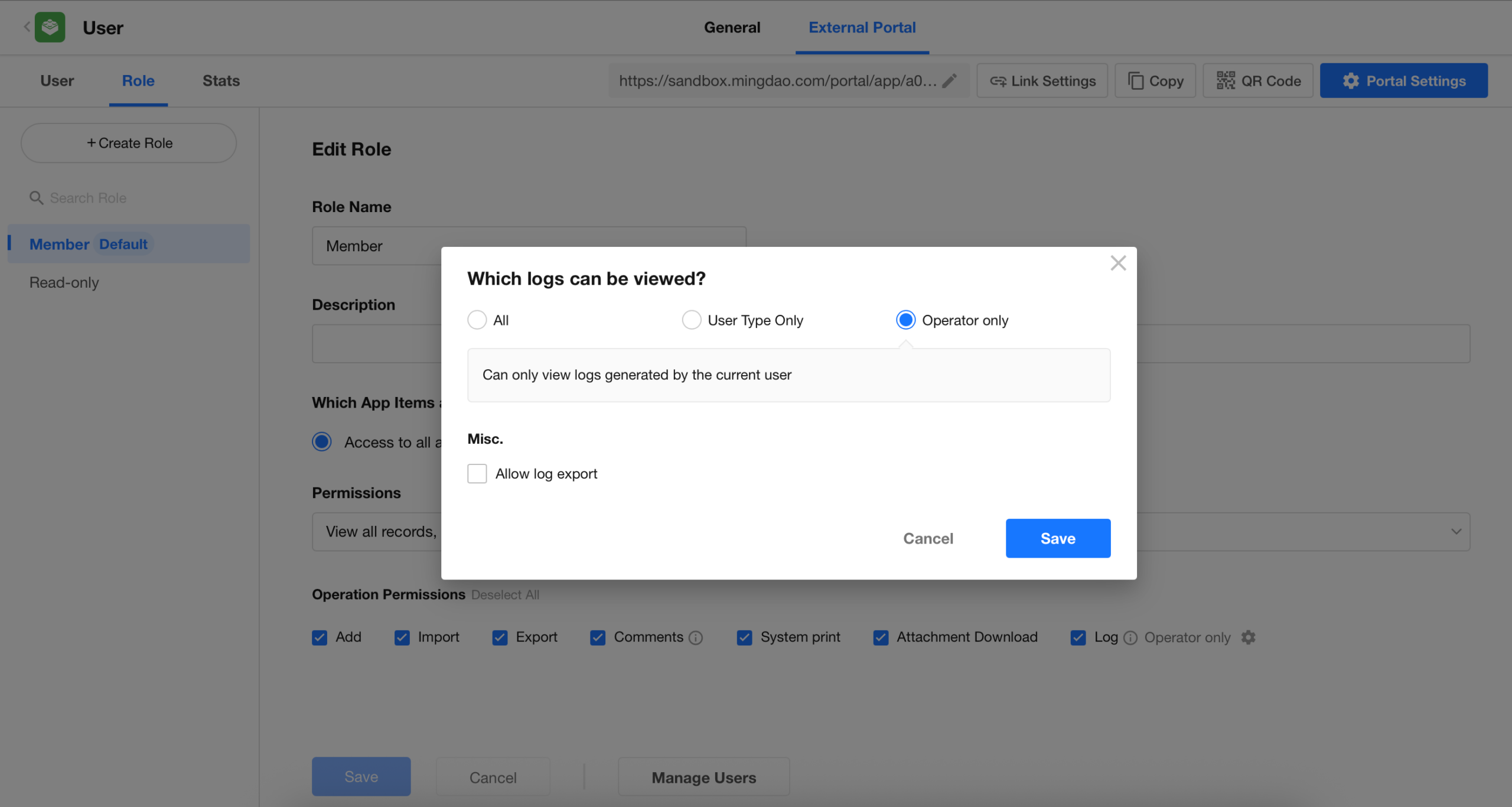
Record Log Access for External Users
External users can now be granted access to record logs through roles and permissions. Record log permissions for external users follow the same permission model as those for internal organization members.
Roles and Permissions
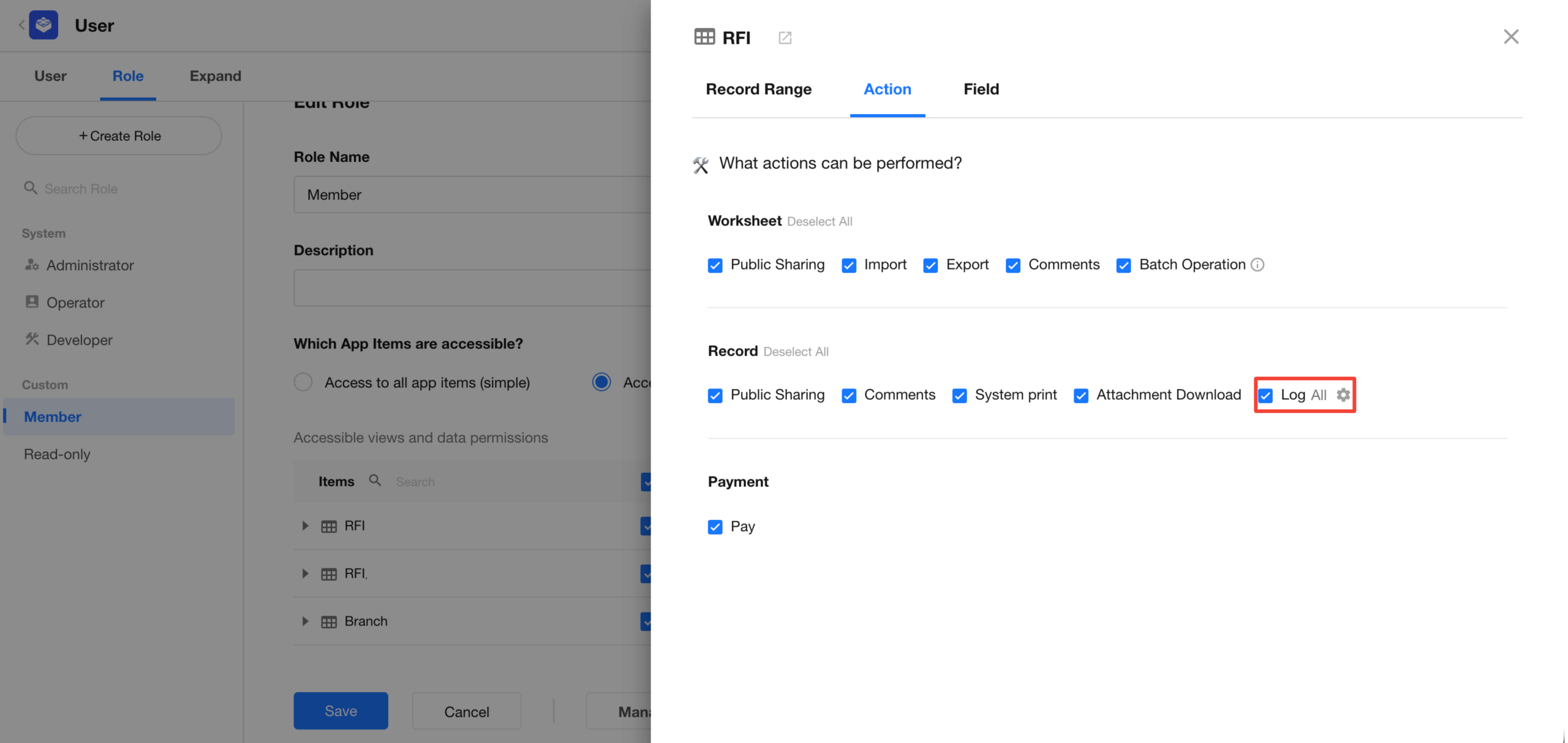
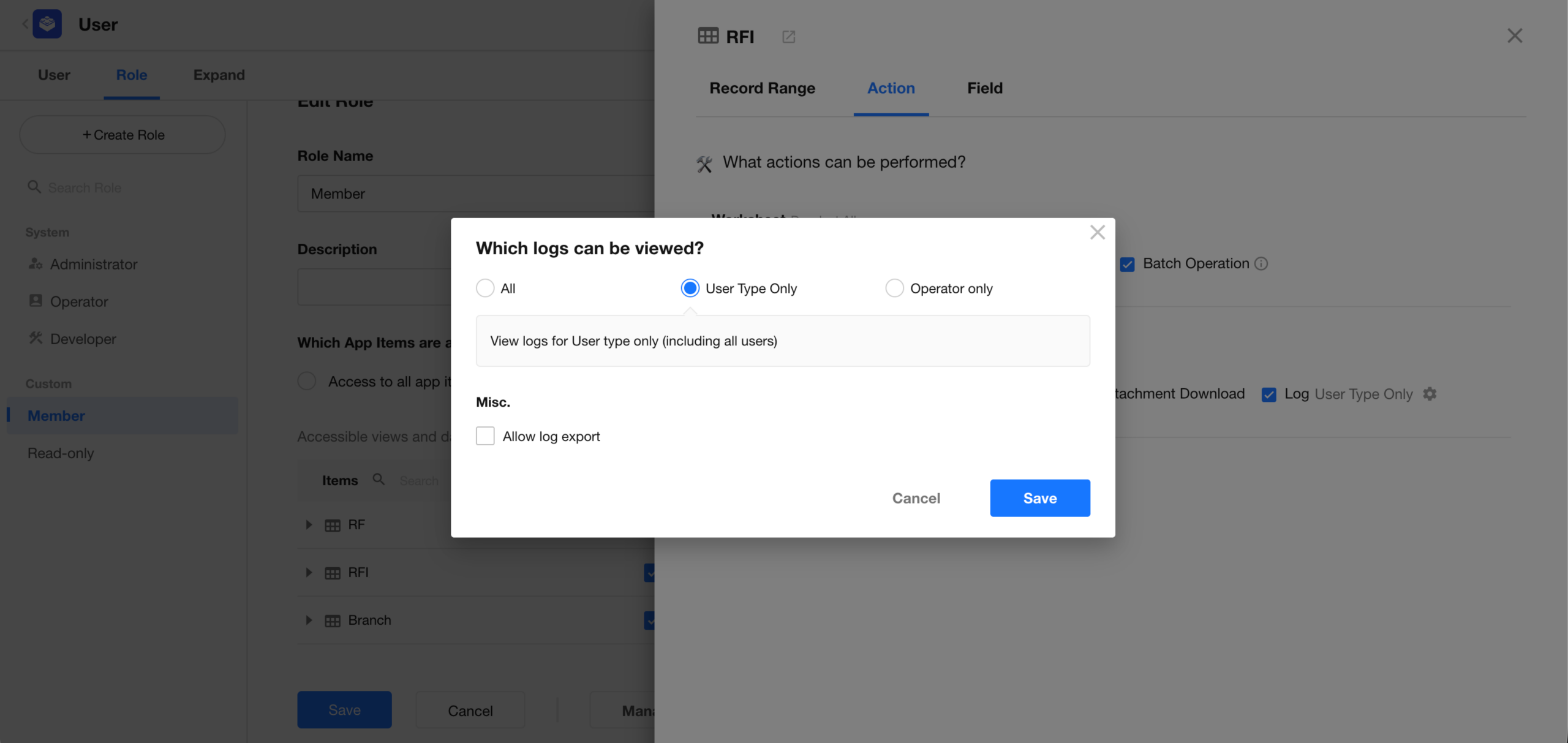
Granular Record Log Permissions
Record log permissions can now be assigned by log type, with export permissions managed separately.
Access scopes:
- All: View all record logs.
- User type only: View only logs of the User type, including logs for all users.
- Operator only: View only logs generated by the current user.
Export App Role Members
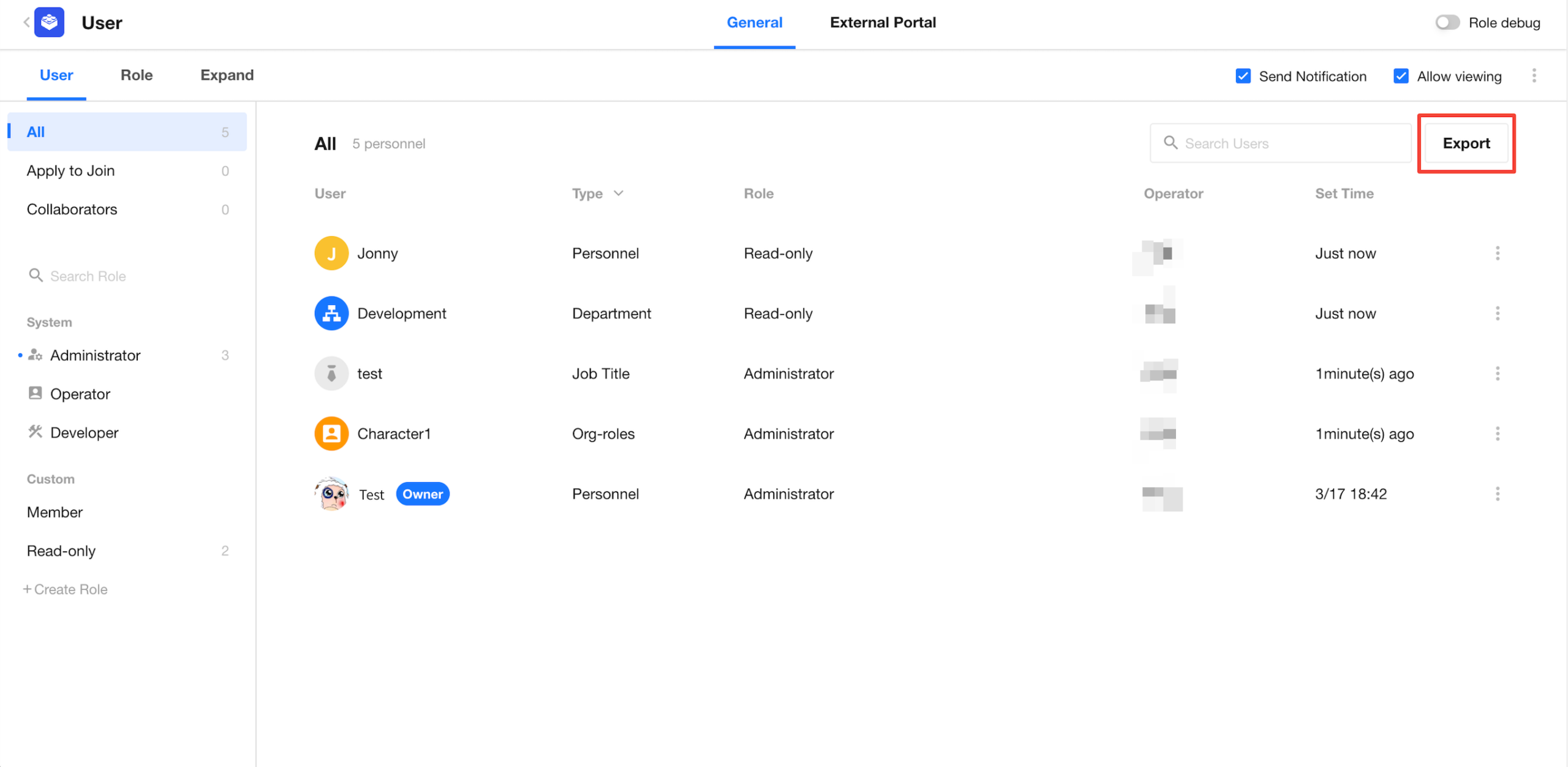
Members assigned to an app role can now be exported to Excel for easier reporting and recordkeeping.

H5
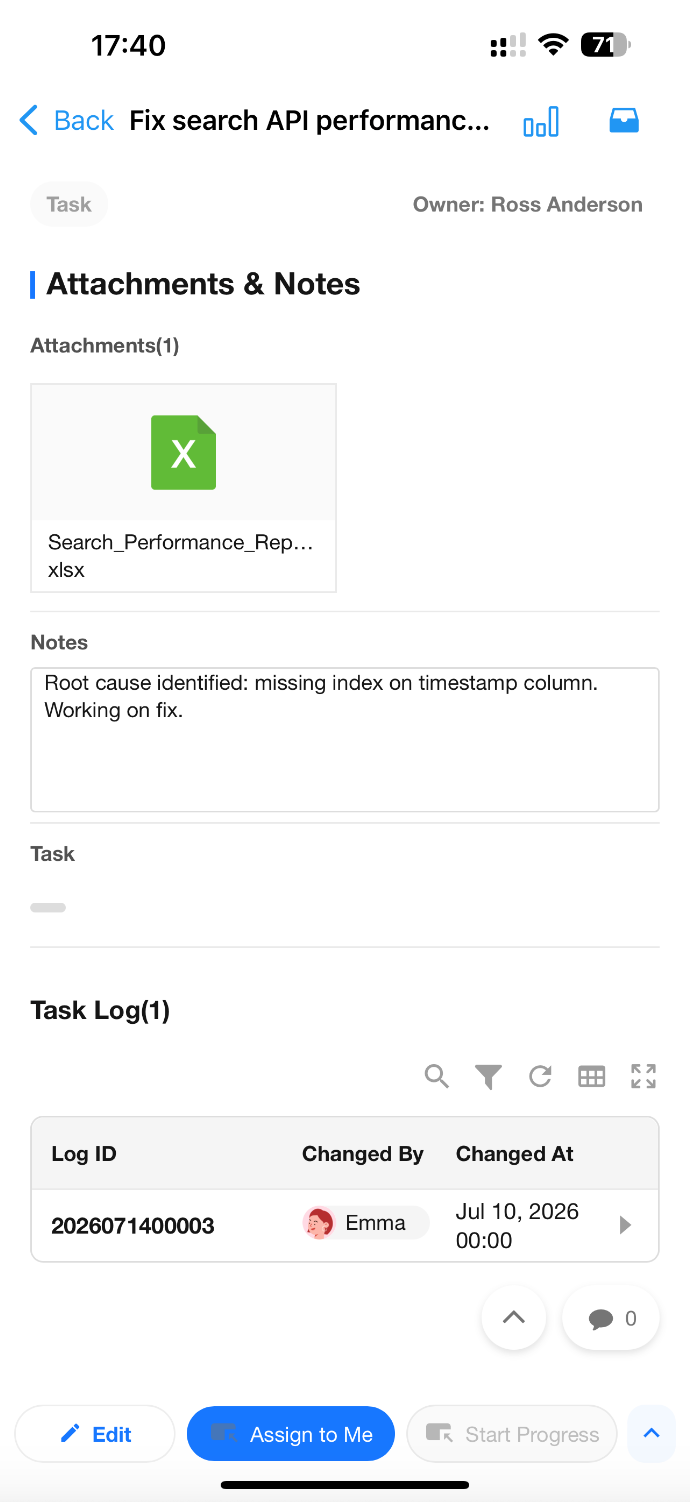
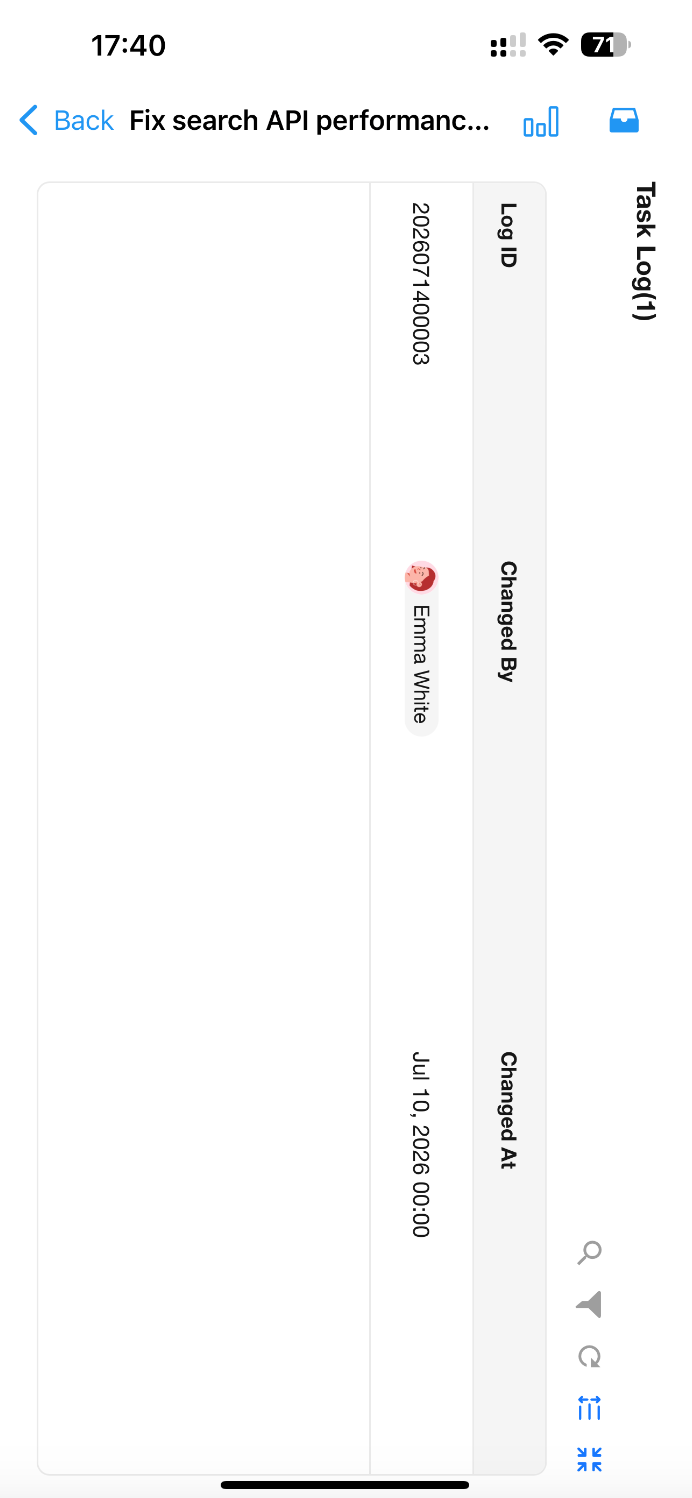
Improved Subform Display and Interaction
- Refined list and card layouts for a cleaner, more organized presentation.
- Horizontal table layouts are now available across display states, making subform data easier to read.
 |
 |
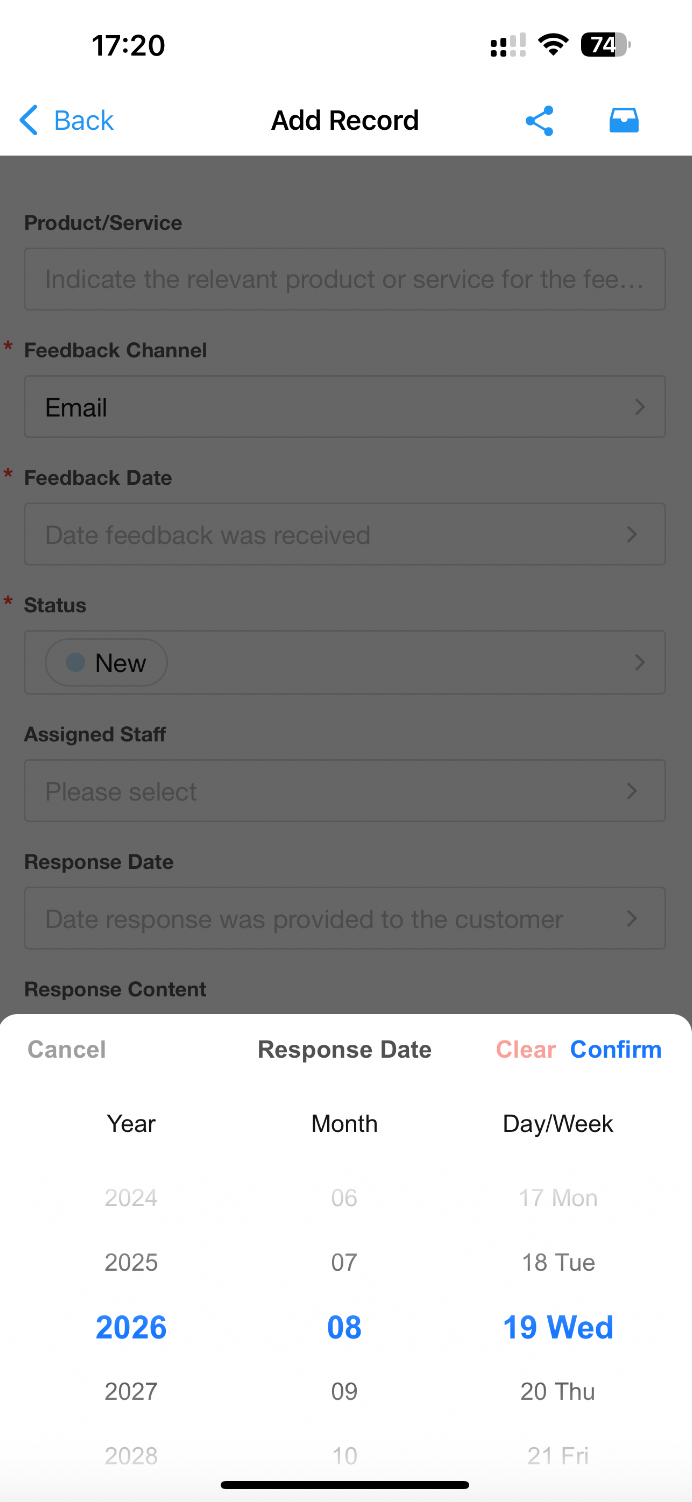
Improved Date Control
The date control has been visually refined and now also displays the day of the week.
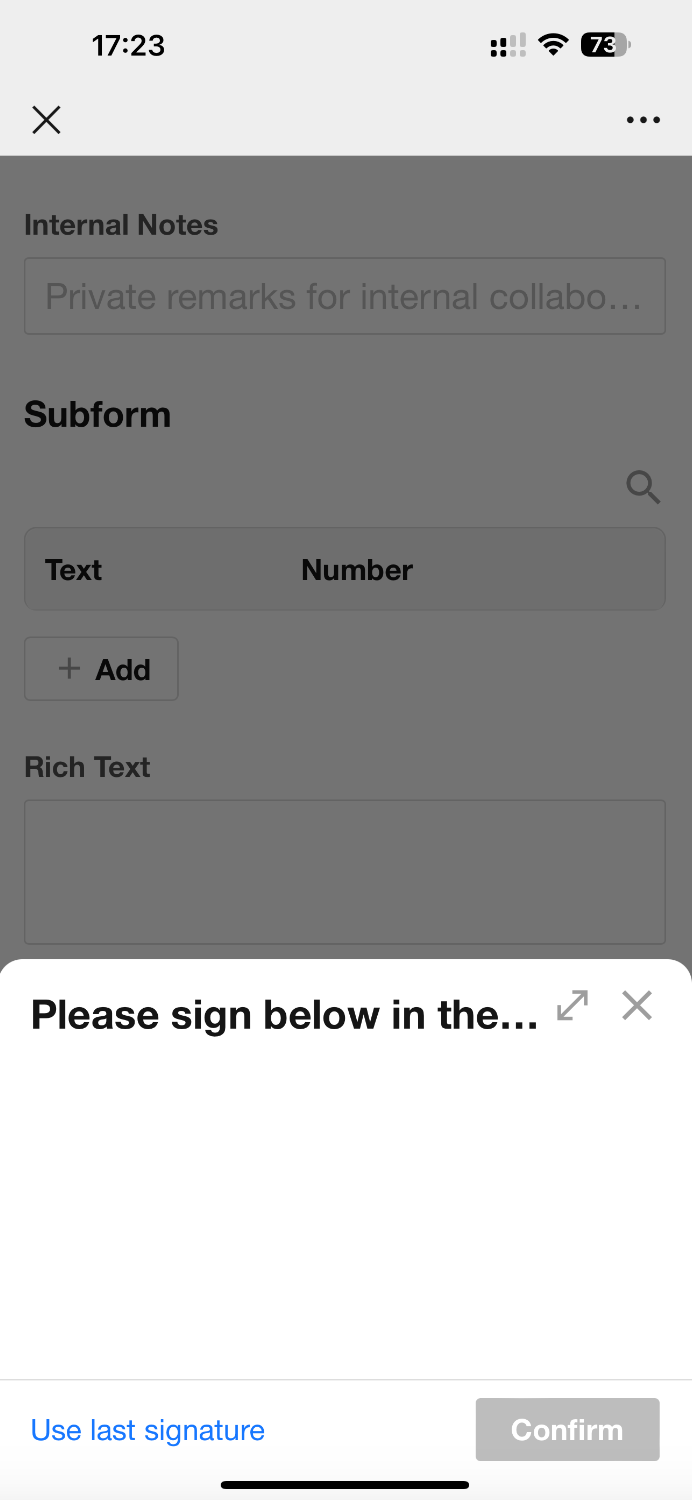
Landscape Mode for Signatures
The signature control now supports manually switching to landscape mode on mobile, providing more space for signing.
 |
 |
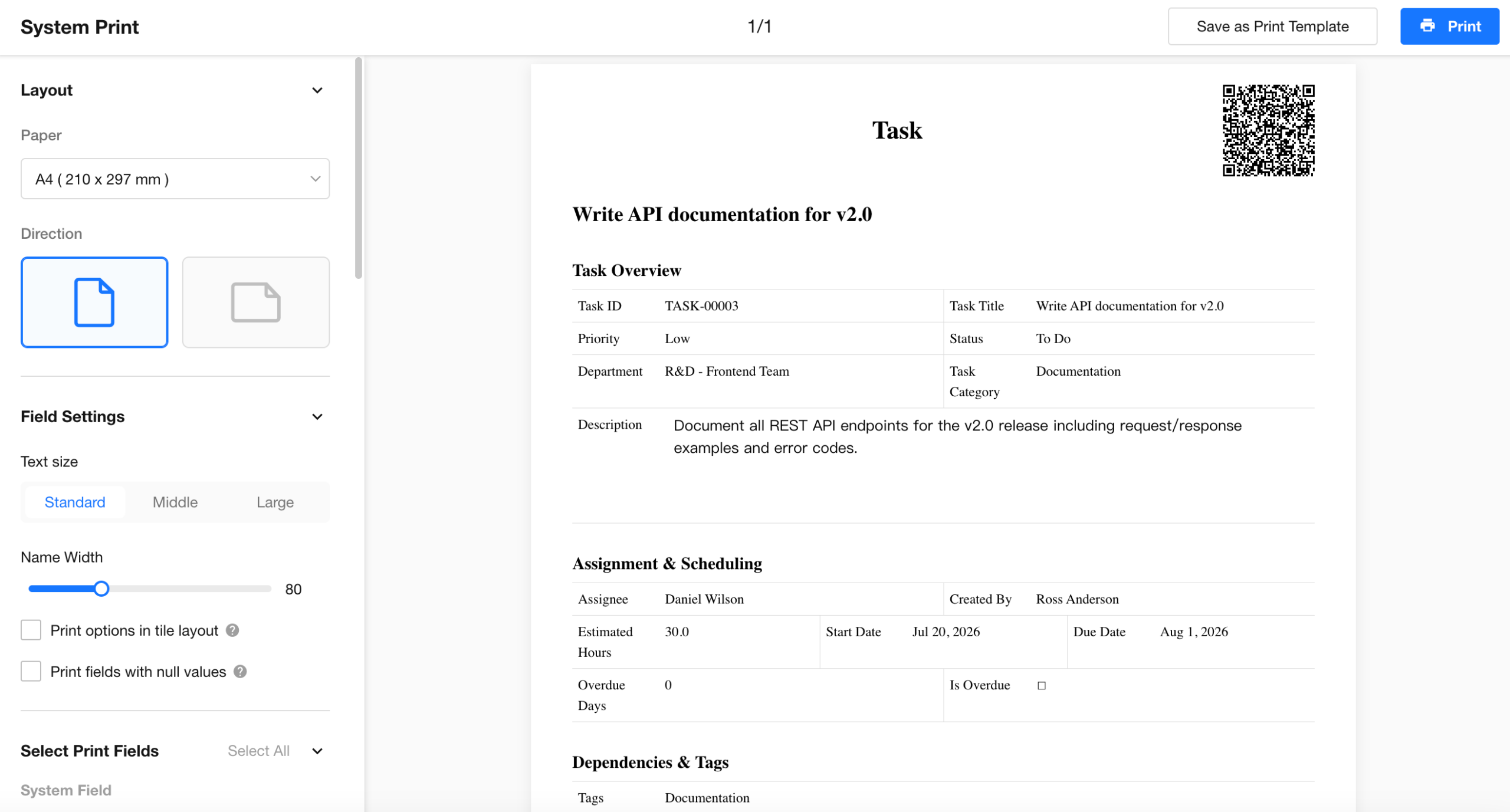
System Printing and Print Templates
Record printing now supports both system printing and system print templates. Clicking the print button opens the browser’s native print dialog.
For third-party integrations, users need to open the page in a browser to print.
Other Improvements
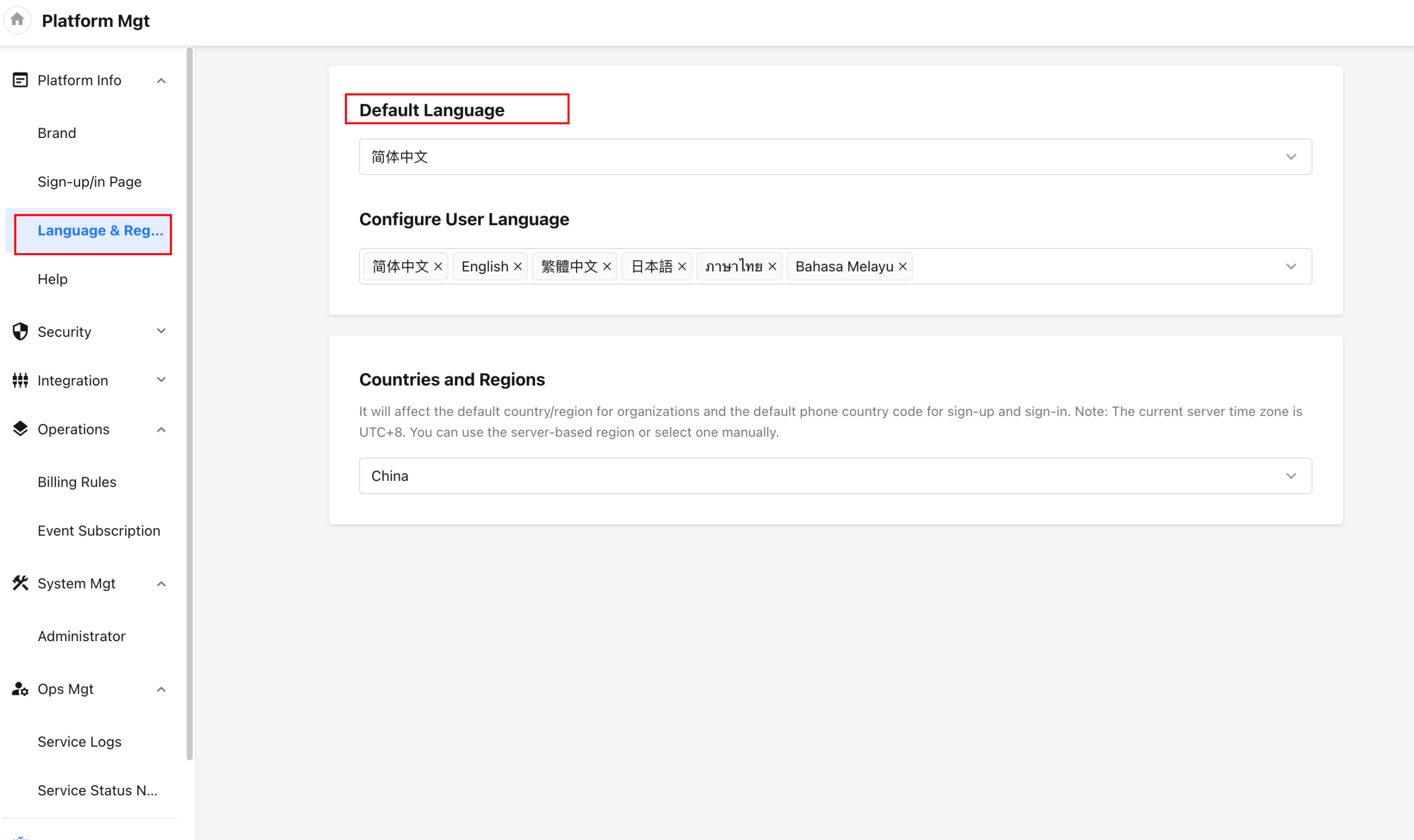
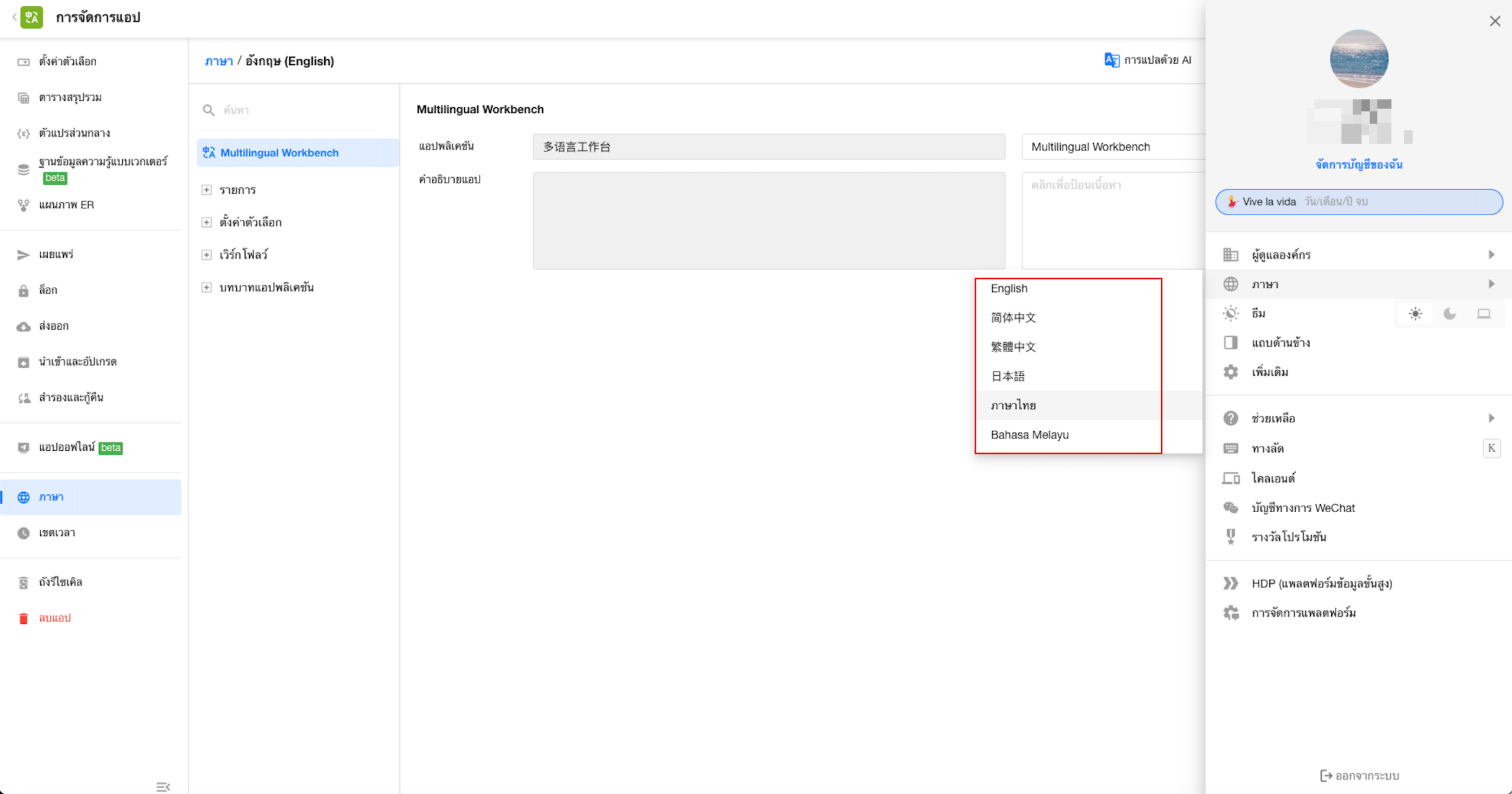
Thai and Malay Added as Platform Languages
HAP now supports Thai and Malay as platform languages. Platform administrators can set the default platform language and control which languages are available to users.
To request additional languages, submit a request or join our multilingual workspace: https://7f103dcb5f18f060.share.mingdao.net/public/page/69b3bc9a4607e5e780659438?
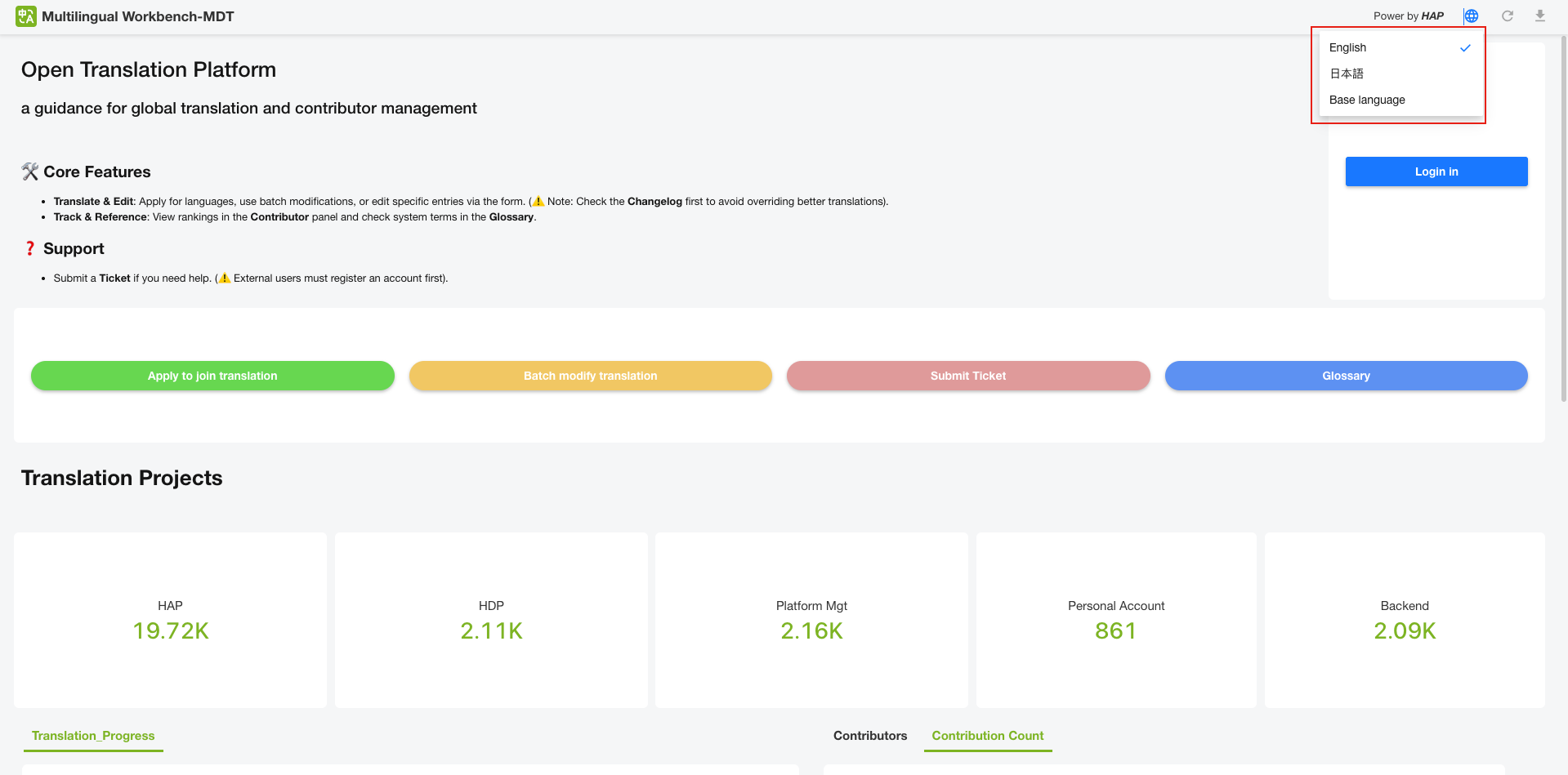
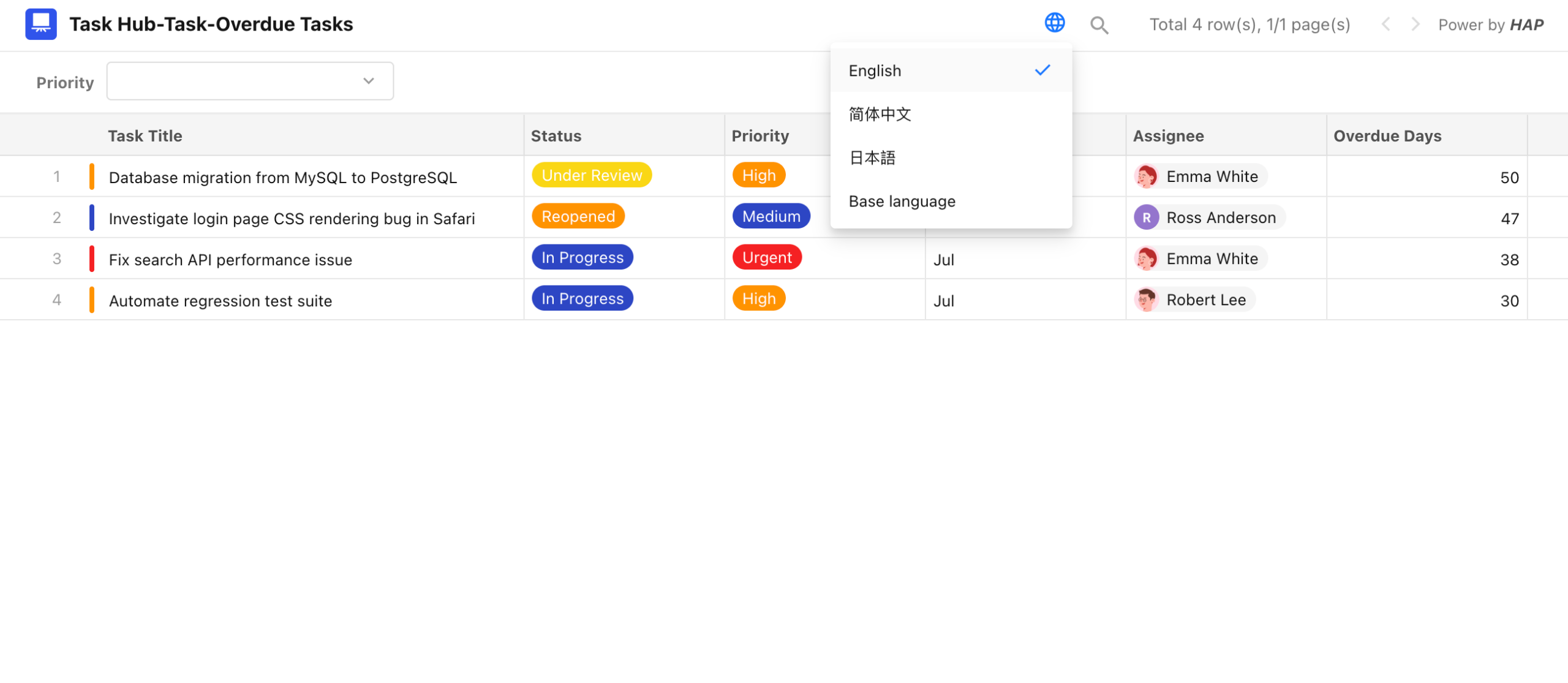
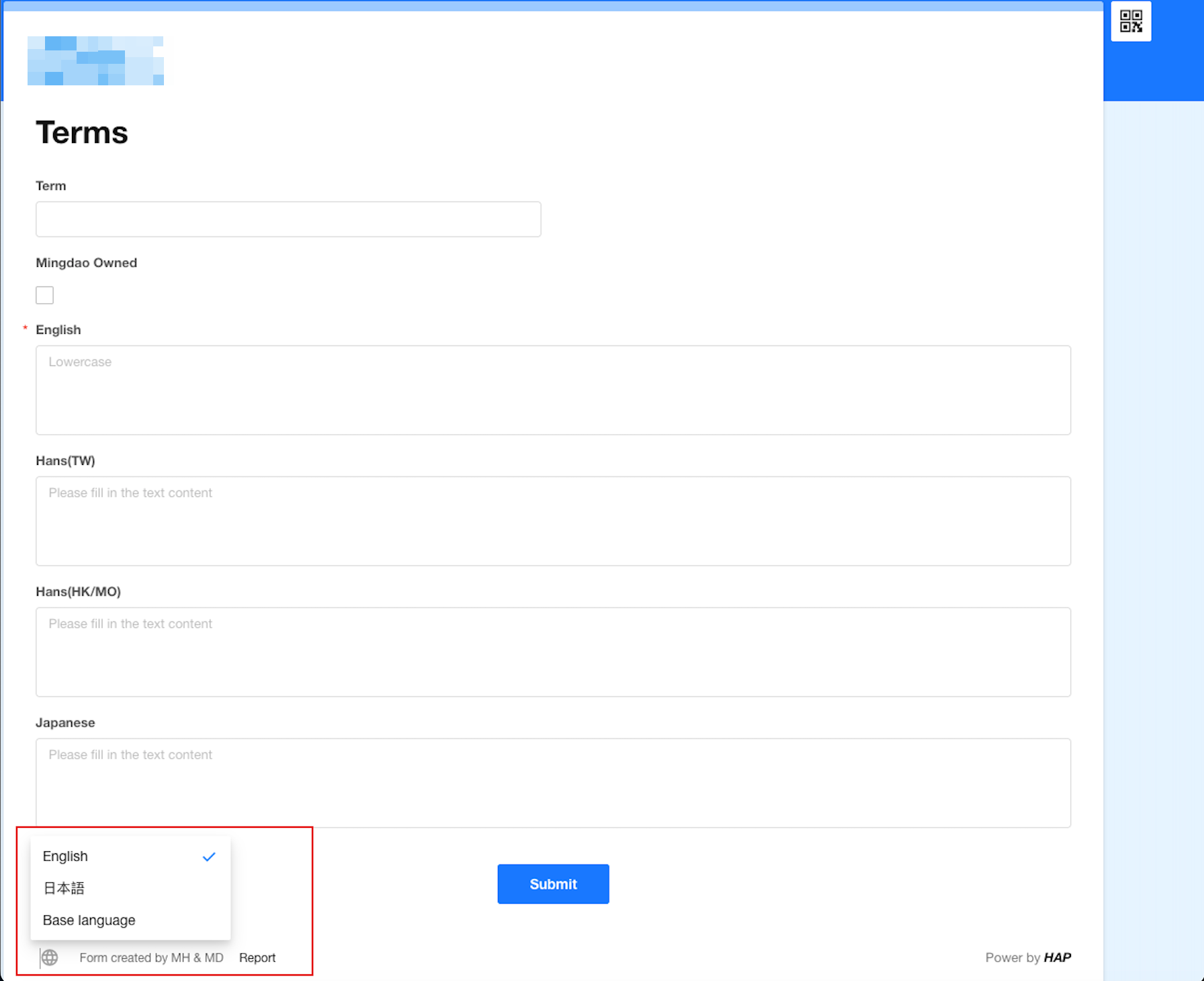
Public share pages now allow users to manually switch between available app languages.
 |
 |
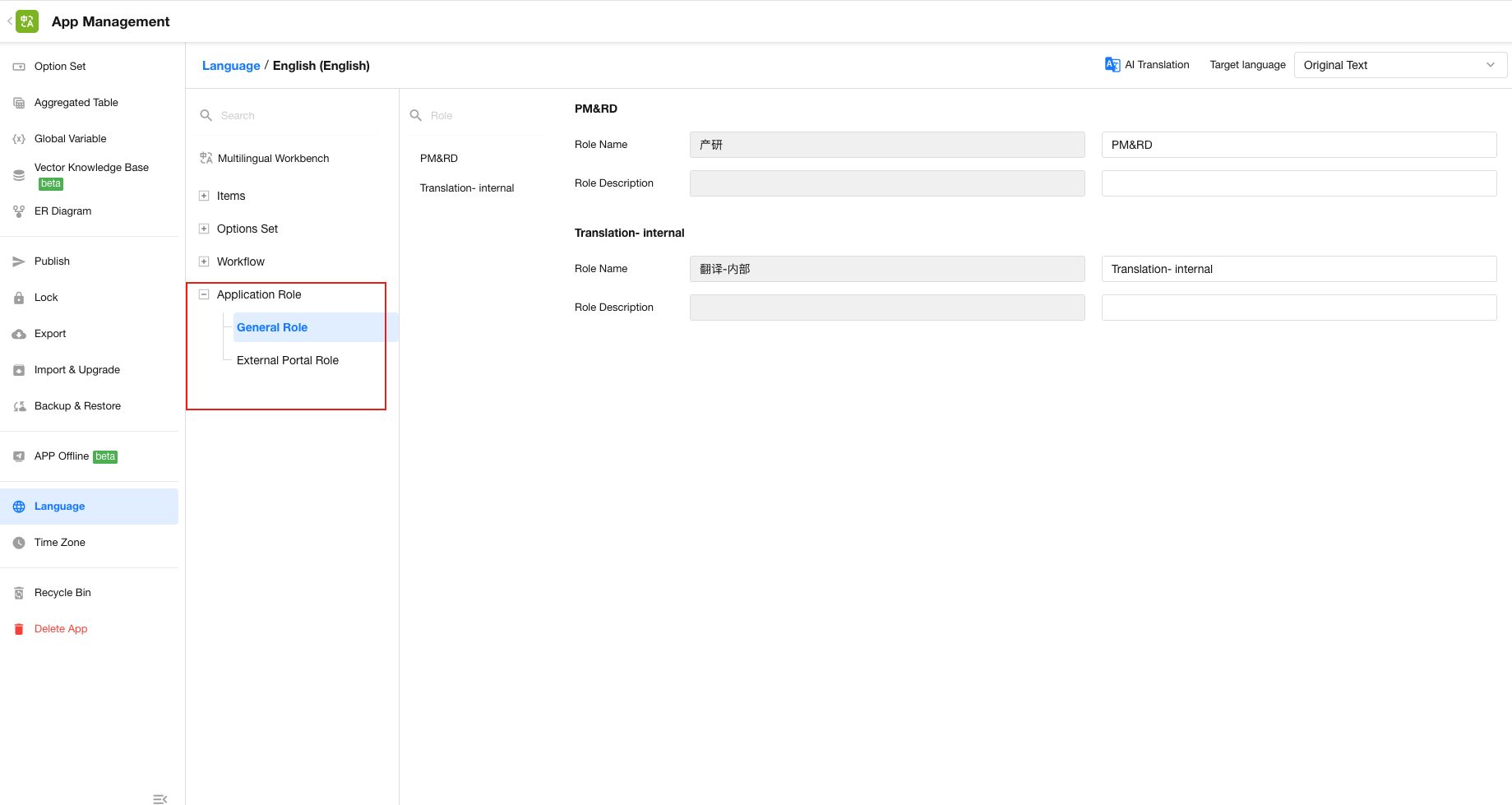
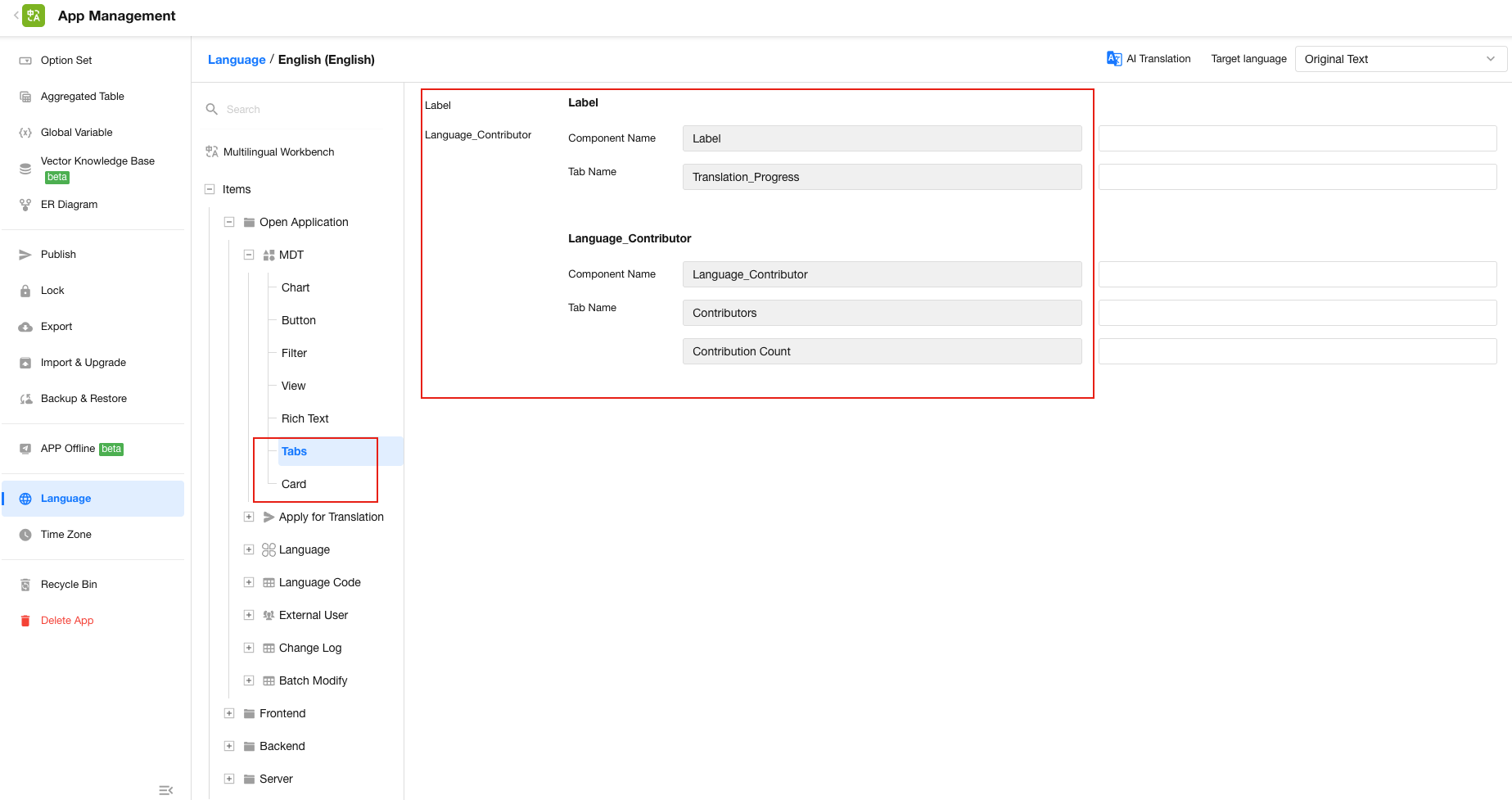
Expanded App Language Coverage
App language settings now support translations for tabs, cards, and app roles.
Use Field Display Formats in Workflows
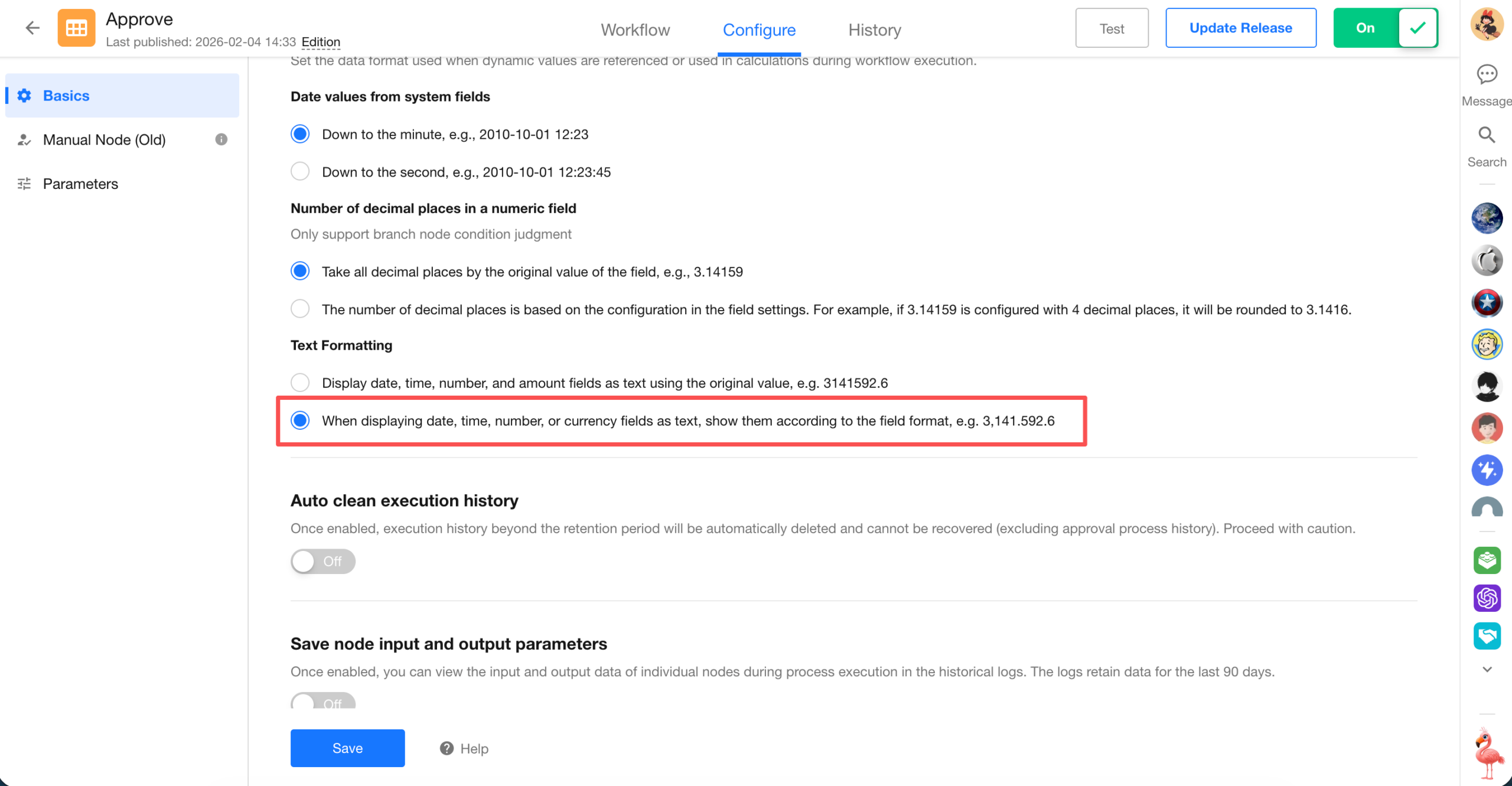
A new Text Formatting option is now available in workflow configuration. When date, time, number, or currency fields are referenced as text, users can choose to output them using the field’s display format.
When enabled, values referenced in workflow notifications, to-dos, approvals, and other content are displayed consistently with the corresponding form fields, reducing formatting inconsistencies.
Descriptions for Approval Buttons
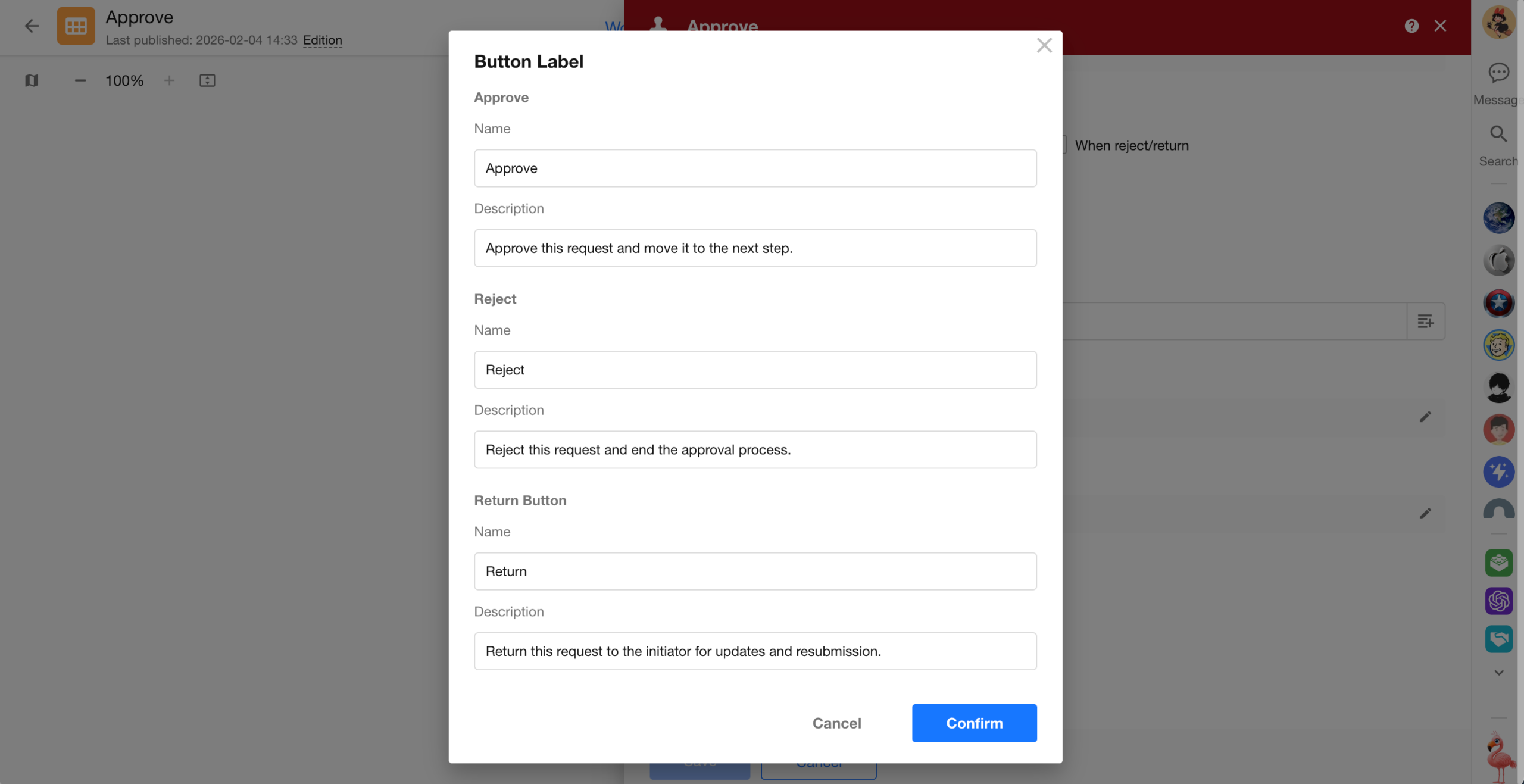
Approval buttons now support descriptions, which can be shown in the action dialog to give approvers more context before they proceed.
Completed workflow records also display the actual button name used, keeping the approval history aligned with the configured button labels and making records easier to understand.
Canvas Size and Orientation for System Printing
System printing now supports configurable canvas size and orientation for greater control over print layouts.
Approval Message Cards in Feishu/Lark
With Quick Approval enabled on an approval node, HAP approval messages now can be displayed as message cards in Feishu/Lark. The cards show richer approval information, allowing approvers to review key details without opening the full approval page.