What’s New
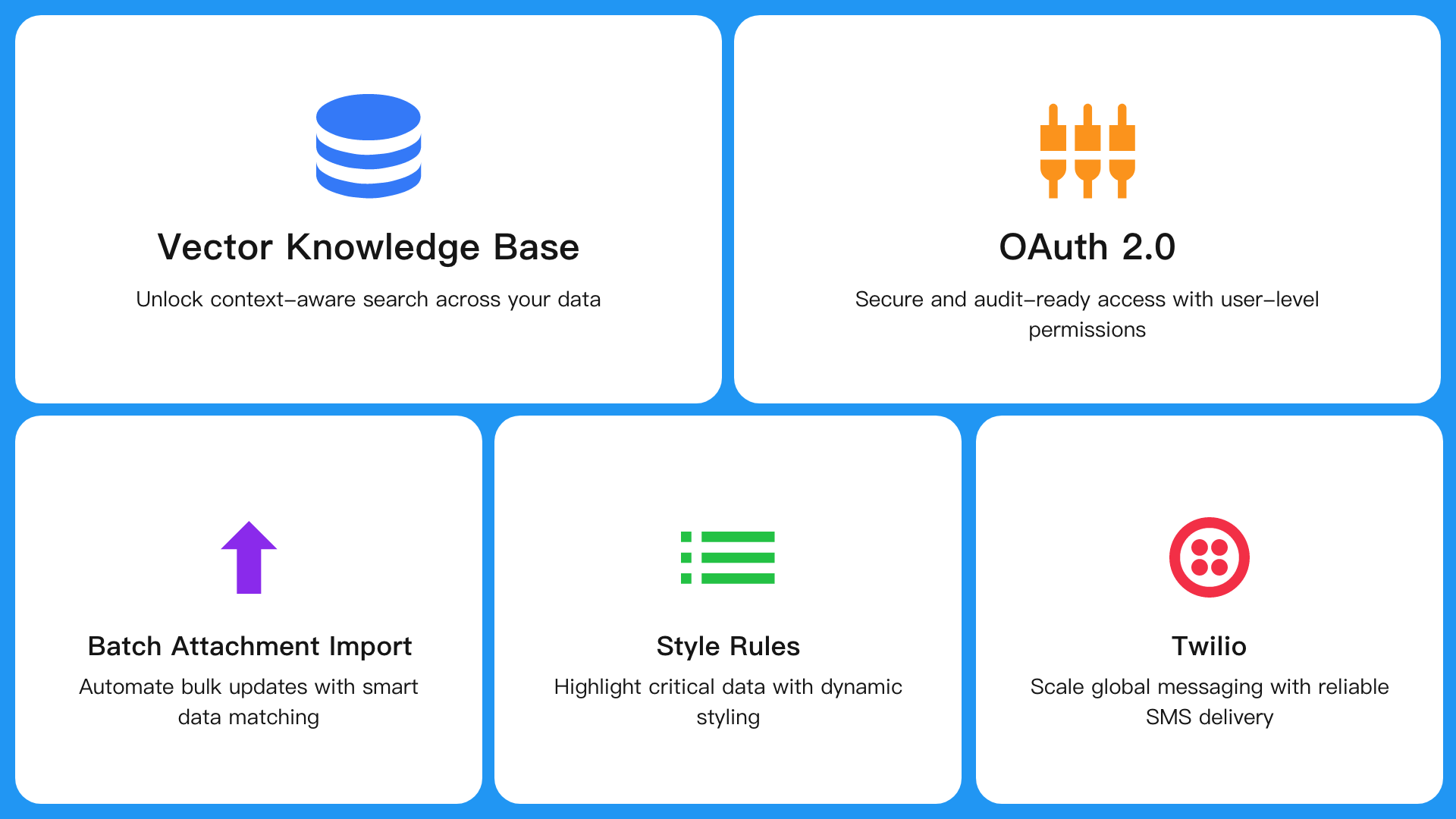
- Vector Knowledge Base
- OAuth 2.0 Integration with User-Level Authorization
- Batch File Import for Records
- Dynamic Field Styling with Style Rules
- Twilio Integration for Global SMS
Application
Vector Knowledge Base
Overview
The Vector Knowledge Base brings semantic search to HAP. It uses worksheet data as the knowledge source and applies vectorization to convert record content, attachments, and discussions into semantically searchable knowledge chunks. This enables AI to interpret queries based on semantic similarity rather than just exact keyword matches.
Key Scenarios:
- Asking “How do I apply for leave?” returns a record titled “Paid Leave Policy”
- Asking “What is the contract amount limit?” locates the relevant clause in an attached contract template
- Asking “How are fees calculated?” retrieves content related to “Billing Rules”
Creating a Knowledge Base
How to Access
Go to App Management and select Vector Knowledge Base from the left navigation.
- A knowledge base can only use worksheets within the current application as its data source
- Multiple knowledge bases can be created per application
- A single worksheet can be referenced by multiple knowledge bases
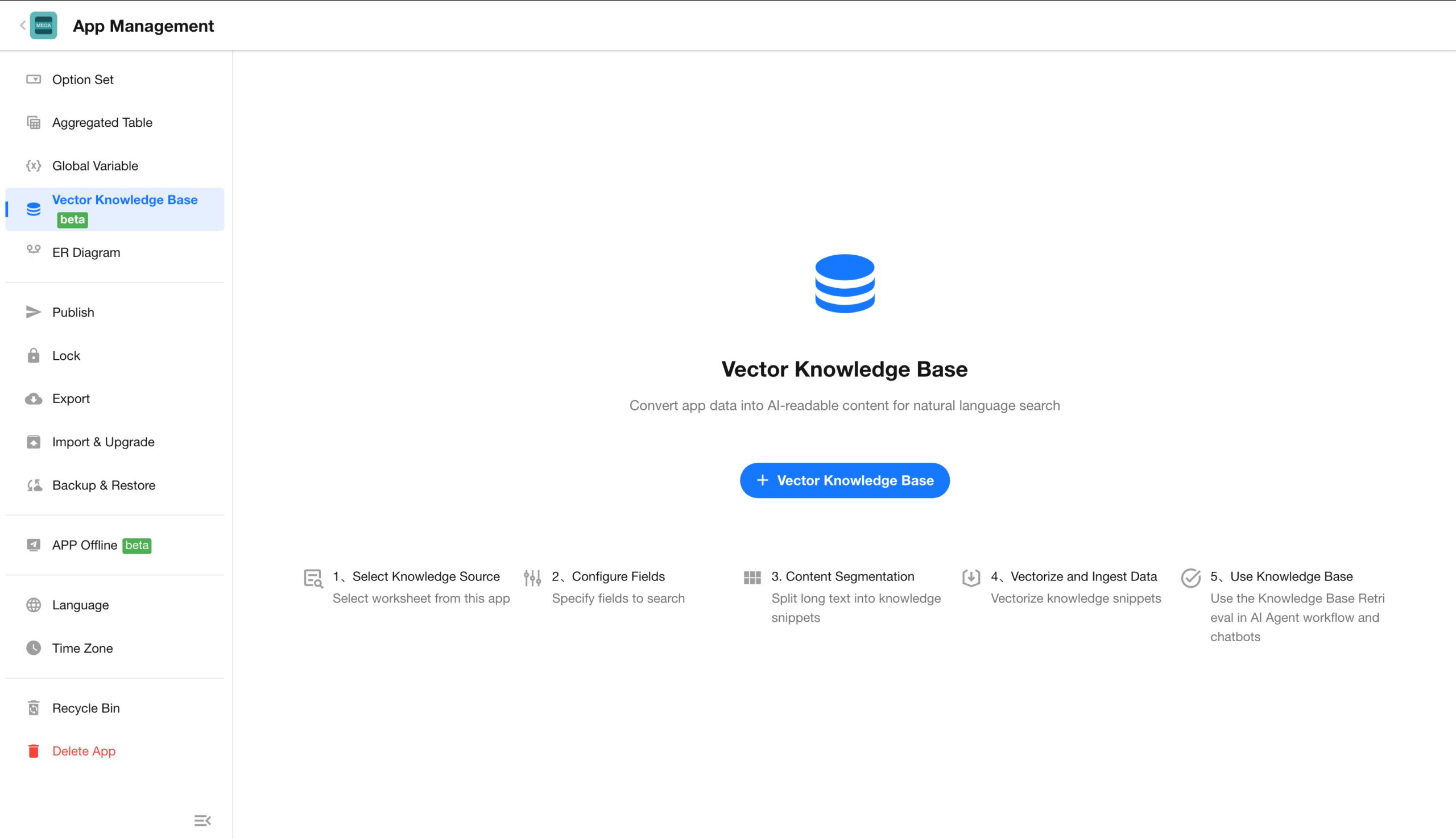
Creation Process
Click + Vector Knowledge Base and complete the following steps:
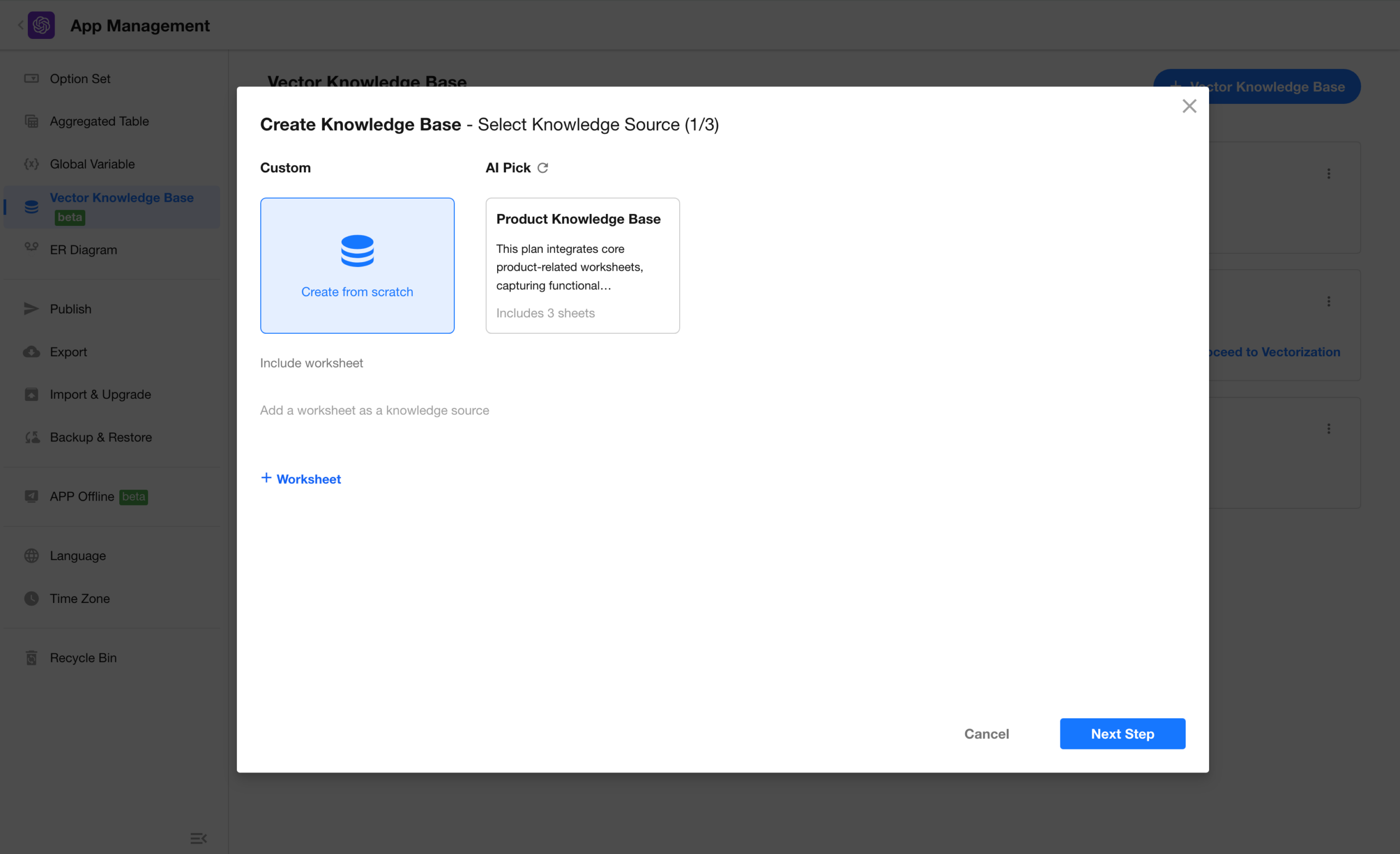
Step 1: Select Knowledge Sources (Worksheets)
Select one or more worksheets within the application as knowledge sources.
The system may also analyze the application and suggest recommended knowledge base configurations.
 |
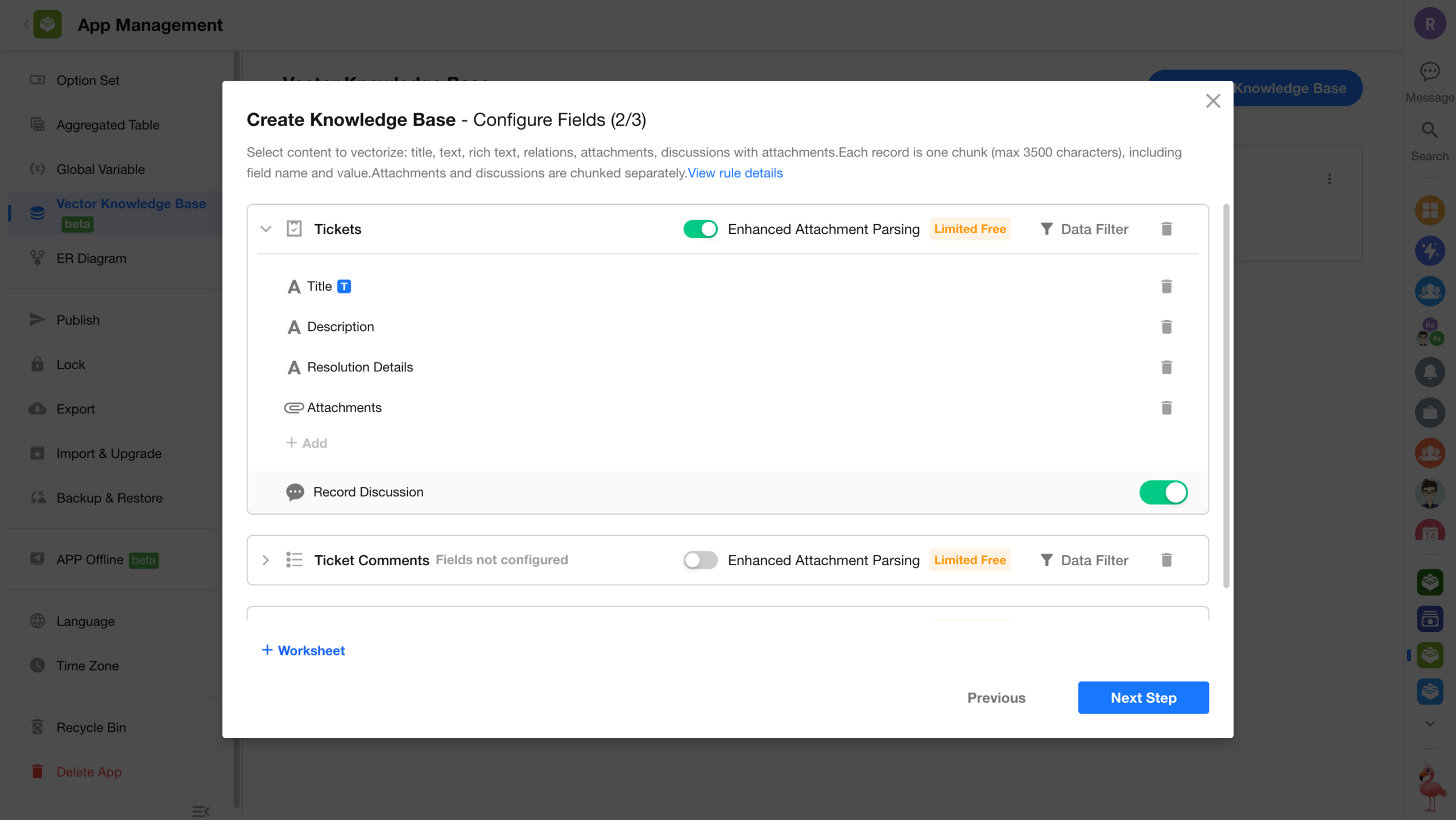
Step 2: Configure Vectorized Fields
Configure the content to be vectorized for each worksheet. Supported content includes:
- Fields: text, concat, title field, rich text, cascading (single select), relationship (single record), foreign field (data storage only: text, concat, rich text, file), file
- Record discussions: when enabled, discussions and attachments within records are also included
Additional options:
- Data filtering: apply conditions to include only relevant records for vectorization
- Attachment parsing enhancement: enables vision-based parsing for csv, xlsx, docx, pptx, and pdf files to improve structure extraction accuracy
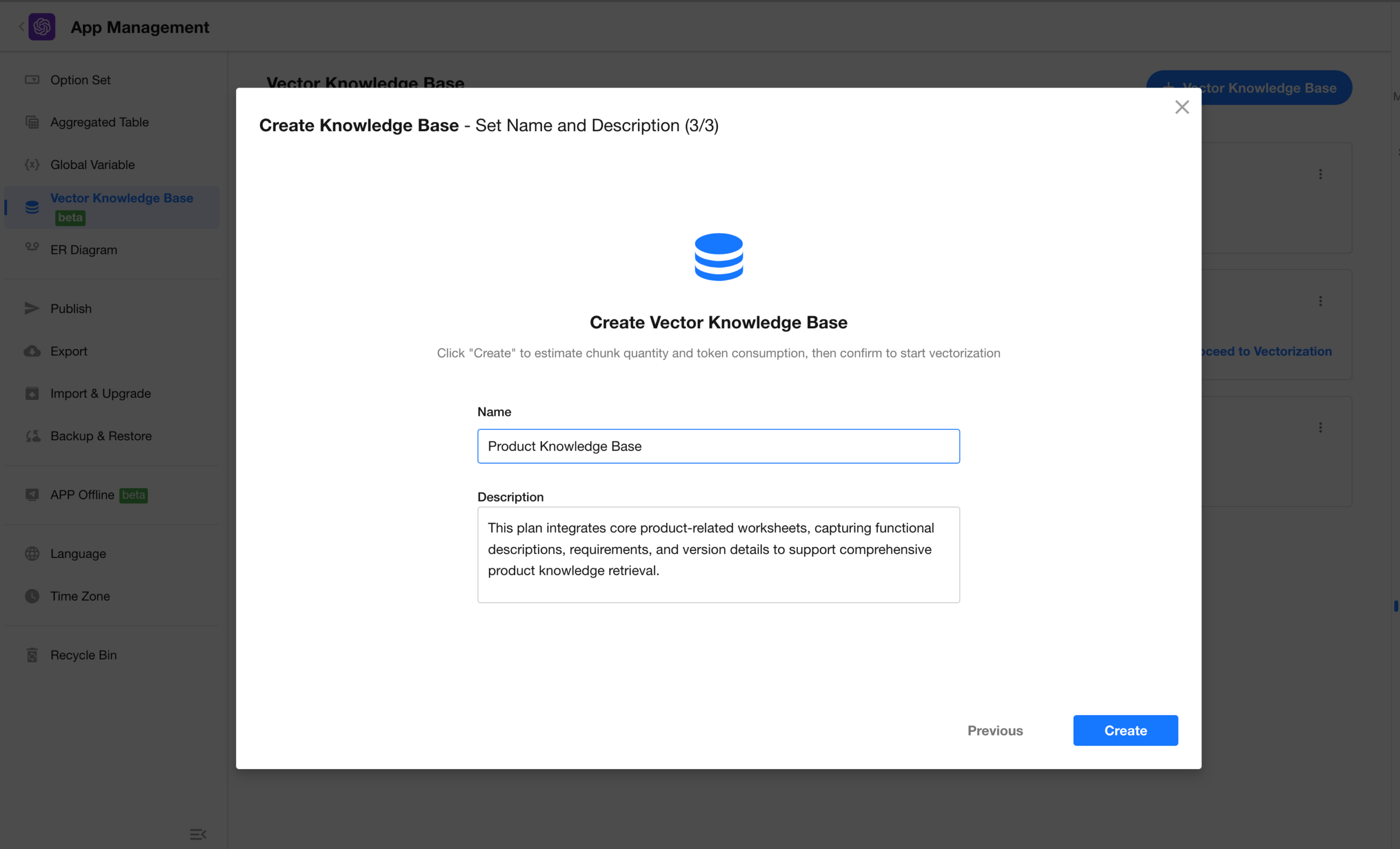
Step 3: Confirm Creation
Enter a name and description, then click Create. The system will begin parsing and chunking the selected content.
The name and description help the AI Agent understand the scope of the knowledge base and should be clear and specific.
 |
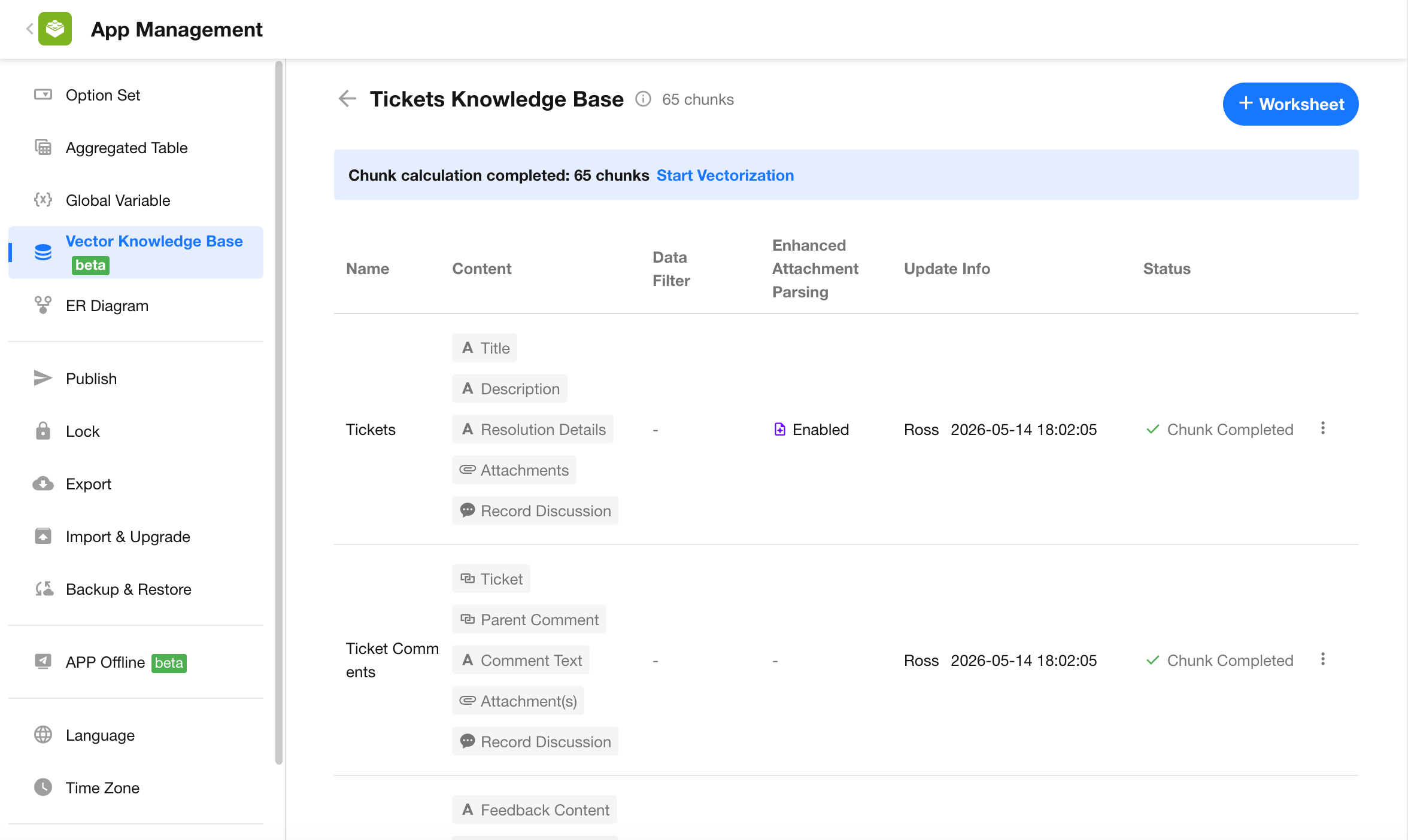
3. Chunking and Vectorization
After creation, chunking starts immediately.
Once chunking is complete, vectorization does not start automatically. You need to manually click Start Vectorization in the knowledge base.
Once all worksheets are vectorized, the knowledge base becomes available for retrieval.
4. Automatic Data Sync
When records in the worksheet are created, updated, or deleted, the knowledge base is automatically updated.
Note: Application operations such as export, import, copy, import & upgrade, and backup & restore do not include knowledge base configurations.
Using the Vector Knowledge Base
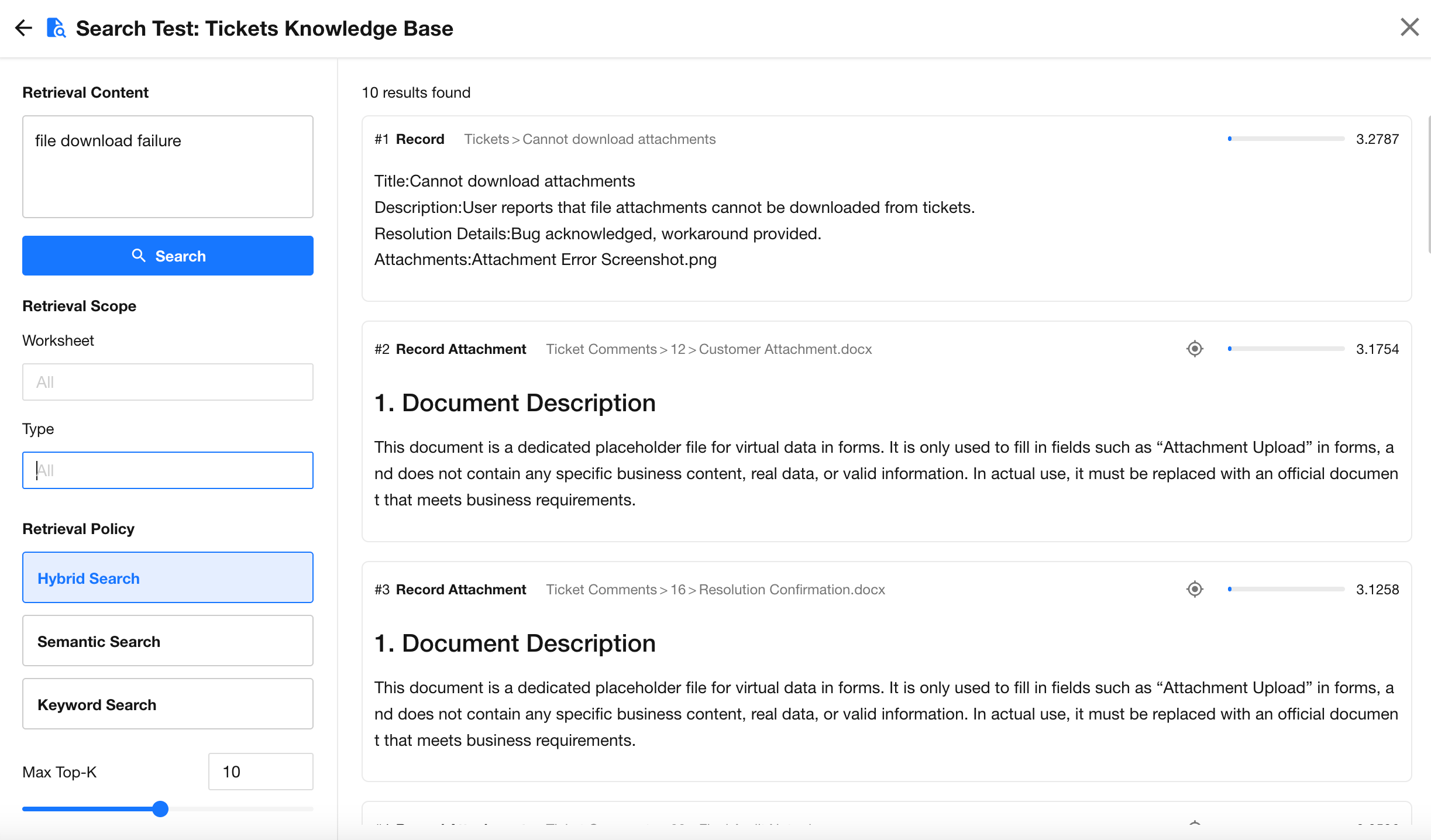
1. Retrieval Testing
The knowledge base detail page provides a retrieval testing feature to preview results.
Three retrieval modes are supported:
- Semantic Search: Matches based on semantic similarity, suitable for flexible queries and Q&A
- Keyword Search: Uses full-text search with exact keyword matching, suitable for specific terms or identifiers
- Hybrid Search: Combines semantic and keyword matching for balanced results
 |
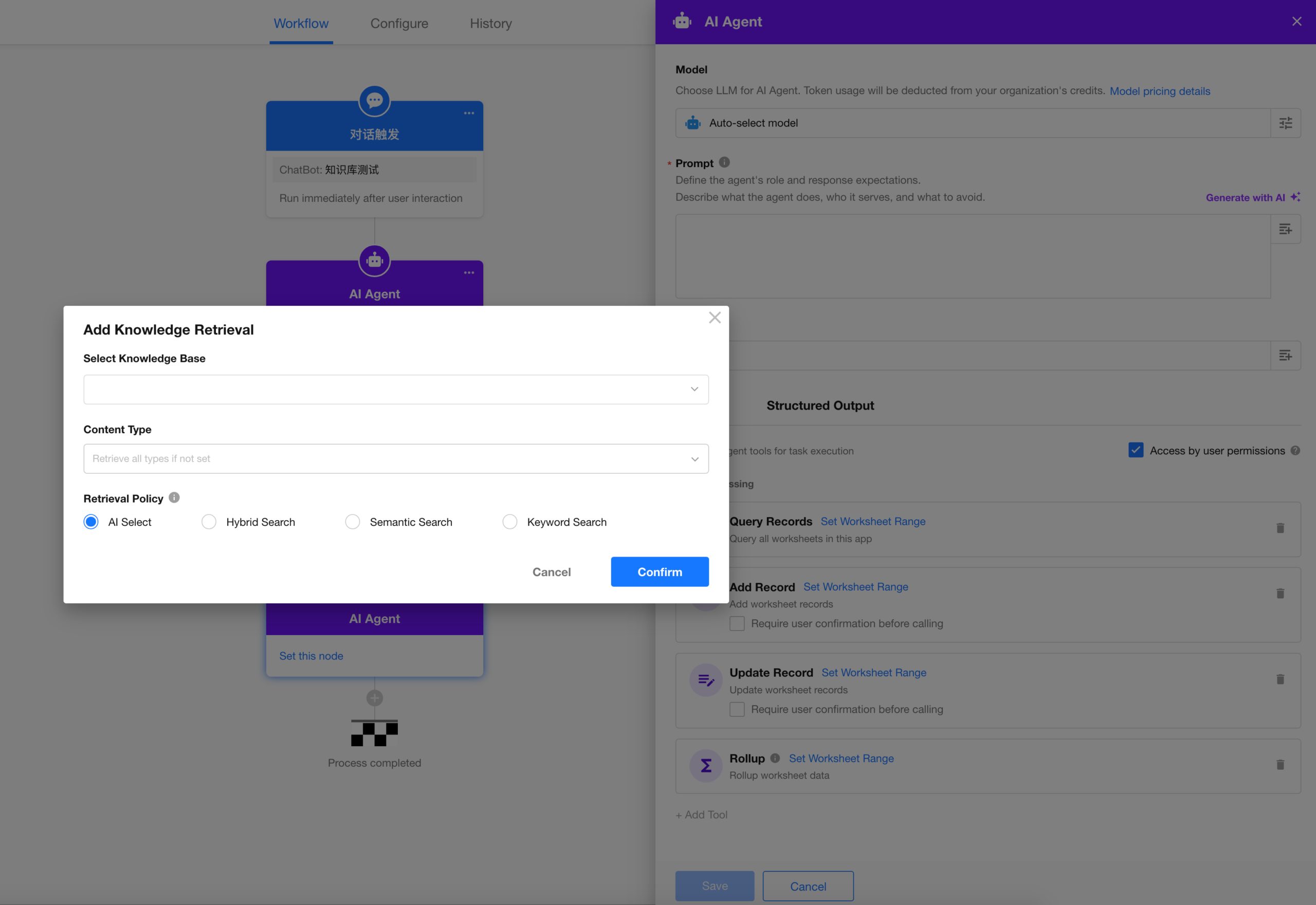
2. Using Knowledge Base in AI Agent Node
The AI Agent node supports Knowledge Retrieval tool and can reference multiple knowledge bases across applications.
Two configuration modes are available:
- Auto: The Agent determines retrieval strategies and parameters
- Custom: Manually configure retrieval strategies and parameters
 |
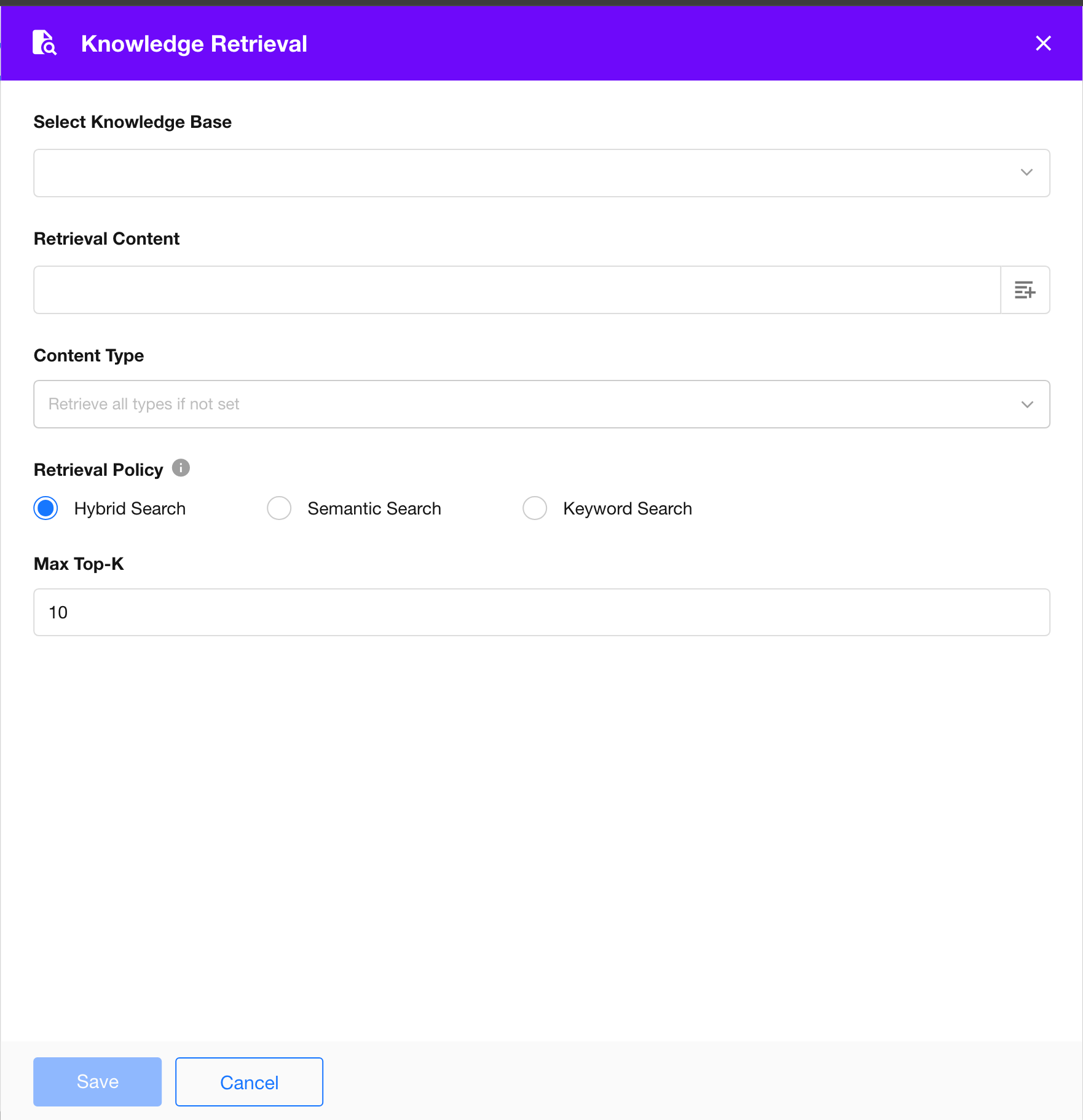
3. New “Knowledge Retrieval” Workflow Node
A new Knowledge Retrieval node is available:
- Supports selecting multiple knowledge bases across applications
- Supports semantic, keyword, and hybrid retrieval modes
The node outputs:
- Knowledge chunks
- Source information (knowledge base, worksheet, record, etc.)
- Relevance scores
These outputs can be used in subsequent workflow nodes.
 |
Billing
Base Quota
- Standard: 100,000 chunks
- Professional: 200,000 chunks
- Ultimate: 500,000 chunks
Note: Each chunk generated from records, attachments, or discussions counts as one vector chunk.
Expansion
- Retrieval cost: Retrieval operations are not currently charged
- Add-ons: Additional packages can be purchased in the Organization Admin Console
- Pricing: $30 / 10,000 chunks / year
- Expiration policy: Data is retained for 30 days after subscription expiration and will be automatically deleted afterward
OAuth 2.0 Integration
Value of User Authorization
1. From System-Level Access to User-Level Authorization
- Application-level access: Data is accessed using the application administrator’s permissions
- User-level authorization: Access is controlled based on the individual user’s identity
- Key change:
- Shifts execution from application-level permissions to user identity–based access
2. Granular Permission Control
Supports fine-grained control by scope:
- Resources: application / worksheet / record
- Actions: query / create / update / delete
- Core value:
- Enforces least-privilege access
- Reduces the risk of over-privileged access
- Clearly defines capability boundaries
3. Short-Lived Credentials for Enhanced Security
- Application keys: Long-lived and higher risk if exposed
- OAuth tokens: Short-lived (default: 1 day) and refreshable
- Security benefits:
- Controlled exposure window
- Supports credential rotation
- Limits the impact of token leakage
4. Revocable Access at Any Time
User authorization supports:
- User-initiated revocation
- Platform-enforced invalidation
- Automatic token expiration
- Key benefit:
- Access becomes controllable, revocable, and manageable
5. Traceable API Calls with Clear Identity
Under user authorization, each API call is logged with:
- User identity
- Source application
- Action performed
- Enables:
- Audit and compliance tracking
- User activity analysis
Feature Overview
Permissions
- Platform administrators: Can create third-party applications and integrate with external systems. For HAP Server, external integrations can be configured independently.
- Organization administrators: Can control which third-party applications can access organizational data
- Users: Can sign in to HAP, review authorization scopes, and access or operate data based on their own permissions
Management
- HAP SaaS: Capabilities are centrally provided and governed by platform administrators
- HAP Server: Capabilities are delivered with deployment; integration creation and governance are maintained by the customer’s platform administrators
Integration process: Refer to the Developer Guide for details
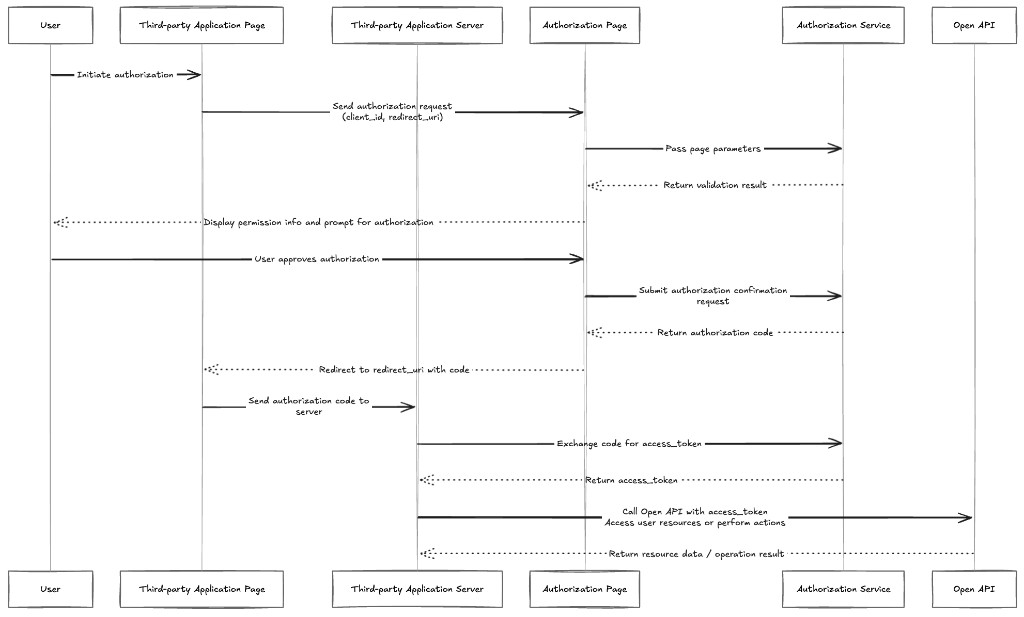
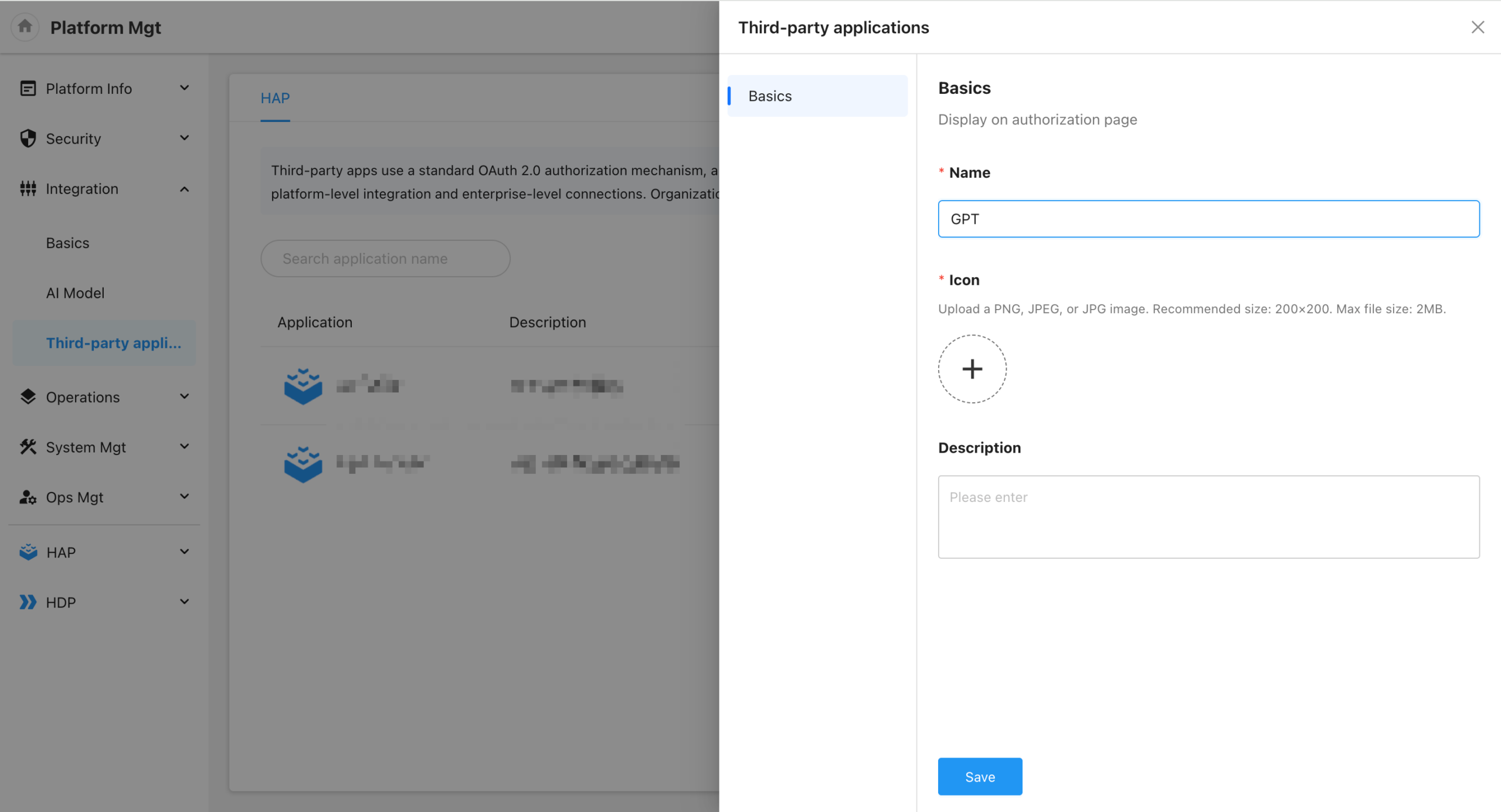
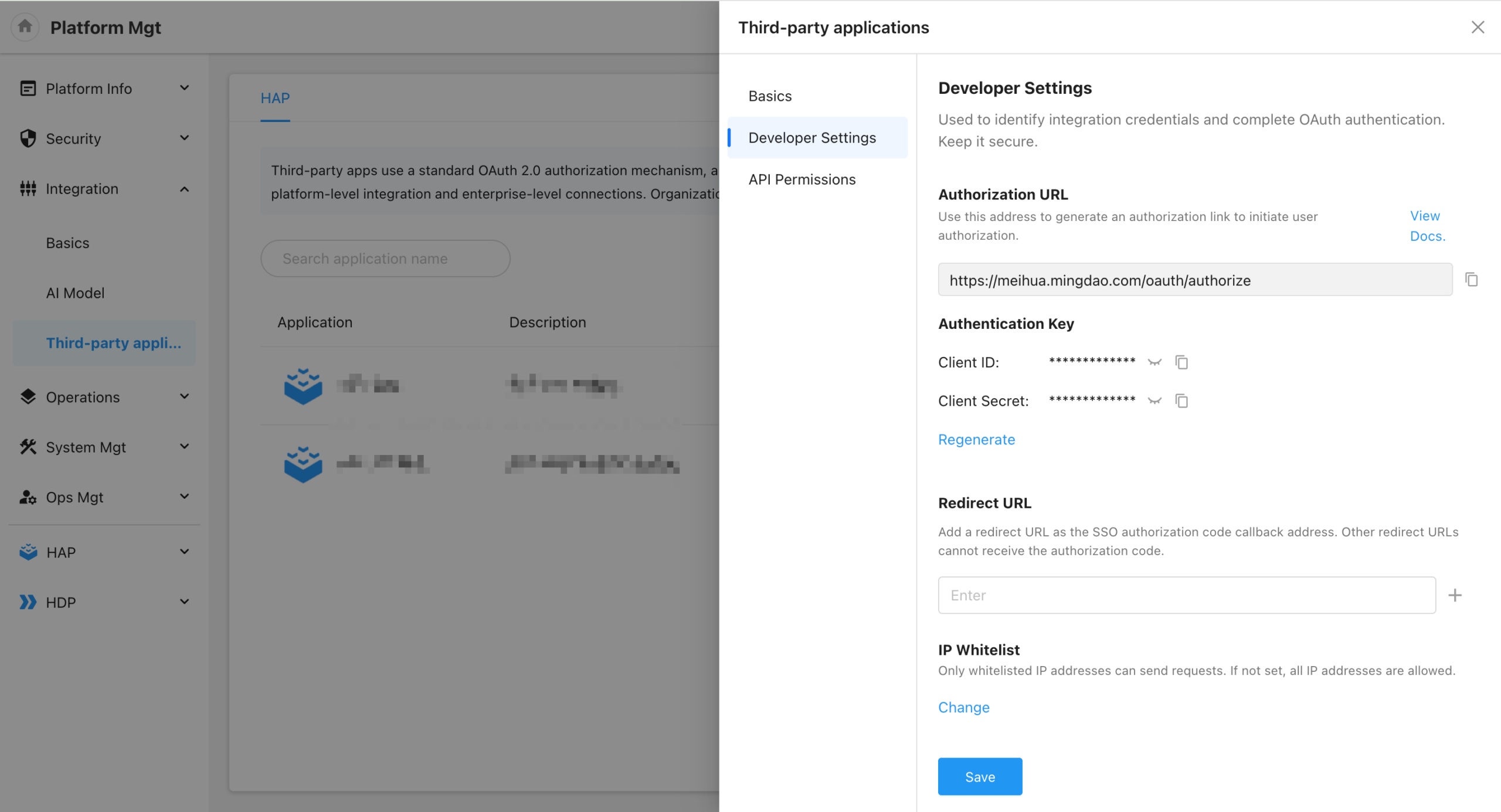
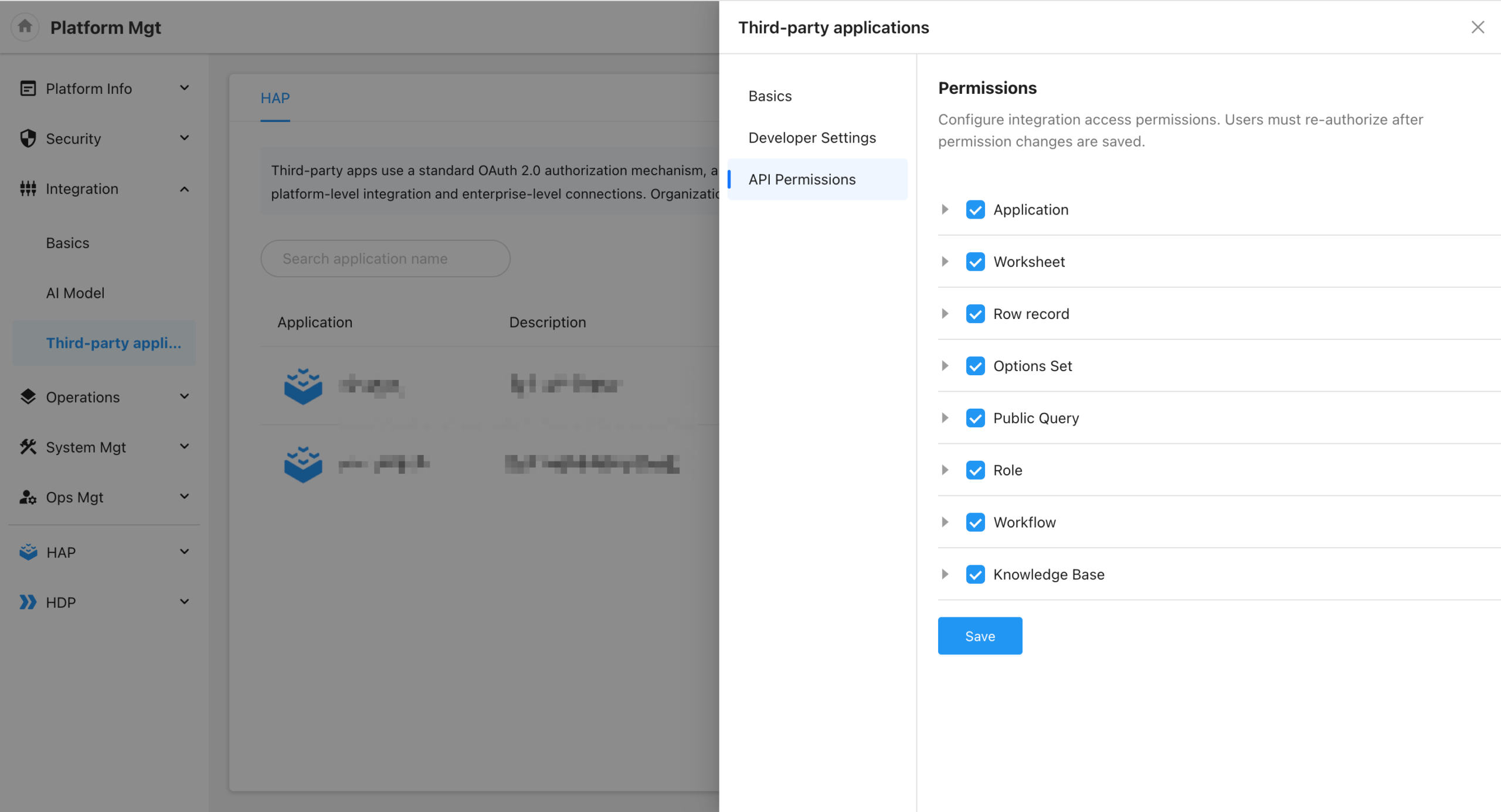
Platform Administrator: Create Third-Party Applications
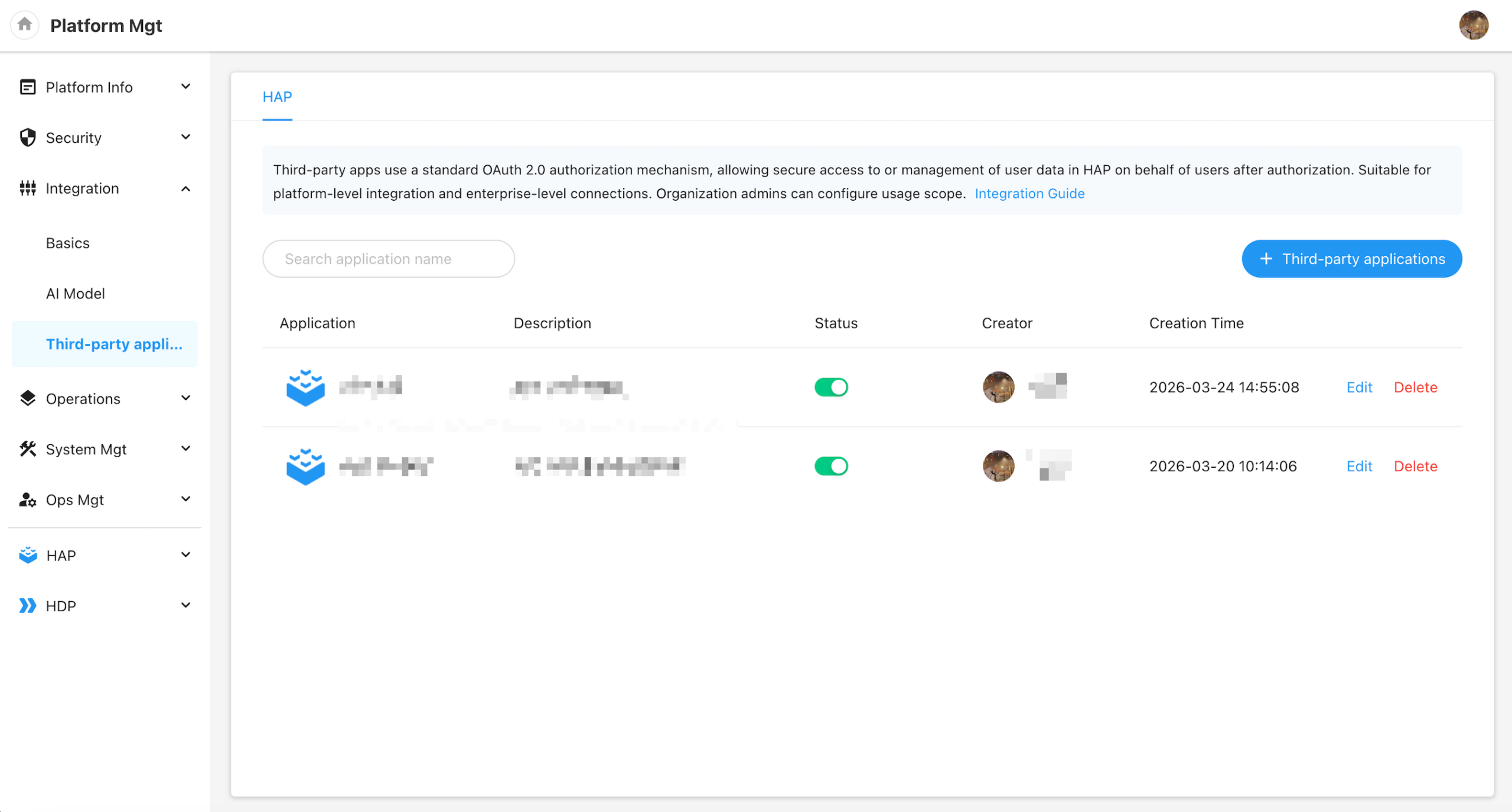
- Enter basic information
- Obtain developer settings
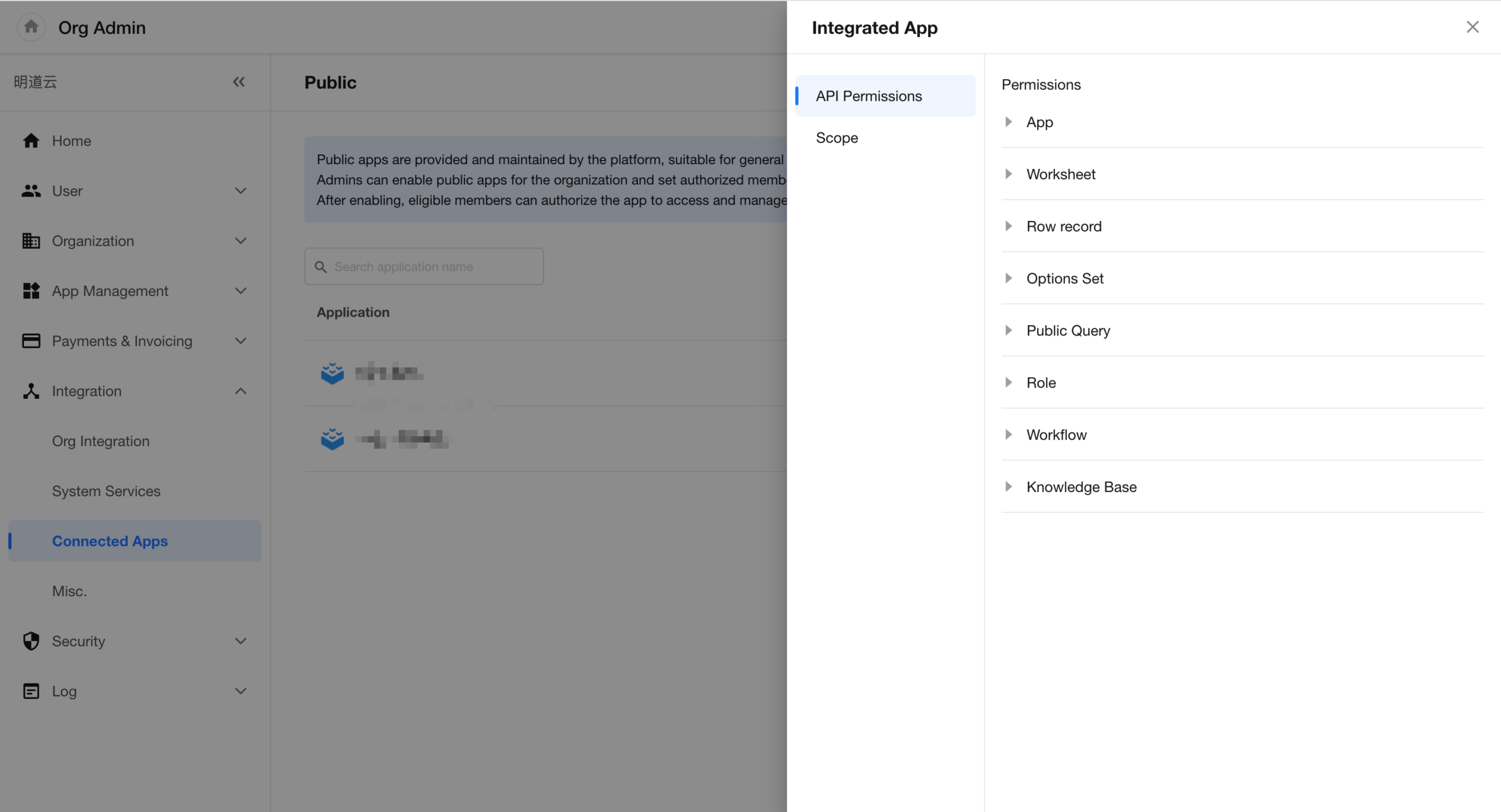
- Configure API permission scopes
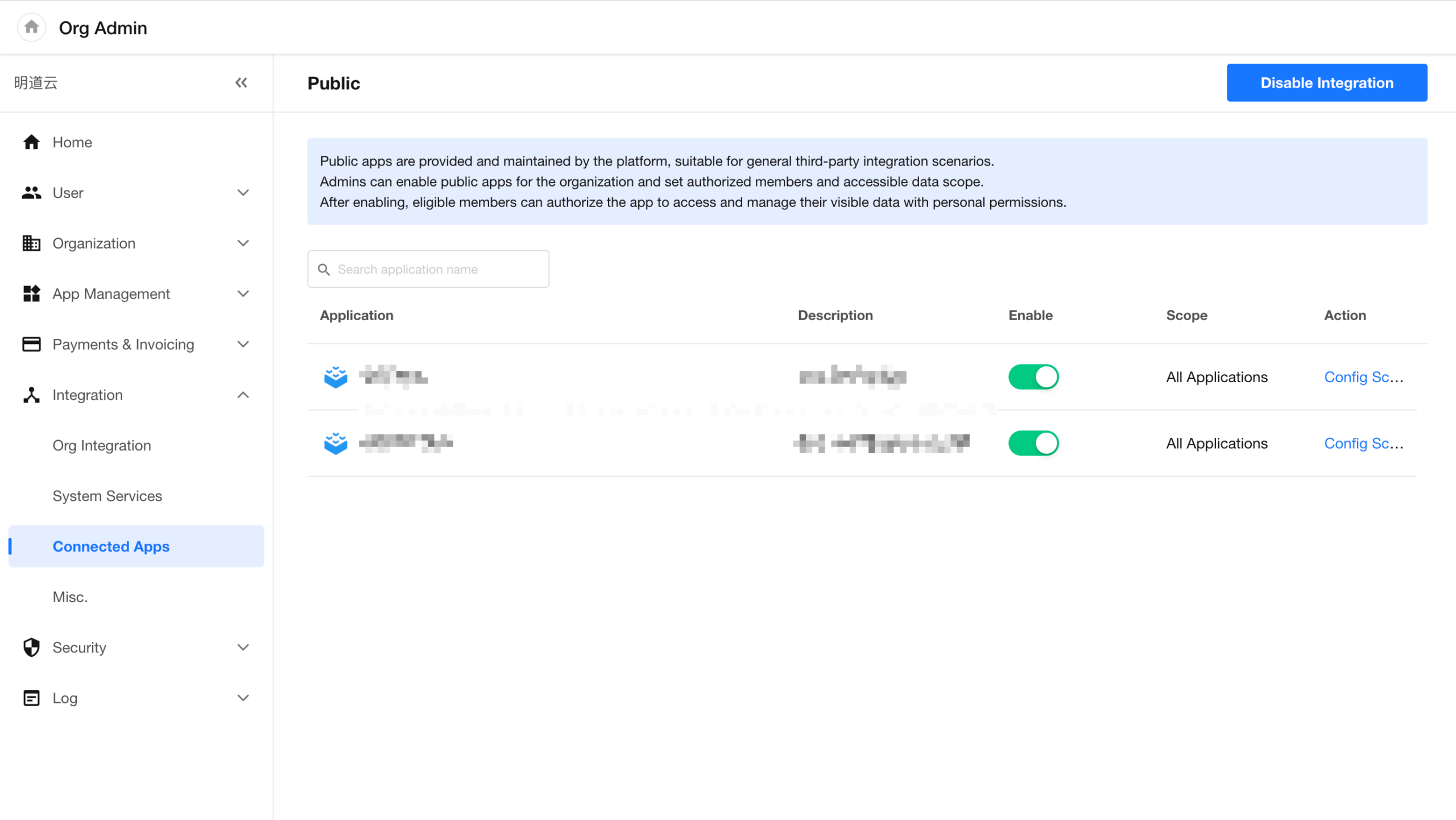
Organization Administrator: Manage Data Access Scope
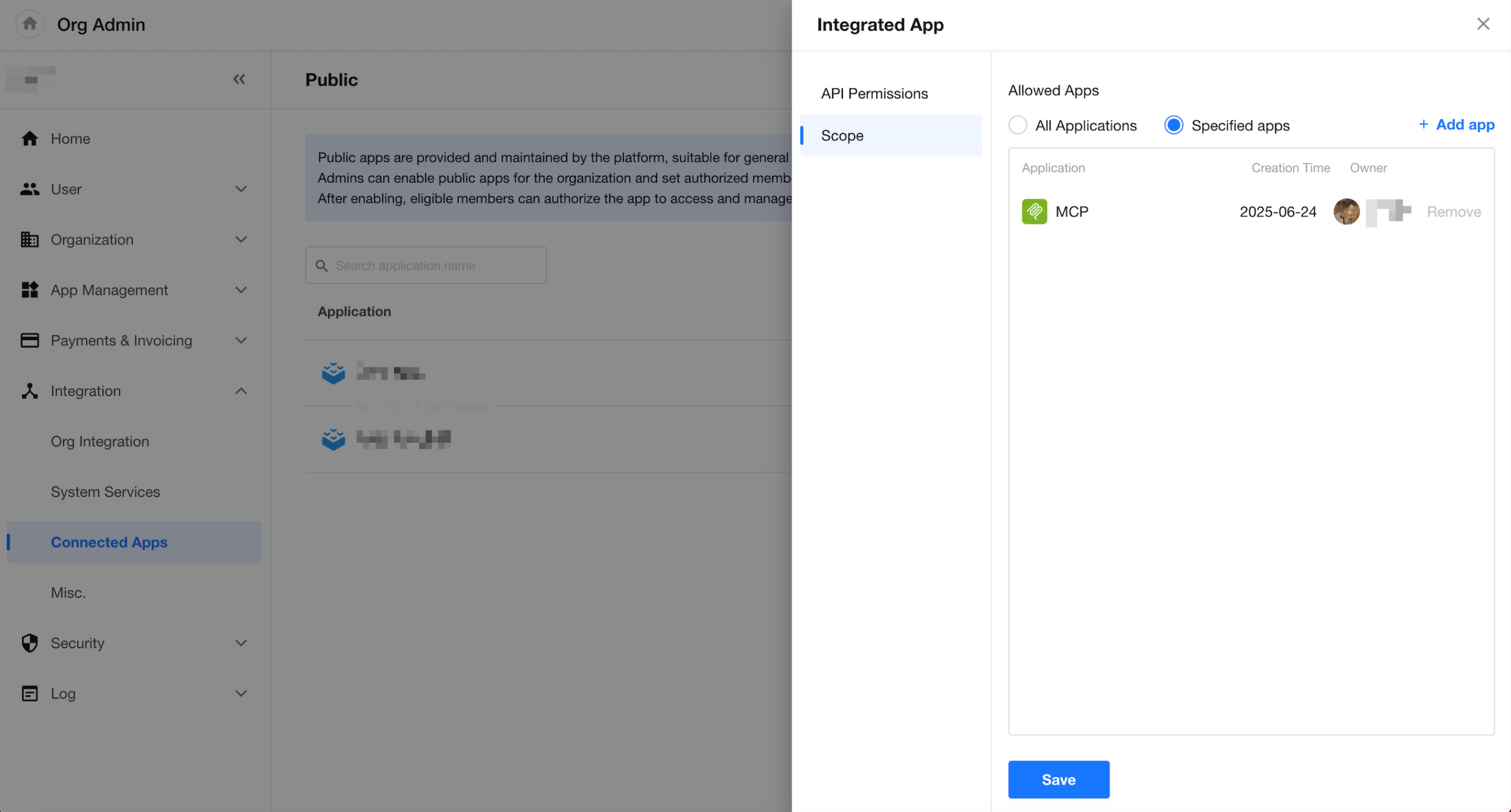
- In Organization Admin Console > Integration > Connected Apps, configure whether integrations are enabled
- View available third-party applications and define their data access scope
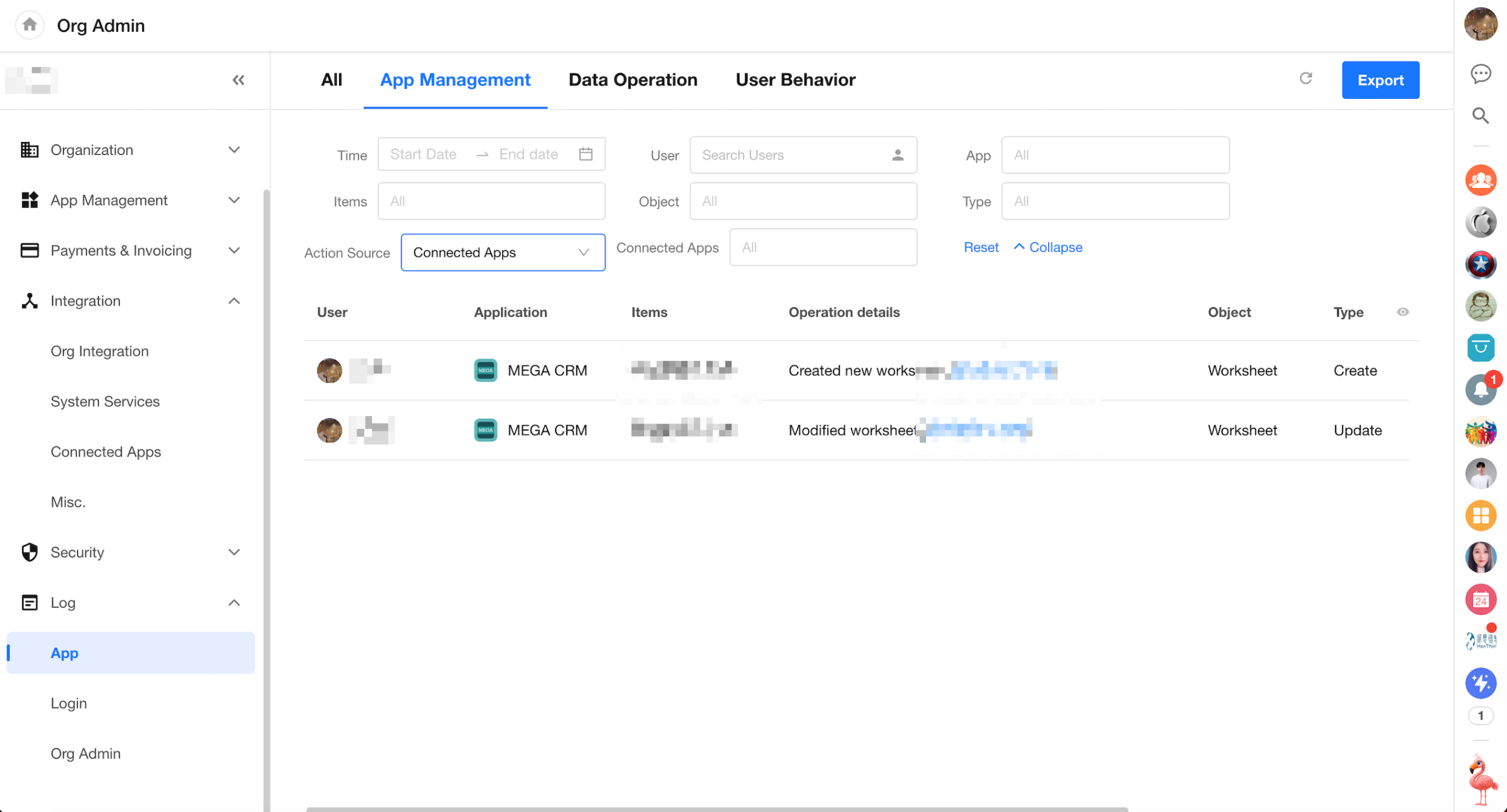
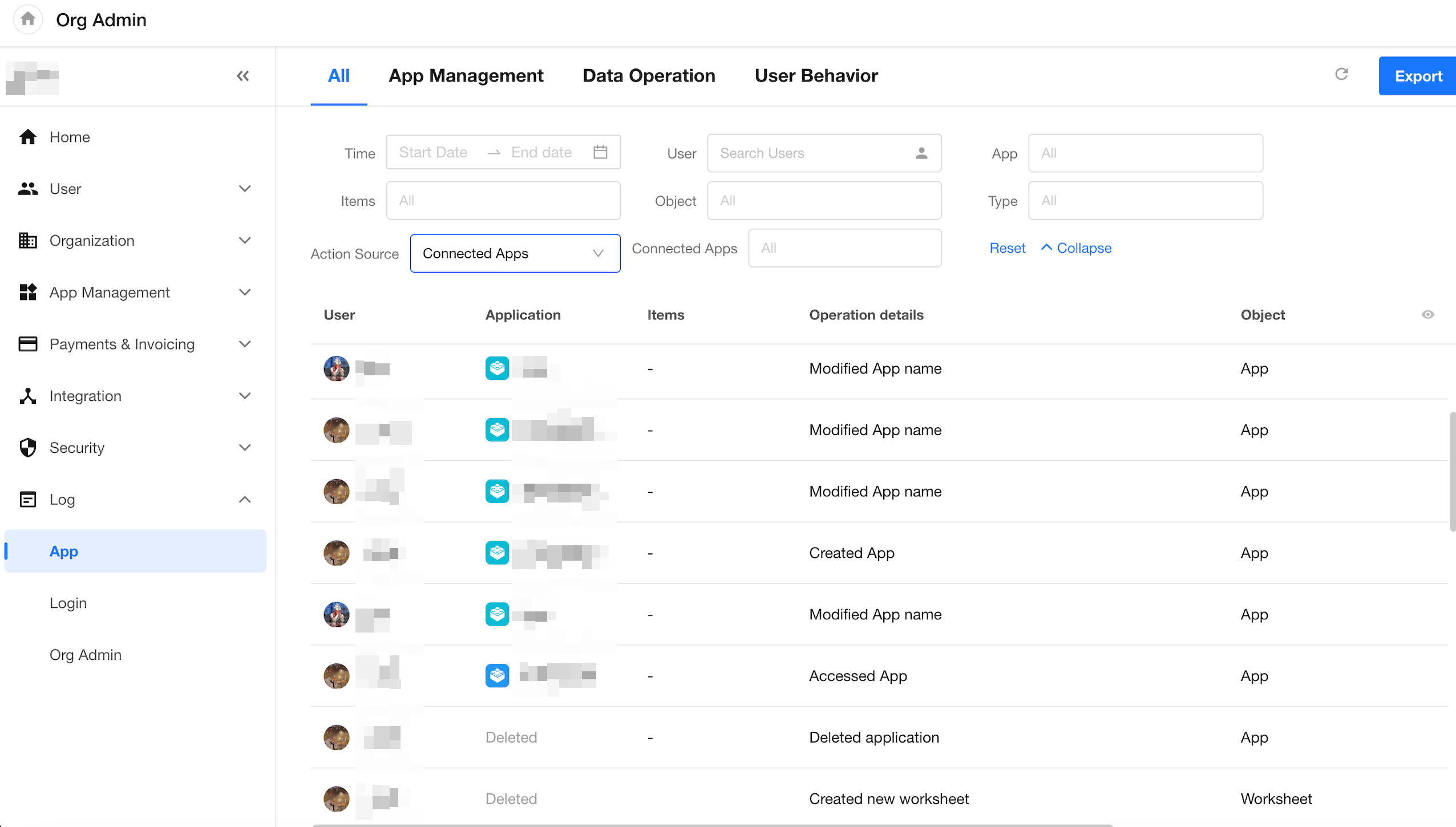
- Organization administrators can review logs to track actions performed by third-party applications on organizational data
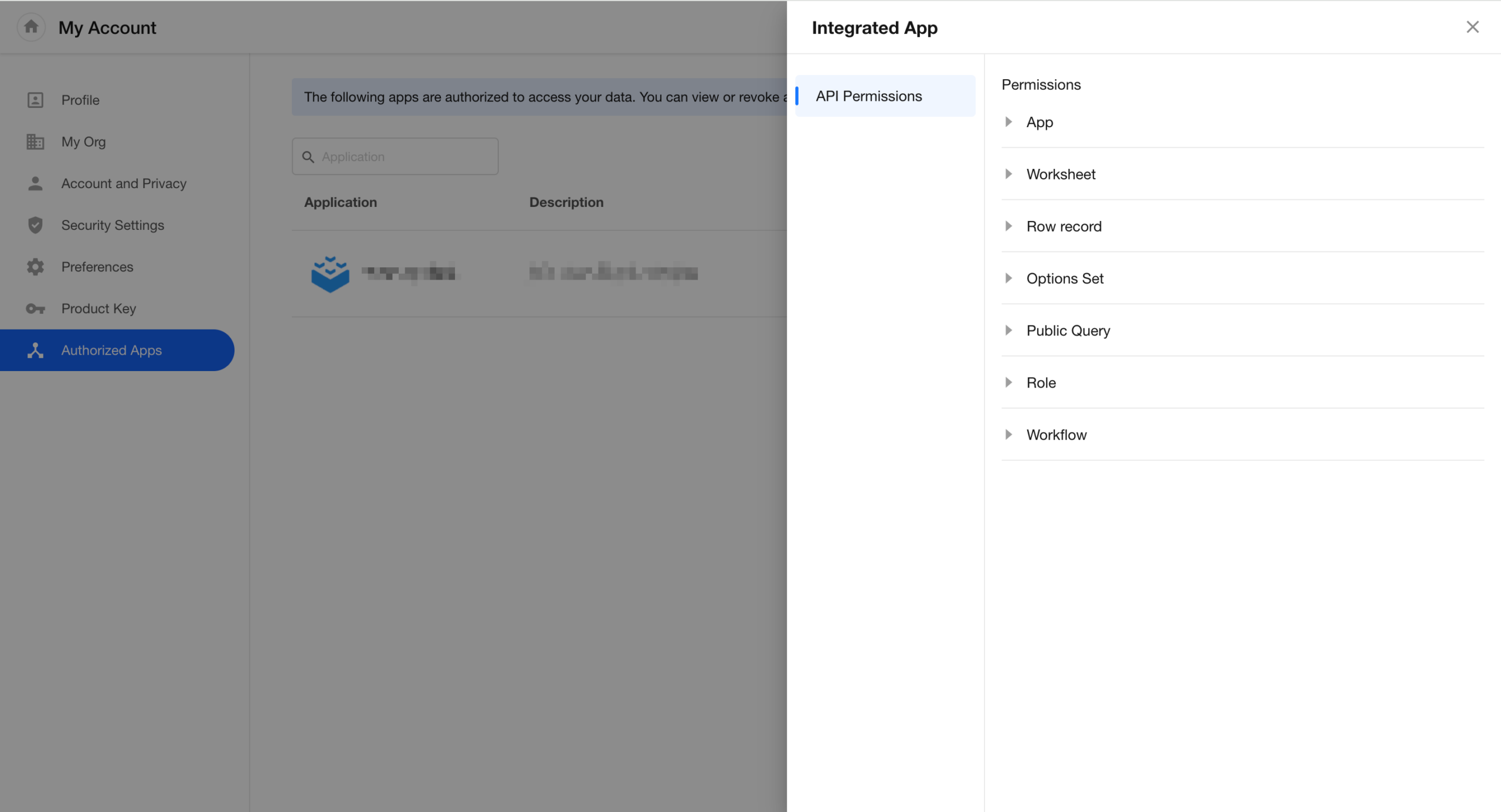
User: View Authorization Status
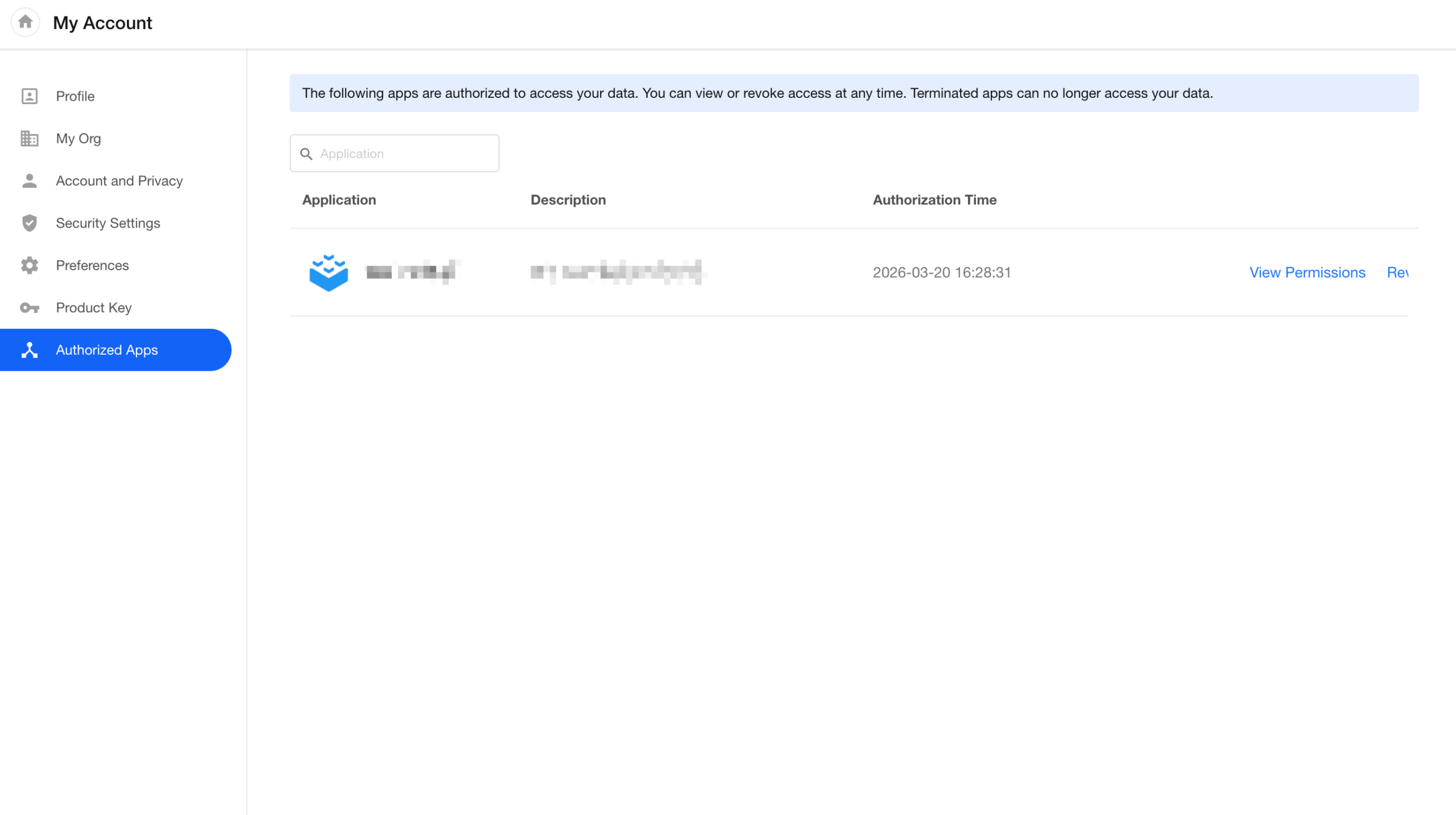
- Under personal account settings, users can view authorized applications
- Users can review application permissions and revoke authorization at any time. Once revoked, the application can no longer access the user’s data
View Usage Logs
- Logs provide visibility into actions performed via authorized third-party applications on behalf of users
Worksheet and Field
Batch Attachment Import
Batch attachment import is now supported. Attachments can be uploaded in bulk and automatically matched to update existing records or create new ones.
Entry Point
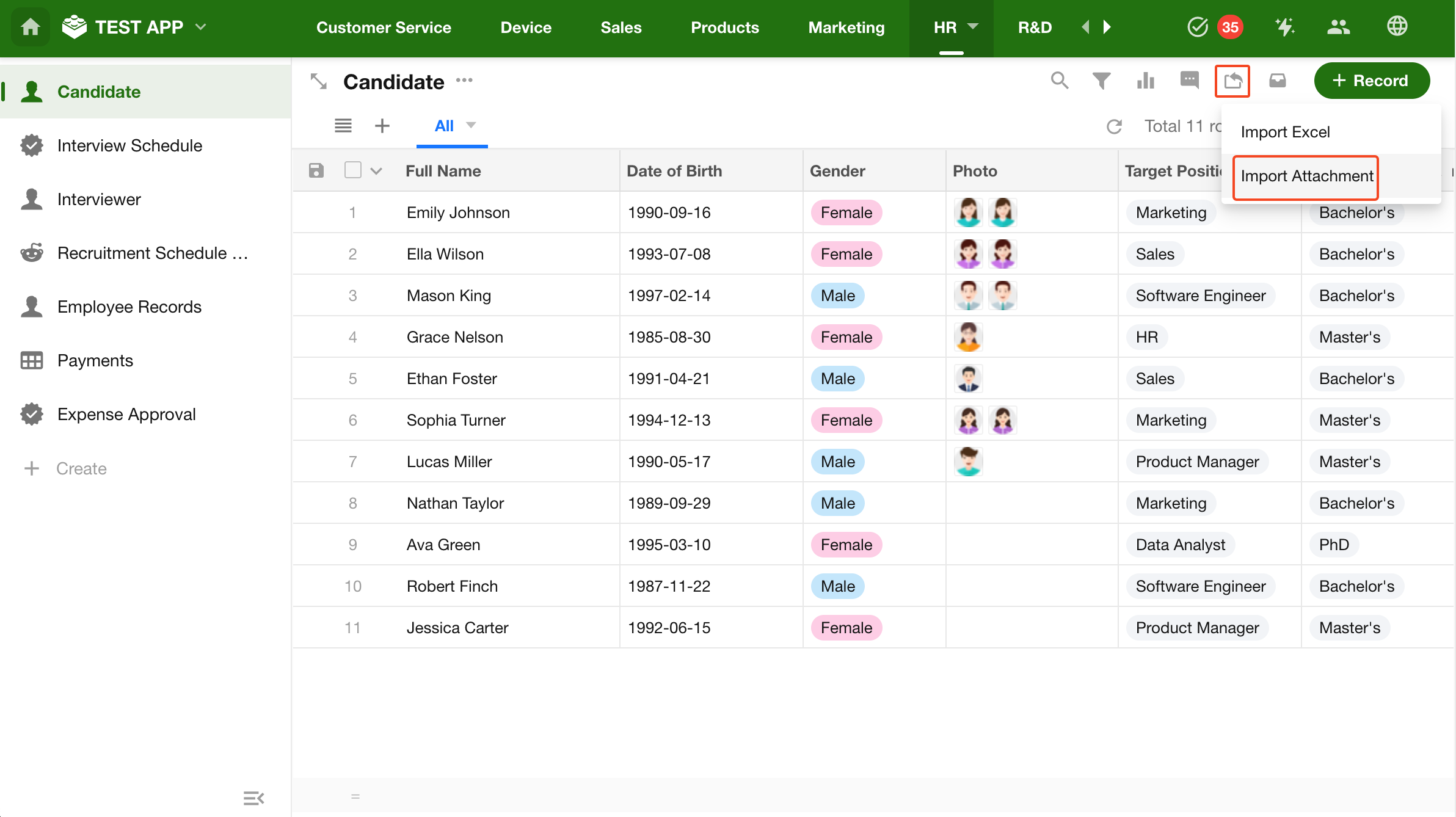
Note:
- Only users with import permissions can perform this operation
- This feature is unavailable if the current worksheet does not contain a file control
Configure Import Rules
In import settings, configure file matching and import rules.
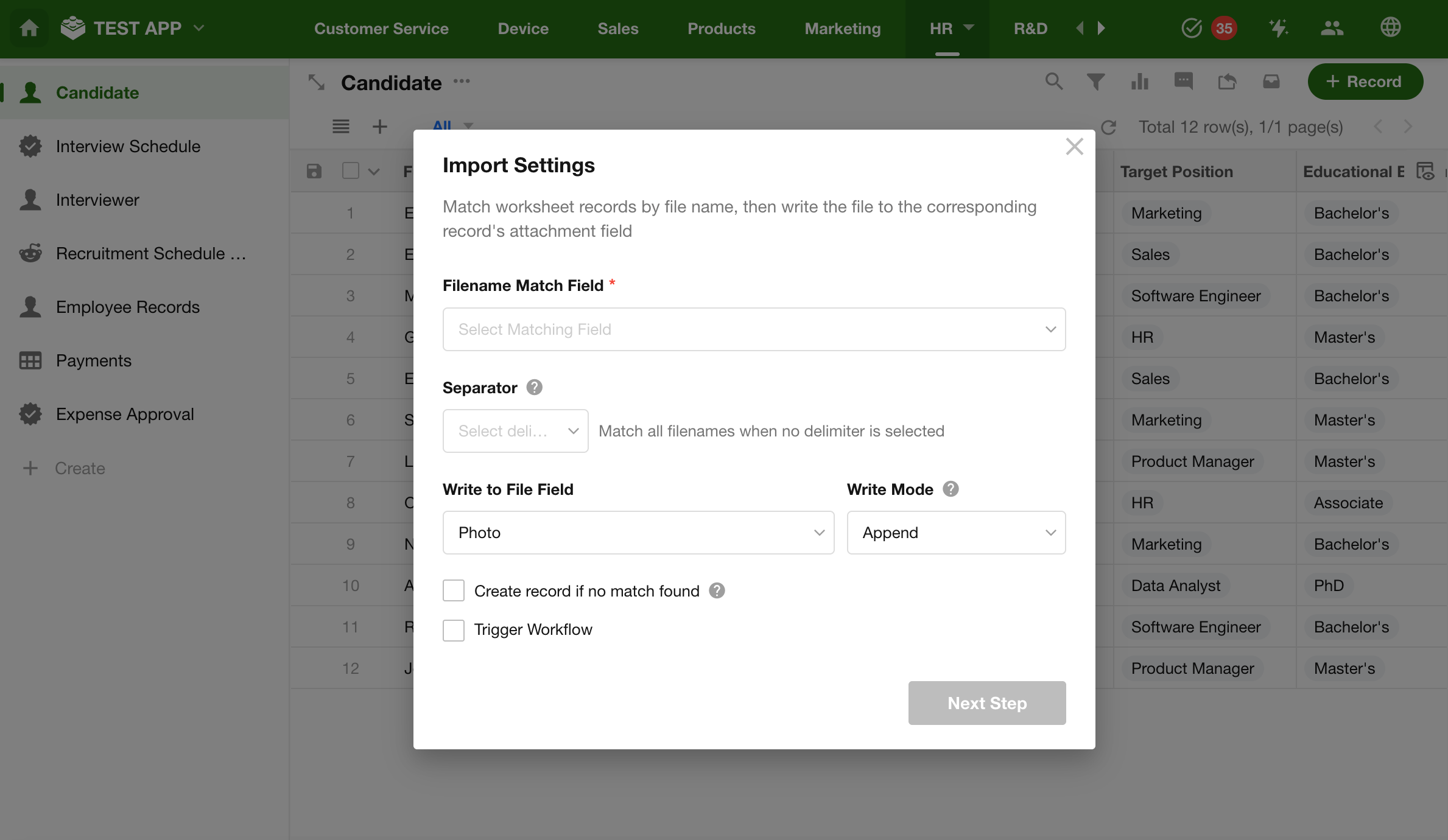
- Filename Matching Field
Select a field to match against filenames. When a match is found, attachments are imported into the corresponding record.
- Supported field types: text, email, telephone, ID number, auto number, foreign field (text / email / telephone / ID number / auto number)
- System fields are not supported
- Seperator
Used to extract a prefix from the filename for matching. The system uses the content before the first seperator as the matching value. If no seperator is set, the full filename is used. If the extracted value is empty, the match fails.
Example:
For filename ABC-001.pdf with seperator -, the matching value is ABC
- Supported seperators: _, -, ., +
- Write to File Field
Attachments are written to the selected field after a successful import.
- Write Mode
- Append (default): Keeps existing attachments and appends newly imported files
- Overwrite: Removes existing attachments and keeps only the newly imported files (this action cannot be undone)
- Create New Records for Unmatched Files
When Create new records for unmatched files is enabled, attachments that do not match any existing record are written to newly created records.
-
- Attachment Grouping Rules
Attachments are grouped into records based on the filename or its prefix:
-
-
- No seperator: Grouped by full filename. For example, A100.jpg and A100.pdf are imported into the same record
- With seperator: Grouped by filename prefix (before the first seperator). For example, with _ as seperator, A100_contract.pdf and A100_quote.jpg are grouped into the same record
- Empty prefix: If the filename prefix is empty (e.g., _contract.pdf), these files are grouped into the same record
- Naming Rules for New Records
-
When creating a new record, the system writes the filename or its prefix into the Filename Matching Field.
Example: For file A100_contract.pdf (seperator: _), A100 is written into the matching field.
The value is not written in the following cases:
-
-
- The matching field is a foreign field or auto number field
- The filename does not meet field validation rules
- Record Creation Failure
-
If other required fields with validation rules exist in the worksheet, record creation may fail.
Upload Attachments
After completing import configuration, proceed to the upload page.
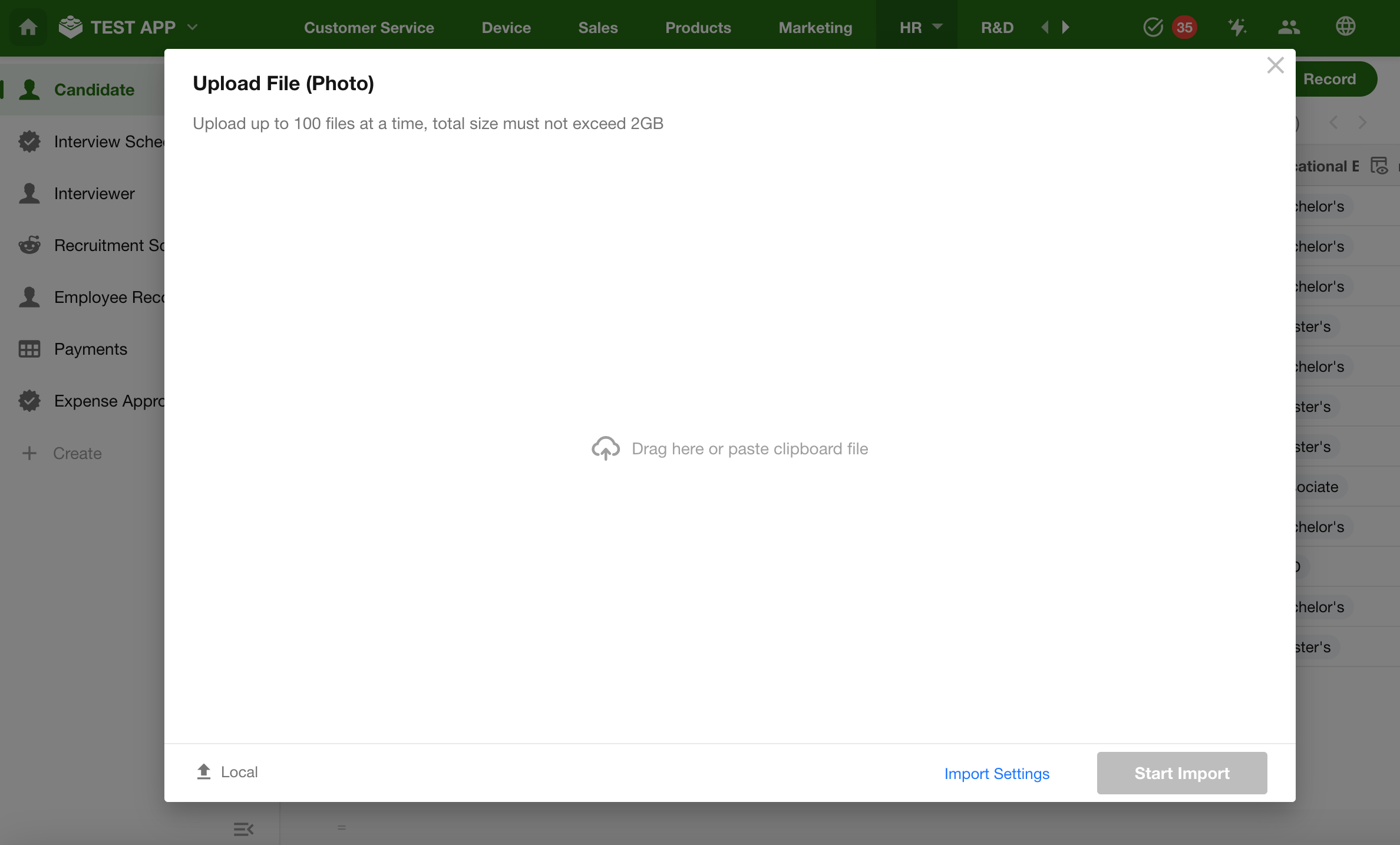
Upload Limits
- Up to 100 files per upload
- Total file size must not exceed 2 GB
- The first limit reached applies
Attachment Validation
Files that do not meet the requirements cannot be uploaded, for example:
- Unsupported file types
- Single file size exceeds the limit
- Filename does not meet validation rules
Return to Import Settings
Click Import Settings in the bottom-right corner to return and adjust the configuration.
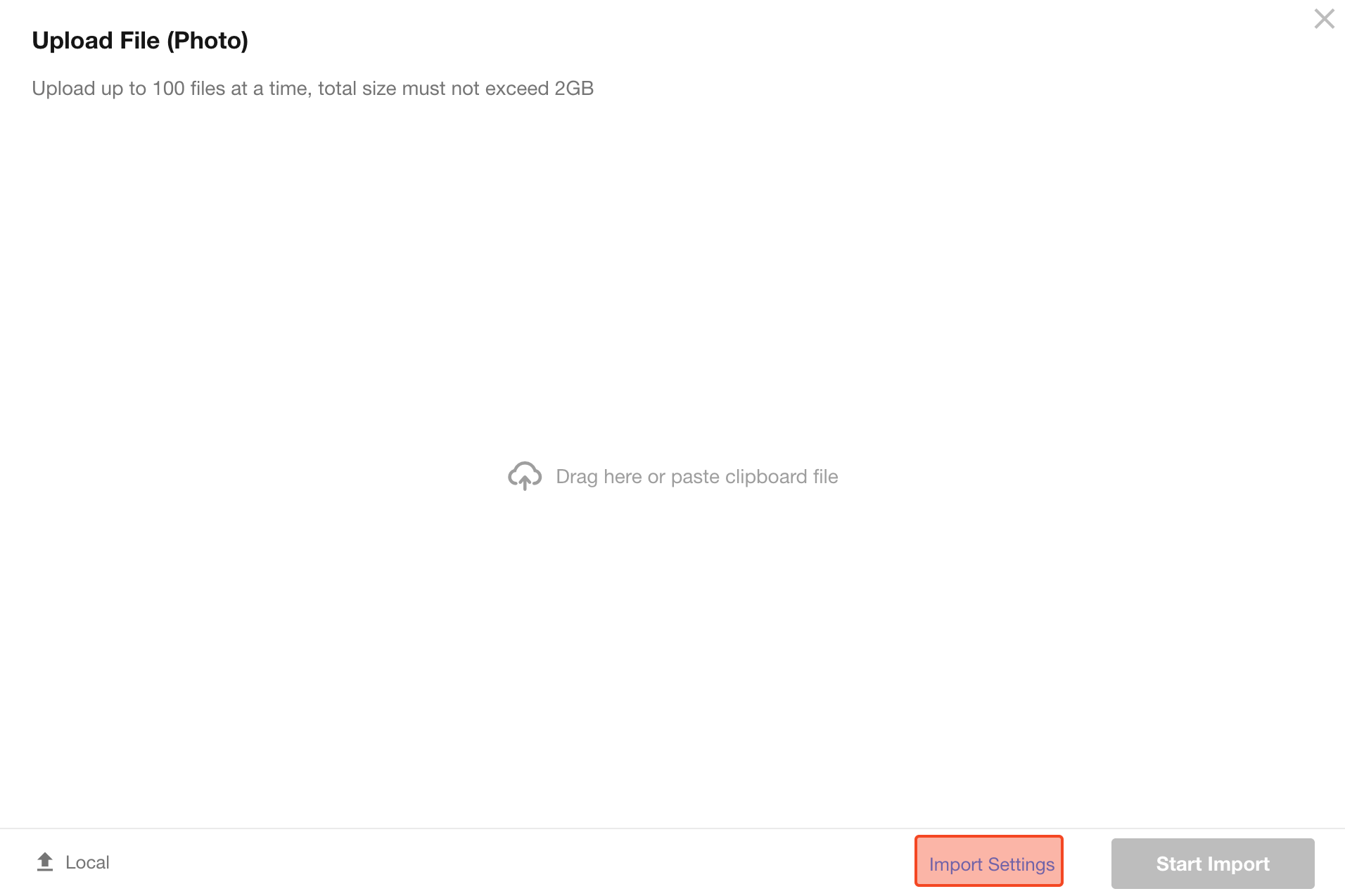
If files have already been uploaded successfully, the Write to File Field setting will be disabled to prevent validation conflicts caused by field changes.
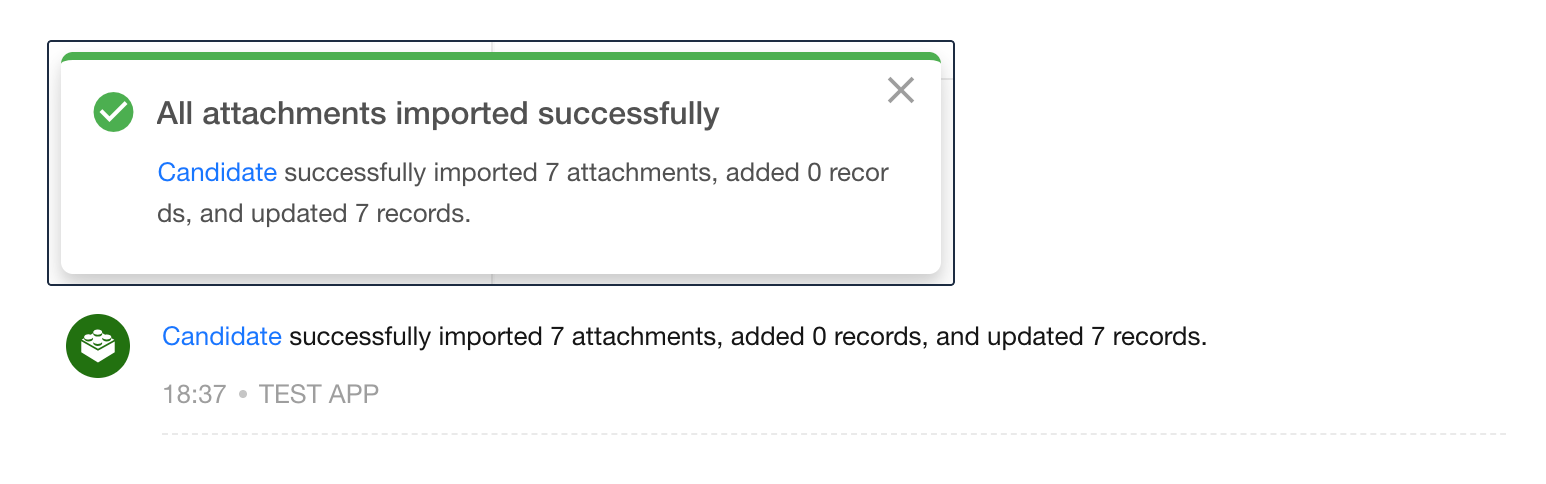
Import
After the import is completed, the system notifies the user of the results.
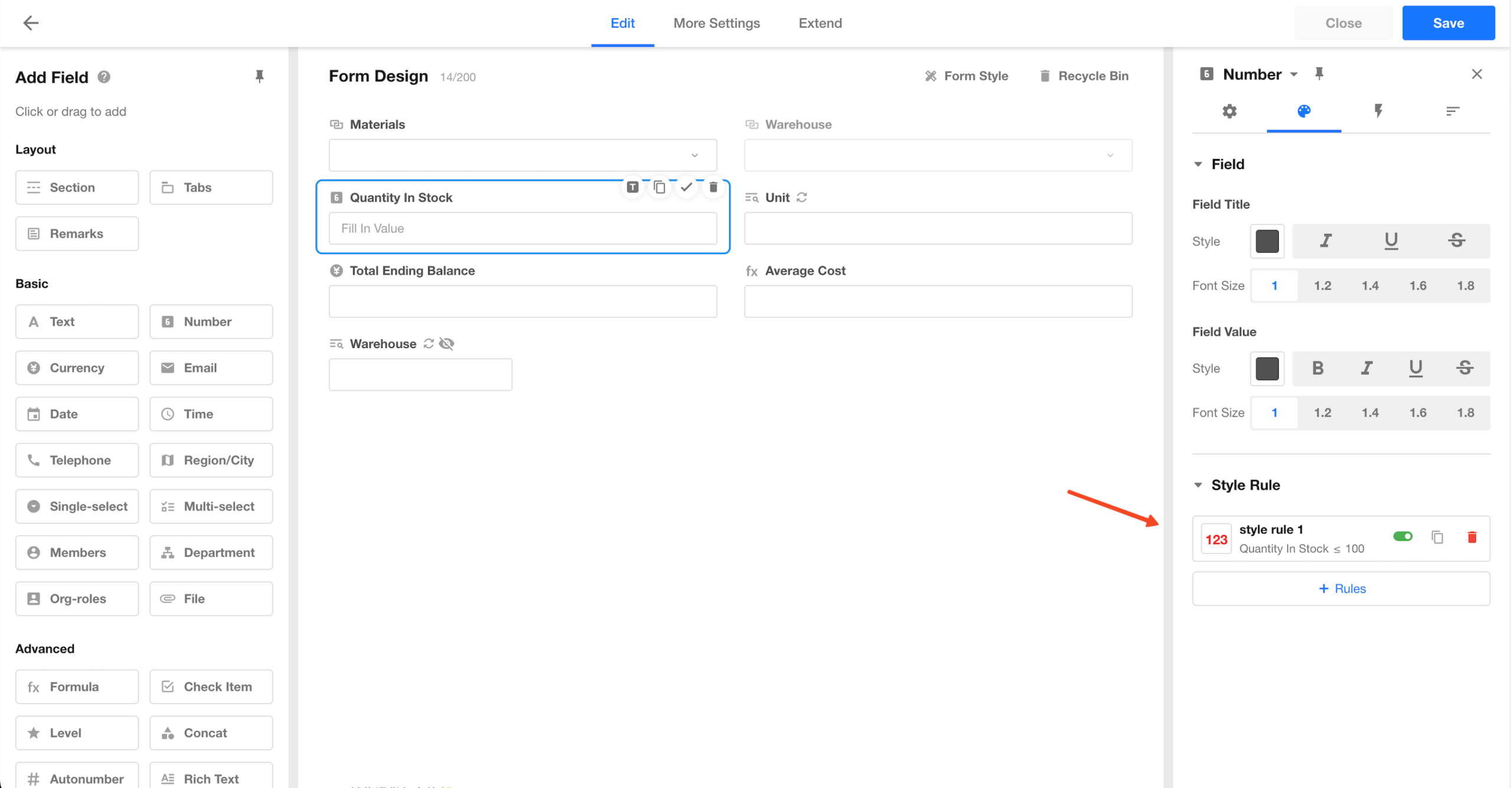
Style Rules Added to Business Rules
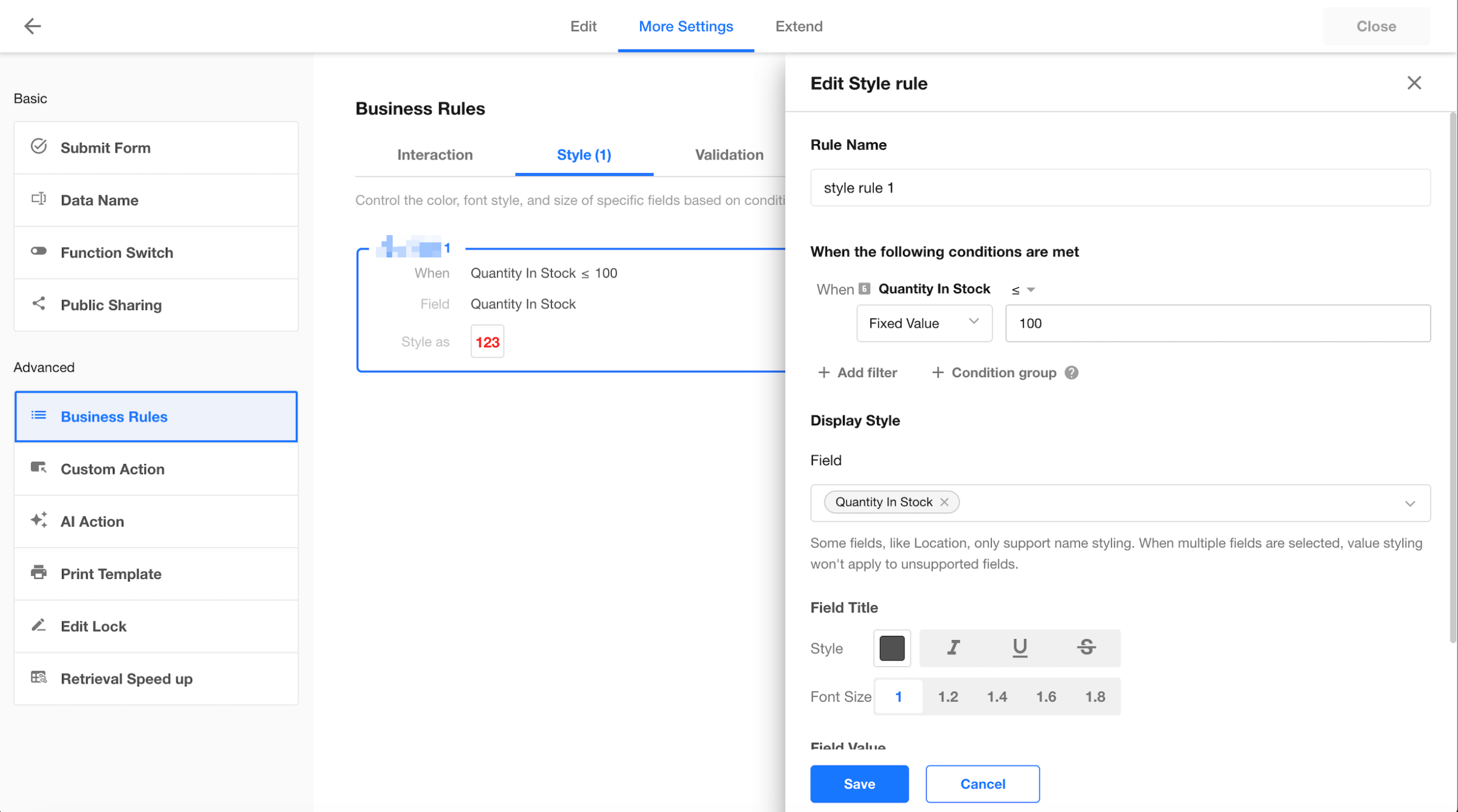
This update introduces a new style rule type in business rules. Users can dynamically configure field display styles based on field values, allowing data states to be visually highlighted through colors and text styles.
This capability is suitable for scenarios such as inventory alerts, risk indicators, and status highlighting, helping users quickly identify key data and improve analysis and decision-making.
Supported Styles:
- Field label: color, text styles (bold / italic / underline / strikethrough), font size
- Field value: color, text styles, font size
Applicability Rules:
- Some fields only support styling for field labels (e.g., positioning fields)
- When multiple fields are selected, only styles supported by all selected fields apply
- For fields that do not support value styling, value styles are not applied
- Where styles apply: worksheet, table view
Style Rule Management:
- Style rules can be created, edited, deleted, and viewed on the business rules page
- Style rules can also be managed (create, edit, delete, view) in field style settings within the form editor
Additional Field Style Support:
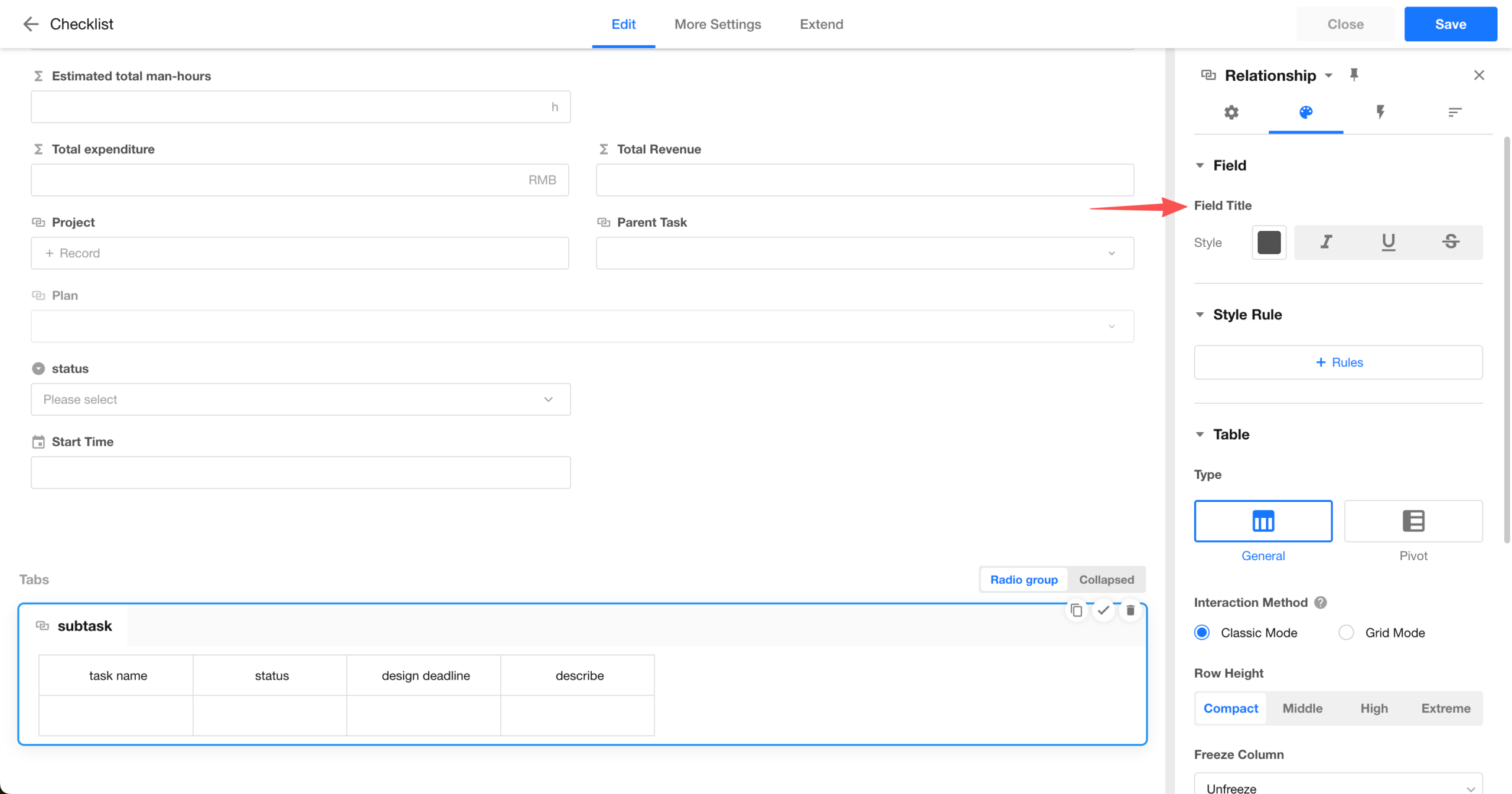
- Relationship field (table), Query records field (table): support color, text styles, and font size for field labels
- Tabs field, Relationship field (tab table), Query records field (tab table): support color and text styles for field labels
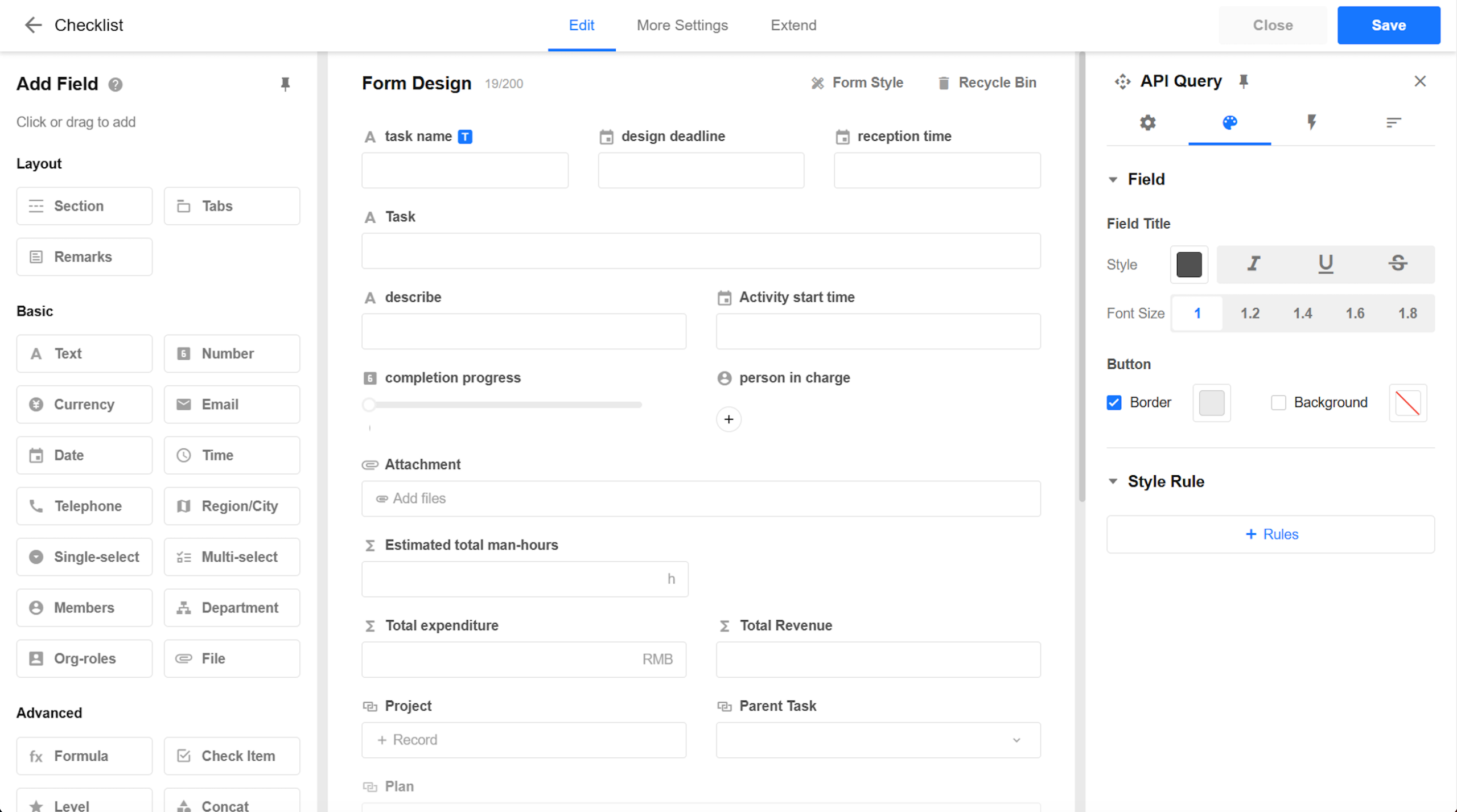
- API query field: supports button background and border color customization
 |
 |
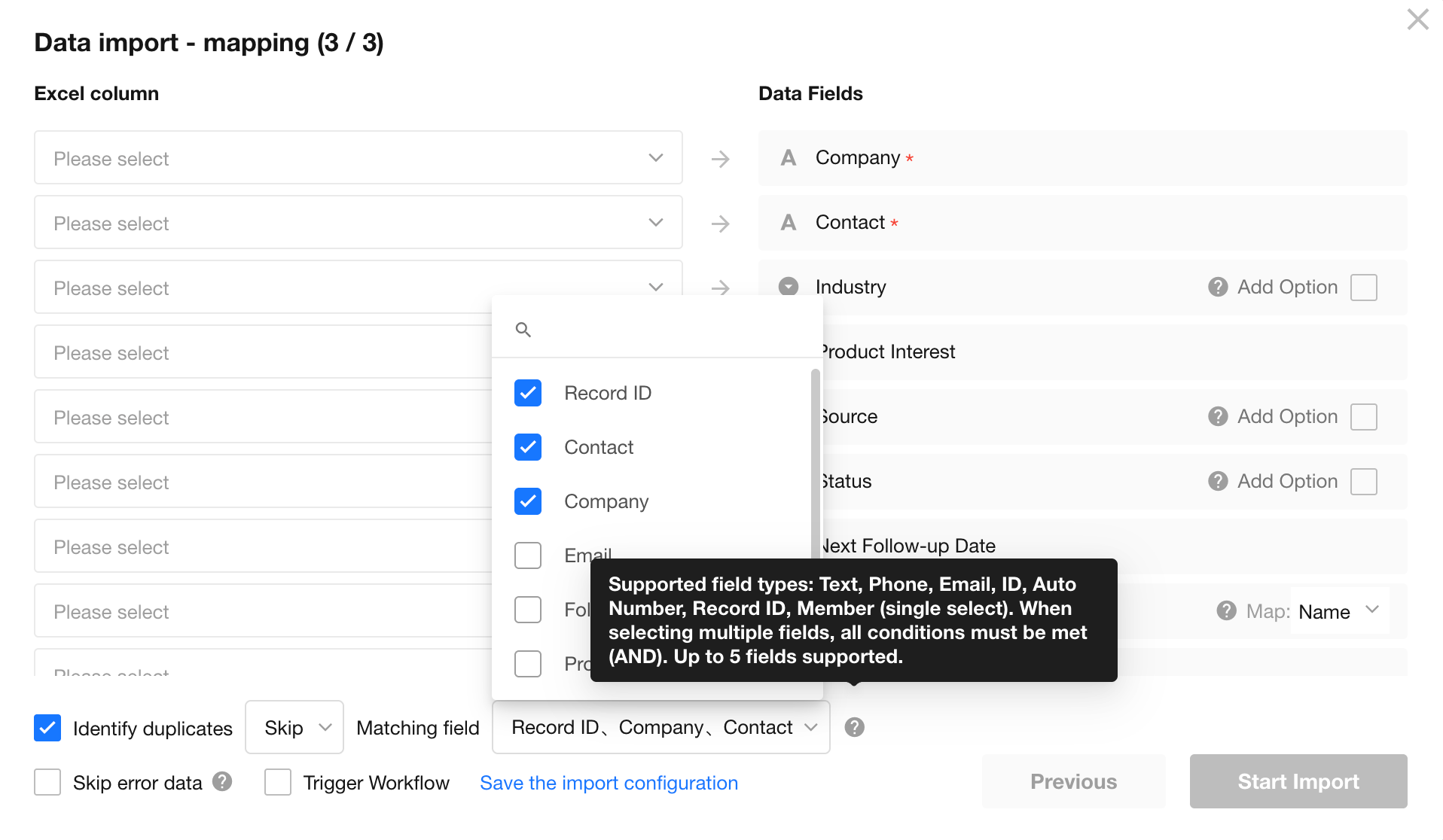
Import Excel: Support Multiple Matching Fields for Duplicate Detection
When importing Excel files, multiple fields can be configured as matching criteria for duplicate detection.
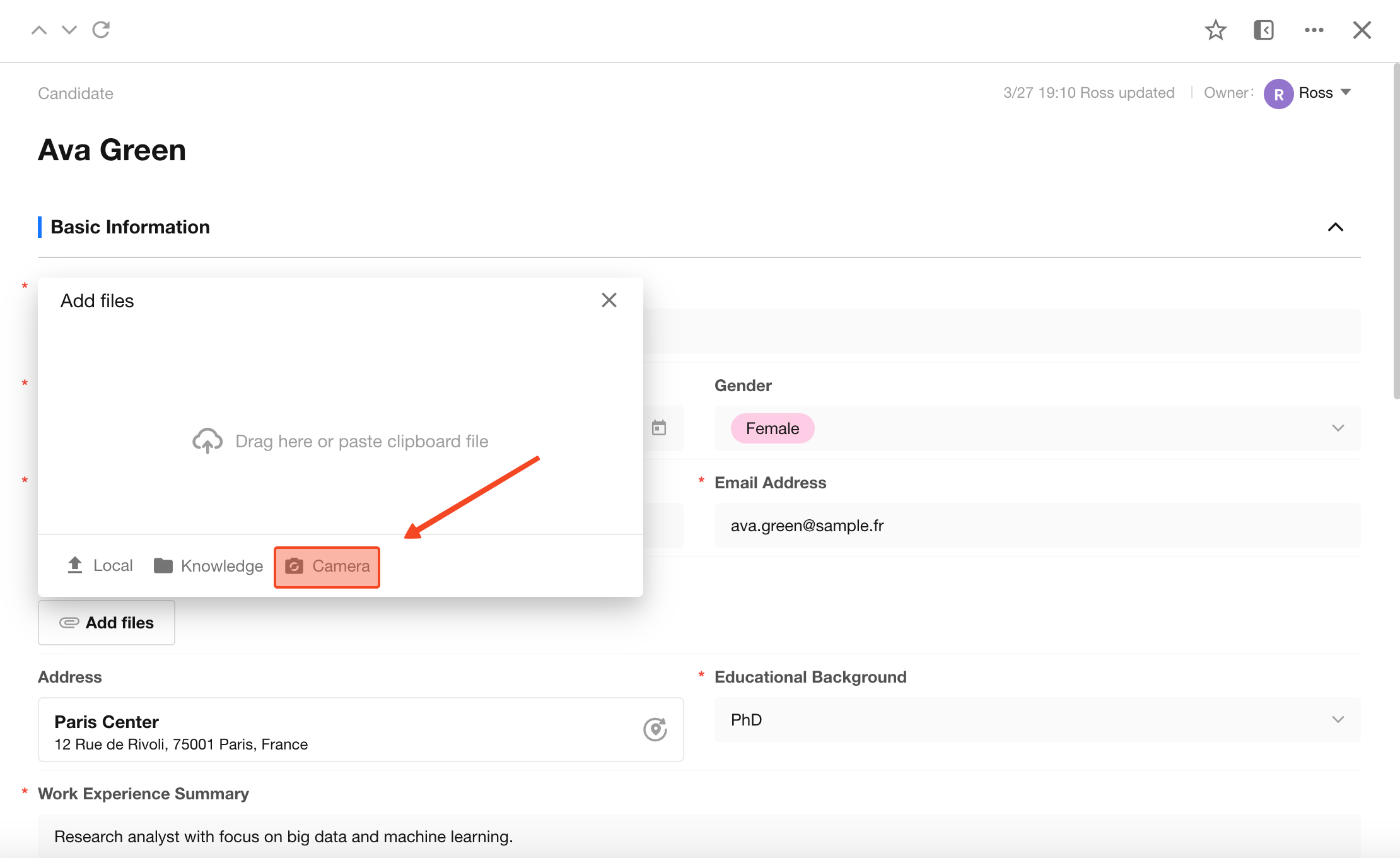
File Field: Capture and Upload via PC Camera
This update adds the ability to capture and upload images using a PC camera in the file control. Once enabled, users can take photos directly from their computer camera and upload them as attachments.
A new setting, “Take Photo on PC”, is available in field settings. It is disabled by default and must be manually enabled.
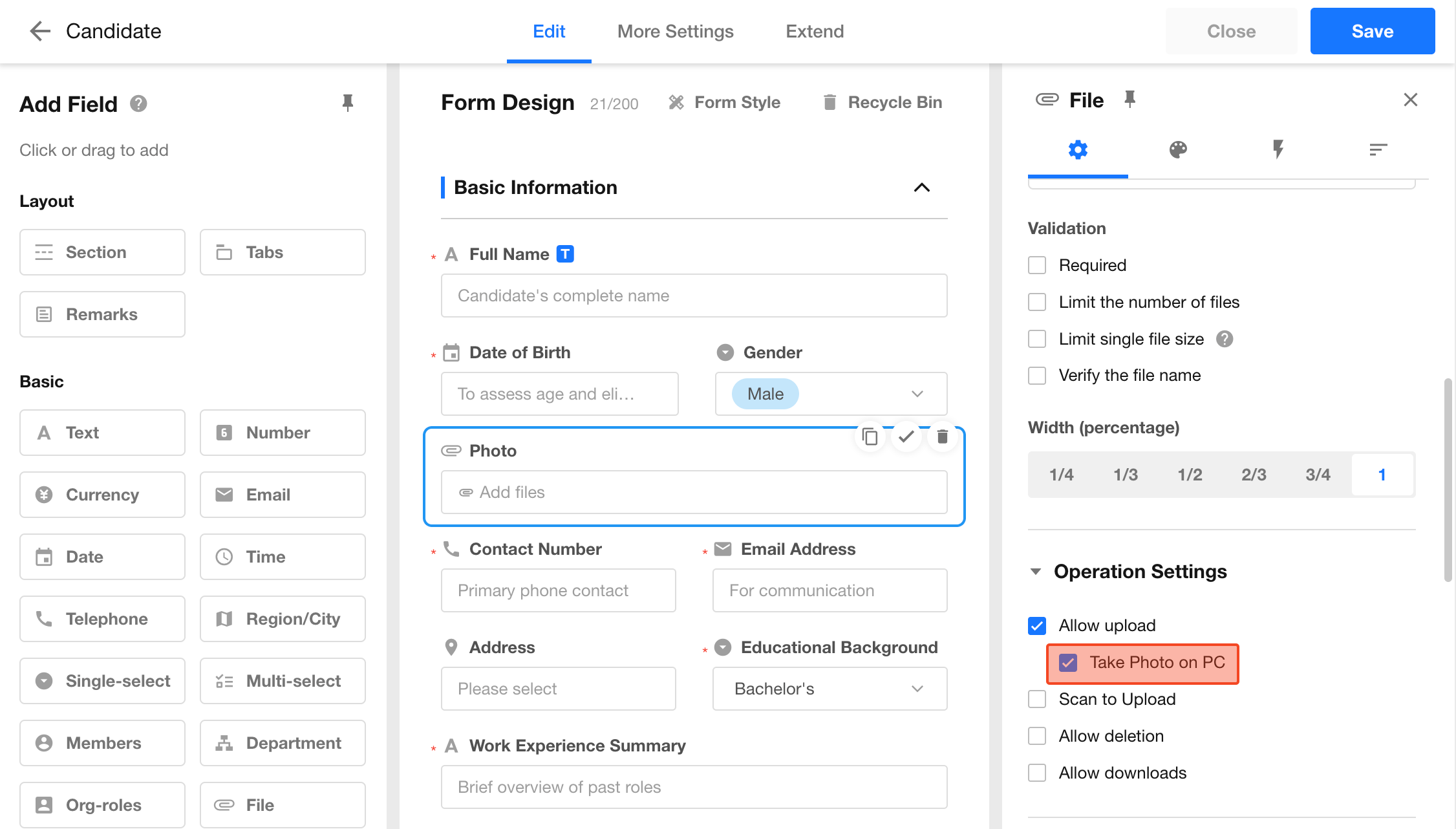
Camera Permission:
- When capturing, the browser requests camera access. After authorization, users can capture and upload images
Limits:
- Up to 10 photos can be captured and uploaded per session
Subform Field: Configurable Aggregation in Summary Row
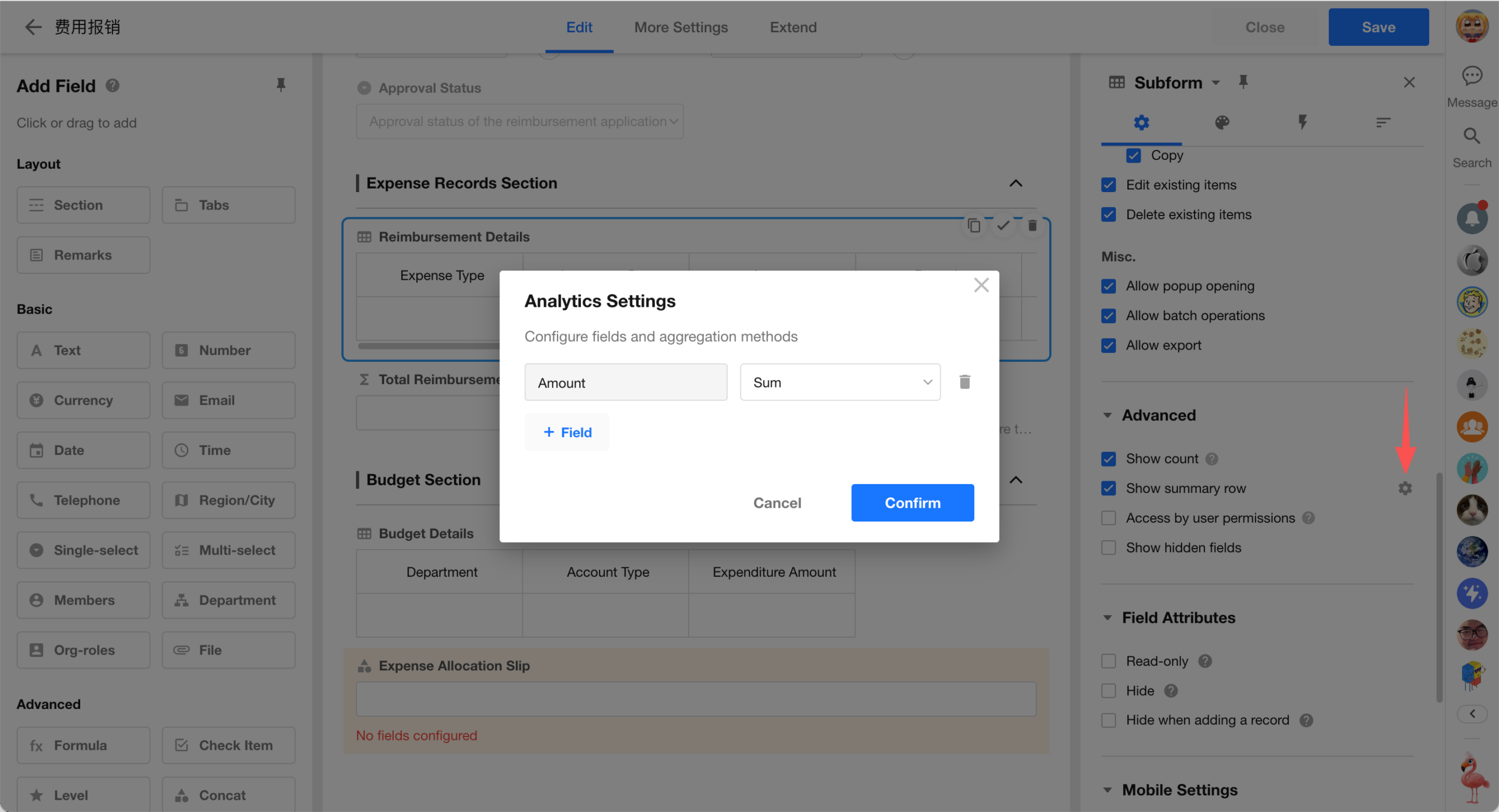
This update introduces configurable aggregation in the summary row of subform fields. Administrators can define which fields to aggregate and the aggregation methods, and save the configuration for consistent use.
Users still retain flexibility during use. Aggregation methods can be temporarily selected or adjusted without affecting the saved configuration.
Without Preset Aggregation Fields:
- For fields without predefined aggregation methods, users can select aggregation methods at the bottom of the subform
- Temporary selections are not saved
With Preset Aggregation Fields:
- For fields with predefined aggregation methods, users can still adjust aggregation methods during use
- Changes apply only to the current session and do not overwrite the original configuration
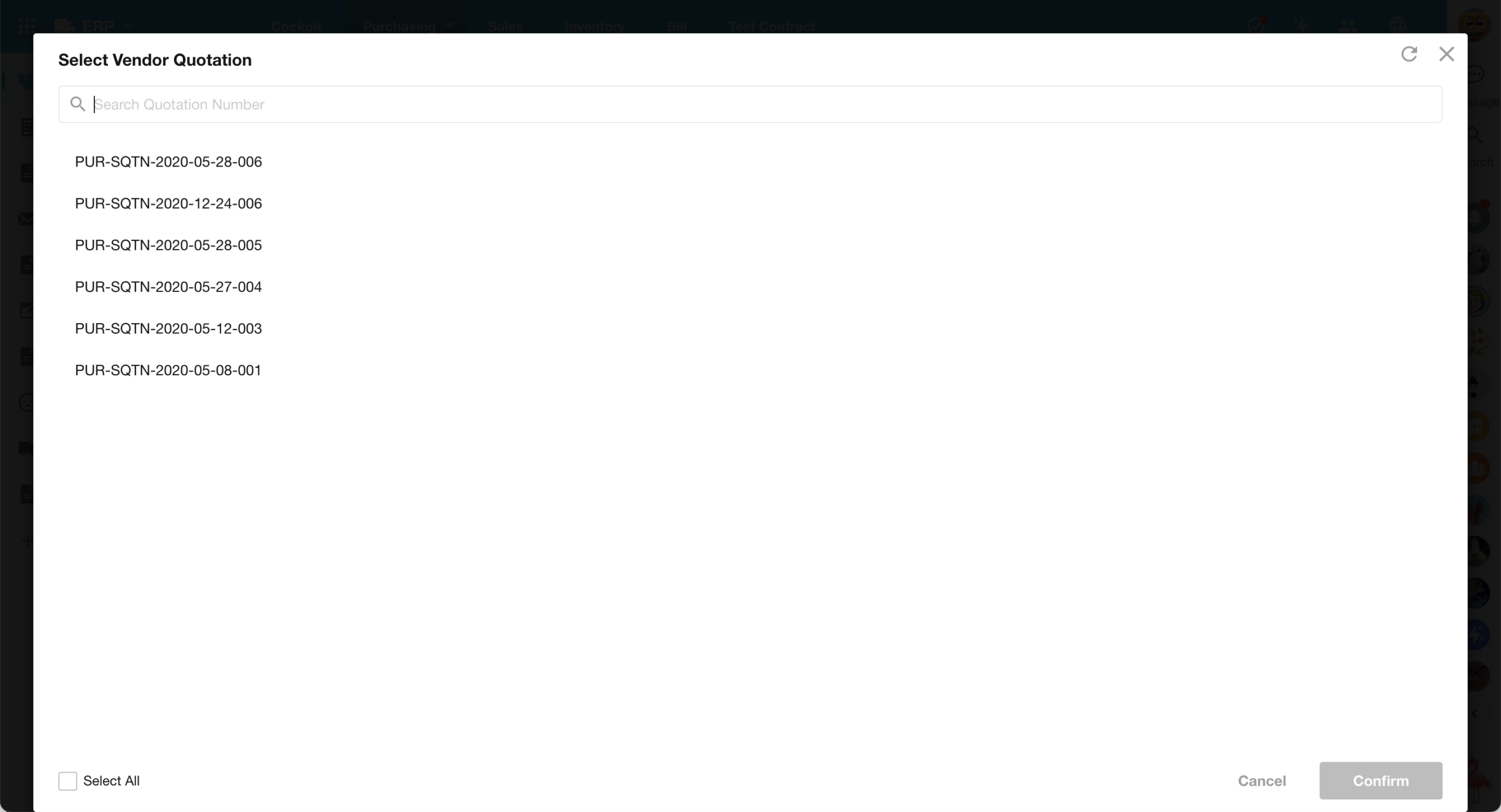
Related Records Picker: List Display Option Added
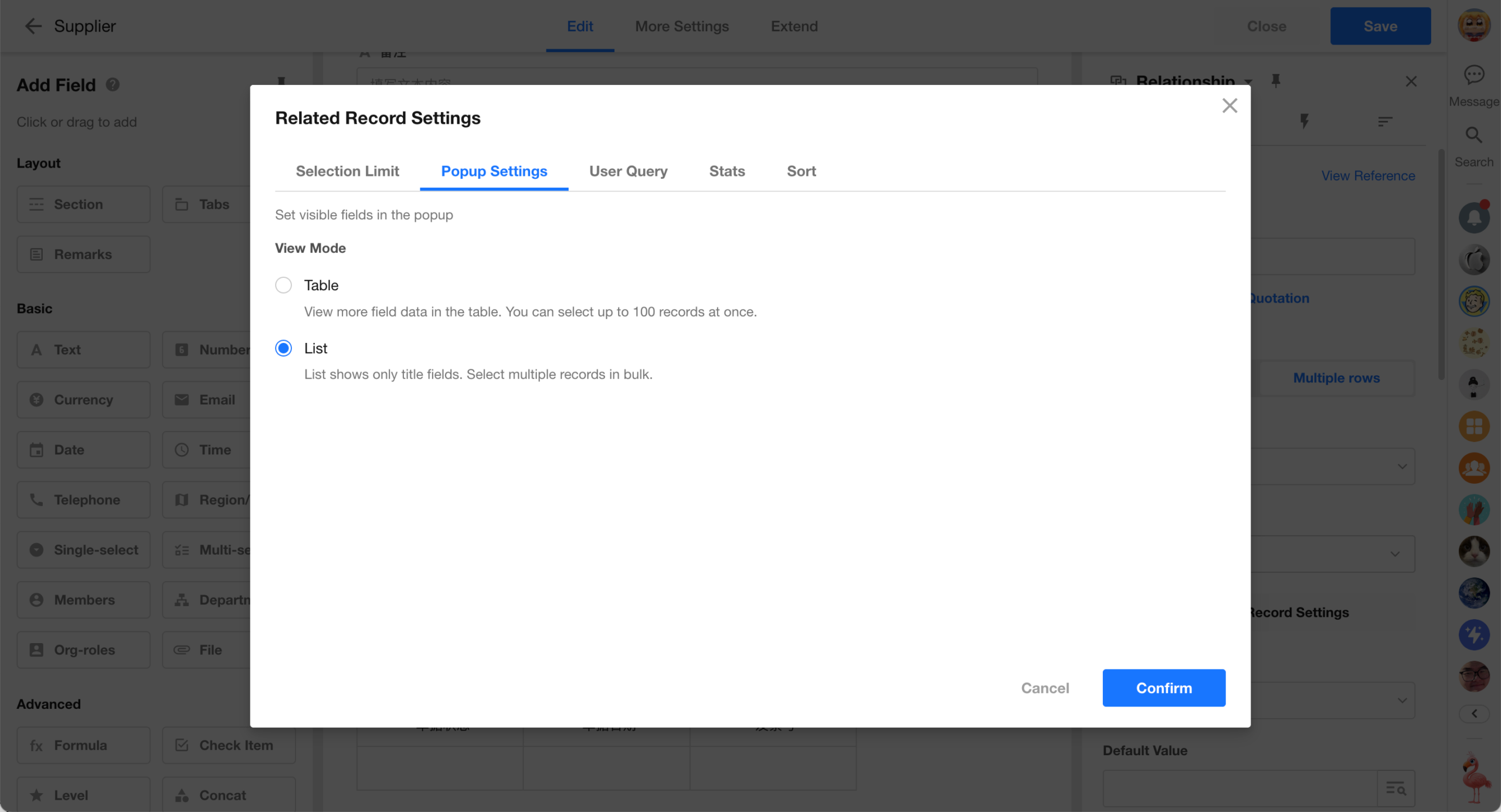
This update introduces a list view option in the related records picker settings. Compared to the existing table view with pagination, list view loads more records at once and supports continuous loading through scrolling, reducing repeated search and filtering caused by page-based selection.
- Relationship field (card / table)
- Display mode:
- Table (default)
- List
- Displayed content: In list view, only record titles are shown; other fields are hidden
- Loading behavior: Loads up to 1,000 records initially, with additional records loaded on scroll
Workflow
New Knowledge Retrieval Node
This update introduces a Knowledge Retrieval node in workflows and adds a knowledge base retrieval tool to the AI Agent node, enabling workflows to retrieve and use knowledge base content more effectively.
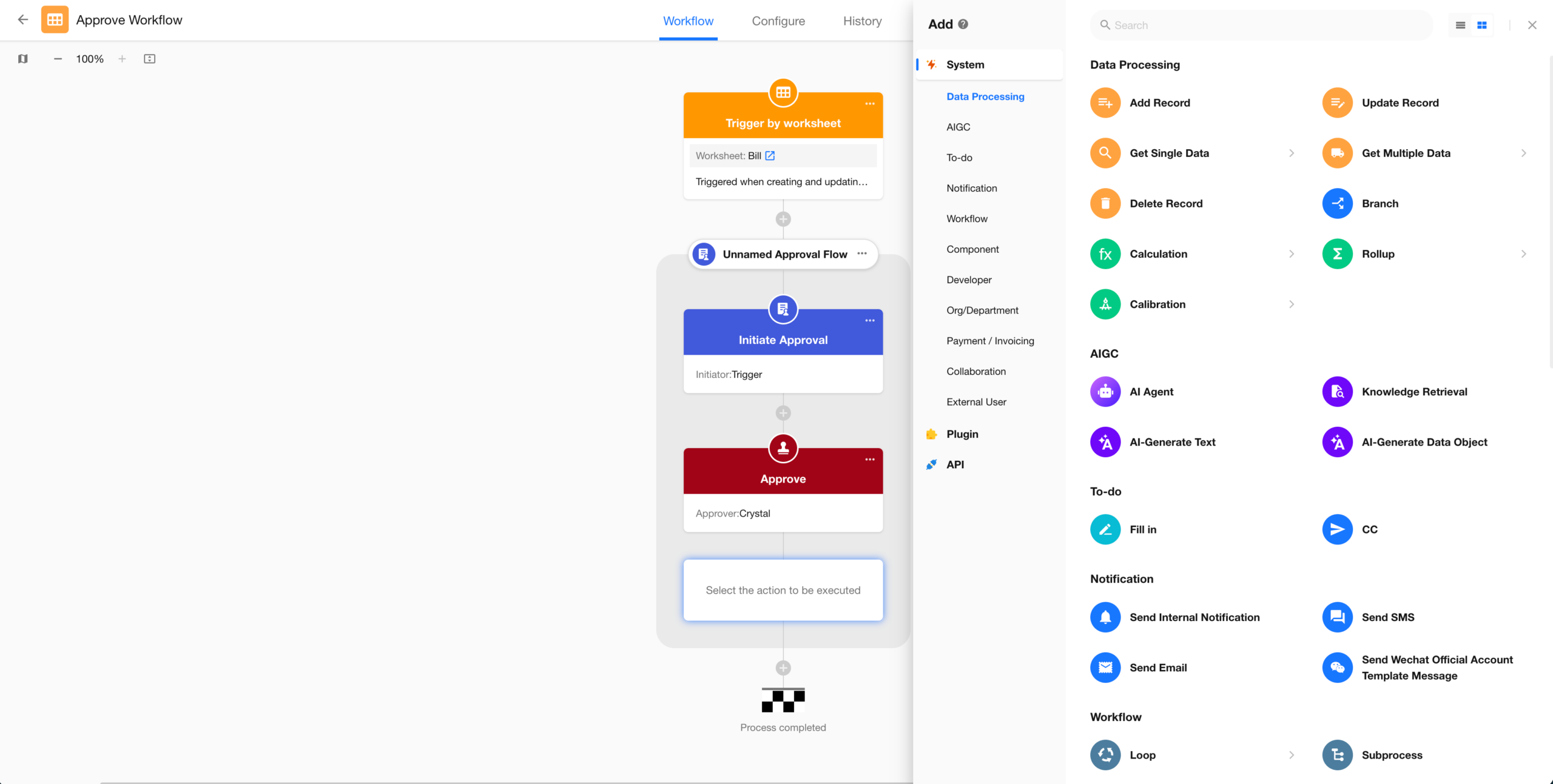
More Nodes Available in Approval Workflows
Approval workflows now support more node types. In addition to approval nodes, users can configure nodes for data processing, notifications, AI capabilities, and API integrations, enabling more flexible workflow automation.
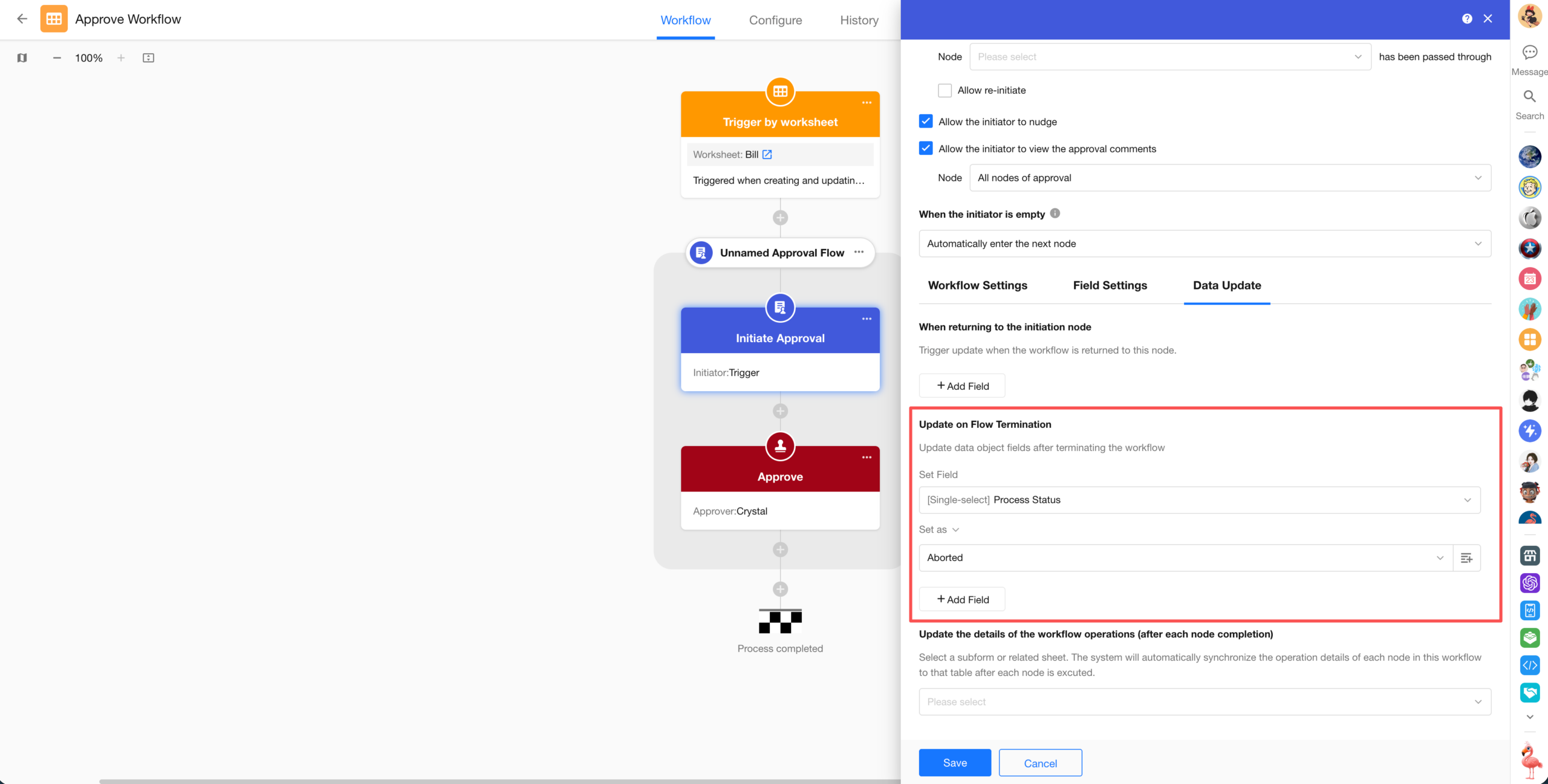
Data Updates After Workflow Termination
After a workflow is terminated, specified fields can be automatically updated to capture the termination status or keep related data in sync.
API Integration
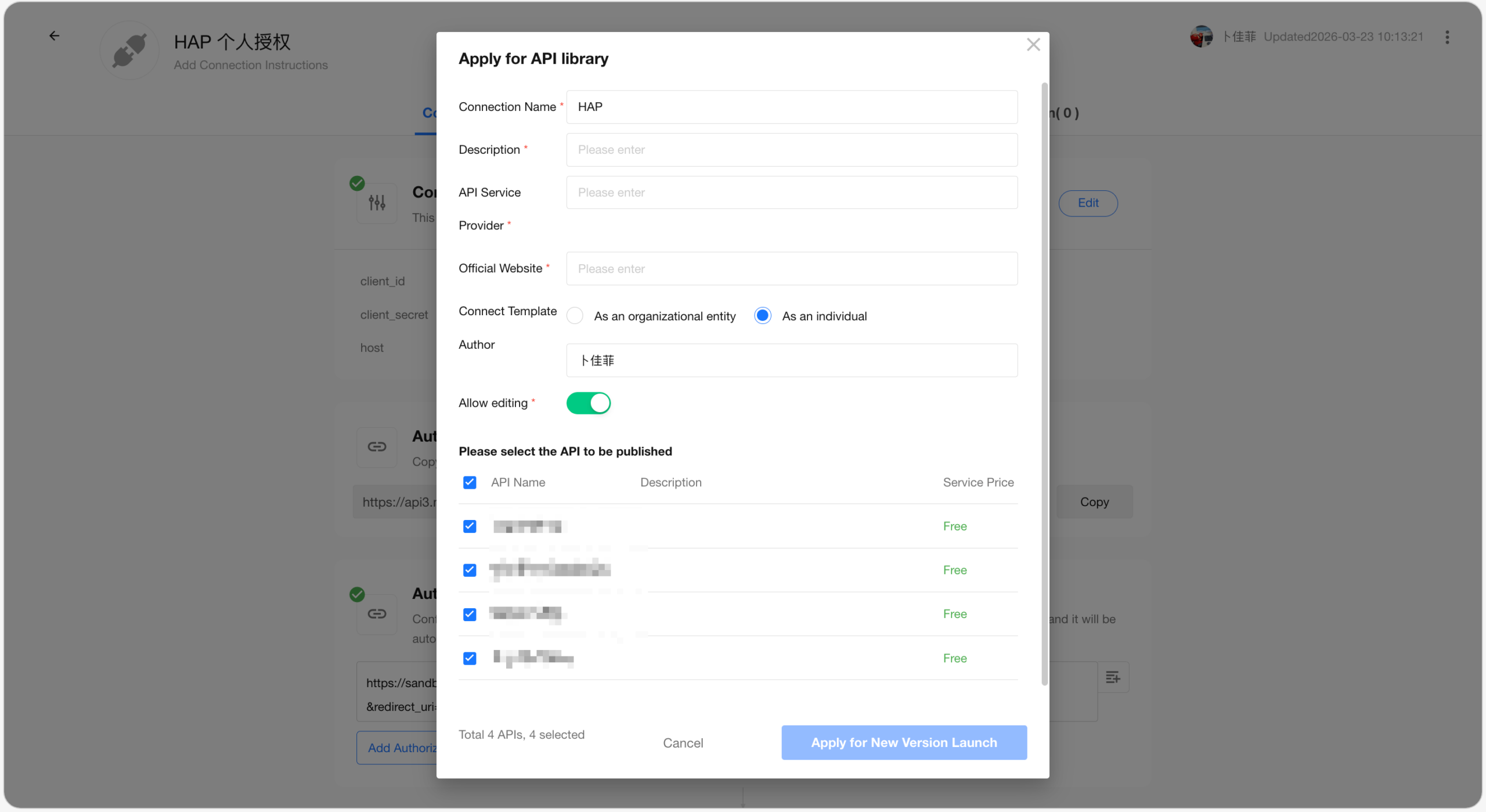
Editable Permissions for Connections in the API Library
Connections published to the API Library now support configurable edit permissions, enabling more flexible management of integrations.
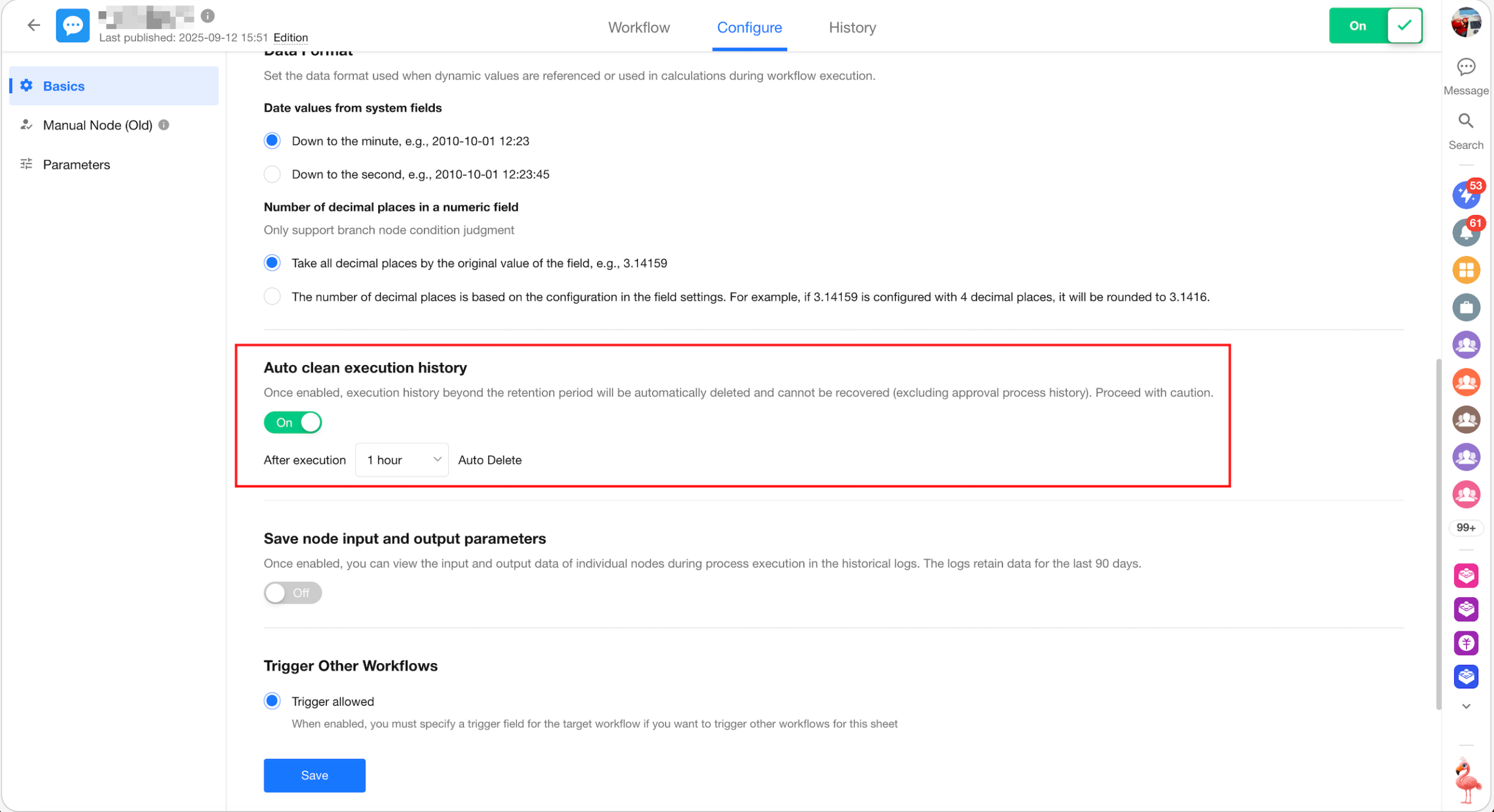
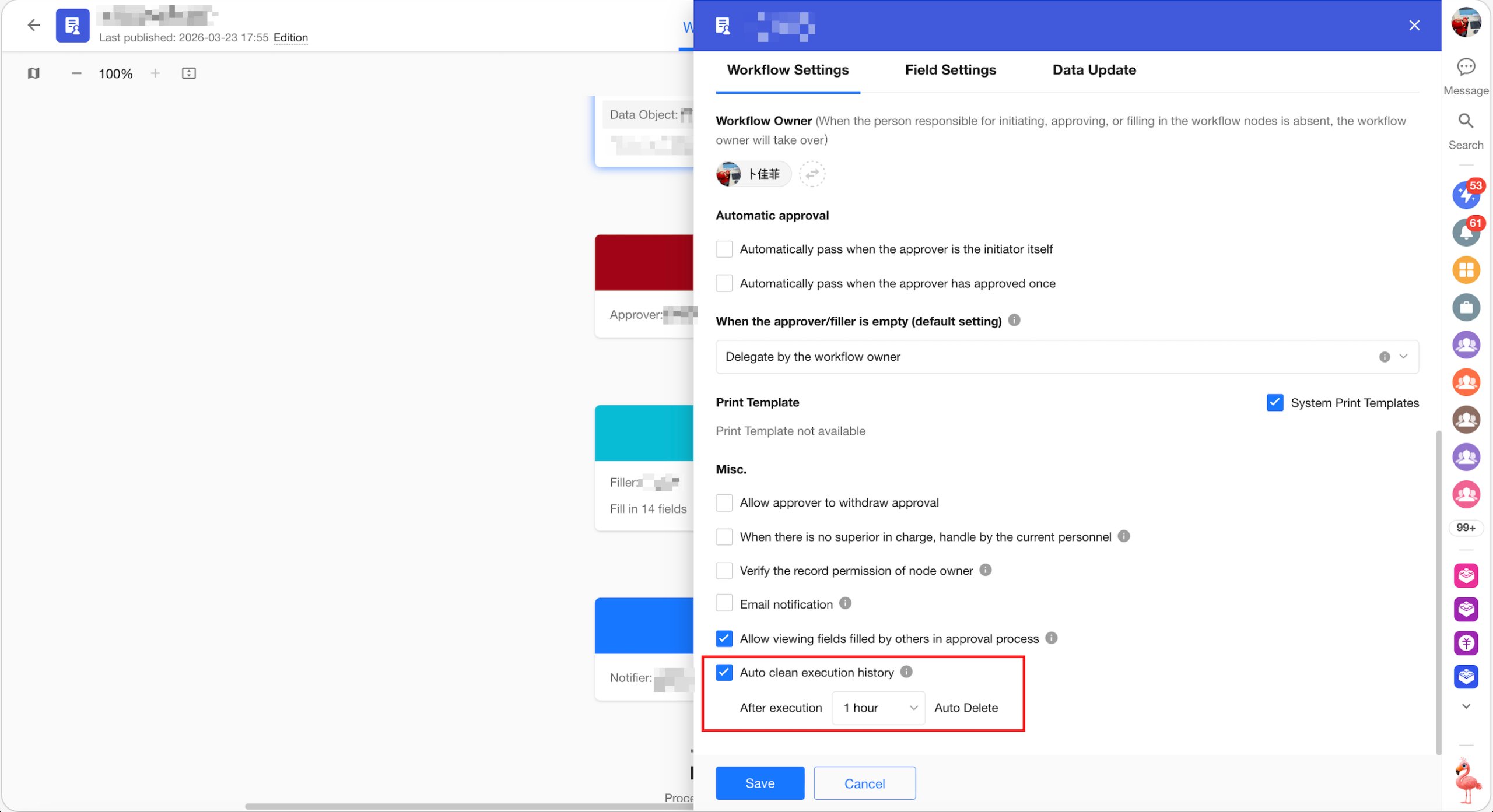
Log Auto-Cleanup for API Integration and Workflow
Auto-cleanup configuration for logs is now supported:
- For HAP Server, a toggle is available to enable or disable API integration logs
- In workflow settings, automatic cleanup of execution history can be enabled
- In approval workflows, log cleanup can be configured independently
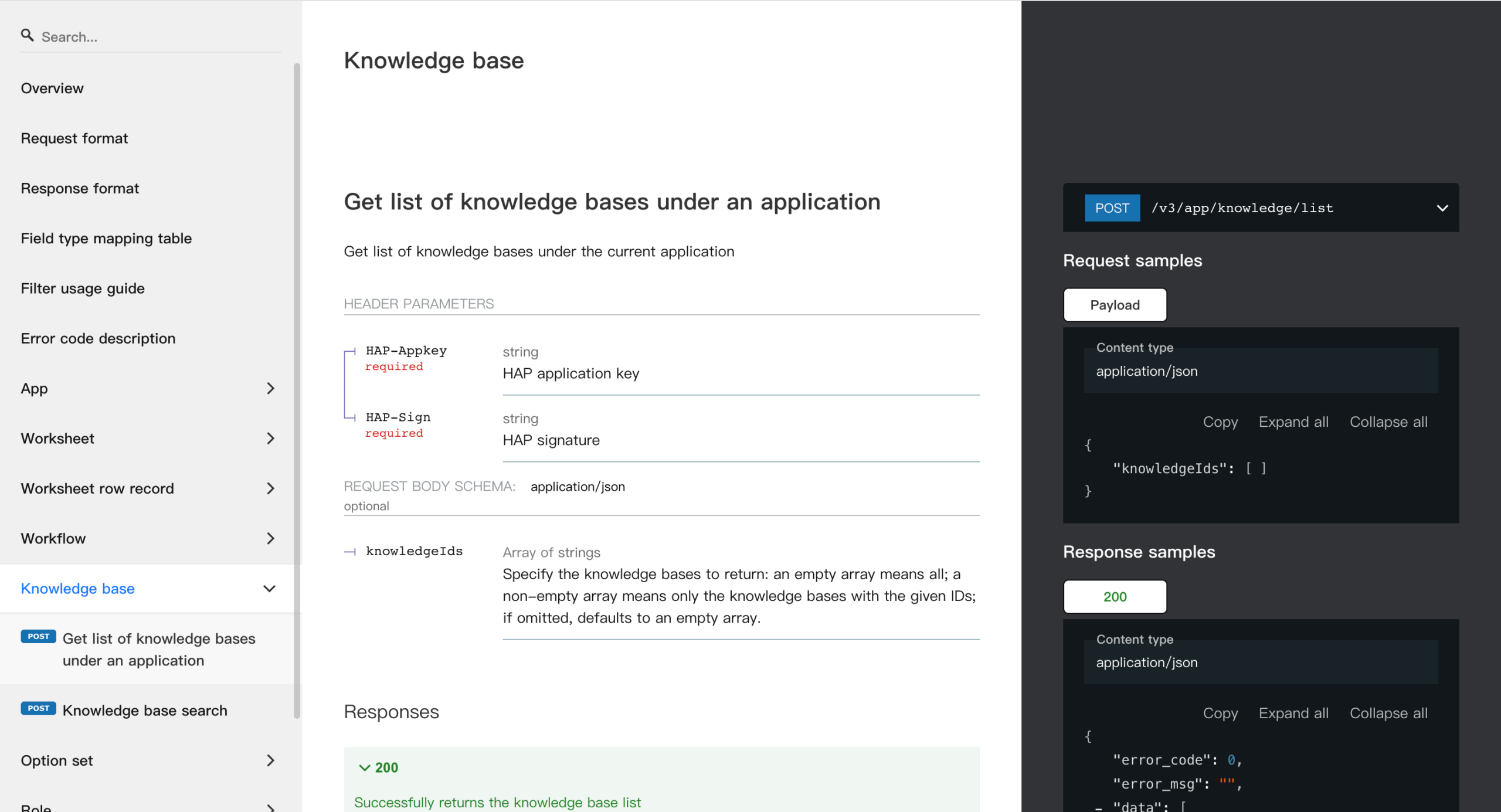
Application API (V3): Knowledge Base APIs
New APIs are available to:
- List knowledge bases within an application
- Perform knowledge base retrieval
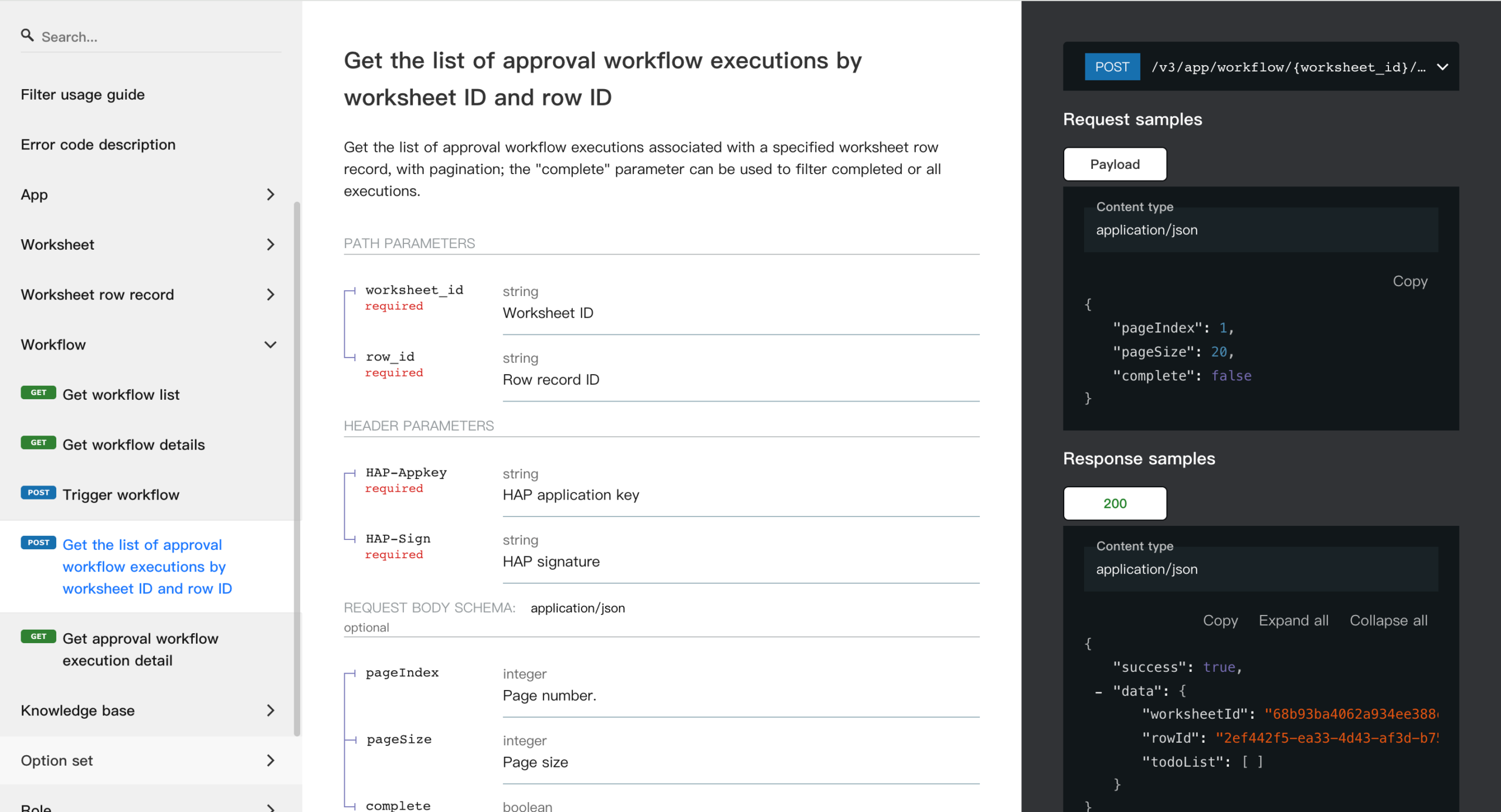
Application API (V3): Approval Workflow APIs
New APIs are available to:
- Retrieve approval workflow execution lists by worksheet ID and record ID
- Retrieve approval workflow execution details
Organization Management
Twilio Integration for Global SMS
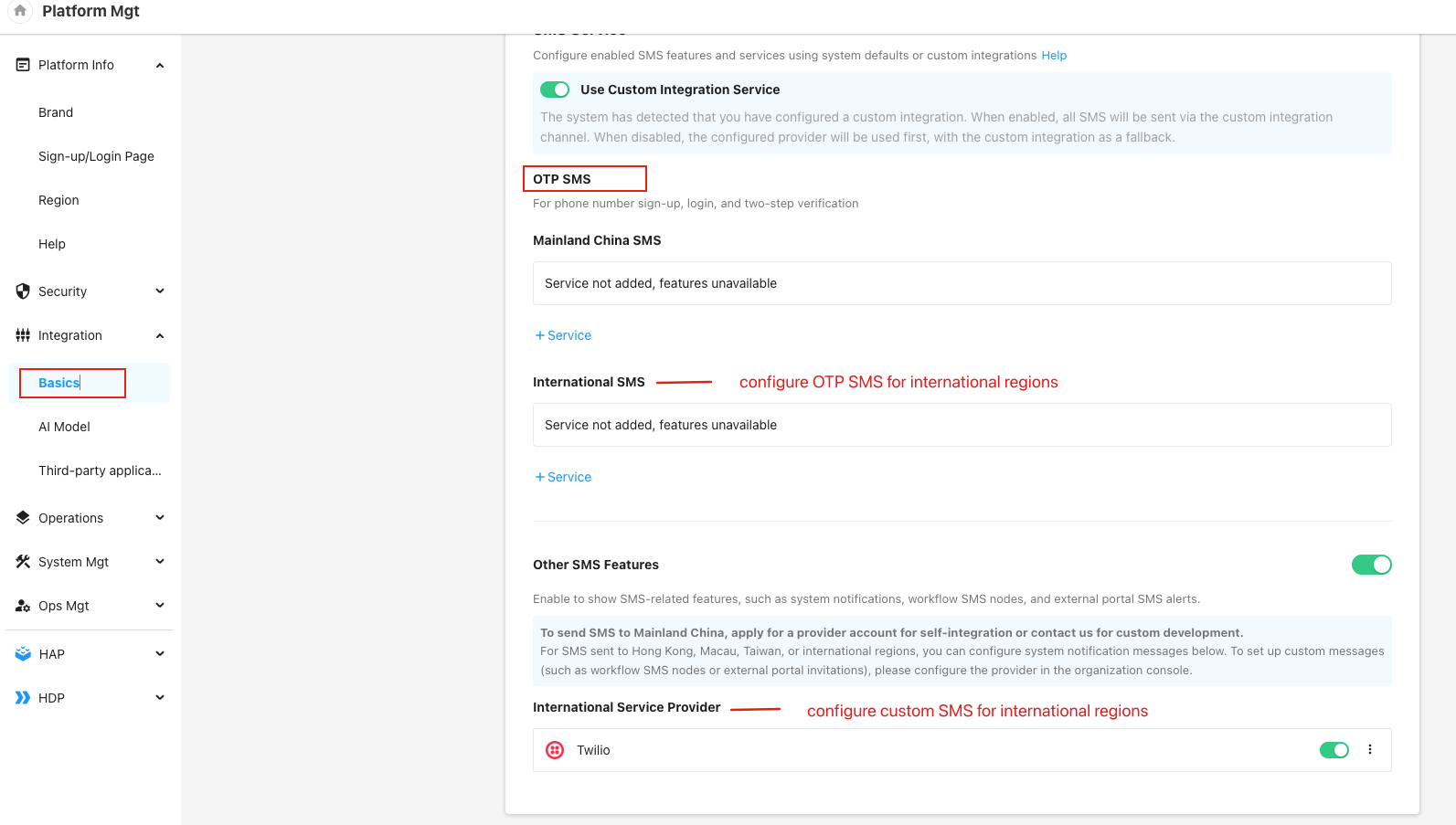
Twilio integration is now available to enable global SMS delivery.
- Configuration path (Application Platform Core / HAP Server): Platform Management → Integration → Basics → SMS Service
Configuration path (Organization Admin Console): Org Admin → Integration → System Services → Configure Twilio
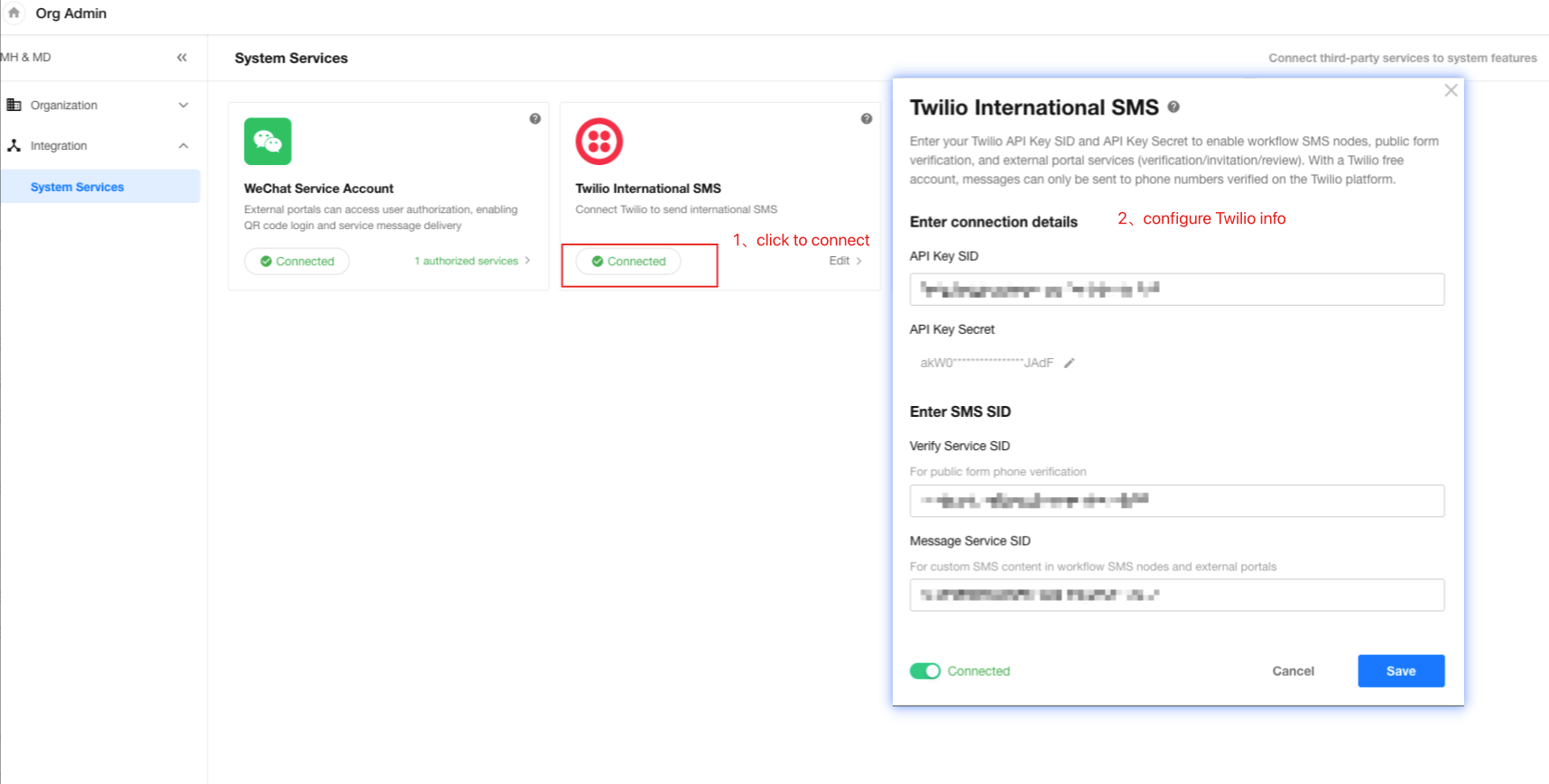
Pricing: SMS charges are billed by Twilio. Please ensure sufficient balance in your Twilio account to avoid delivery failures.
Granular Permissions for Organization Administrators
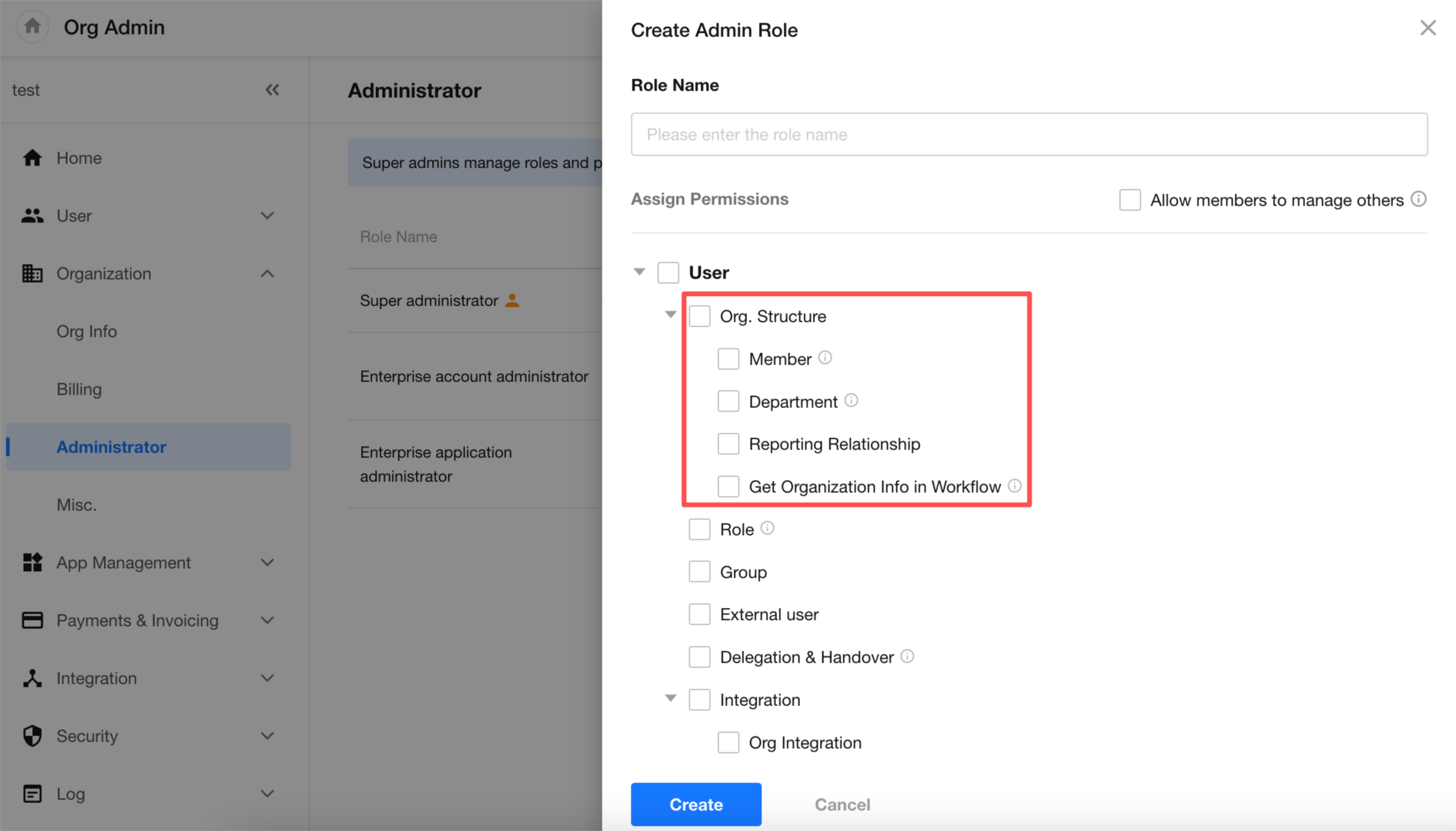
Refined Organization Structure Permissions
The original permission “Member, Department, and Reporting Relationship” has been renamed to “Organization Structure” and split into four independent sub-permissions:
- Member
- Department
- Reporting relationship
- Get organization info in workflow
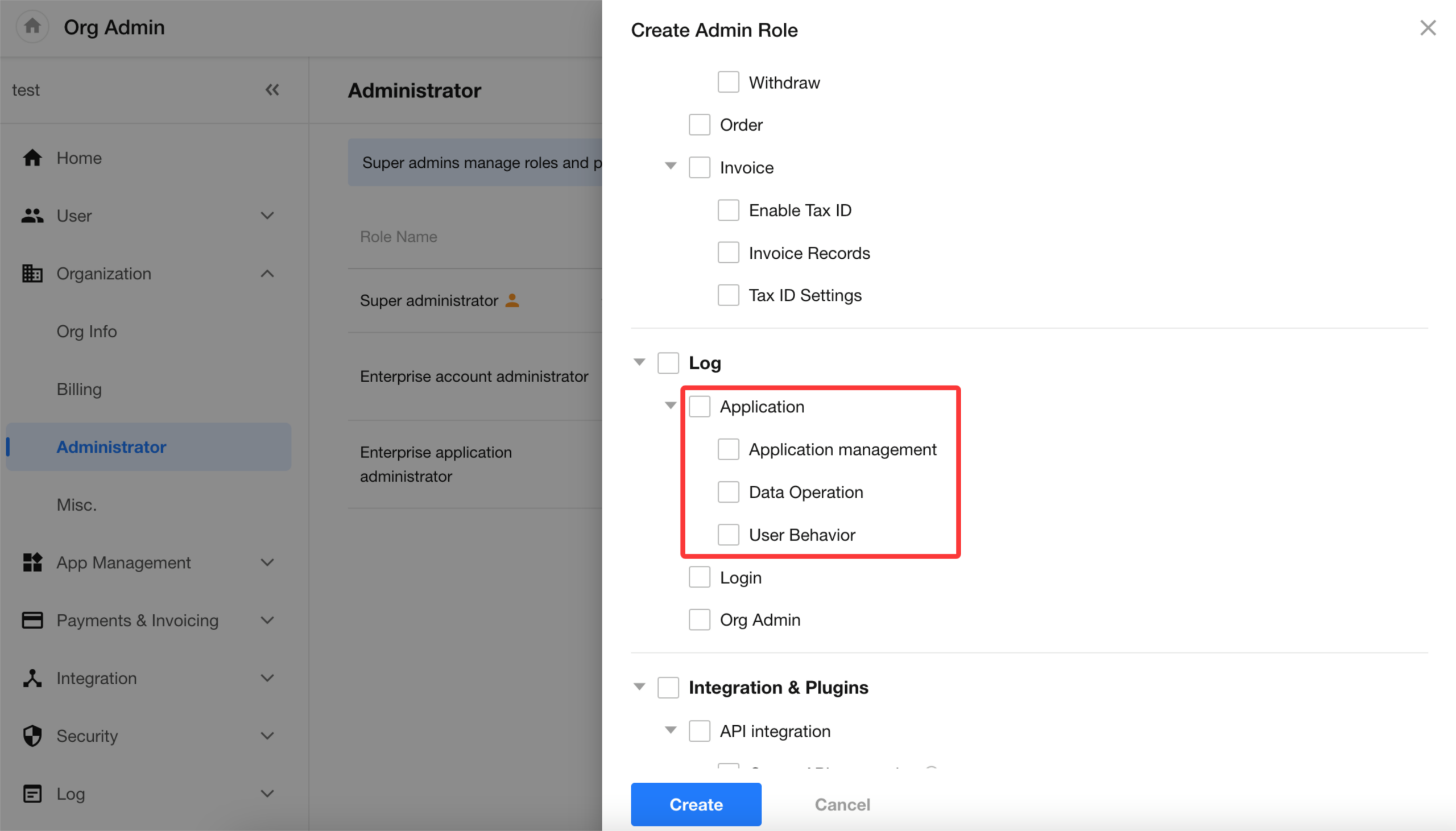
Refined Application Log Permissions
The application log permission is now split into separate sub-permissions:
- Application management
- Data operation
- User activity
AI Capabilities
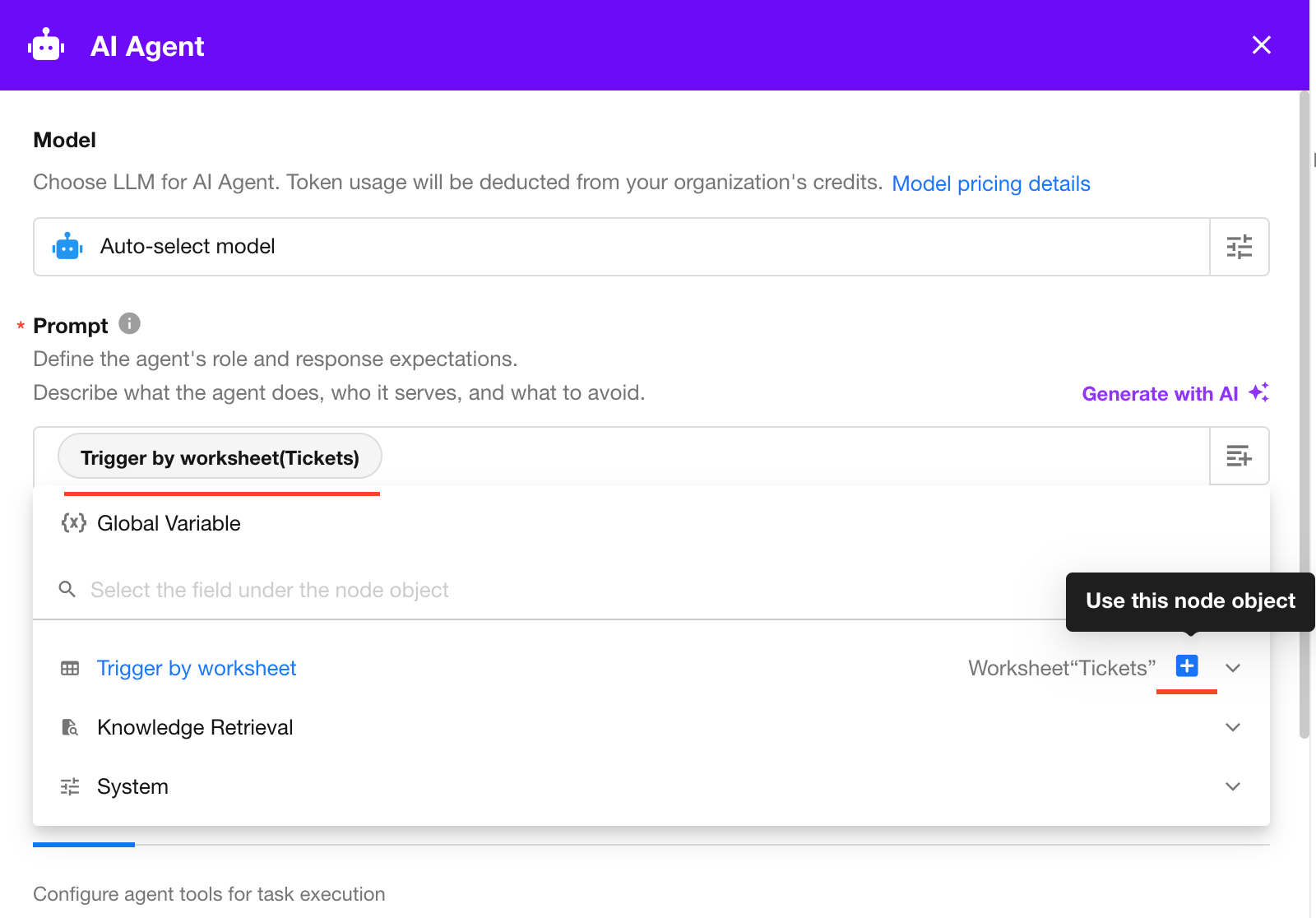
AIGC Node: Prompts Support Record References as Dynamic Values
Prompts in the AI Agent node now support referencing entire records as dynamic values, enabling more context-aware AI outputs.
All field data from the record (excluding attachments) is provided to the AI.
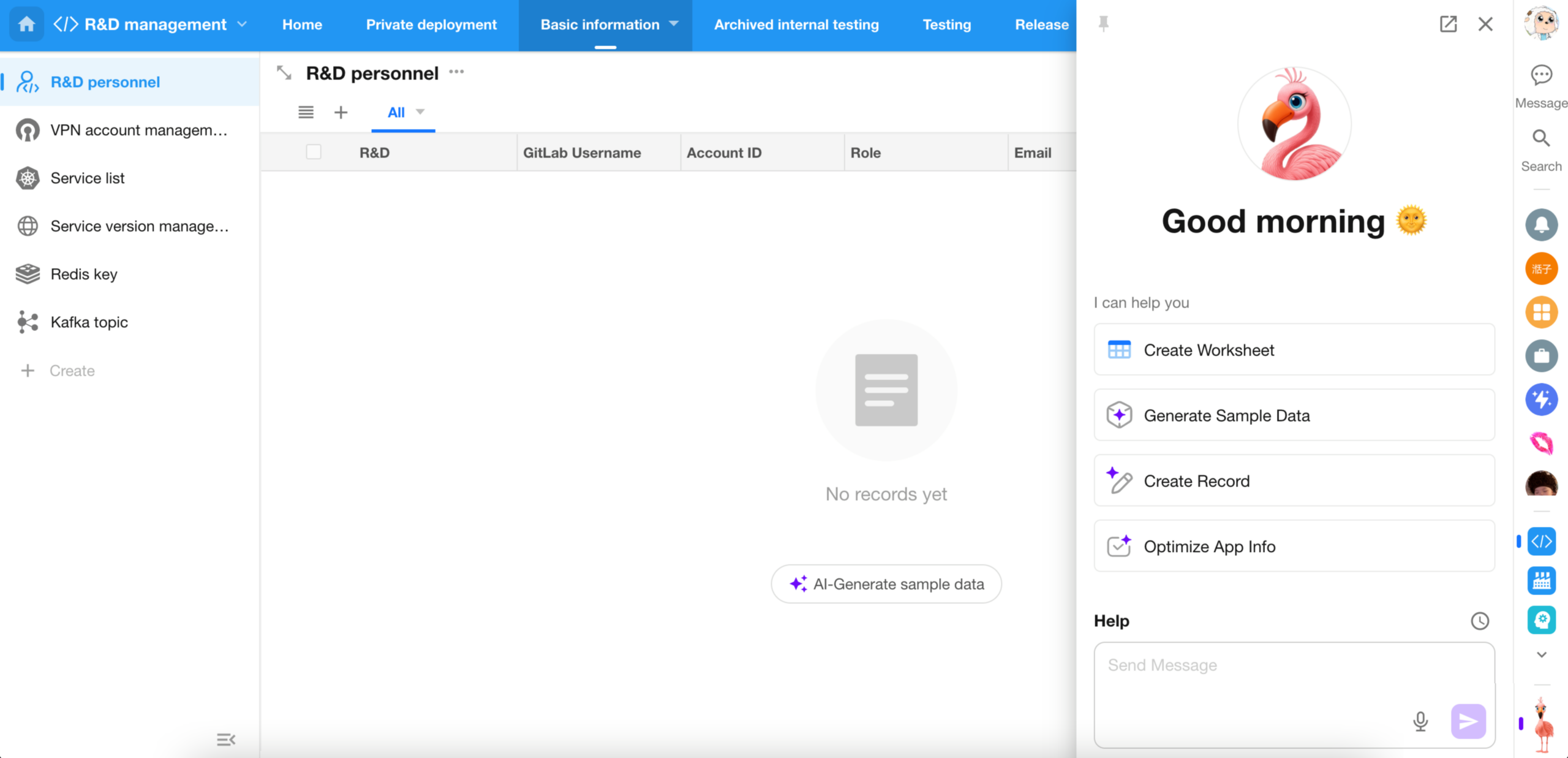
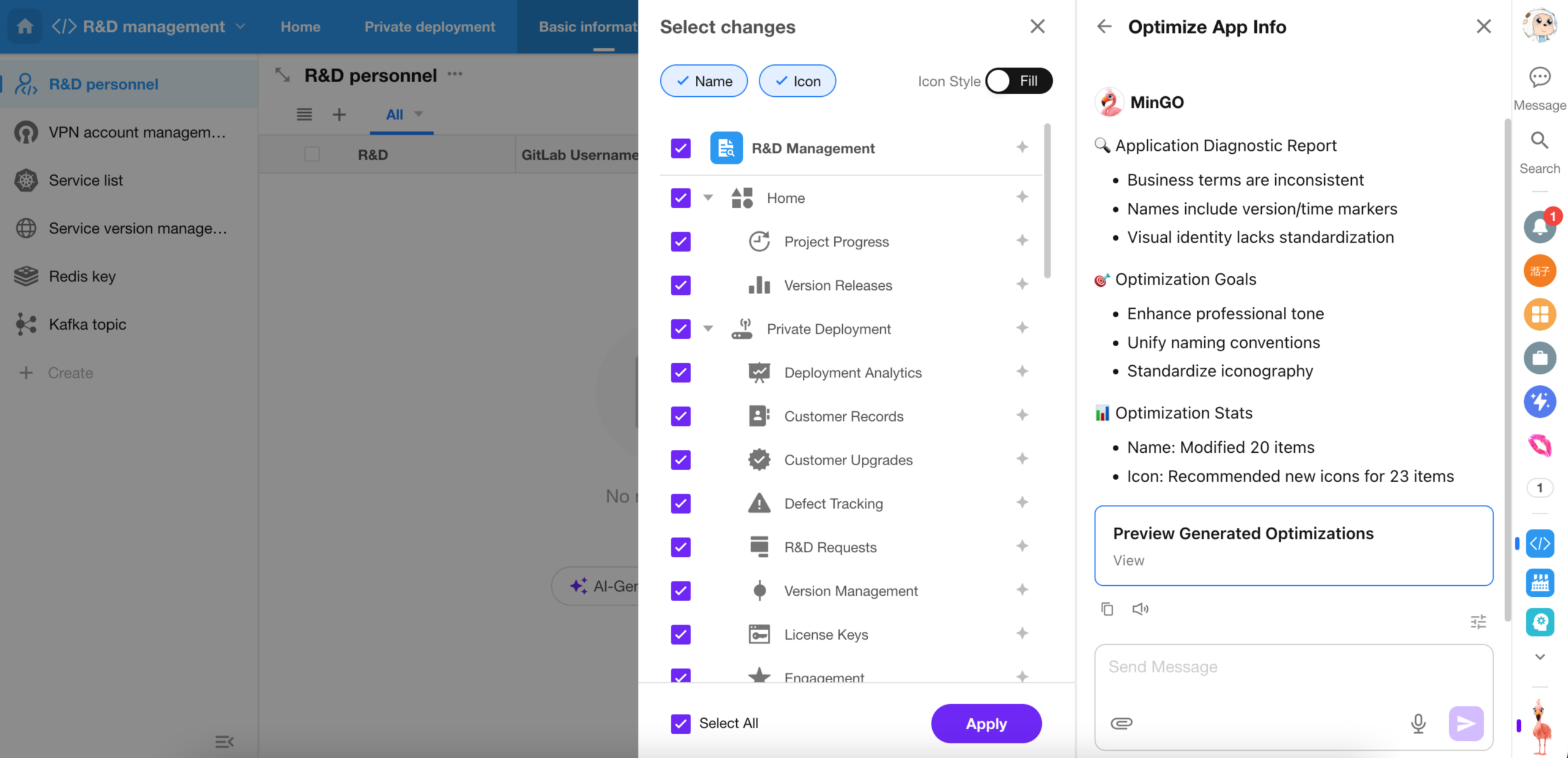
Mingo: Optimize Application Info
Mingo now supports optimizing application information, allowing AI to refine application names and icons.
Mingo Supports File Upload
Mingo now supports file uploads, enabling users to provide additional context and content for AI interactions.
H5 and Other Enhancements
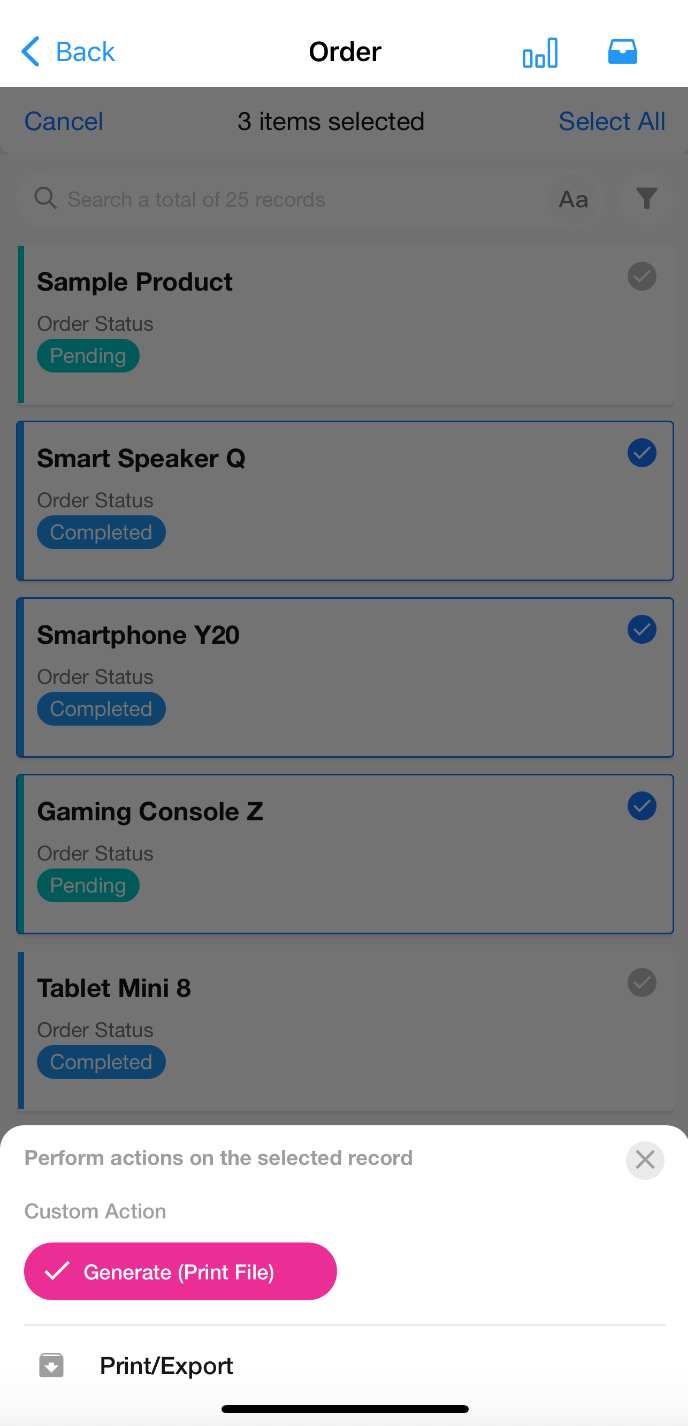
H5: Batch Printing
Supported template types: Excel / Word print templates
Note: Due to download compatibility limitations, this feature is only supported on mobile browsers and Feishu.
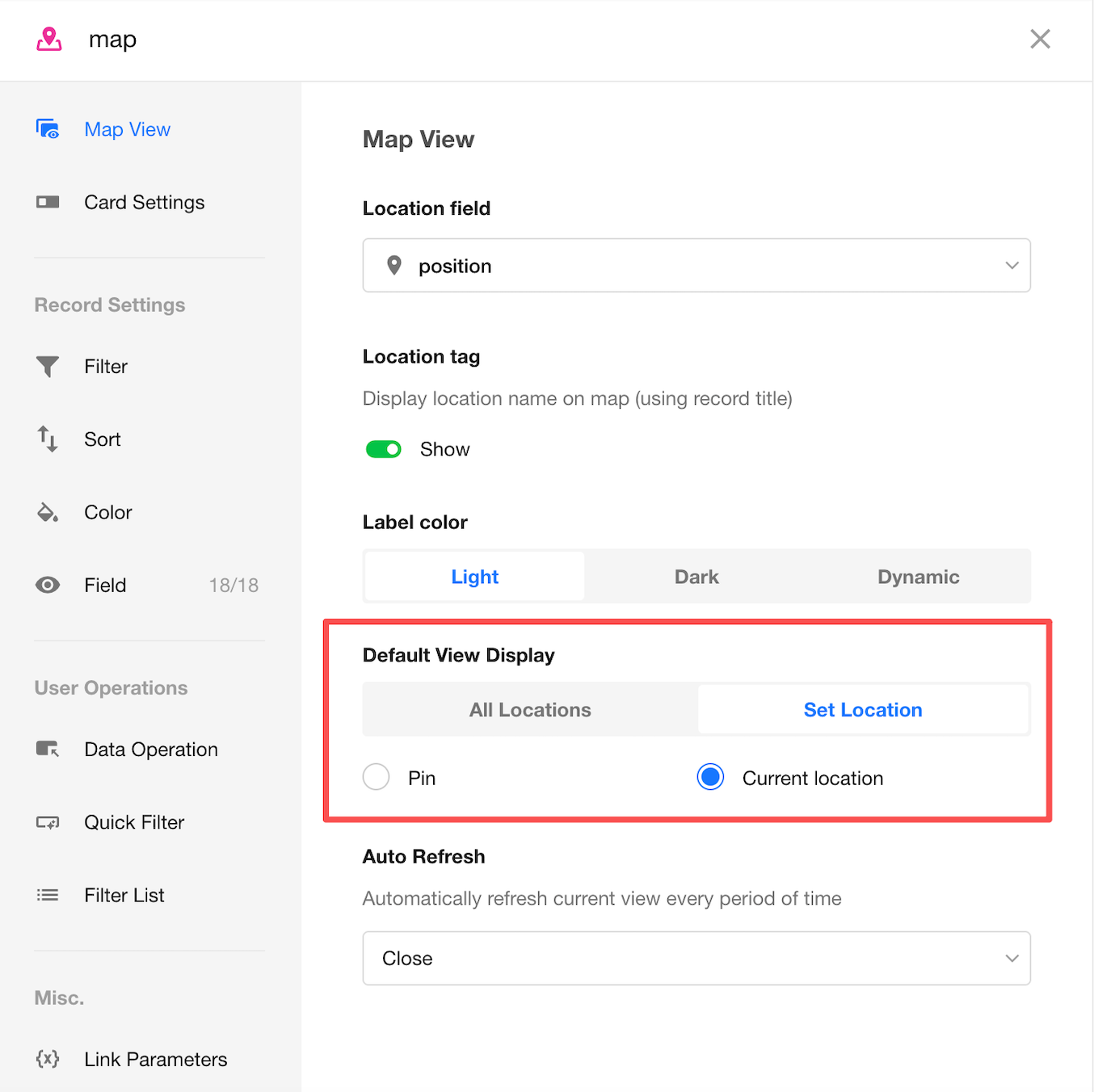
Map View: Initial Position, Current Location, and Zoom Level
This update enhances map view with improved positioning and display capabilities. It now supports setting an initial view location, persisting zoom levels, and creating records directly on the map.
Create Records on the Map:
- Click anywhere on the map to create a record. The system automatically writes the selected location’s latitude and longitude into the designated positioning field
- This feature is not supported on mobile
Zoom Level Persistence:
- The map view preserves the current zoom level and restores it when the view is reopened
Default View Settings:
- All locations (default)
- Specified location
- Fixed location: Uses the configured location as the map center
- Current location: Requests location permission when entering the view and uses the user’s current location as the map center
Location Permission Handling:
- If permission is granted, the current location is used as the center
- If permission is denied, Beijing is used as the default center
Map Service Support:
- Supports Amap (Gaode Maps) and Google Maps
- When using Google Maps, HTTPS is required to access the current location; otherwise, a default city is used
Custom Page: New Configuration Options for View Components
This update enhances view component configuration in custom pages by adding independent controls for filters, drafts, and import entry points. Administrators can flexibly enable or disable these capabilities based on the page’s purpose.
The following configuration options are added to view components in custom pages:
- Filter: enabled by default
- Draft: enabled by default
- Import: disabled by default
- When enabled, the import feature is available within the view component
- Imported data follows the same structure as the worksheet
When a custom page is shared, these three entry points are hidden in the view component.
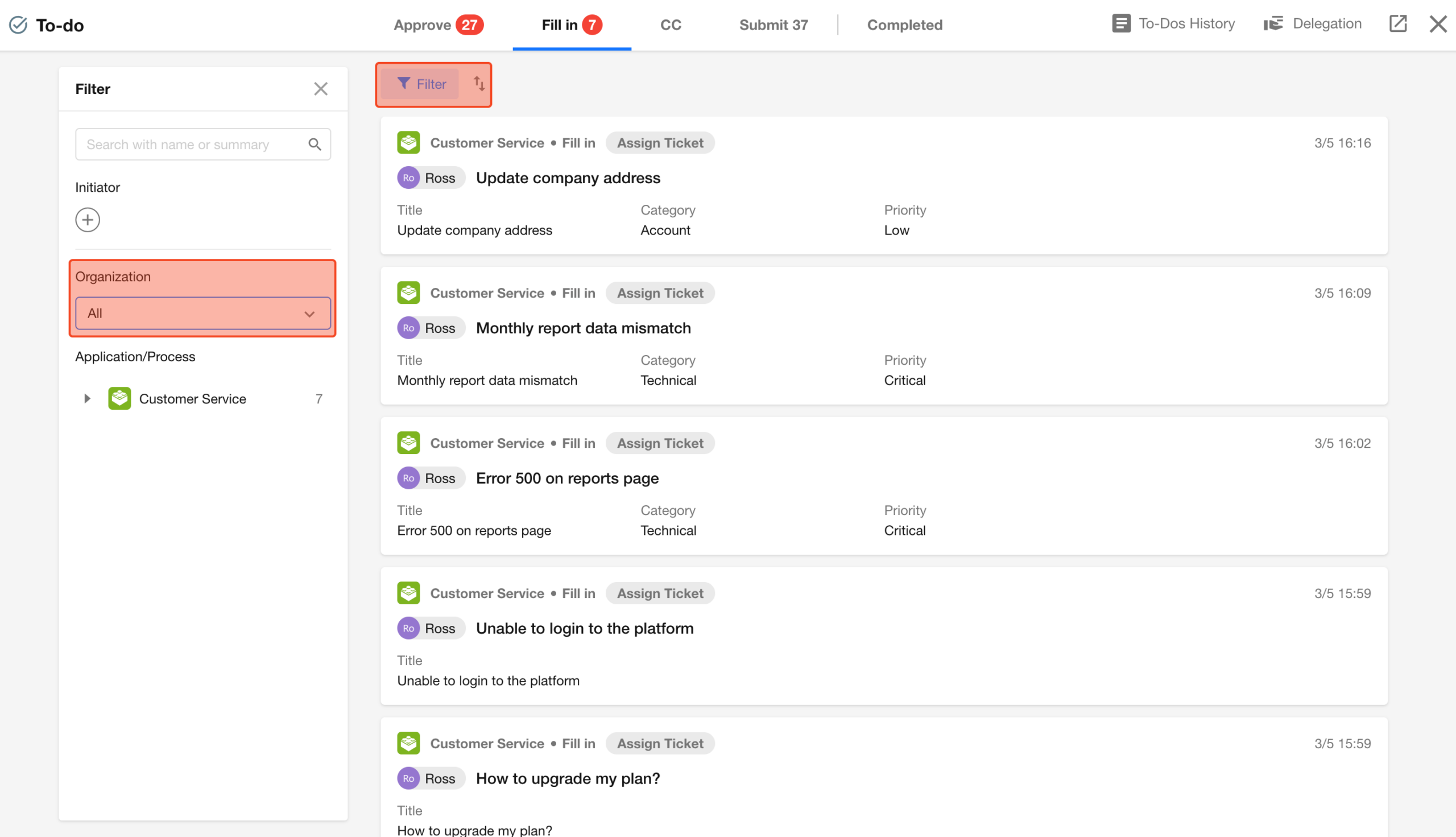
Workflow To-Do: Filter by Organization and Sort by Time
Workflow to-do items now support filtering by organization, making it easier to locate and process relevant approval tasks.
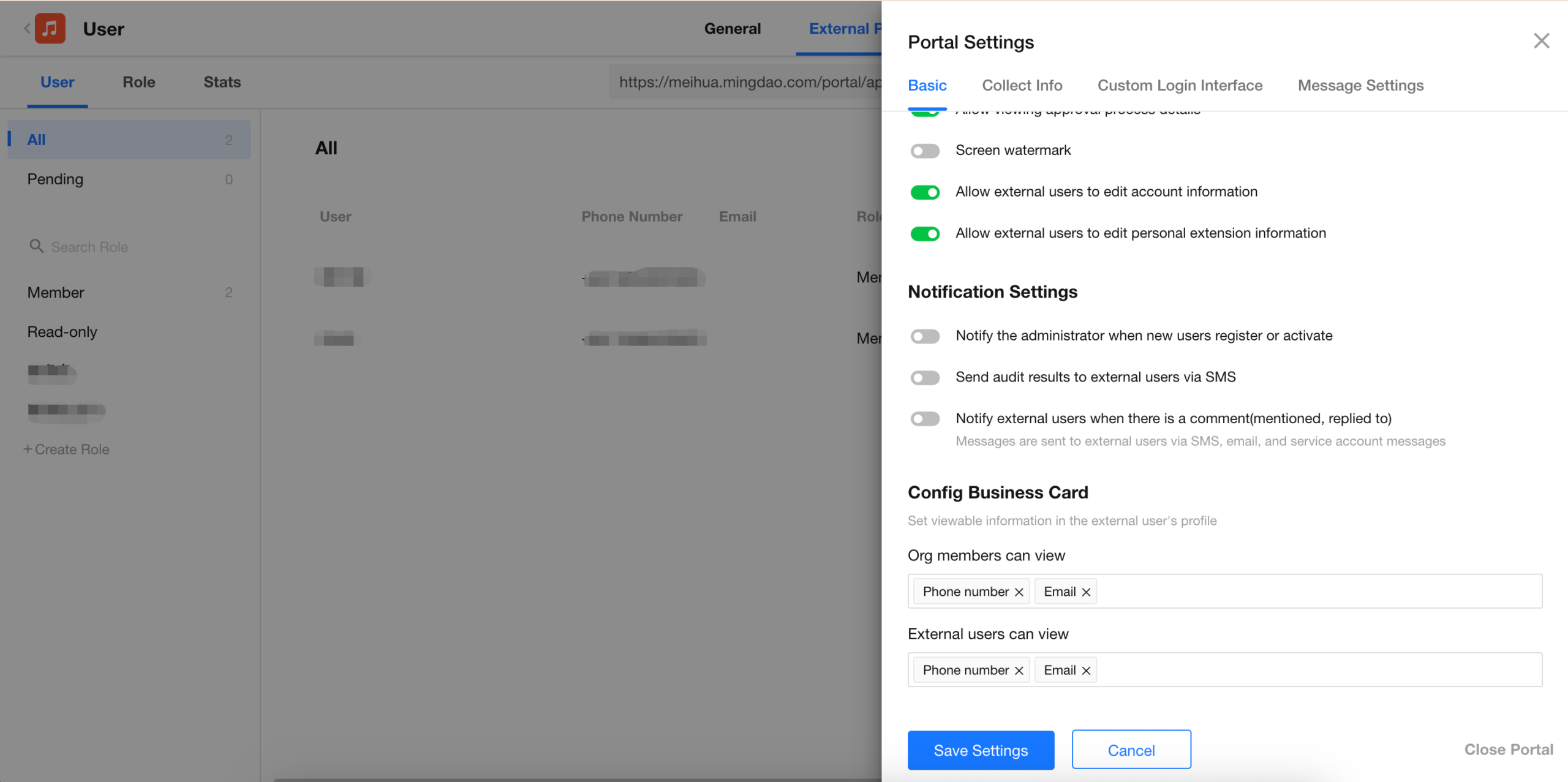
External Portal Enhancements
Two new configuration options are added to external portal settings for managing external users:
- Control whether external users can edit account information
- Control whether external users can edit extended profile information
These enhancements provide greater flexibility for managing user information across different scenarios.
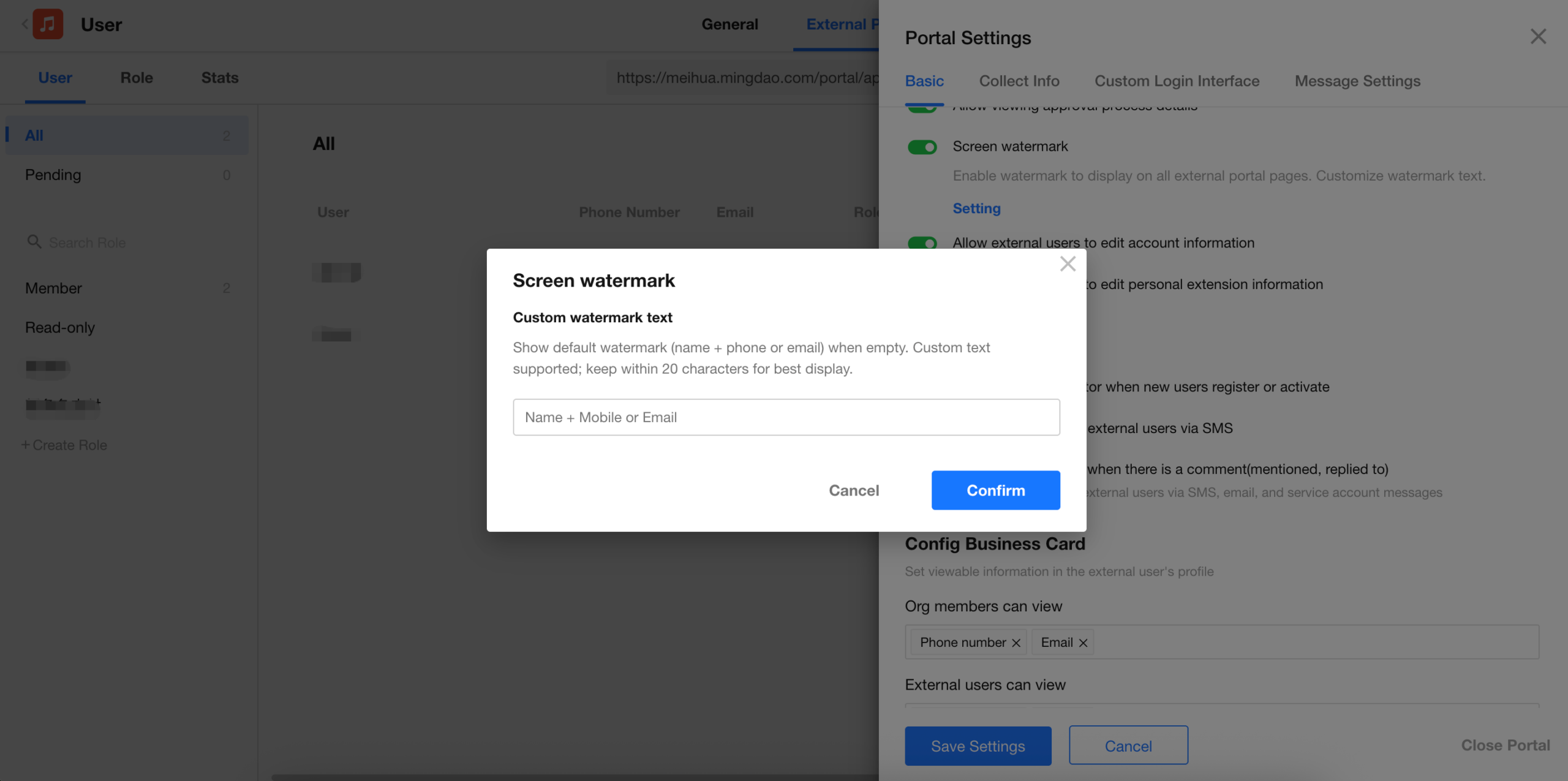
Screen watermark in the external portal now supports custom text. Users can define their own watermark content to enhance data protection while supporting branding needs.
HAP Server: Restrictions on Organization Admin Actions
In HAP Server, organization account administrators cannot modify the password, name, email, or phone number of organization super administrators.
View Plugins: UI Components for Record Import and Export
View plugins now provide UI components for record import and export, along with theme configuration options.